Troubleshooting
Problem
Serial over LAN (SoL) troubleshooting information.
Resolving The Problem
- To begin troubleshooting, check the following top issues. If your issue is listed, select the link, otherwise proceed to step 2.
The IBM BladeCenter management module command-line interfaces provide access to the text-console command prompt on each blade server through a Serial over LAN (SOL) connection, enabling the blade servers to be managed from a remote location.
SoL is a "virtual" serial connection over Ethernet. SoL overcomes the limitations posed by a blade server with no video controller, as well as offering an alternative way of connecting to an operational blade server. SoL provides a conduit between the H8 microcontroller (the blade server's Service Processor), the MM Ethernet controller and a management workstation. These components are core to the creation of a working SoL session.
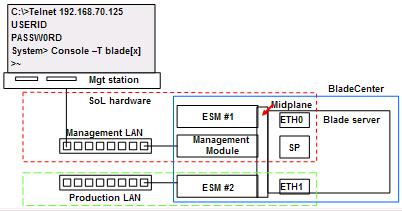
In addition, the ESM in switch bay #1 is used to create the path from management station to blade server. Although it is possible to have concurrent SoL and regular Ethernet traffic across the ETH0 port of the blade server, it is not recommended as there is a tendency for the SoL session to drop, due to traffic volume. The "production" network will typically be configured to use ESM #2 and the ETH1 Ethernet controller of the blade server.
- Ensure that SoL has been enabled for both the Management Module (MM) and the blade server itself. After making changes, save and restart the MM. It is important to save configuration changes and restart the MM. Failure to restart MM may result in SoL not working.
Note: For some blade servers, operating system and BIOS settings must be changed for SoL to work.
When SoL is enabled, the MM sends a request to the ISMP (Service Processor) of the Blade Server via VLAN #4095, ESM #1 and Eth0 of the blade server. ISMP receives all serial data from the Blade Server Open Firmware and sends it to the ESM via Eth0. The ESM tags all serial packets and sends them to Management Module via VLAN #4095 (this uniquely identifies serial traffic). The Management Module sends the last 8KB (size of the serial buffer) of serial data and all subsequent serial data.
- Make sure that the Ethernet switch module in slot 1 is SoL capable, and that all of the SoL requirements are met. Requirements to deploy SoL are:
- A supported Ethernet switch module (ESM) in bay #1
- HS20 blade servers support SoL with an ESM in bay #2 (Jumper J28 on HS20 must be set to pins 1 & 2)
- Supported firmware levels on MM, ESM and blade servers
- SoL must be enabled for the target blade server
- Management station with a Telnet client application
The hardware must be in place as listed above and a suitable client application must be available in order to logon to a Telnet session hosted by the MM. If any part of this list is not met, the SoL session will fail. Once connected, the blade server can be managed remotely for system build as well as for remote problem isolation.
Note: The JS20 blade server requires SoL in order to work properly. As the JS20 server blade has no video controller, it is not possible to focus the BladeCenter KVM on to a JS20 blade server. In order to perform any tasks at all on the JS20 blade server, including installing a NOS, SoL is a required technology.
- Ensure your operating system supports SoL. Not all operating systems support SoL. Configuration steps are required on some models (eg. HS20 running Linux or Windows Server 2003)
- Microsoft Windows 2000 Server is not supported
- Linux and Microsoft Windows Server 2003 are supported on HS series server blades
- AIX and Linux are supported on JS20 server blades
- Ensure Telnet to MM is functional. If Telnet fails, logon to the MM Web interface and reapply SoL settings (and reboot the MM). Telnet to the IP address of the MM and log in. If the Telnet session fails to start, reverify ALL MM SoL settings and reboot the MM. To start an SOL connection with a blade server, you must first start a Telnet command-line interface session with the management module. When this Telnet command-line interface session is running, you can start a remote-console SOL session with any blade server in the BladeCenter unit that is set up and enabled for SOL operation. You can establish up to 20 separate Telnet sessions with a BladeCenter management module. For a BladeCenter unit, this enables you to have 14 simultaneous SOL sessions active (one for each of up to 14 blade servers) with 6 additional command-line interface sessions available for BladeCenter unit management. For a BladeCenter T unit, this enables you to have 8 simultaneous SOL sessions active (one for each of up to 8 blade servers) with 12 additional command-line interface sessions available for BladeCenter unit management. If security is a concern, you can use Secure Shell (SSH) sessions to establish secure Telnet command-line interface sessions with the BladeCenter management module before starting an SOL console redirect session with a blade server.
- Start a SoL session to an enabled blade server. Start SoL session to the desired blade from MM prompt.
The command is: console –T system:blade[X]
(where X = blade server slot 1 through 14).
It may be necessary to press the enter key several times to get a prompt from the blade server. Log in using the user ID and password for the operating system. If SoL works for one blade server and not another, the BladeCenter is correctly configured but a blade server may not be. If no blade server responds to a SoL session request, the fault may lie with the BladeCenter MM. In both cases, double check all SoL settings and reboot the MM before attempting a new Telnet/SoL session.
- Verify SoL configuration.
- Make sure that the global SOL parameters are correct for your BladeCenter unit.
- Make sure that the SOL settings for individual BladeCenter components are correct.
- Start the BladeCenter management-module Web interface.
- Complete the following steps to enable SOL on the blade servers:
- In the navigation pane, click Blade Tasks, then Serial Over LAN; then, scroll to the Serial Over LAN Status section.
- Select each blade server that will have SOL enabled; then click Enable Serial Over LAN. The SOL column of the table will show a status of Enabled for each of the blade servers that was selected. The SOL Session column of the table indicates a status of Not Ready for each of the blade servers that was selected.
- Complete the following steps to power-on or restart the blade servers on which SOL was enabled:
- In the navigation pane, click Blade Tasks, then Power/Restart.
- Select each blade server on which SOL was enabled; then, click either Power On Blade or Restart Blade, depending on the current status of the blade servers.
- Click OK twice to confirm.
- Complete the following steps to check the SOL status of the blade servers:
- In the navigation pane, click Blade Tasks then Serial Over LAN; then, scroll to the Serial Over LAN Status section.
- Make sure that the SOL Session column of the table shows a status of Ready.
Note: For the BladeCenter HS20 (Type 8832) blade server, if the SoL Session column does not show a status of Ready, make sure that the J28 jumper on the blade server is in the correct position. Refer to the Serial over LAN setup guide (below).
- If SoL will not come Ready for HS20 and HS40 Blade Servers:
- Verify that the MM VLAN is set and that blade servers are enabled for SoL
- Restart the MM after SoL configuration changes
- Ensure the ESM sees ports to blade servers as connected. If ports to blade servers show not connected, reboot blade servers that are showing not connected.
- Verify switch configuration:
- Is SoL VLAN created and matches the VLAN set on MM?
Run command: show vlan
(e.g. using Cisco Telnet interface) - Is SoL VLAN being carried on blade server ports?
Run command: show run int g0/X
(where X = 1 through 14, slot to be checked) - Is SoL VLAN being carried on port to MM?
Run command: show run int g0/15
- Is SoL VLAN created and matches the VLAN set on MM?
- If SoL will not come Ready for JS20 Blade Servers:
- Restart the MM after making SoL changes
- Ensure that the ESM sees ports to JS20 as connected (On CIGESM, run the command: show int status)
- Older AIX drivers will fail to bring up links after a switch restart. The new version of AIX driver reSoLves this issue.
Note: If SoL intermittently toggles between “Ready” and “Not Ready” for JS20 Blade Servers, check the JS20 Broadcom firmware to ensure it is version 2.30 (or higher). To do this under AIX: lscfg –vpl ent0 (ROM Level should be no lower than 03210230)
- If using a Cisco ESM, verify the CIGESM "rules" for SoL:
- To use VLAN IDs greater than 1005, CIGESM must be in VTP Transparent mode
- The SoL VLAN ID can not be 1002 – 1005
- VLANs 1 and 2 are default VLANs on the CIGESM and should not be used for the SoL VLAN
- Do not use the VLAN between the CIGESM and the MMs
- VLAN ID must match the SoL session defined in the MM
- SoL VLAN must be carried to the blade server. If blades will be on a single VLAN:
- Do not set port for access if SoL will be required
- Set port to trunk and set Native VLAN to desired access VLAN
- Set SoL VLAN to be allowed on trunk to blades
- Verify that minimum firmware requirements are met for SoL to function. Download the latest Firmware for MM and ESM, Ethernet and SP firmware and drivers on the blade server. See the compatibility pages for supported combinations for SoL.

Download the latest BladeCenter support software
- Consult the available product documentation:

Serial over LAN Setup Guide
- If these steps have not solved your problem:
Refer to your system's Hardware Maintenance Manual, or refer to "Need more help?"
| Support forums |
| Submit a technical question |
| Before you call IBM Service |
Document Location
Worldwide
Was this topic helpful?
Document Information
Modified date:
29 January 2019
UID
ibm1MIGR-59728