App icons
While app icons follow the same usage conventions as IBM UI icons when used in product and web platforms, there are differences when they’re used in native OS applications and app store environments. Check the gallery of existing app icons before designing a new one to avoid confusion with similar icons already in use.
Sizing
For effective use in product interfaces, app icons are optimized for four core sizes: 16px, 20px, 24px and 32px. These sizes ensure clarity and consistency in functional contexts. For more expressive applications, such as marketing, icons may be used at 48px and above. To maintain visual integrity, always use icons at their original sizes or scale them using approved size increments as described below.

| Icon sizing | |
|---|---|
| For productive use in product, app icons work best in four sizes: 16px, 20px, 24px and 32px. For expressive use, 48px and above may be used. |
| Icon size | Stroke width | Padding | Live area | Corner radius |
|---|---|---|---|---|
| 16px | 1px | 1px | 14px | 1px |
| 20px | 1.25px | 1.25px | 17.5px | 1.25px |
| 24px | 1.5px | 1.5px | 21px | 1.5px |
| 32px | 2px | 2px | 28px | 2px |
| 48px | 3px | 3px | 42px | 3px |
| 64px | 4px | 4px | 56px | 4px |
| 80px | 5px | 5px | 70px | 5px |
| 96px | 6px | 6px | 84px | 6px |
| Sizing specifications | |
|---|---|
| Use icons at their original sizes or scale at accepted increments. Refer to the table for recommended adjustments to icon stroke width, padding, live area, and corner radius. |
Alignment
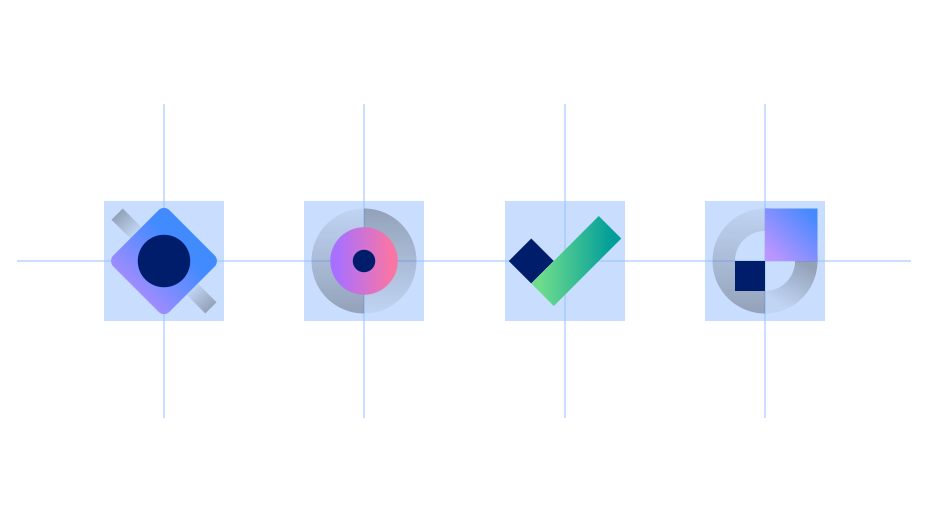
App icons are optically aligned to the center of the icon grid within the boundary box. Centering ensures all icons will be aligned correctly when exported and used side by side.
Containers
App icons can be represented in a circular or rectangular container calculated based on the padding size.
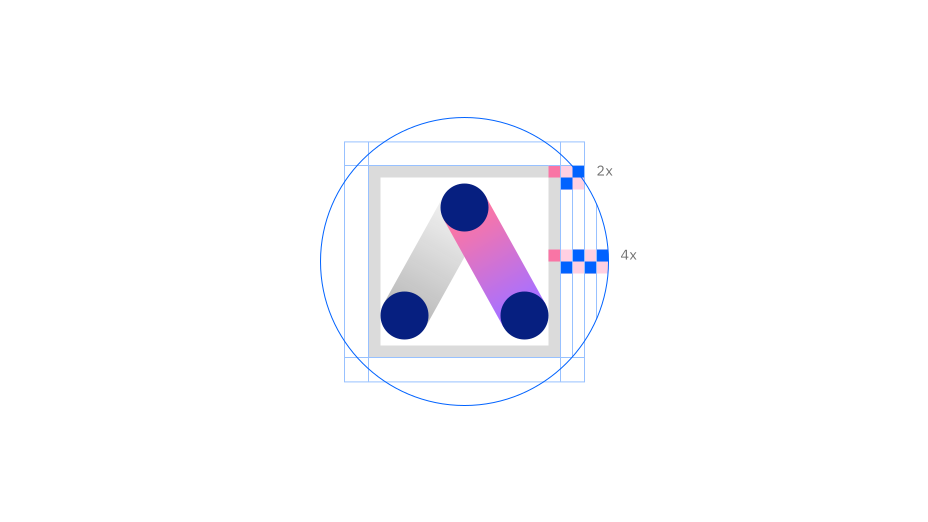
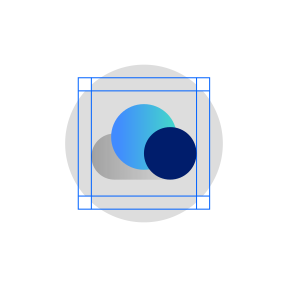
Keep icons at scale and centered within the container.
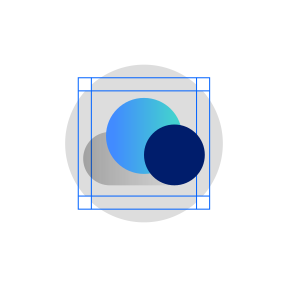
Don’t resize icons outside of accepted proportions.

Only use circle or square shapes for containers.

Don’t create new shapes for containers.

Always center align icons in their containers.

Don’t crop icons inside containers.
Containers for native operating systems
Icons for native operating systems appear in a variety of contexts, such as task bars, user-customized wallpapers, notifications, system preferences, favicons and more. In most systems, a background container shape is needed to provide proper contrast against the large variety of backgrounds. Check the requirements of the operating system your product will be published on to determine whether your icon should have a container shape. Design recommendations for favicons can be found within the guidance for Carbon for IBM Products.

In most cases, containers are needed for icons that appear in native operating systems.

Don’t use containers within the product itself. The icon will be too small.
Android adaptive icons
Android app icons have user-customizable masks as container shapes and make use of foreground and background layers to achieve parallax effects. You can separate your icon’s elements into the two layers to make use of this feature.

Clearance
When designing with app icons, all artwork should include minimum padding based on 1/4 of the scaled icon grid size. The padding can be increased by increments of 1/4 grid units.


Follow the clearance rule to allow for legibility and an optimal touch experience.

Don’t collapse the icon clearance area.
Color
App icons are created in four themes: dark theme, light theme, monochromatic dark theme and monochromatic light theme. To ensure accessibility, use the color theme that corresponds with the icon’s background color.

| Background color value | Icon theme |
|---|---|
| White, 10–20 | Light theme |
| 30–50 | Monochromatic light theme (Black) |
| 50–80 | Monochromatic dark theme (White) |
| Black, 90–100 | Dark theme |

Use the correct icon theme for the background color.

Don’t use the incorrect icon theme.
Monochromatic icons
In some limited use cases, you may need a single-color app icon. Generally, these icons are used when the icon appears on a color background or in situations when the icon shouldn’t call attention to itself with color, such as disabled states.
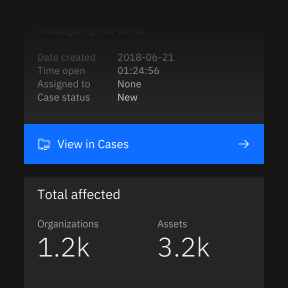
Use monochromatic theme icons on color fields.
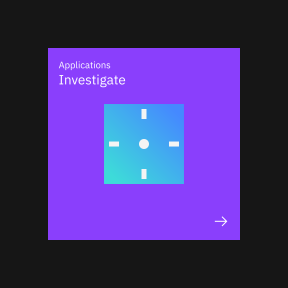
Don’t use dark or light theme icons on color fields.
Icon versus logo usage
App icons are not logos. It should be clear that any communication featuring an app icon is coming from the master IBM brand, never the product itself. Avoid using app icons in ways that convey the product as a brand.

Separate the icon and product name so they don’t appear as a single asset.

Don’t create lockups with the icon and product name.

App icons and logos may be used in the same composition with clear separation and hierarchy.

Don’t pair app icons with logos.
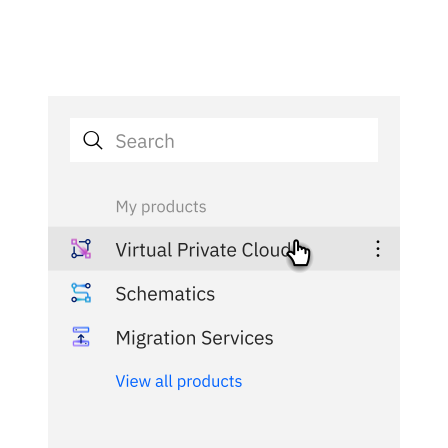
App icons may be used with type to identify a product or service in the context of a product or marketplace.
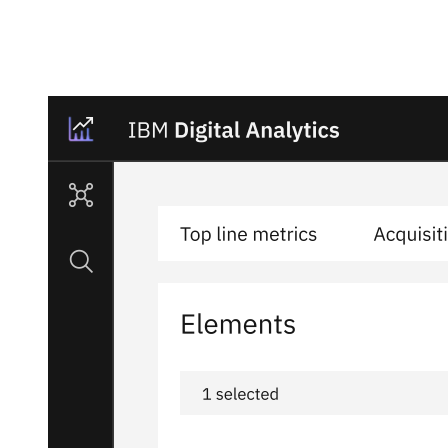
Don’t use app icons in product headers.
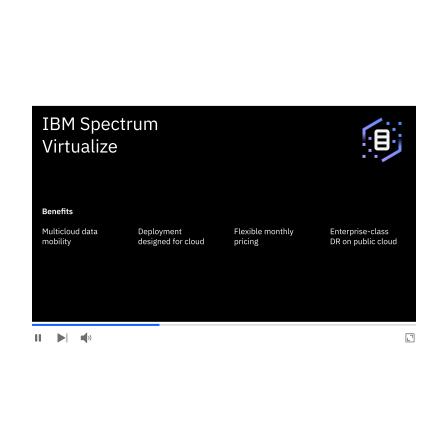
App icons may be used as hero graphics in videos or presentation slides.
Don’t use app icons as intros or outros in videos or presentation slides.

App icons may be used as hero graphics in marketing communications.

Don’t use app icons as a replacement for logos or as a sign-off in communications.

App icons may be used as hero graphics for merchandise.

Don’t use app icons as a replacement for logos or as a sign-off on merchandise.
App icons in action


