Workflow perspective
The Workflows perspective lists of projects that you have created and projects shared with you under their current stage in the Workflow pipeline. To see this view, select
Perspectives > Workflows
in the title bar of Storage Modeller.
|
Notes:
▪Currently only projects that contain an IBM COS system are accessible as workflows in the Workflow pipeline.
▪A project in the pipeline cannot be modified. To modify the project you have two options:
– Wait for completion of the Workflow.
– Create a copy of the project and modify that copy. See
“Project action menu”.
|

Figure 67 Workflow pipeline
If a project sits in pipeline for an extended period of time, it reverts back to the previous pipeline and the timer starts again. For example, if the project sits in the
Review pipeline for an extended period, the project reverts to the Submitted pipeline.
Click the cogs in the right corner of each pipeline to sort by Project name, date Created, date Modified, Submitted, Reviewed, Approved, and Archived.
Select the drop-down menus for reviewers and dates in a project, to see the assigned reviewers and the dates when the project enters one of the following states: Created, Modified,
Submitted, Reviewed, Approved, and Archived. By default, Storage Modeller sends an email notification to the project owner for every state change.
Figure 67 on page 65
shows the six workflow pipelines for a project, which are described in the following list:
▪Rework: The project has been submitted for review and has been rejected by the reviewer/approver, so rework is required. When the project moves to Rework it
remains read-only to preserve the identity of the reviewer who rejected it. All the notes associated with activities are retained.
The user can move the project out of Rework into Design where the project becomes read-write but at that time the association with an approver is dropped. However, all the notes associated
with the project are preserved.
▪Design: The project is being created and configured. If the project contains an IBM COS system and the IBM COS system is ready to be reviewed, select Submit.
Once a project has been submitted, the project becomes locked, read-only and stays read-only throughout the pipeline. The submitted Project automatically moves to the Submitted pipeline.
|
Note: An approver can assign themselves or can be assigned by one of their colleagues who is in the approver/reviewer list for the workflow rule. This
option handles situations where people are absent — such as being out on vacation — so projects are not held up in the system.
|
▪Submitted: The project has been submitted to be assigned a reviewer and approver, see
Figure 68. Once the reviewer is assigned the project moves to the Review pipeline.

Figure 68 Assigning reviewer and approver to project workflow
▪Review: The project is being reviewed for approval, see
Figure 69. If Approve is selected the project will be
approved with a note and then moved to the Approved pipeline.

Figure 69 Review of the project - Rework or Approve
If Rework is selected, a Note pop-up is displayed (Figure 70). Fill in the note giving guidance as to what type of rework is required for the project to be approved. Once the note is complete, the reviewer clicks
Submit and the selected project and note move to the Rework pipeline.
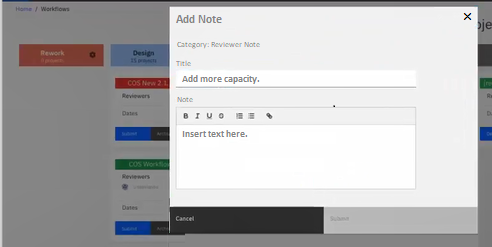
Figure 70 Note giving guidance for required rework
Notes can be seen only from the project view. See
Figure 71 on page 68.

Figure 71 View note from Project level
Review the notes make any changes/modifications to the project, then go the Project Workflow perspective and select
Design. Once the rework is complete select Submit.
For more information, see
“Categories of Notes in Storage Modeller”.
▪Approved: The project has been approved. While the project is in the approved stage, it retains the name of the reviewer and the approver.
▪Archived: The project is no longer active. Once archived, the project no longer shows up in the projects view.
When a project is moved from Archive back into Design the reviewers and approvers are removed. You are no longer working with an approved design.
|
Note: For projects that do not use the workflow pipelines, the archive function can be used when a project is complete and you do not want to see it in
your project list any more, but you do not want to delete the project. Using the Archive function will remove it from the project list without deleting.
|
While the project is moving from one stage to another, you can email messages to notify the required people of the project’s progress.
If a project sits in pipeline for an extended period of time, it reverts back to the previous pipeline and the timer starts again.