Imported Data perspective
The Imported Data perspective lists data records that you have imported. To see this view, select
Perspectives > Imported Data
in the title bar of Storage Modeller.
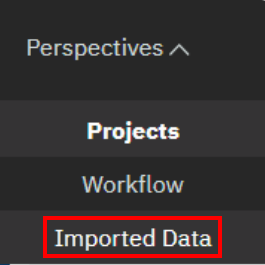
Figure 82 Perspectives - Imported Data
▪The status of the import process will be displayed in the State column shown in
Figure 83 on page 97.

Figure 83 Safeguarded Copy - Importing status
▪Select the Refresh table button periodically until the State column indicates Active. as shown in
Figure 84 on page 97. At that point, the imported files will
be available.
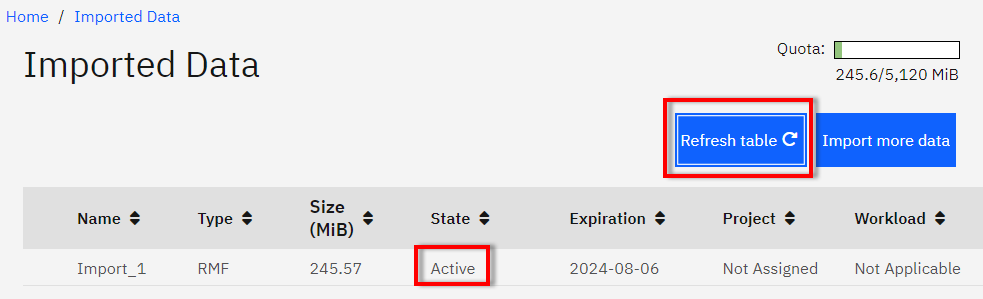
Figure 84 Safeguarded Copy - Imported files active
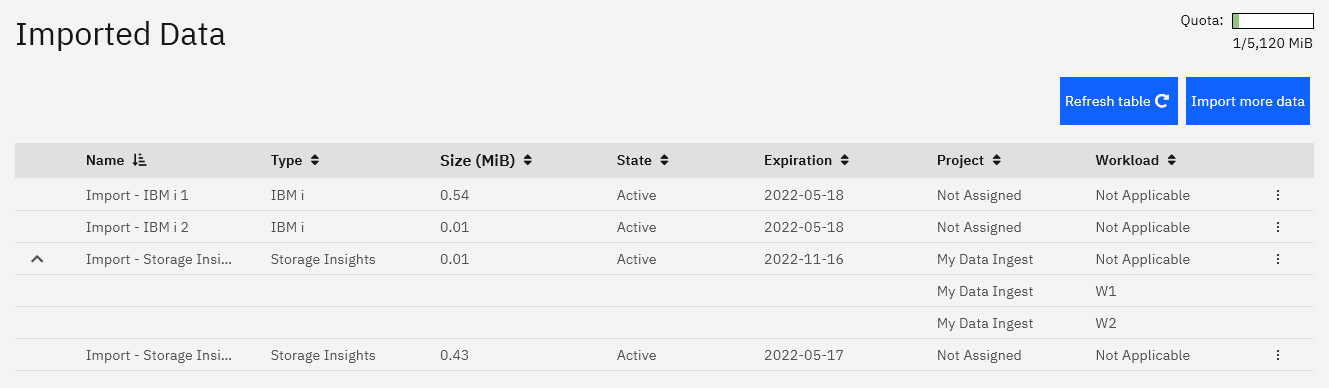
Figure 85 Imported Data view
The view includes the following features:
▪A Quota thermometer indicator with two percentage metrics separated by a slash-mark (/):
N.n [% of the total space that you are using.] / 5120 MiB (%)
|
Note: The Quota is computed against the normalized file sizes, not the original sizes of files being imported.
|
▪The Import more data button. Click this button to access the Import Data dialog box. The button is disabled
when the user exceeds their quota. See “Importing a data record”.
▪Each imported file occupies one row in the display. Valid file types are *.csv, *.zip (containing *.csv files), *.trs, and *.zrf.
Table 12
describes the columns in the Imported Data view.
Table 12 Column headings for imported data files
|
Name
|
Type
|
Size (MiB)
|
State
|
Expiration
|
Project
|
Workload
|
|---|---|---|---|---|---|---|
|
The name of the imported file.
|
Import type1:
▪Storage Insights
▪DS8000
▪IBM i
▪IBM Z RMF statistics
|
Final file size after pruning, in mebibytes.2
|
State of importation: Importing, Active, Failed,
|
Date that the file expires and is deleted.3
|
Projects in which the file is used.
|
Workloads in which the file is used.
|
2 Data records that you import might be many gigabytes in size. While the imported file is in Importing state,
before
pruning, it is a larger-size file. However, Storage Modeller's analysis process does not require much of the data in such files. Storage Modeller saves only the data that it requires for
analysis. As a result, Storage Modeller often keeps mere megabytes from multi-gigabyte files. Smaller-size files can be analyzed faster when you ingest one of these data files into a
specific workload.
3 Each file has a six-month expiration date because of storage-space limitations.
Note: The action menu in a row includes an Extend Expiration option.
Note: The action menu in a row includes an Extend Expiration option.
▪Each row in the list has an action icon (vertical ellipsis) on the right that gives you the following menu options:
|
– View Details: Display the
Details window and its tabs: General, Configuration, and Statistics. Also see
“Tabs in the Details window”.
– Extend Expiration:
Add six months to the original six-month time range. You can use this option one time only. (For longer retention needs, save the file outside of the Storage Modeller environment.)
– View Import Log: Display the historical log of import operations.
You see the time of import and a description that notes time stamps of processing milestones, and any failures or errors for that file.
– Delete: Delete the file from the list.
|

Figure 86 Action menu for imported data
|