Troubleshooting
Problem
Resolving The Problem
Backup Not Transferred (SSH Authentication Failure)
Symptoms:
When initiating the failover/ failback, the system fails to establish SSH connectivity for transferring backup files. The following log entries appear in /var/log/qradar.log on the primary site:
com.q1labs.core.shared.cli.ssh.SshException: com.jcraft.jsch.JSchException: Auth cancel for methods 'publickey,password'
at com.q1labs.hostcontext.backup.core.DRBackupFileTransferTask.transfer(DRBackupFileTransferTask.java:87)
...
Caused by: com.jcraft.jsch.JSchException: Auth cancel for methods 'publickey,password'
at com.jcraft.jsch.Session.connect(Session.java:532)
Cause:
The issue occurs because the SSH trust relationship between the primary DC node and the DR node is either "Not established (new setup)" or "Broken/invalid (keys corrupted, expired, or mismatched)". Since QRadar uses SSH-based authentication for secure file transfers during DR failback, the absence of valid SSH keys prevents the transfer.
Resolution:
To restore the SSH trust between the DC and DR systems:
On the primary site, run the command to create or refresh SSH trust with the DR node:
/opt/ibm/si/dr/bin/dr_create_ssh.sh -i <DR_IP>On the destination (DR) site, run the command to create or refresh SSH trust with the primary node:
/opt/ibm/si/dr/bin/dr_create_ssh.sh -i <Primary_IP>- Take the configuration backup again.
After re-establishing SSH trust between the primary and DR nodes, you need to take the backups again and wait for them to transfer. The backup transfer will then complete successfully. The SSH authentication error will be resolved, ensuring reliable file transfer during DC–DR operations.
Backup Stuck in Inbound Directory
Symptoms:
- Backup file successfully transferred to the destination node.
- File remains in the inbound directory and is not ingested.
Cause:
The backup ingestion service (backup_ingest.service) responsible for processing files from the inbound directory can become unresponsive or stuck. This can occur due to:
- Resource contention (CPU/Memory) on the node
- Service failure or crash
- Temporary system glitches during failover/failback
systemctl restart backup_ingest.serviceVerify that the service is running:
systemctl status backup_ingest.servicebackup_ingest.service, the backup files in the inbound directory are processed successfully. The service resumes normal operation, allowing the failoveror failback process to continue without interruption.Unable to update dr.conf – Failed to save main or destination site settings
When attempting to save the main site settings on the DR Console, the following error is displayed:
"Failed to save main site settings. Unable to update the dr.conf file."

Symptoms:
- Unable to save main site settings from the GUI
- Error: “Unable to update the dr.conf file.”
- DR configuration not updated
Cause:
The issue occurs due to incorrect ownership or permission on the dr.conf file or a missing dr.conf file.
If the file is not owned by the correct user (nobody), the system is unable to update the active configuration file:
# ls -l /opt/qradar/conf/dr.conf
-rw-rw-r-- 1 nobody nobody 344 Jan 8 18:34 /opt/qradar/conf/dr.conf
Resolution:
Step 1: Verify dr.conf file# ls -ltr $(locate dr.conf)-rw-r--r-- 1 nobody nobody 250 Dec 28 06:37 /opt/qradar/conf/templates/dr.conf-rw-rw-r-- 1 nobody nobody 344 Jan 8 18:34 /store/configservices/deployed/globalconfig/dr.conf-rw-rw-r-- 1 nobody nobody 344 Jan 8 18:34 /store/configservices/backup/staging/globalconfig/dr.conf-rw-rw-r-- 1 nobody nobody 344 Jan 8 18:34 /store/configservices/backup/deployed/globalconfig/dr.conf-rw-rw-r-- 1 nobody nobody 344 Jan 8 18:34 /opt/qradar/conf/dr.conf-rw-rw-r-- 1 nobody nobody 344 Jan 8 18:34 /store/configservices/staging/globalconfig/dr.conf
If ownership is incorrect, update it.# chown nobody. /opt/qradar/conf/dr.conf# chown nobody. /store/configservices/staging/globalconfig/dr.conf
Step 2: Restore dr.conf from Template# cp -p /opt/qradar/conf/templates/dr.conf /opt/qradar/conf/dr.conf# cp -p /opt/qradar/conf/templates/dr.conf /store/configservices/staging/globalconfig/dr.conf
Step 3: Verify the permission# ls -ltr /opt/qradar/conf/dr.conf-rw-rw-r-- 1 nobody nobody 344 Jan 8 18:34 /opt/qradar/conf/dr.conf# ls -ltr /store/configservices/staging/globalconfig/dr.conf-rw-rw-r-- 1 nobody nobody 344 Jan 8 18:34 /store/configservices/staging/globalconfig/dr.conf
Result:
After correcting the ownership and restoring the dr.conf file from the template, the DR configuration can be saved successfully from the GUI.
Verifying the authentication token failed (401 Error)
The Data Synchronization application fails during connectivity verification with a 401 error, indicating that the authentication token is not authorized to connect to the QRadar API.
This issue occurs when the configured Authorized Service Token does not have sufficient privileges or is invalid.
Problem:
While configuring the Data Synchronization application, the connectivity test fails at:Verifying the authentication token
The UI displays:The authentication token provided is not authorized to connect to the QRadar API. Verify the authentication token has administration permissions.

Symptoms:
- Unable to complete app configuration
- Connectivity test fails during authentication verification
- Configuration cannot be saved
- 401 errors observed in application logs
Error Details:
The following errors are observed in:
/store/docker/volumes/qapp-XXXX/log/app.log
[ERROR] [Sun Dec 28 2025 11:18:25 GMT+0000 (Coordinated Universal Time)] APIException {
[ERROR] [Sun Dec 28 2025 11:18:25 GMT+0000 (Coordinated Universal Time)] status: 401,
[ERROR] [Sun Dec 28 2025 11:18:25 GMT+0000 (Coordinated Universal Time)] unique_code: 1001,
[ERROR] [Sun Dec 28 2025 11:18:25 GMT+0000 (Coordinated Universal Time)] message: 'The authentication token provided is not authorized to connect to the QRadar API',
[ERROR] [Sun Dec 28 2025 11:18:25 GMT+0000 (Coordinated Universal Time)] toString: [Function: toString]
[ERROR] [Sun Dec 28 2025 11:18:25 GMT+0000 (Coordinated Universal Time)] }
Cause:
The issue occurs when:
- The Authorized Service Token does not have Administrator privileges
- The token has expired or revoked
- The token was generated for a user without sufficient permissions
- The token is incorrectly entered in the app configuration
The Data Synchronization app requires a valid Authorized Service Token with sufficient administrative permissions to access the QRadar API.
Resolution:
Step 1: Create a New Authorized Service Token (On both the host: Main site and Destination Site)
- Log in to the QRadar Console as an
Adminuser. - Navigate to
Admin → Authorized Services. - Click
Add Authorized Service. - Ensure the selected user has logged in as an
Adminuser. - Generate the token and copy it completely.
Reference Link:
https://www.ibm.com/docs/en/qsip/7.5.0?topic=app-creating-authorized-service-token
Step 2: Perform a Factory Reset of the Application
- Perform a Factory Reset of the Data Synchronization app.
- Reconfigure the application using the newly generated token.
- Save the configuration.
- Re-run the connectivity test.
Result:
After performing the above steps, the application will successfully authenticate with the QRadar API using a valid Authorized Service Token with the required administrative permissions.
The connectivity test will proceed to the next verification stages without encountering the 401 authentication error. The configuration settings can then be saved successfully, and the Data Synchronization application will function as expected.
Synchronization is not happening from the Main Site to the Destination Site in the Data Synchronization App
Data synchronization was not happening from the Main site to the Destination site in the Data Synchronization application.
Cause:
On the Main site, the file ariel_copy.pid was present in the /etc/ariel_copy directory with an old timestamp.
The PID file date matched the date when the sync stopped. This indicates that the previous ariel_copy process did not exit properly and left a stale PID file.
As a result, the service did not start correctly.
Resolution:
Navigate to the directory (on the main site) :
Remove the stale PID file:
Restart the service:
After removing the stale PID file and restarting the service, synchronization resumed successfully.
If the issue occurs again, please contact IBM Support for further assistance.
Verifying the App Connection Fails in QRadar Data Synchronization
When configuring the QRadar Data Synchronization application, the connection test fails at the step “Verifying the app’s connection”. The configuration cannot proceed due to a connectivity validation failure between the main site and the destination site.
Problem:
During the connection test, the process successfully completes:
- Verifying the authentication token
- Verifying the main site's authentication token
- Retrieving ID of the app
However, it fails at: Verifying the app’s connection
The following error message is displayed in the UI:An error occurred performing the connection test between the main site and the destination site. Check your connection settings and verify that the authentication tokens are correct and try again.
The configuration process cannot proceed further.

Error Logs
The following errors are observed in:/store/docker/volumes/qapp-XXXX/log/app.log
[ERROR] [Mon Dec XX XXXX 10:43:15 GMT+0200 (Eastern European Standard Time)] TypeError: Cannot read properties of undefined (reading 'value')
[ERROR] [Mon Dec XX XXXX 10:43:15 GMT+0200 (Eastern European Standard Time)] at Object.getValueFromConfigDB (/opt/app-root/server/api/apiUtils.js:632:89)
[ERROR] [Mon Dec XX XXXX 10:43:15 GMT+0200 (Eastern European Standard Time)] at async getConVersion (/opt/app-root/server/api/versioning/versioningUtils.js:33:21)
[ERROR] [Mon Dec XX XXXX 10:43:15 GMT+0200 (Eastern European Standard Time)] at async performApiActionWithReq (/opt/app-root/server/api/apiUtils.js:420:21)
[ERROR] [Mon Dec XX XXXX 10:43:15 GMT+0200 (Eastern European Standard Time)] at async /opt/app-root/server/api/versioning/versionApi.js:17:5
[INFO] [Mon Dec XX XXXX 10:43:15 GMT+0200 (Eastern European Standard Time)] Retrieving the console's FQDN
[DEBUG] [Mon Dec XX XXXX 10:43:15 GMT+0200 (Eastern European Standard Time)] Getting QRadar FQDN from environment
[INFO] [Mon Dec XX XXXX 10:44:08 GMT+0200 (Eastern European Standard Time)] [monitor_restore_status]:
No security token has been set up yet. Skipping check, will try again later.
Cause:
This issue occurs when the application cannot complete API validation between the main and destination QRadar systems.
The error, TypeError: Cannot read properties of undefined (reading 'value') indicates that the application is unable to retrieve required configuration values from its internal configuration database.
This is commonly caused by:
- Required ports (22 and 443) not open bidirectionally
- Network communication failure between systems
- Invalid or missing authorized service token
- Token without sufficient administrative permissions
- Unsupported QRadar version or environment mismatch
Resolution:
Step 1: Verify Network Connectivity
Ensure the following ports are open bidirectionally between the main site and the destination site:
- TCP 22 (SSH)
- TCP 443 (HTTPS/API communication)
You can verify using:
nc -zv <destination_ip> 22
nc -zv <destination_ip>22</destination_ip><destination_ip> 443
Refer to the official documentation, "Supported Environments for QRadar Data Synchronization."
Step 2: Verify Authorized Service Token
- Ensure the
AdminUser creates a valid authorized service token. - Confirm the token has
adminpermissions. - Re-enter the token in the app configuration.
- Re-run the connection test.
Refer to the IBM Documentation, Creating an Authorized Service Token.
Step 3: Verify Supported Environment
Ensure:
- Both systems are running supported QRadar versions.
- The app version is compatible.
- Destination site requirements are met.
Reference:
Supported environments for QRadar Data Synchronization.
Result:
After verifying bidirectional port connectivity (22 and 443), confirming that the QRadar version is supported, and configuring a valid authorized service token with the appropriate permissions, the connection test should complete successfully.
The “Verifying the app’s connection” step will pass, and the configuration process will proceed to completion without errors.
If the issue persists, collect the get_logs from the system and contact support for further investigation.
Factory Reset or Configuration Fails at “Resetting iptables rules”
While performing a Factory Reset or configuring the QRadar Data Synchronization app, the process fails at the step:“Resetting iptables rules”
UI Error:An error occurred while performing the factory reset, please try again.
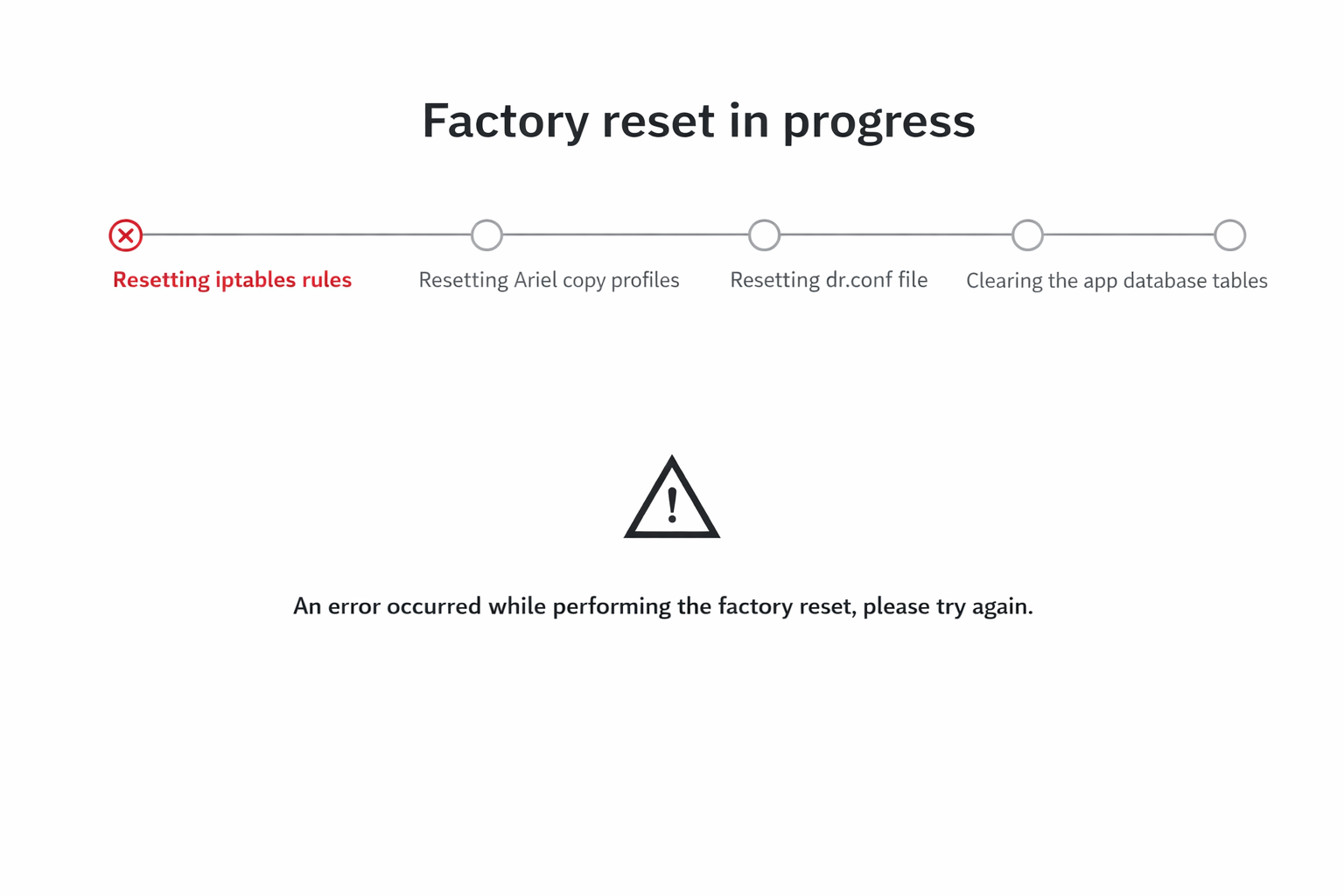
The progress stops at, resetting iptables rules
Error Details:
In /var/log/qradar.error, errors similar to the following are observed:
[DC-DR data sync app] An error has occurred while trying to update the access control firewall rules on the server with id=[ID]. The task SetAccessControlIptableRules was not completed successfully.
Multiple server IDs may be listed in the log.
Example:
[DC-DR data sync app] An error has occurred while trying to update the access control firewall rules on the server with id=58. The task SetAccessControlIptableRules was not completed successfully
Cause:
The issue occurs when the iptables service is not running, masked, or not functioning properly on one or more managed hosts involved in the Data Synchronization configuration.
Since the Data Sync app updates firewall rules during configuration or factory reset, any issue with the iptables service causes the process to fail.
Resolution
Step 1: Identify Affected Hosts
From the error message in /var/log/qradar.error, Note the server ID.
Run the following command on the Console to identify the corresponding host:psql -U qradar -c "select * from serverhost where id="[ID_found_in_log]"
Example:psql -U qradar -c "select * from serverhost where id=58;"
Repeat this for each ID found in the logs.
Step 2: Check the iptables service on the affected host
SSH to the affected host and run:systemctl status iptables

Check if:
- Service is inactive
- Service is masked
- Service failed
Step 3: Restart iptables
If iptables is inactive or not running correctly:systemctl restart iptables
Verify again:systemctl status iptables
Ensure the service is active.
Repeat this process for all hosts listed in the error logs.
Step 4: Retry Configuration
After correcting iptables on all affected hosts:
- a Synchronization configuration
OR - Perform the Factory Reset again
The process should now complete successfully.
Result:
After ensuring that the iptables service is active and functioning correctly on all listed hosts:
- The “Resetting iptables rules” step will complete successfully.
- The factory reset or configuration process will proceed without errors.
- The Data Synchronization app setup will finish successfully.
If the issue persists after verifying iptables on all affected hosts, collect get_logs from the Console and open a support case for further analysis.
Configuration Stuck at "Verifying the destination site's authentication token"
While configuring the QRadar Data Synchronization (Main Site) application, the setup process gets stuck at:“Verifying the destination site's authentication token”

Symptoms:
During configuration:
- The connection test does not proceed beyond:
Verifying the destination site's authentication token The application log shows timeout errors.
Error Observed (app.log)
[ERROR] An error occurred updating Ariel copy profile history
FetchError: request to https://[DESTINATION_IP]/... failed, reason: connect ETIMEDOUT [DESTINATION_IP]:443
[ERROR] FetchError: request to https://[DESTINATION_IP]/api/config/deployment/hosts
failed, reason: connect ETIMEDOUT [DESTINATION_IP]:443
errno: 'ETIMEDOUT'
code: 'ETIMEDOUT'
Log Location:
On the App Host, logs are located at:/store/docker/volumes/qapp-XXXX/log/app.log
Where:
XXXX= Application ID ( UP12 onwards it should be 1000 by default )Application ID can be verified using thefollowing command (Run on console):
/opt/qradar/bin/qappmanager
Cause:
The issue occurs due to network connectivity failure between theMain Site and the Destination Site over port 443.
The ETIMEDOUT error confirms that the connection attempt is timing out before establishing HTTPS communication.
Possible causes:
- Firewall blocking port 443
- Network routing issue
- Destination server unreachable
- An incorrect IP address wasconfigured
Resolution:
Step 1: Verify Port 443 Connectivity
From the Console and App Host, check connectivity to the destination server:nc -vz x.x.x.x 443
Where,
x.x.x.x = Destination Site IP address
If the connection fails, involve the network/firewall team to allow HTTPS (443) communication between both sites.
Reference Document: Supported environments for QRadar Data Synchronization
Step 2: If Connectivity is Confirmed but the Issue Persists
Reinstall the application.
2.1: Uninstall the Application
Follow IBM documentation: Uninstalling the app
2.2: Remove Old Application Directory
Identify the App ID:/opt/qradar/bin/qappmanager
Create backup directory:mkdir /store/IBM_Support
Move old app volume:mv /store/docker/volumes/qapp-XXXX /store/IBM_Support
Backup Transfer Failed with Auth cancel for methods 'publickey,password',keyboard-interactive'
Backup transfer from the Main (Primary) site to the Destination (DR) site fails when initiating an on-demand configuration backup from the QRadar GUI.
Symptoms:
Backup transfer fails with an SSH authentication error.
Observed ErrorAuth cancel for methods 'publickey,password'
Sample Log Snippets:
Check the logs in: /var/log/qradar.error
Mar 10 00:04:42 ::ffff:127.0.0.1 [hostcontext.hostcontext] [pool-2-thread-1] com.q1labs.hostcontext.backup.core.DRBackupFileTransferTask: [ERROR] [NOT:0000003000][x.x.x.x/- -] [-/- -]Error trying to transfer backup to destination
Mar 10 00:04:42 ::ffff:127.0.0.1 [hostcontext.hostcontext] [pool-2-thread-1] com.q1labs.core.shared.cli.ssh.SshException: com.jcraft.jsch.JSchException: Auth cancel for methods 'publickey,password,keyboard-interactive'
Cause:
This issue occurs due to SSH authentication failure between the Main and Destination sites.
Common reasons include:
- SSH keys are not configured properly
- Passwordless SSH is not established
- The trust relationship between nodes is missing or broken
Resolution:
Re-establish SSH trust between both sites.
On Main Site/opt/ibm/si/dr/bin/dr_create_ssh.sh -i [Destination_IP]
On Destination Site/opt/ibm/si/dr/bin/dr_create_ssh.sh -i [Main_Site_IP]
Important:
Ensure port 22 is open between the Main and Destination sites
Verification:
- Initiate a new on-demand configuration backup from the QRadar GUI
- Confirm that the backup is successfully transferred to the destination site
- Verify that no SSH authentication errors appear in the logs
Conclusion:
By completing the above steps, the issue should be resolved and the backup transfer is expected to succeed.
If the issue persists, please contact IBM QRadar Support and provide the relevant logs for further investigation.
Auto Restore Failed with AutoRestoreFailureDescription4007
Auto restore fails in the Data Synchronization app with an error AutoRestoreFailureDescription4007.
Symptoms:
Auto restore operation fails in the Data Synchronization app, and notifications are generated indicating a restore failure.
Users may observe:
- Auto restore does not complete successfully
- Repeated restore attempts fail automatically
- Notifications related to restore failure are generated in the UI
Error Traces:[ERROR] An error occurred connecting to QRadar restore API: A restore is currently pending or in progress.[INFO] Creating new notifications title: Notifications:AutoRestoreFailureTitleDescription: Notifications:AutoRestoreFailureDescription4007
Cause:
This issue occurs when a previous restore operation is not completed properly.
Common scenario:
- Restore is triggered
- Full Deploy is not performed
- Entry remains stuck in: REQUESTING or IN PROGRESS
New restore attempt fails because QRadar allows only one active restore at a time
Workaround:
Manually update the restore status and restart the restore service.
Step 1: Take abackup of the database tablemkdir /store/ibm_support/pg_dump -U qradar -a -t restore_history > /store/ibm_support/restore_history.sql
Step 2: Identify stuck restore
psql -U qradar -c "select * from restore_history where status IN ('REQUESTING','IN PROGRESS','INITIALIZING');"
Note the ID of the affected entry
Step 3: Update restore statuspsql -U qradar -c "update restore_history set status='FAILED' where id='[id]';"
Replace [id] with the value obtained in Step 2
Step 4: Verify cleanup
psql -U qradar -c "select * from restore_history where status IN ('REQUESTING','IN PROGRESS','INITIALIZING');"
Ensure no entries remain in REQUESTING or IN PROGRESS or INITIALIZING state.
Step 5: Restart the servicesystemctl restart backup_ingest.service
Step 6: Perform Full Deploy
Perform a Full Deploy from the QRadar GUI
Verification:
- Ensure no restore entries remain in the REQUESTING or IN PROGRESS or INITIALIZING state
- Confirm that auto restore proceeds without errors
- Verify backups from /store/backupHost/inbound are processed successfully
When NOT to use this workaround:
- If a restore operation is actively running and progressing normally
- If the status is changing (not stuck)
- If there are multiple dependent restore operations in progress
- If unsure about modifying the database directly
This workaround should only be used when the restore is stuck indefinitely in REQUESTING, IN PROGRESS, or INITIALIZING state.
Note: If you are unsure, kindly contact IBM QRadar Support and perform this workaround under their guidance.
Conclusion:
By completing the above steps, the issue should be resolved, and the auto restore process is expected to function normally.
If the issue persists, please contact IBM QRadar Support with the relevant logs and database output for further investigation.
Auto Restore Failed with AutoRestoreFailureDescription4001
Scope:
This document applies only to environments where a 1:1 host mapping is configured in the IBM QRadar Data Synchronization App (DSA).
It is intended for deployments where each host on the Main site is expected to have a corresponding mapped host on the Destination (DR) site.
Problem Description
Auto restore operation fails in IBM QRadar Deployment using Data Synchronization App (DSA) with the following error:AutoRestoreFailureDescription4001
Symptoms:
- Auto restore fails on the Destination (DR) site
- Notifications related to auto restore failure are generated
The following entries are observed in the DSA application logs:[ERROR] An unmapped host was found on the main site[INFO] Creating new notifications title: Notifications:AutoRestoreFailureTitle. Description: Notifications:AutoRestoreFailureDescription4001[INFO] Database result for notification insert: undefined
Cause:
The issue occurs when there is no valid 1:1 host mapping between the Main site and the Destination site, despite the environment being configured for 1:1 mapping.
In particular:
- A host (for example, an Event Collector) exists on the Main site
- The corresponding host is missing on the Destination site
This results in an unmapped host, causing the auto-restore and configuration backup to fail
Workaround:
Step 1: Verify the host mapping in the Data Synchronization configuration
Step 2: Ensure 1:1 mapping for all required QRadar components, including:Event ProcessorsFlow ProcessorsEvent CollectorsFlow CollectorsConsoleData NodesQRadar Network Insights

Reference: Supported environments for QRadar Data Synchronization
Step 3: If a corresponding host does not exist on the Destination site:
- Either remove the unmapped host from the Main site configuration in DSA. or,
- Add the required host to the Destination site to maintain proper 1:1 mapping
Ensure appropriate change or management approval is obtained before making these modifications
Step 4: Deploy the changes in QRadar to apply the updated configuration
Step 5: Take a new On-Demand Configuration Backup from the QRadar GUI
Reference: Creating an on-demand configuration backup archive
Step 6: Perform one of the following:
- Trigger an On-Demand Restore, OR
- Wait for the scheduled Auto Restore to execute
Reference: Syncing the configuration from the main site to the destination site
Conclusion:
Auto restore failures with error AutoRestoreFailureDescription4001 are commonly caused by unmapped hosts in a 1:1 mapping configuration.
Ensuring proper host mapping, deploying changes, and triggering a fresh backup and restore resolves the issue in most cases.
If the issue still persists after performing the above steps, contact IBM QRadar Support for further assistance.
Data Synchronization App Status Shows an Error Due to SQLITE_CONSTRAINT
Problem:
In the QRadar Data Synchronization app, both the Main site and Destination site consoles or managed hosts display an Error status.

The following error is observed in the application logs:
[ERROR] [Mon Mar 12 2023 12:12:12 GMT-0700 (Pacific Daylight Time)] An error occurred inserting the history into the Ariel copy profile history [Error: SQLITE_CONSTRAINT: NOT NULL constraint failed: ariel_copy_profile_history.host_id] {
[ERROR] [Mon Mar 12 2023 12:12:12 GMT-0700 (Pacific Daylight Time)] errno: 19,
[ERROR] [Mon Mar 12 2023 12:12:12 GMT-0700 (Pacific Daylight Time)] code: 'SQLITE_CONSTRAINT'
[ERROR] [Mon Mar 12 2023 12:12:12 GMT-0700 (Pacific Daylight Time)] }
Cause:
This issue occurs when the Data Synchronization pairing configuration is invalid or disabled, resulting in a missing host_id value while inserting records into the ariel_copy_profile_history table.
Verification from the database confirms that the pairing is disabled:
psql -U qradar -c "select id,host_id,destination_host_ip,enabled from ariel_copy_profile;"
id | host_id | destination_host_ip | enabled
-----+---------+---------------------+---------
253 | 53 	 | x.x.x.x 				| f
Here, enabled = f indicates that the pairing configuration is inactive.
Resolution:
Step 1: Re-establish SSH Trust Between Sites
Run the following commands to recreate SSH trust between the Main and Destination sites.
On the QRadar Console (Main Site):
/opt/ibm/si/dr/bin/dr_create_ssh.sh -i <destination_site_ip>On the QRadar Console (Destination Site):
/opt/ibm/si/dr/bin/dr_create_ssh.sh -i <main_site_ip>Step 2: Override Pairing Settings
- Open the Data Synchronization app.
- Select the affected host (Console, Event Processor, Flow Processor, or Event/Flow Processor).
- In the side panel, click
Override pair settings.
- Click Save.
This step updates the database table with correct pairing details and enables synchronization.
Conclusion:
This issue occurs due to an invalid or disabled pairing configuration, which results in a missing host_id during updates to the ariel_copy_profile_history table.
By re-establishing SSH trust and overriding the pairing settings, the configuration is corrected and synchronization resumes successfully, and you will see the Console or affected Managed Host status as OK.
If the issue still persists, contact IBM QRadar Support for further assistance.
Ignoring remapping because it's not a cross deployment restore – Restore Failure on Destination Site (DR)
On-demand or automatic restore to the Destination Site (DR) fails due to the authorized token missing in security_descriptors and staging.security_descriptors, causing the Data Sync (DS) App to fail and requiring manual reconfiguration of the token.
Issue Description:
During restore from the Main Site (DC) to the Destination Site (DR), the process fails at:Disaster Recovery Custom Action - restoring retained authorized services
This results in:
- Authorized service tokens not being restored
- Missing entries in security_descriptors and staging.security_descriptors
- Data Sync App authentication failure
The logs show that remapping is skipped, causing an incomplete restore of authorized services.
Observed Behavior:
Error messages in qradar.log in the Destination Site (DR):
Ignoring remapping because it's not a cross deployment restore

Current task: Disaster Recovery Custom Action - restoring retained authorized services

ERROR: FATAL: terminating connection due to administrator command
ERROR: An I/O error occurred while sending to the backend
ERROR: Failed to check if label DR_Admin_DestToken (Destination site) exists in schema STAGED
Root Cause:
The restore process is incorrectly identified as a non–cross-deployment restore instead of a cross-deployment restore.
This happens when the Console hostname or IP address on the Main Site (DC) and Destination Site (DR) are the same. Due to this similarity, the system assumes that the backup belongs to the same deployment.
As a result, QRadar skips the required remapping steps during the restore process. Because these steps are not executed, the authorized service tokens are not restored, leading to missing entries in the security descriptor tables and failure of the Data Sync App.
This is confirmed by the log:
Ignoring remapping because it's not a cross deployment restoreTechnical Explanation
QRadar determines whether a restore is cross-deployment by comparing the Console IP address and hostname between the backup source and the restore target.
A cross-deployment restore is triggered only when both the IP address and hostname are different. If the hostname matches, the restore is treated as the same deployment restore, and remapping steps are skipped.
Impact
- Authorized service token not restored
- Missing entries in security_descriptors
- Data Sync App failure
- Incorrect managed host mapping
- WinCollect misconfiguration
- HA and integration issues
Diagnosis Steps:
To confirm if the Main Site (DC) and Destination Site (DR) are using the same hostname, validate using the following commands on both Consoles:hostnamecat /etc/hostnamecat /etc/hosts
Compare the hostname between both sites.
If the hostname matches, the issue will occur as the restore will be treated as the same deployment restore.
Resolution
Ensure that all components in the Destination Site (DR) have a different hostname from the Main Site (DC). This includes the Console and all managed hosts.
After correcting the hostname differences, re-run the restore and verify that the authorized tokens are restored successfully.
Workaround:
Step 1:
NOTE: The Destination Site (DR) must use hostnames that are different from the Main Site (DC) for all components, including the Console and all managed hosts.
If the hostname is already identical, perform the following:
- Remove the affected host from the DR deployment (if applicable)
- Change the hostname on the Destination Site (DR) using
qchange_netsetuputility - Ensure the new hostname is different from the Main Site (DC)
- Refer to IBM documentation:
- Console (All-in-One): Changing the network settings in an All-in-One system
- Managed Host: Changing the network settings of a QRadar Console in a multi-system deployment
Step 2:
Create the authorized token for the Data Sync App using an admin user account on both the Main Site (DC) and the Destination Site (DR).
Perform a factory reset and reconfigure the Data Synchronization App again on both sites.
Refer to: Implementing a factory reset
Step 3:
- Take a fresh configuration backup from the Main Site (DC)
- Perform the on-demand restore on the Destination Site (DR)
Results:
After updating the hostname and ensuring it is different between the Main Site (DC) and Destination Site (DR), the restore works correctly. The authorized token is restored, required entries are created, and the Data Sync App works as expected.
If the issue still persists, contact IBM QRadar Support for further assistance.
Document Location
Worldwide
Was this topic helpful?
Document Information
Modified date:
27 May 2026
UID
ibm17246280