Configuring administrator access for a queue manager
In this tutorial you learn how to configure administration access for a queue manager you have created.
To administer a queue manager (using IBM® MQ Web Console, IBM MQ Explorer, or runmqsc), you must be an IBM MQ as a Service service administrator (see Service roles).
For instructions on accessing the IBM MQ as a Service UI, see Getting started with IBM MQ as a Service.
Creating Administrator Credentials
- Once in the IBM MQ as a Service service, click the User
credentials tab. (For IBM Cloud®, this is accessed
from the Manage menu option within the service instance view.)
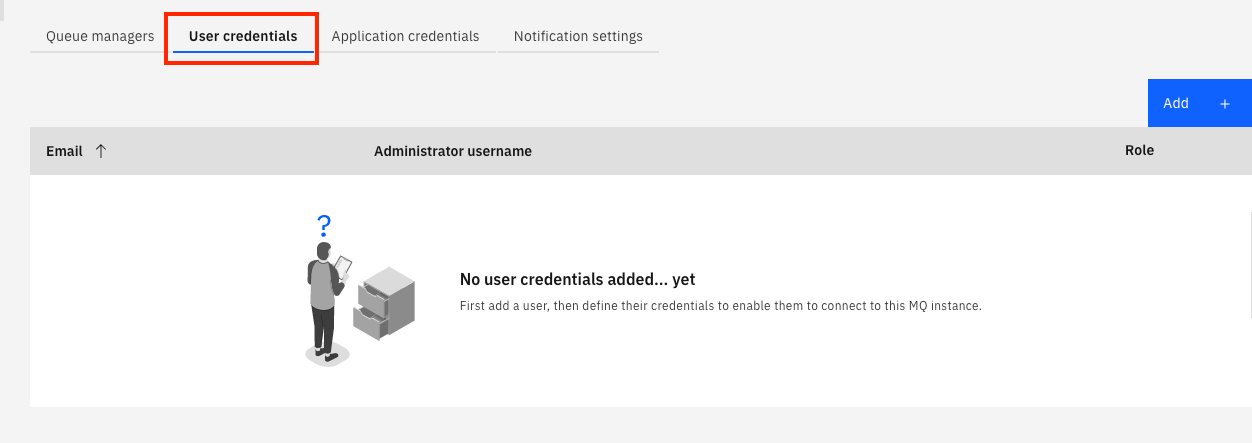
- Click Add.
- Enter the user's Email address.
- Click Generate MQ username.Note: A unique administrator username is auto-generated for the user. You can edit the text-box to change this to the preferred username. It must have a maximum of 12 characters and be lower case a-z or 0-9. It must also be unique within your IBM MQ service instance.
- Click Add credentials.