Troubleshooting
Problem
Contents
Resolving The Problem
Bulk Extract Connector: Known Issues & Limitations
Execution Steps:
Step 1: Design the flow with Bulk Extract connector.
Step 2: Pass connection details
Step 3: Design the flow using where condition with filter having with query inside the where clause.
Example: SELECT
FROM
MARA AS MARA
WHERE
MARA~BLANZ IN (SELECT MARA~BLANZ FROM MARA AS MARA)

Note: Currently, the Open Cursor logic is not supported in any release of CPD Bulk Extract Connector.
Issue 2: Bulk Extract flow fails with "java/lang/OutOfMemoryError" when processing a table with huge data (~ over 1M records) and default heap size.
- This issue occurs when the default heap size is not sufficient for processing the table having huge number of records.
Solution: Heap size option is enabled on the connector level. so now if customer faces OutOfMemory error, heap size can be increased accordingly.
Steps to increase Heap size:
- Login to CPD environment.
- Design a flow with Bulk Extract connector.
- Go to stage properties and scroll down to other properties.
- Set the Heap Size accordingly.

Issue 3: "Fatal Error: Warning limit 100 for the job has been reached, failing the job."
Solution:
1. Open the Flow
2. Go to Settings

4. Select "No Limit."

- This is likely due to the default heap size of 256 is not sufficient for processing the table having huge number of records.
- The sequence of certain data types is crucial, and as a result, processing the SQL query on SAP may encounter errors when the LRAW data type is listed first in the sequence.

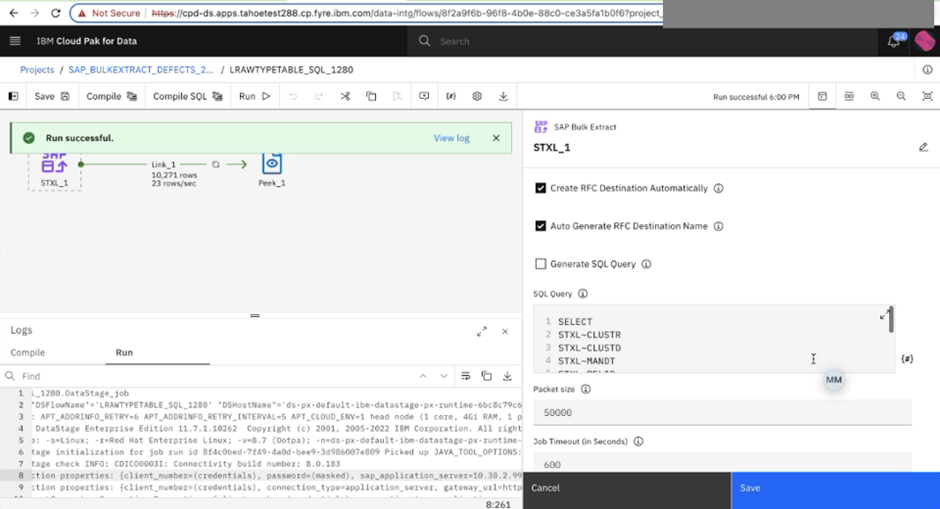
Issue 6: The job output data from the SAP Bulk Extract is rounding the final digit for fields defined with the SAP data type DF16_DEC.
Description: While running the SAP Bulk Extract job, you may observe that for DF16_DEC, the last digit of the decimal value appears to be rounded off when fetched from SAP. This behaviour identified during unit testing and has been confirmed to be handled by the SAP system itself, not by the connector. The rounding of decimal values for the DF16_DEC data type is determined by SAP’s internal data handling rules and is not influenced by the connector logic.
SAP Table Data:

SAP Bulk Extract Output Data:

Conclusion: According to the SAP team, this behavior is expected and aligns with standard precision handling for DF16 DEC within SAP. Please consider this when validating decimal data extracted through the connector for DF16 DEC Data Type column.
BAPI Connector: Known Issues & Limitations
Issue 1: BAPI connector flow fail with "Parameter not resolvable" Error.
Issue 2: BAPI connector flow does not have any activated input parameters(import/table).
- Go the Input tab of the BAPI operator stage and click on the "Edit" icon under the "Columns".

- Add the "BAPISeqNo" column from the details of the below snapshot, click on "Apply and return" to save the changes and review the changes in the stage.


Delta Extract Connector: Known Issues & Limitations

1. Go to t-code SM59.
2. Expand TCP/IP connections -> double-click the applicable TCP/IP connection -> choose the destination associated with the logical system ->Open it in change mode.
3. From the Destination menu, go to Edit and click tRFC Options.
4. Set Time betw. 2 tries [mins] to 1 and click continue.
5. From the Destination menu, choose Save.
OData Connector: Known Issues & Limitations
Issue 1: The OData connector is displaying an SAP Packs related version (8.2.0.2), which is irrelevant for CPD environment
This is how the logs display version info details.
logs:
22 04/08/2022 12:25:22 INFO IIS-CONN-DAAPI-00099 <SAP_OData_2,0> Version Info: VERINFO_PRODUCTNAME=IBM InfoSphere Information Server Pack for SAP Applications
VERINFO_PRODUCTVERSION=8.2.0.2
VERINFO_BUILDNUMBER=084
VERINFO_BUILDDATE=2020-03-24_04:29
VERINFO_PATCHLABEL=RC2
Solution:
This problem was specific to version up to 4.5.3 and has been fixed. It is no longer observed in the versions from 4.6 release.
Issue 2: Error when selecting metadata using the Asset Browser for SAP OData V4 with Normal and Local connections in release 5.1.1 : “ERROR BrowsingService.getAssets: Unable to retrieve data: An unexpected error occurred of type Null pointer error: Cannot invoke "java.lang.String.contains(java.lang.CharSequence)" because the return value of "java.lang.Exception.getMessage()" is null”.

Solution:
In CPD release 5.1.1, an issue arises when creating new SAP OData V4 flows using the Asset Browser. This problem occurs specifically when you attempt to create a new flow via the Asset Browser. However, for existing or imported jobs where columns metadata is already populated, you can still run the flow. As a result, creating a new job using the Asset Browser is not functional in release 5.1.1 and has been resolved in subsequent releases.
Issue 3: While using the Asset Browser with the SAP OData V4 mTLS connection, the metadata for the OData service cannot be loaded, resulting in the error message: "Unable to retrieve data: The assets request failed: CDIC09999E: Internal error occurred: 0 data client error: (/IWBEP/CM_V$/CM_V4_COS/011) No authorization to access service group '/IWFND/CONFIG' null [HTTP/1.1 403 Forbidden]" 
Solution:
The SAP OData V4 mTLS connection has been introduced in release 5.1.1. If you are encountering issues loading metadata while using the SAP OData V4 mTLS connection, you can switch to a non mTLS SAP Odata connection to load the metadata successfully. After completing the job design, you can switch back your connection to the SAP Odata V4 mTLS connection to ensure authentication is handled through mTLS during job execution. Please refer below screenshot for reference.
Issue 4: The SAP OData job fails with the error “Internal error occurred: General security error: Private key format is not valid PEM format” when mTLS local connection is used and the “Client Private key” or “Client certificate chain” is provided directly in the stage properties. 
Solution:
- Click on the highlighted Parameters icon to add local parameters.

- Add Local parameters for the “Client Private key” and “Client certificate chain” to save the changes click on “Return to canvas”.

- Use the created local parameters for “Client Private key” and “Client certificate chain” and click on “Test Connection”.


- Run the job.
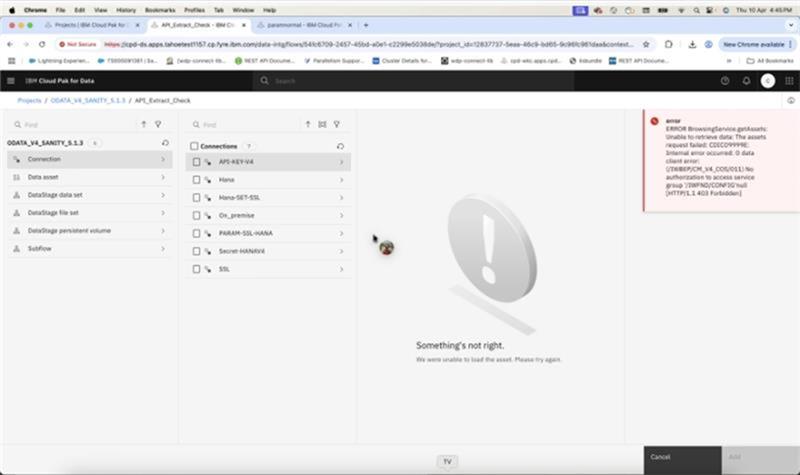
Issue 5: Unable to select metadata using the Asset Browser for SAP OData V4 with API Key connection
When using the Asset Browser with the SAP OData V4 connector and API Key authentication in Cloud Pak for Data, users are unable to retrieve and select metadata. The Asset Browser fails to load the service metadata and displays an error similar to the following:
"ERROR BrowsingService.getAssets: Unable to retrieve data: The assets request failed: CDICO9999E: Internal error occurred: O data client error: (/IWBEP/CM_V4_COS/011) No authorization to access service group '/IWFND/CONFIG' [HTTP/1.1 403 Forbidden]"
This issue occurs when selecting metadata using an SAP OData V4 connection configured with API Key authentication.
Solution:
API Key authentication is not supported natively for SAP OData V4 services in SAP S/4HANA Cloud Public Edition. Supported authentication mechanisms include OAuth 2.0, Communication Users, and Certificates (where applicable).
Because API Key authentication is not supported for direct SAP OData V4 service access, metadata retrieval and job creation using the Asset Browser with an API Key connection is not functional.
To successfully select metadata and create SAP OData V4 jobs, configure the connection using a supported authentication mechanism such as OAuth 2.0, Communication Users, or Certificates.
BW Extract Connector: Known Issues & Limitations
Issue 1: When using the SAP BW Extract connector, data extraction may fail or return incorrect results if the source system name provided in the stage property is not valid. This can happen if the value is too long or contains unsupported characters, as SAP may truncate or reject the name.

Solution:
Make sure the source system name follows SAP’s naming rule:
- Use only letters (A-Z), numbers (0-9), and underscores (_).
- Do not use special characters such as @, /, \, # etc.
- Keep the name within 10 characters.
- Do not start with a number.
- Ensure the name is unique in your SAP system.
Following these guidelines will help avoid truncation issues and ensure the correct source system is used during data extraction.
Issue 2: When running multiple BW Extract jobs in parallel using same Process Chain (PC), Open Hub Destination (OHD) and Source System, inconsistent behavior is observed. The system does not reliably handle concurrent execution of jobs sharing the same configuration, which results in unpredictable result.
Solution:
Avoid running multiple BW Extract jobs in parallel when they share same Process Chain (PC), Open Hub Destination (OHD) and Source System. Concurrent execution may lead errors such as RFC server conflicts, timeout failures, or SAP BW parameter update issues.
Issue 3: In the existing BW Extract job in CPD, when user select or deselect Skip Technical Keys, the column metadata in the Output tab is displayed based on the user’s selection; however, the underlying column metadata remains unchanged because metadata is not loaded instantaneously from SAP/Asset Browser. This behavior is a UI-driven action applicable only to certain technical fields.
Solution: In CPD, Selecting/Deselecting the Skip Technical Keys option does not update metadata correctly and may lead to undefined behavior during data extraction. User can create a new BW Extract job with the desired Skip Technical Keys configuration.
Issue 4: In Cloud Pak for Data (CPD), the SAP BW Extract job fails when the Program ID is provided in lowercase in the SAP BW Extract connector.
The job fails with an error like:
“Source System is attached with different Program ID: XXXXXXX”
This behavior is observed starting from 5.3.0 Patch 4 and 5.3.1 Patch 5 onwards.
Solution: Ensure that the Program ID is provided in uppercase in the SAP BW Extract connector stage and matches exactly with the Program ID in the SAP system.
As a best practice, always use uppercase Program ID values to avoid inconsistencies and ensure successful job execution.
In release prior to 5.3.0 Patch 4 and 5.3.1 Patch 5, the SAP BW Extract connector generated a dynamic Program ID automatically during job execution. Users were not required to specify a Program ID manually.
Starting with 5.3.0 Patch 4 and 5.3.1 Patch 5, support was introduced to allow users to specify a Program ID in the connector stage. When using this feature, the Program ID entered in the stage must be provided in uppercase and must match exactly with the Program ID configured in the SAP system.
Common Issues:
Issue 1: Upload Jar functionality is missing in Local Connection creation for SAP connectors
Issue 2: The columns are showing up as COLUMN1, COLUMN2, etc., instead of their correct names in the source and target connectors of the SAP connectors(BAPI, IDoc, Odata) job

Solution:
- Select and open the source “Sequential file” stage in the job.

- Go to the “Output” tab and expand the “Properties”, under “File” parameter click on the “Browse” button to select the file in the stage. Alternatively, user can enter the name of the input file in the “File” field from saved Data Assets (make sure the input file is already uploaded in the Data Asset).

- Select the file by browsing the ds-storage, after selecting the file then click on “Add” button to add the file. To save the changes in stage, click on the “Save” button.


- Please follow the same above steps to select the output file in the target “Sequential file” stage.

Solution:


• INT8 is mapped to BIGINT
• DATN is mapped to DATE

Users can safely proceed with configurations and job executions without concern, as this limitation does not affect data integrity or processing.
Issue 5: Leading zeros are added to the output data for the SAP data type DEC34_DEC to match the defined column length specified in the metadata.
As a result, when the actual stored value is smaller than the defined precision, leading zeros are automatically added to maintain the fixed format. This behavior is expected and consistent with SAP's handling of DEC data types.
Additionally, this formatting is the same as seen in the legacy IBM InfoSphere DataStage (IIS), ensuring compatibility and consistency in how these data types are displayed across platforms.


Issue 6: SAP connector jobs fails when the Secret vault contains a custom field named exactly “password”. This creates a naming conflict, with the system defined password field, causing connector to resolve wrong credentials and fail during job execution.
Examples: “pswrd”, “sapPassword”, userPassword etc.
Solution: The observed behavior is aligned with the current design of the credential-handling framework used in SAP connectors and is therefore considered expected behavior.
In platform connections, all parameters defined as credentials (username, password, client, and language) are handled uniformly. As a result, when credentials are configured using the Secret Vault, the language parameter is also required to follow the same secret-based handling, even though it is not sensitive in nature.
In local connections, there is flexibility to configure parameters independently. Therefore, the language parameter can be maintained as a standard (non-secret) property, which ensures that log messages are not masked.
In summary, the behavior should be understood and handled based on connection type:
- In platform connections, the language parameter follows credential handling and may be stored as a secret.
- In local connections, the language parameter can be excluded from secrets and treated as a normal configuration property.
Known Issues:
Issue: With the latest release of SAP NWRFCSDK Patch Level 18 (PL18) on 5th December 2025, SAP BAPI flows fail in both on-Cloud Pak for Data (CPD) environment due to ICU library dependencies.
Resolution: Copy the required ICU library files to the ds-px-default-ibm-datastage-px-runtime-<identifier> pod by using this technote: https://www.ibm.com/support/pages/node/7156762. This ensures that all runtime dependencies are satisfied and allows successful execution of the flows.
Document Location
Worldwide
Was this topic helpful?
Document Information
Modified date:
23 June 2026
UID
ibm16955793