Preventive Service Planning
Abstract
This technote describes the SAP BW Extract Job Flow Creation Using Local Connection and Asset Browser.
Content
Create a new flow using local connection
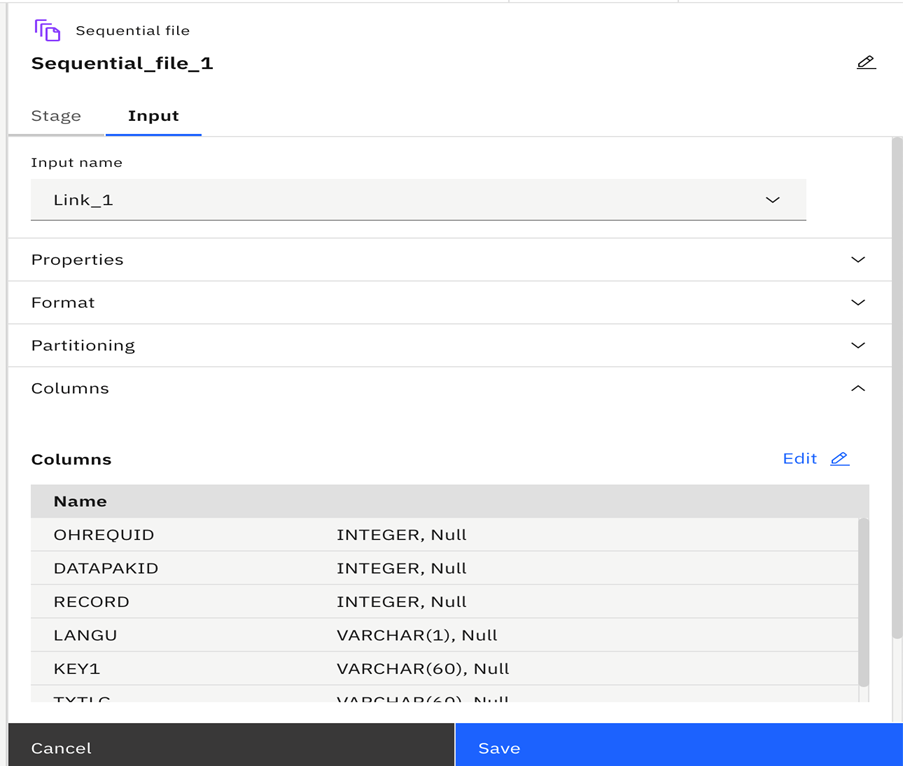
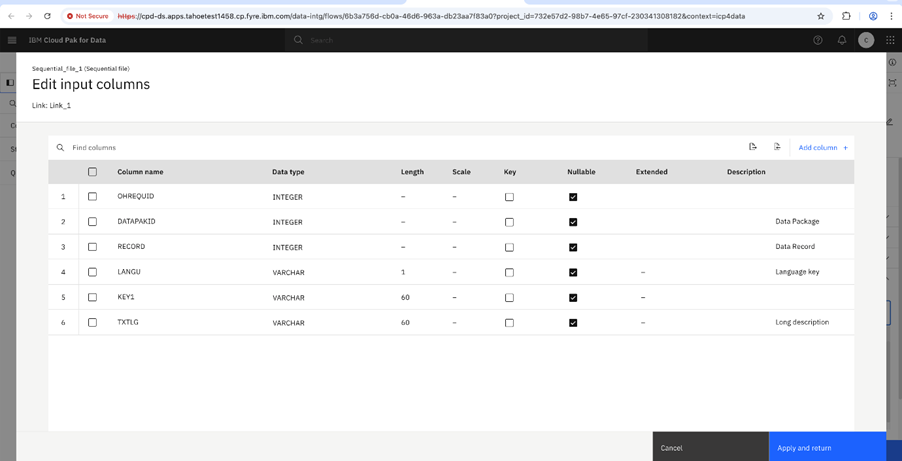
Review of column schema created from the SAP BW Extract metadata
Overview of SAP BW connector
The SAP BW Extract Connector helps organizations easily bring data from SAP Business Warehouse into Cloud Pak for Data for reporting, analysis, and decision-making. It allows teams to access their SAP business data in a reliable and organized way, without needing complex setup steps. The connector supports smooth data transfers and works well for both small and large data needs. It is designed to simplify the process of using SAP data across business applications, analytics tools, and data projects.
Procedure
- Create a new flow. Refer section “Creating new flow” for detailed steps.
- Search the “SAP BW Extract” in the search option in top left corner under the “Connectors” section.
- Drag the "SAP BW Extract" connector onto the pallete.
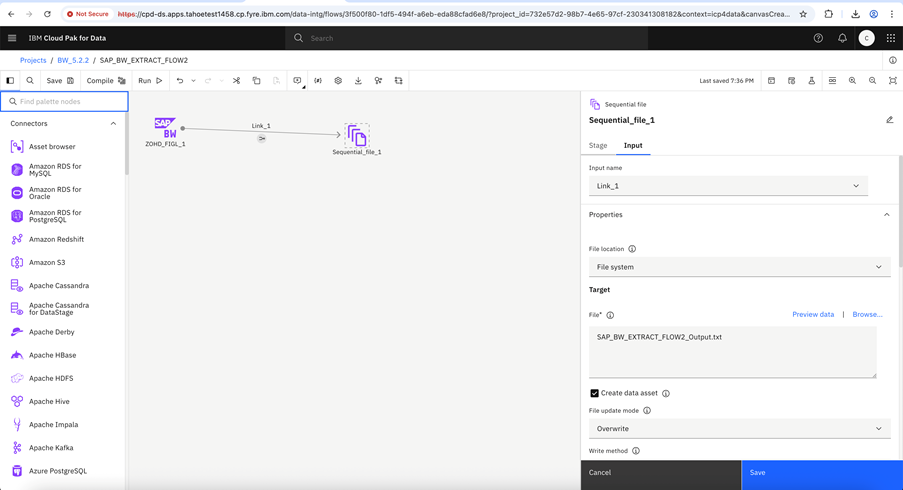
- Link sequential file and provide output file details and select "Create data asset" checkbox.
- Double click the SAP BW Extract connector to configure the stage properties.
- Under “Stage” tab select "Connection" section, click "View connection" drop down option to see the saved connection or create new connection. Refer section "Defining a connection to SAP" below for more details.
- Under "Stage" tab select OHD with the help of "Browse connection" option. Refer section "Selecting the OHD to use" below for more details.
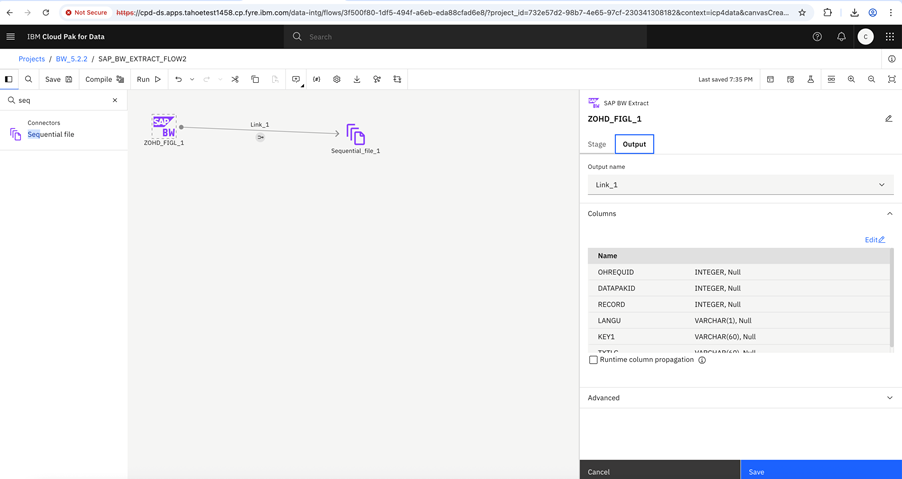
- Review the column section schema created from "SAP BW Extract" metadata. Refer section "Review of column schema created from the SAP BW Extract metadata" below for more details.
- Click "Save" to save the flow.
Creating new flow
- Select the project.
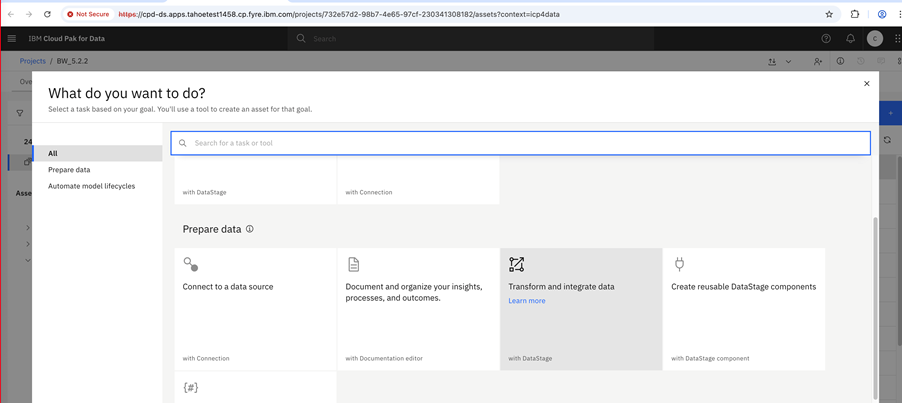
- Under Assets, click “New Asset” in top right corner.

- Under “Prepare data”, click “Transform and integrate data".
- Give name under “Define details” and click on “Create” button.
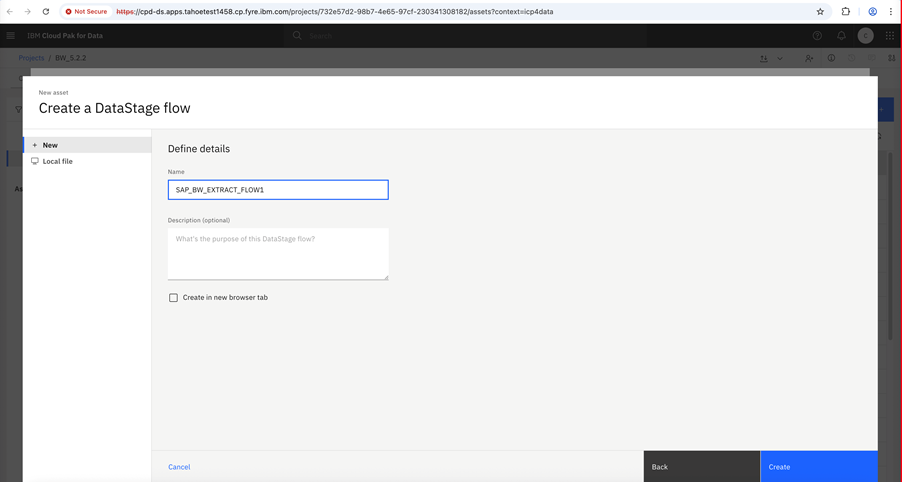
- Open project, click on "New Asset", select "Transform and integrate data", provide flow name and click on "Create".
- Drag the "SAP BW Extract" connector onto the pallete.
- Link sequential file and provide output file details and select "Create data asset" checkbox.
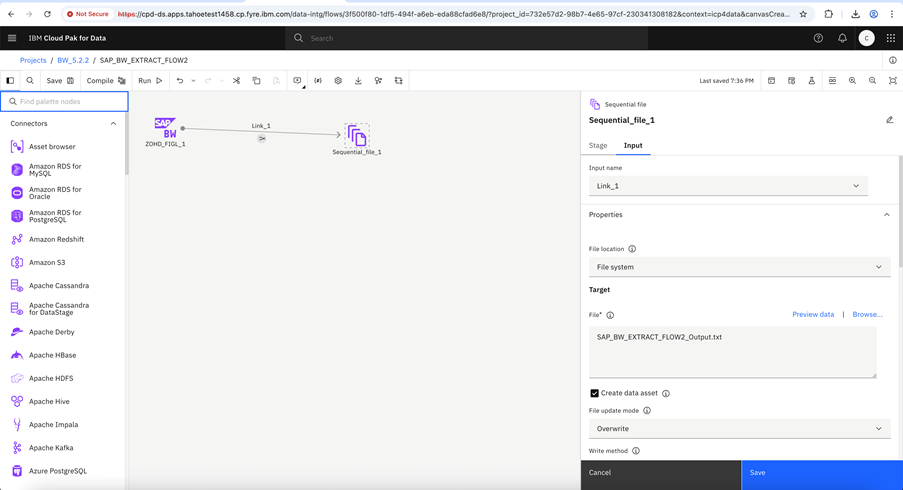
- Click the connector to open the properties.
- Under stage tab connection section, click "View Connection" drop down option to see the saved connection and create new connection.
- To create new connection, select "<Flow Connection>" from dropdown options. Provide values for connection properties.
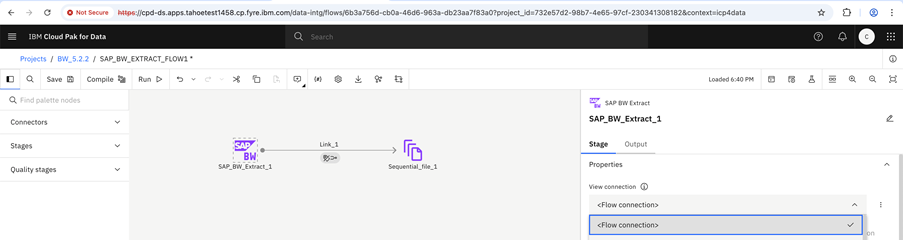
- Click "Test Connection" to test the connection.
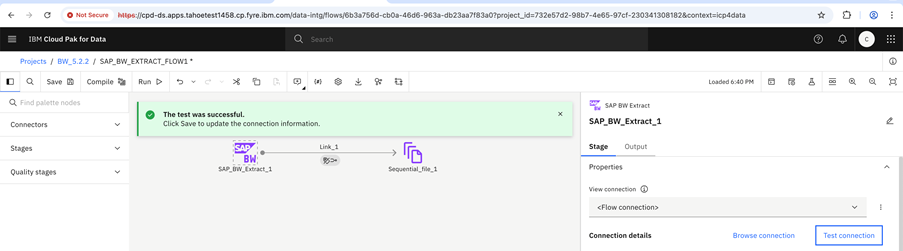
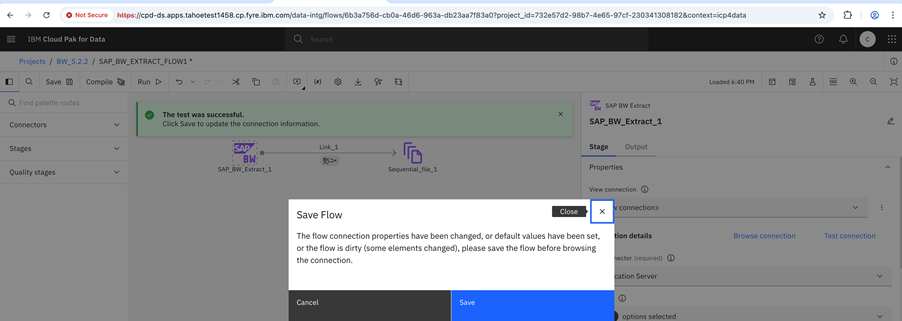
- Click "Browse Connection" and click and save.
- Click the "SAP BW Extract" connector.
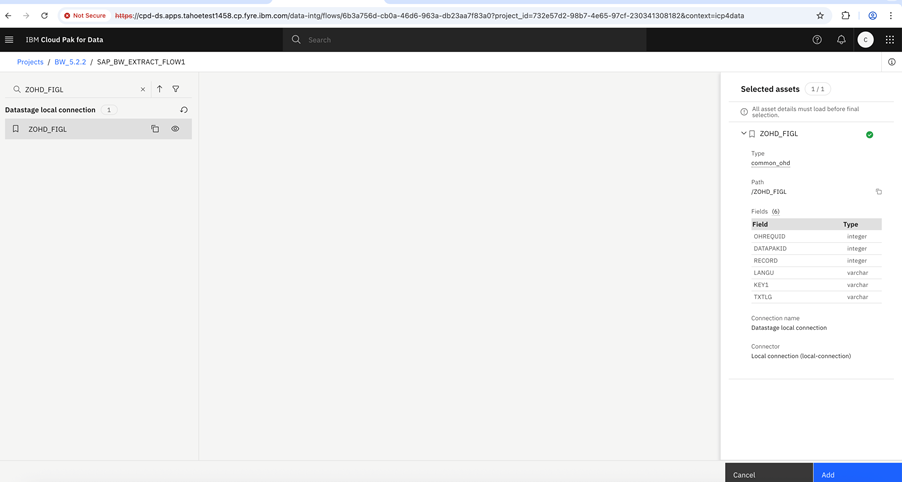
- Under Stage tab source section, click "Browse Connection". A new screen will appear that allows users to select the OHD from the list or search the OHD.
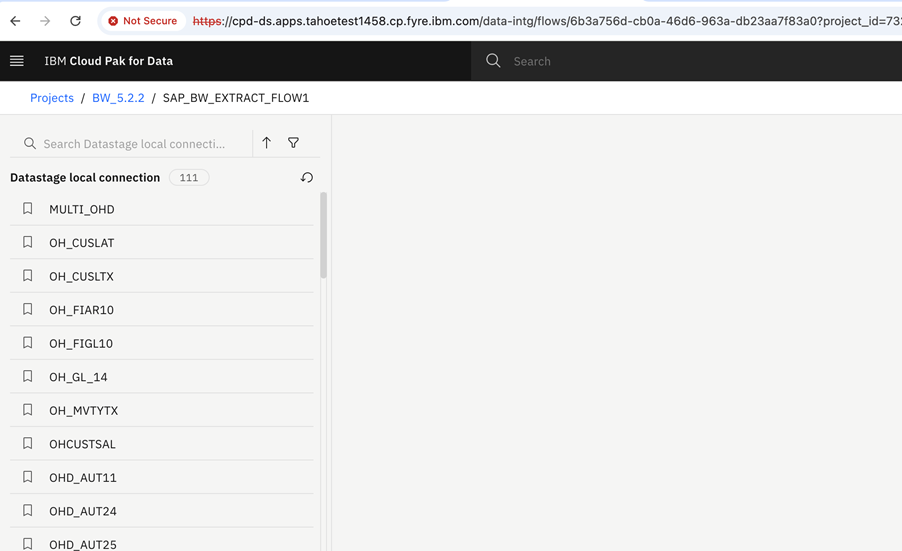
- Select the OHD from list or search the OHD using "Find" option.
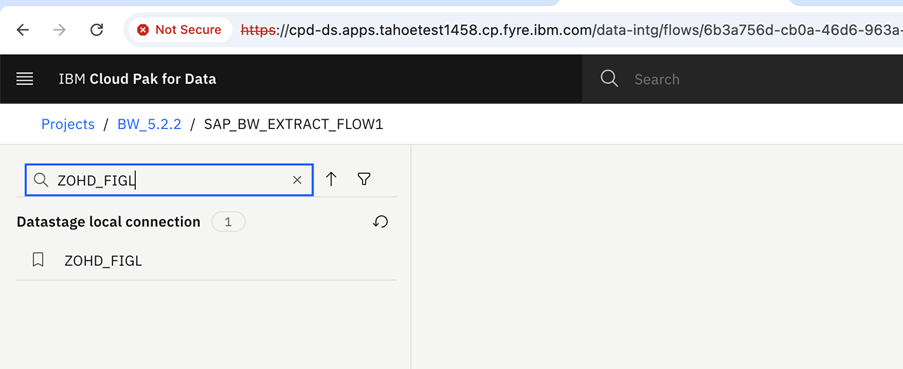
- Select OHD and click on "Add".
- Click on the "Input" tab, under "Column" section click "Edit" to review the metadata.
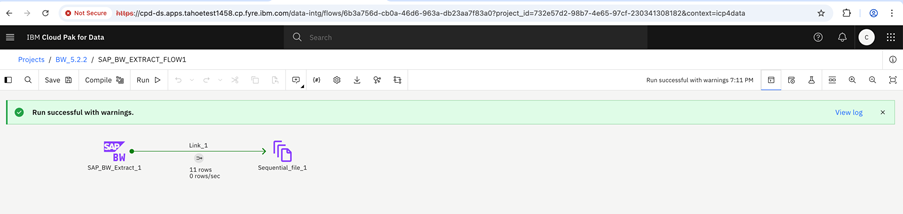
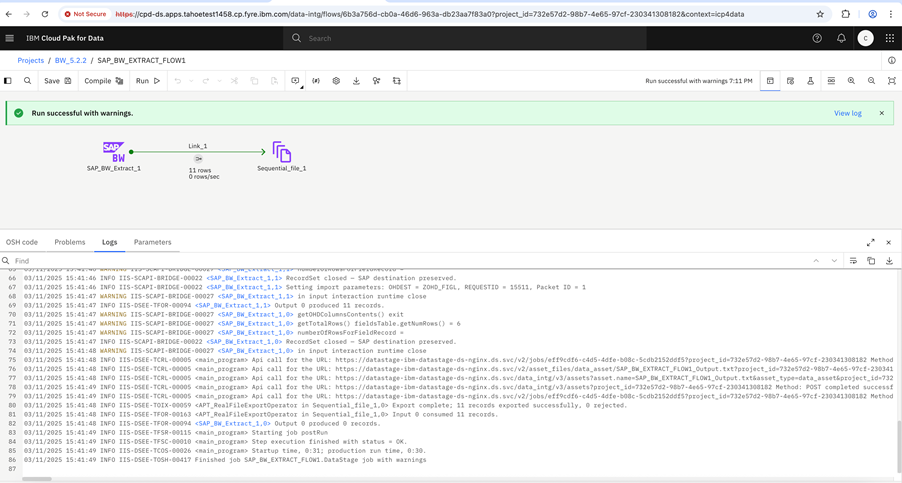
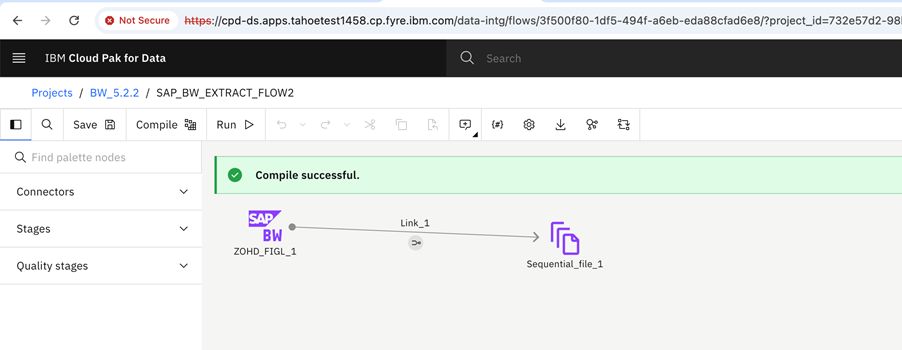
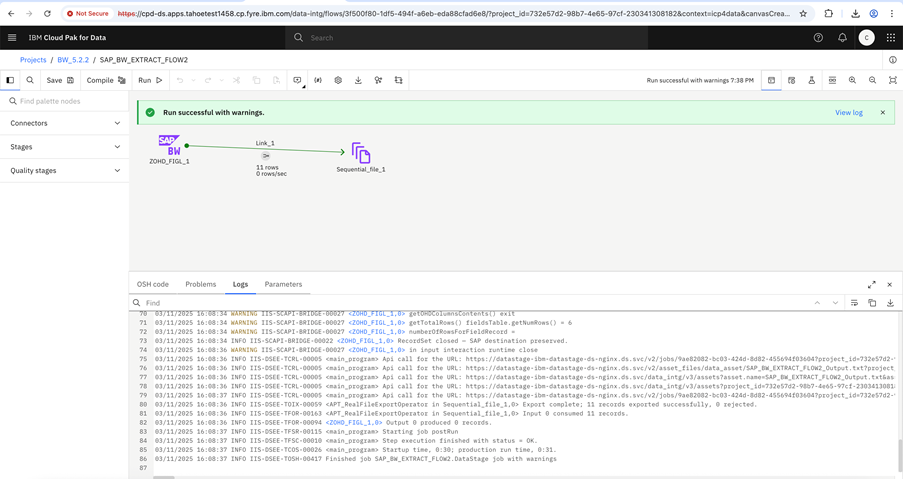
- Compile the flow.
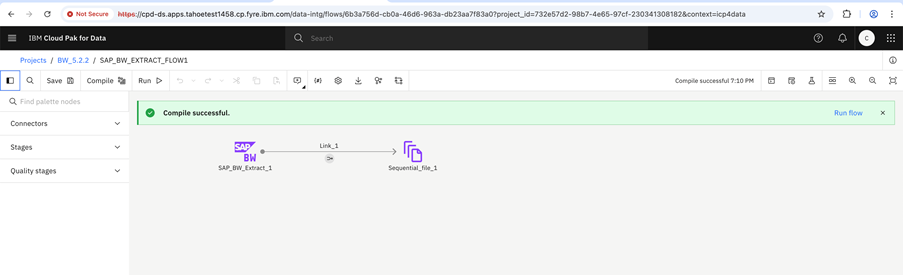
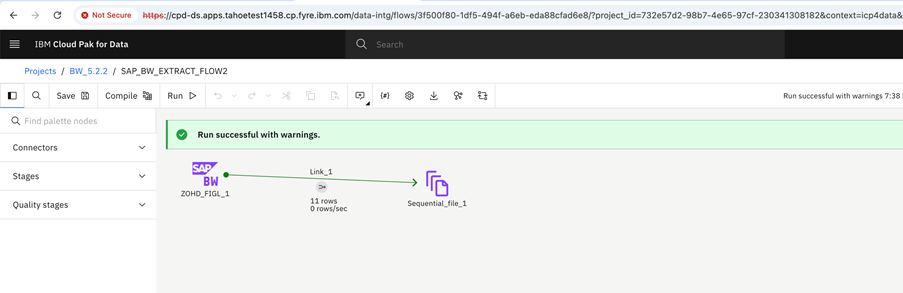
- Run the flow.
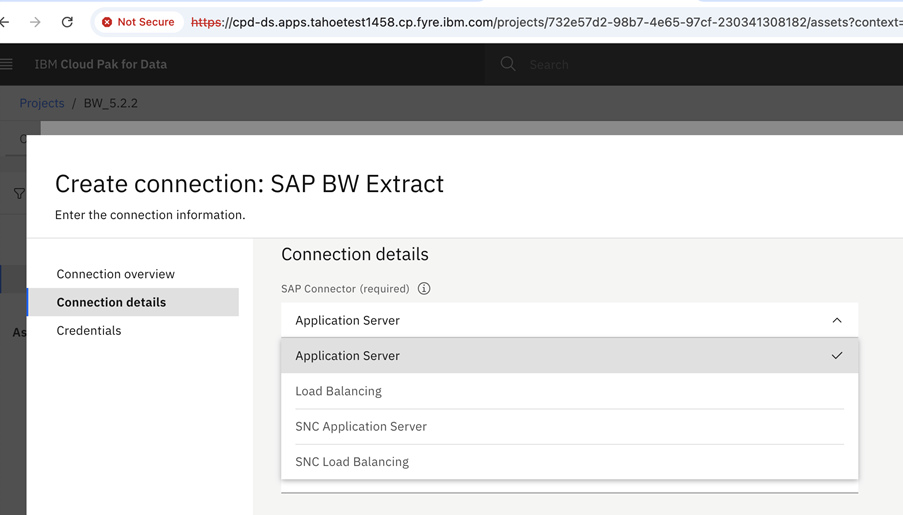
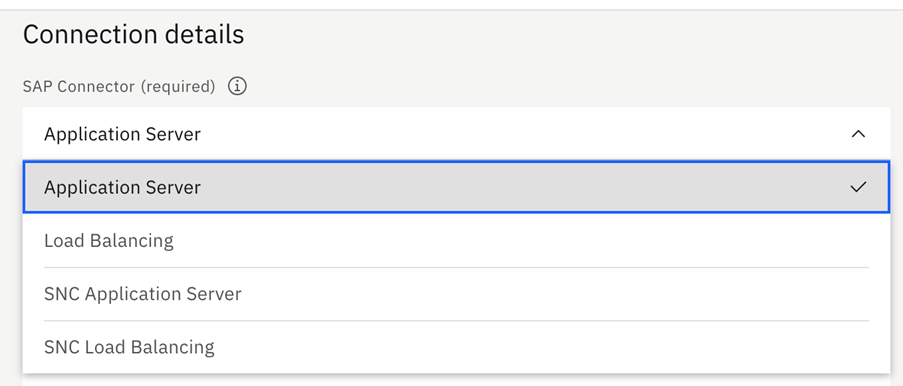
- Application Server
- Load balancing
- SNC application server
- SNC load balancing
a. Create new connection.
- Select the project.
- Click on "New Asset".
- Under "Prepare data" click on "Connect to data source".
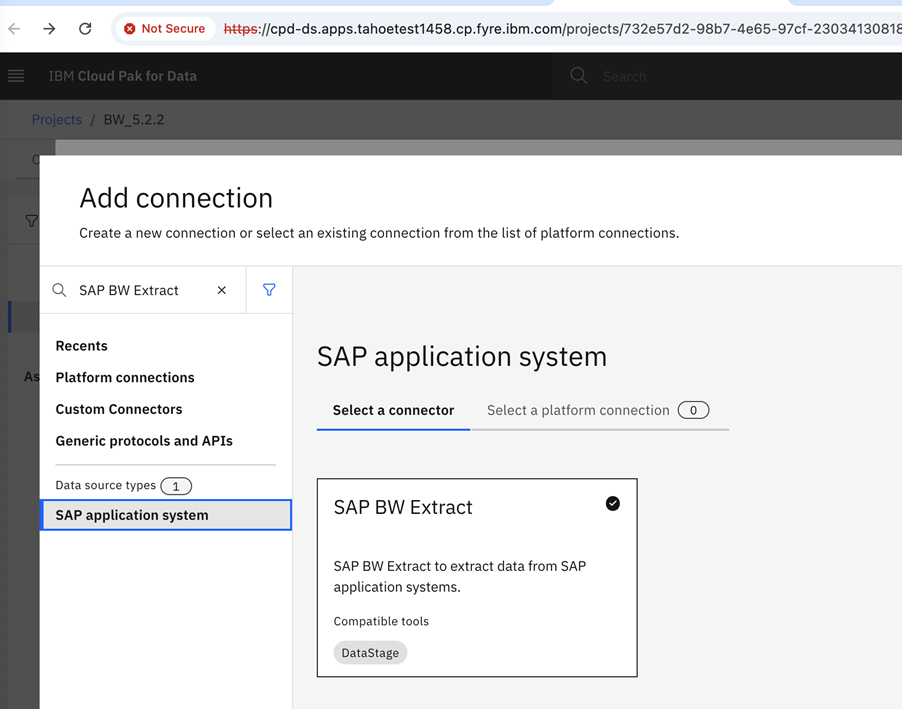
- Search SAP BW Extract and click on "SAP System Application" then select "SAP BW Extract" then click on next.
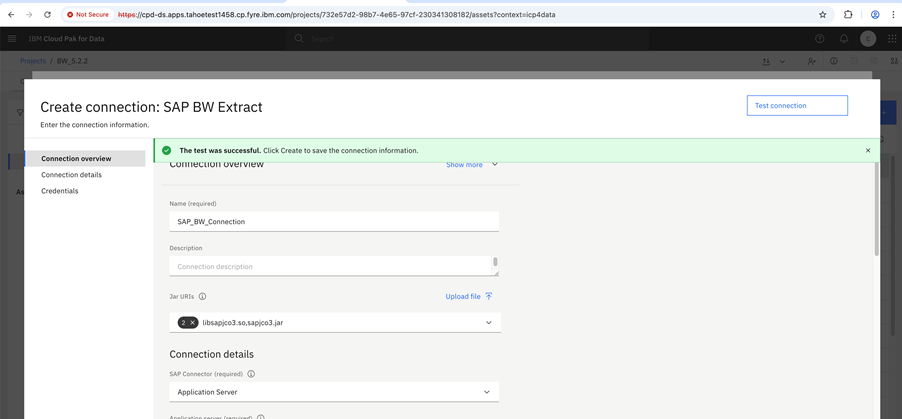
Provide connection details and click on "Create".
b. Edit saved connection:
- Select the project.
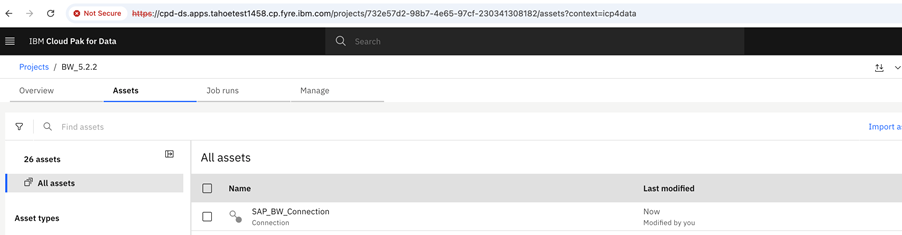
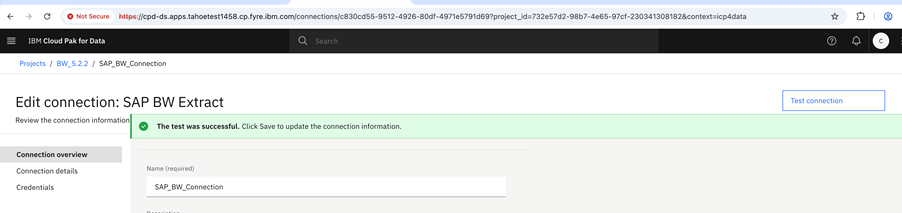
- Under "Assets", click the saved connection i.e. "SAP BW Connection" in current case.
- On Edit connection page, check the connection properties under "Connection overview".
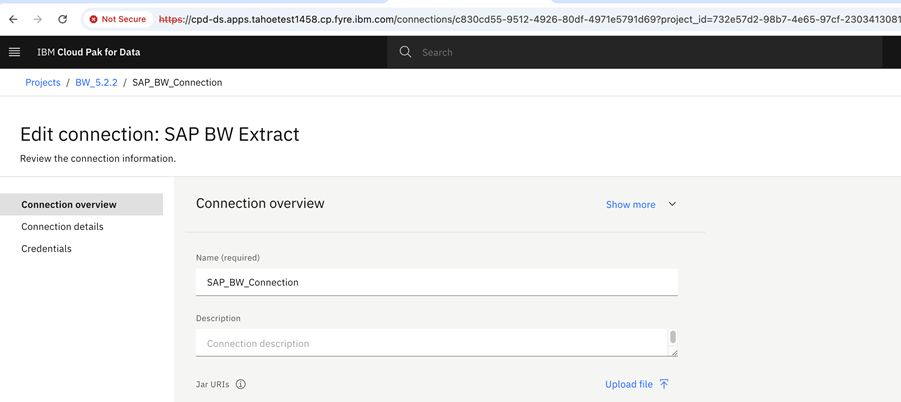
- Click "Test Connection" on top right corner to test the connection.
- Open project, click on "New Asset", select "Transform and integrate data", provide flow name and click on "Create".
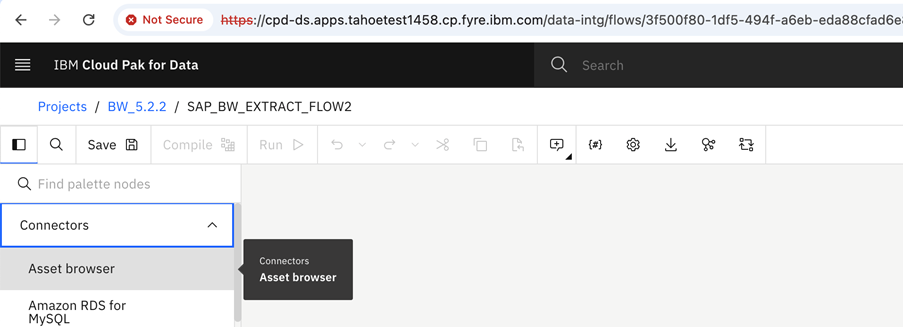
- Click on dropdown of "Connectors" section and double click on "Asset Browser".
- Asset browser window will be opened.
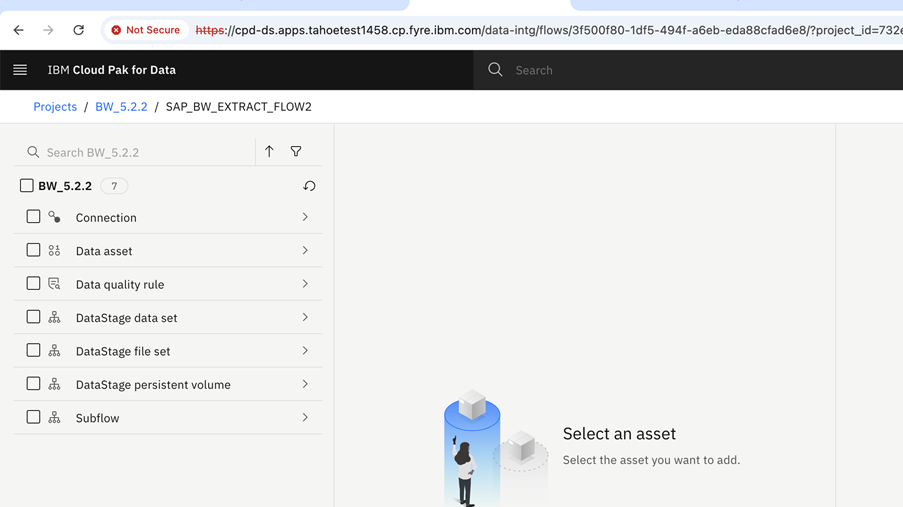
- Click on "Connection".
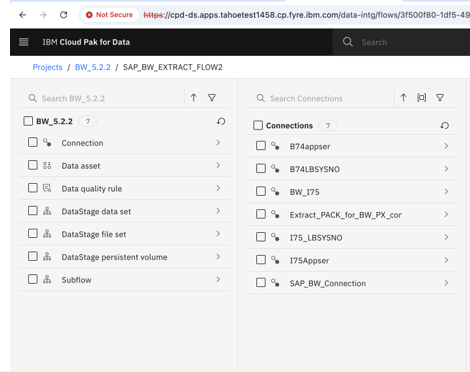
- Under "Connection", click the saved connection. i.e. "SAP BW Connection" in current case.
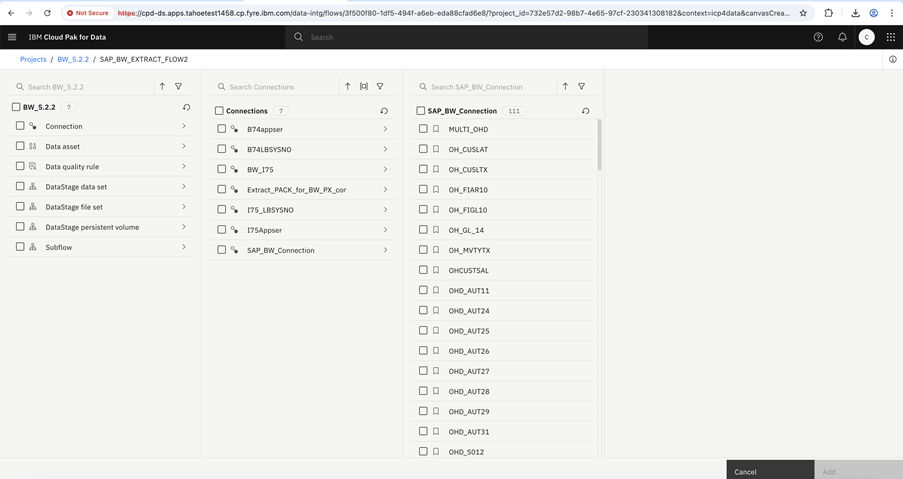
- Select OHD from list or search OHD and then click on "Add".
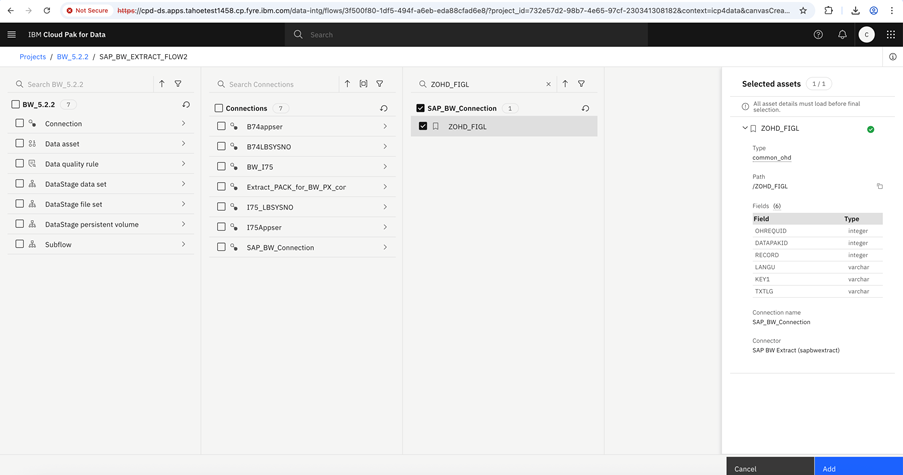
- Link "SAP BW Extract" connector with "Sequential file".
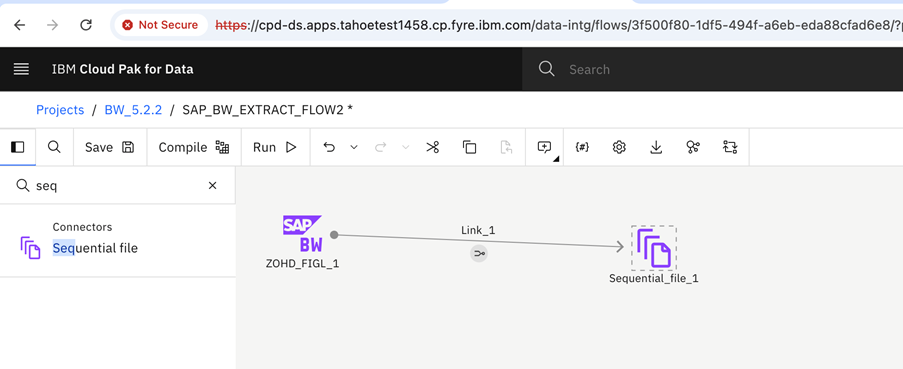
- Double click and open "SAP BW Extract" connector stage and check properties.
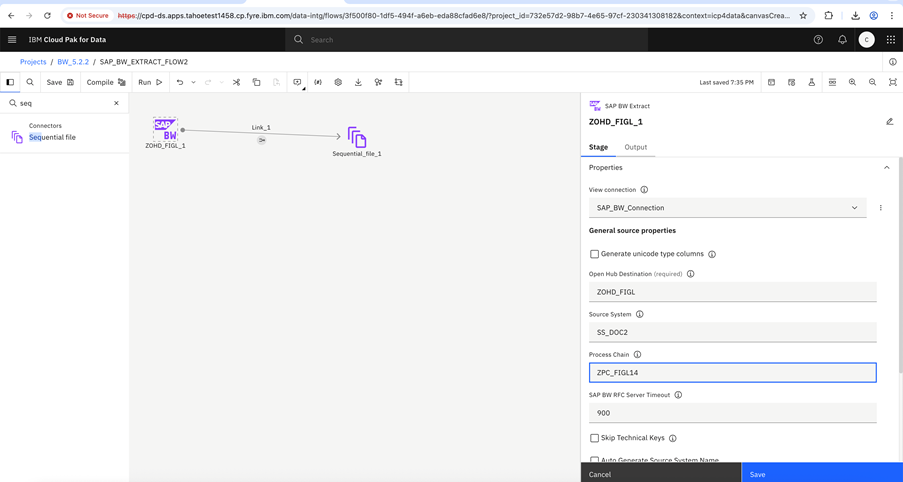
- Double click and open "Sequential File", provide output file details and select "Create data asset" checkbox.
- Save and compile the flow.
- Run the flow.
Additional Supported Feature of SAP BW Connector
The SAP BW Extract connector now includes two enhancements aimed at improving user experience, schema control and SAP system compatibility. Both features are optional, user-controlled, designed to ensure correctness while maintaining workflow flexibility and available starting with release 5.3.0 .
Skip Technical Keys: The Skip Technical Keys feature provides users with the ability to exclude SAP BW generated technical identifier columns from the output schema during data extraction. These technical keys are automatically generated by SAP BW for internal processing and typically do not add analytical value for downstream transformation and reporting. When enabled, the feature removes the following SAP BW technical fields from the output.
OHREQUID – Request Identifier
DATAPAKID – Data Package Identifier
RECORD - Record CounterAuto Generate Source System Name: When a user enables the Auto Generate Source System Name option in Stage Properties, the connector programmatically generates both the Source System Name and Program ID at runtime. These identifiers are validated against SAP naming rules, including maximum character length and restrictions on permissible special characters, thereby ensuring compliance and preventing invalid entries in SAP.
The SAP BW Extract Connector also supports configuration of a custom Program ID prefix through the environment variable SAP_ACL_TP_PREFIX. This mechanism enforces deterministic Program ID generation and ensures compliance in SAP systems operating with gw/acl_mode = 1.
Under this configuration, the Program ID is constructed using the following format:
<SAP_ACL_TP_PREFIX><autogenerated_SourceSystemName>_HEXID
Upon successful completion of data extraction, the connector automatically deallocates and deletes the generated Source System to preserve system integrity and prevent namespace conflicts.
Was this topic helpful?
Document Information
Modified date:
03 June 2026
UID
ibm17250664