Preventive Service Planning
Abstract
This technote describes the steps for creating a new/existing connection for SAP OData using mTLS.
Content
The CPD SAP OData connector has been enhanced to support mTLS (Mutual TLS), enabling secure communication for data extraction. This new feature strengthens the existing SAP OData connector by providing an added layer of security through mutual authentication.
SAP Configurations: Preparing and uploading CA-SIGNED X509 certificate
Overview of SAP OData mTLS
Mutual Transport Layer Security (mTLS) is a robust authentication method that enhances the security of SAP OData services by requiring both the client and server to authenticate each other using certificates. This two-way authentication ensures that both parties are verified, establishing a secure communication channel for data transmission.
SAP Configurations: Preparing and uploading CA-SIGNED X509 certificate
- Step 1: Prepare the CA-Signed X.509 Certificate Keypair
- Generate a Certificate Signing Request (CSR) and Private Key by running the following command. Please note that the following command is provided as an example of the expected format: openssl req -new -newkey rsa:4096 -nodes -out CSR.csr -keyout PrivateKey.key -subj "/C=US/ST=California/L=San Jose/O=<organization>/OU=IT/CN=<common_name_certificate>"
- The above step generates:
- CSR.csr – The certificate signing request
- PrivateKey.key – The private key (RSA 4096-bit, unencrypted)
- Submit the CSR to the Certificate Authority (CA).
- Send the CSR.csr file to your Certificate Authority (CA).
- Ensure that the received certificate is in. pem format (Base64 encoded).
- Convert the Private Key to PKCS8 Format(Optional). If required, convert the private key from PKCS1 (RSA) to PKCS8 (PEM) format: openssl pkcs8 -topk8 -inform PEM -outform PEM -nocrypt -in PrivateKey.key -out pkcs8.pem . This generates pkcs8.pem, which may be needed for certain integrations.
- Step 2: Upload the CA-signed x509 certificate to the communication user.
- On S/4HANA Cloud, either use an existing communication user or create a new one to upload a CA-signed x.509 client certificate.
- Ensure that the communication user is assigned to the communication system, with the authentication type set to SSL Client Certificate.

- Click on Maintain User to navigate to the Communication User Maintenance app.
- Under the Users for Inbound Communication section, click the Upload button to upload the certificate chain for the user. Please ensure that the x.509 certificate includes the full chain of certificates.

- Click on Upload, and once the certificate is added, a confirmation message should appear, indicating successful addition.

- The certificate has now been successfully configured on the S/4HANA Cloud platform.
Note:
- A CA-signed x.509 certificate can be assigned to only one technical communication user.
- The client application will rely on this CA-signed x.509 certificate trust, which is bound to the technical communication user, instead of using a dynamically propagated business user identity, enabling password-less communication with S/4HANA Cloud.
Creating new connection in CPD for SAP Odata using mTLS
- Select or create the project.
- Under Assets, click “New Asset” in the top right corner.

- Click on the "Connect to a data source".

- Select SAP OData Connector and click "Next".

- Create Connection by providing relevant details like SAP Gateway URL, Connection name, SAP OData Service Version etc.

- Select “None” option in the authentication method.

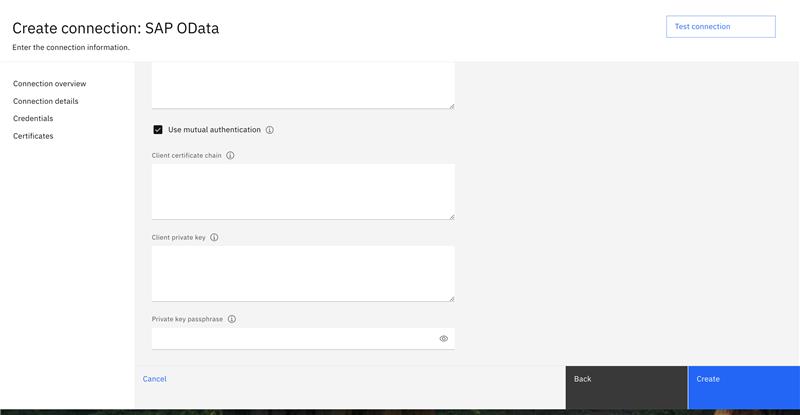
- Check the "Use mutual authentication" box.

- Enter Required Details like client certificate chain, Client Private Key, Passphrase (optional) if you are using encrypted private key.

- Click on "Test connection".
- Click on "Create" to create the connection.
Modifying existing SAP OData connection in CPD to mTLS
- Open existing created connection from Assets.

- Go to "Edit Connection" Page.

- Select “None” option in authentication method.

- Check the "Use mutual Authentication" box.

- Enter SSL certificate, Client Certificate chain, Private Key, Passphrase(if required).

- Click on "Test connection" and "Save" to save the connection.
- The existing connection gets updated with mTLS connection.
Note:
This mTLS connection can further be used to design and run a job in CPD environments.
Was this topic helpful?
Document Information
Modified date:
20 March 2025
UID
ibm17184472