Question & Answer
Question
How do you download, install, and use Java 11 on the IBM i OS?
Answer
IBM Technology for Java 11 is now generally available on IBM i 7.3 through 7.5. NOTE: Java 11 is not supported on IBM i 7.6 and beyond.
For IBM i 7.3 and 7.4, Java 11 was released as an off-release delivery for product 5770JV1 option 19 (Java 11 64 bit). As a result, the IBM i 7.3 and 7.4 5770JV1 Option 19 LPP is not directly available with the IBM i OS Standard Set Media discs and must be downloaded from IBM Entitled Systems Support (ESS).
For IBM i 7.5, the 5770JV1 Option 19 LPP is included with the IBM i 7.5 OS Standard Set Media disc, B_GROUPx_05.
PRE-REQUISITES
- IBM i 7.5, 7.4, and 7.3 OS
- IBM i 7.5 - SF99955 level 1 or higher
- IBM i 7.4 - SF99665 level 10 or higher
- IBM i 7.3 - SF99725 level 21 or higher
HOW TO DOWNLOAD 5770JV1 OPTION 19
1) Open a web browser and go to the URL, https://www.ibm.com/servers/eserver/ess/OpenServlet.wss.
2) Click the Sign in blue button at the end of the page.
If the blue Sign in button is not displayed, you might already be signed in and can skip step 3.
3) Sign in with your IBM ID registered with your IBM i SWMA contract.
4) At the top of the page, hover your mouse over My entitled software and click Software downloads.

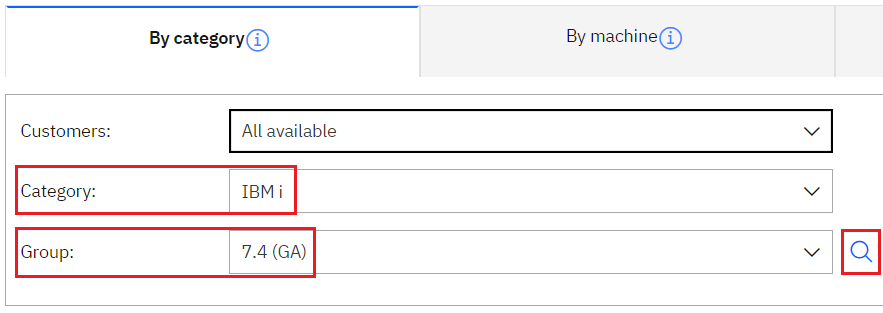
5) Change the Category to IBM i. Change the Group to the appropriate IBM i OS VRM. Then, click the magnifying glass to the right of the Group field to display product information.
This screen capture shows IBM i 7.4 OS selected.
6) Check the box next to 5770-SS1 for IBM i and click the blue Continue button.

7) Select your specific LPP language. Default Language is "Lang Grp 1 Americas/Europe". Then, click the blue Continue button.
8) After the Current products are displayed, (for IBM i 7.3 & 7.4 only) click the "Withdrawn products" tab. The "5851: i7.5 B_GROUP1 v07.05.00,ENU,DVD", "5841: i7.4 B_GROUP1 v07.04.00,ENU,DVD" or "5837: i7.3 B_GROUP1 v07.03.00,ENU,DVD" Download Package is displayed. If you don't, click the details link for 5770-SS1 IBM i.
For IBM i 7.4 and 7.3, you will see Withdrawn products. For IBM i 7.5, you will remain on the Current products tab.

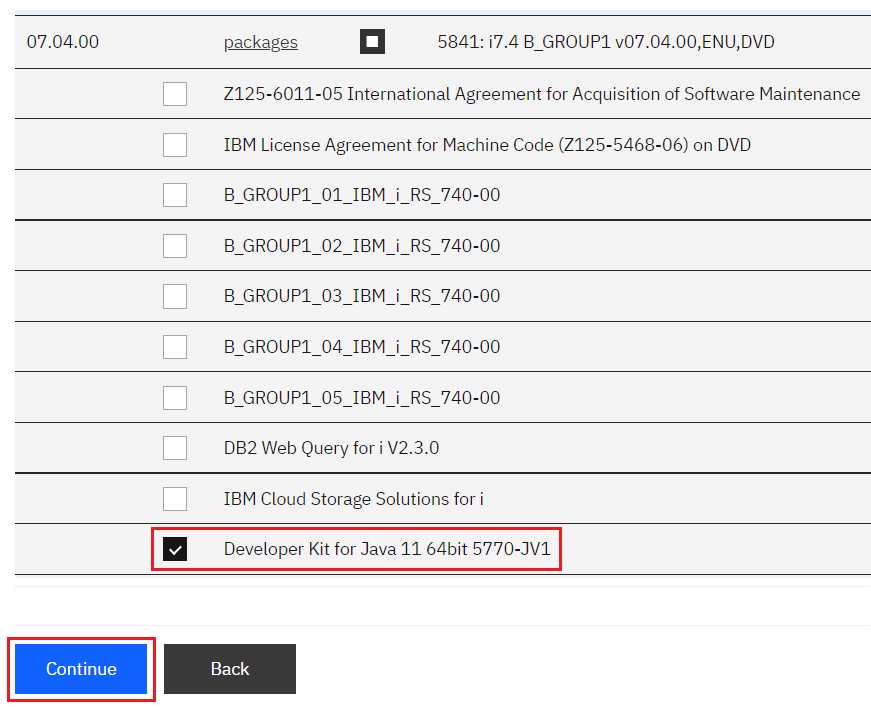
9) Click the packages link next to "5851: i7.5 B_GROUP1 v07.05.00,ENU,DVD", "5841: i7.4 B_GROUP1 v07.04.00,ENU,DVD", or "5837: i7.3 B_GROUP1 v07.03.00,ENU,DVD" to expand the individual discs for the package.

10) Scroll down and check the box next to...
IBM i 7.3 and 7.4:
- "Developer Kit for Java 11 64bit 5770-JV1" and click the blue Continue button.
IBM i 7.5:
- "B_GROUP1_05_IBM_i_RS_750-00" and click the blue Continue button.
11) Review the license terms. If you agree to the license terms, click the blue I agree button.
12) Select your download method. If Java is installed on your PC, IBM recommends to select Download Director. Otherwise, select the "Download using your browser (HTTPS)" download method.
13) Click the blue Download now button (Download Director option). If this download option does not work, click the Back button and choose the "Download using your browser (HTTPS)" download method.
For the HTTPS download option, click the B_GROUP1_05_IBM_i_RS_750-00_LCD8_2685_00.udf (IBM i 7.5), Developer_Kit_for_Java_11_64bit_5770_JV1_Option_19_LCD8_2628_00.iso (IBM i 7.4), or Developer_Kit_for_Java_11_64bit_5770_JV1_Option_19_LCD8_2508_00.iso.ZIP (IBM i 7.3) hyperlink to download the .zip file.
IBM i 7.5:

IBM i 7.4:

IBM i 7.3:

14) Clicking the link will download a .zip file containing an ISO image of the 5770-JV1 Option 19 LPP installation media.
HOW TO INSTALL 5770-JV1 OPTION 19 LPP ON THE IBM I OS
You will want to first download the .zip file to your PC per the instructions above, create the directory /jdk11 (MKDIR '/jdk11') on your IBM i server, and transfer the .zip file to the IFS directory, /jdk11, you just created. This can be done using a mapped network drive, FTP, or IBM i Nav IFS connection).
Please refer to the following file names based on your IBM i OS VRM.
IBM i 7.5: B_GROUP1_05_IBM_i_RS_750-00_LCD8_2685_00.udf
IBM i 7.4: Developer_Kit_for_Java_11_64bit_5770_JV1_Option_19_LCD8_2628_00.iso
IBM i 7.3: Developer_Kit_for_Java_11_64bit_5770_JV1_Option_19_LCD8_2508_00.iso.ZIP
NOTE: The only ZIP file is for IBM i 7.3 so perform 1-4 ONLY for IBM i 7.3
1) STRQSH
2) cd /jdk11
3) jar xvf Developer_Kit_for_Java_11_64bit_5770_JV1_Option_19_LCD8_2508_00.iso.ZIP
4) F12
2) cd /jdk11
3) jar xvf Developer_Kit_for_Java_11_64bit_5770_JV1_Option_19_LCD8_2508_00.iso.ZIP
4) F12
Once the ISO/UDF image file is in the/jdk11 directory, use the instructions below for installing JDK 11 using an image catalog from an IBM i CL command line.
5) CHGOPTA EXTMEDFMT(*YES)
Important Note: The CHGOPTA command must be issued before the LODIMGCLG command shown below. If it is issued after the LODIMGCLG command, you will need to re-load the catalog.
Important Note: The CHGOPTA command must be issued before the LODIMGCLG command shown below. If it is issued after the LODIMGCLG command, you will need to re-load the catalog.
6) CRTIMGCLG IMGCLG(jdk11) DIR('/jdk11/IMAGE') CRTDIR(*YES)
7) ADDIMGCLGE IMGCLG(jdk11) FROMFILE('/jdk11/<ISO/UDF file>') TOFILE(*fromfile)
8) CRTDEVOPT DEVD(OPTVRT01) RSRCNAME(*VRT) NOTE: If the OPTVRT01 device description already exists, please continue to the next step.
9) VRYCFG CFGOBJ(OPTVRT01) CFGTYPE(*DEV) STATUS(*ON)
10) LODIMGCLG IMGCLG(jdk11) DEV(OPTVRT01)
11) Ensure the Developer_Kit_for_Java_11_64bit image is mounted in WRKIMGCLGE IMGCLG(jdk11).
You can enter option 6 next to the image to mount it.
12) RSTLICPGM LICPGM(5770JV1) OPTION(19) RSTOBJ(*PGM) DEV(OPTVRT01)
13) Finally, download and install the latest IBM i Java Group PTF to complete the LPP installation.
IBM i 7.5 - SF99955
IBM i 7.4 - SF99665
IBM i 7.3 - SF99725
IBM i 7.3 - SF99725
HOW TO USE JAVA 11 64 BIT ON THE IBM I OS
In order to use Java 11 64 bit on the IBM i OS, the JAVA_HOME environment variable will need to be set to /QOpenSys/QIBM/ProdData/JavaVM/jdk11/64bit.
JAVA_HOME=/QOpenSys/QIBM/ProdData/JavaVM/jdk11/64bit
Examples of how to set the JAVA_HOME environment variable:
- To change the default JDK system-wide to JDK 11 64 bit
- ADDENVVAR ENVVAR(JAVA_HOME) VALUE('/QOpenSys/QIBM/ProdData/JavaVM/jdk11/64bit') LEVEL(*SYS)
- To change the current job to JDK 11 64bit
- ADDENVVAR ENVVAR(JAVA_HOME) VALUE('/QOpenSys/QIBM/ProdData/JavaVM/jdk11/64bit') LEVEL(*JOB)
- To change the current Qshell session to use JDK 11 64bit
- export JAVA_HOME=/QOpenSys/QIBM/ProdData/JavaVM/jdk11/64bit
Related Information
[{"Type":"MASTER","Line of Business":{"code":"LOB68","label":"Power HW"},"Business Unit":{"code":"BU070","label":"IBM Infrastructure"},"Product":{"code":"SWG60","label":"IBM i"},"ARM Category":[{"code":"a8m3p000000GnxTAAS","label":"Java Development Kit-\u003EJava 11"}],"ARM Case Number":"","Platform":[{"code":"PF012","label":"IBM i"}],"Version":"7.3.0;7.4.0;7.5.0"}]
Was this topic helpful?
Document Information
Modified date:
11 September 2026
UID
ibm16490439