ODBC errors
Empty or missing EDI options in the standards drop down when creating a new map.
Overview
When creating a new EDI map, you might see an empty drop down list on the map editor wizard.
- Click the New icon on the menu.

- Provide a map name in the What is the name of the map? field.
- Select Delimited EDI (ANSI X12, EDIFACT, Tradacoms, etc.) as the data format standard.
- Click Messages.
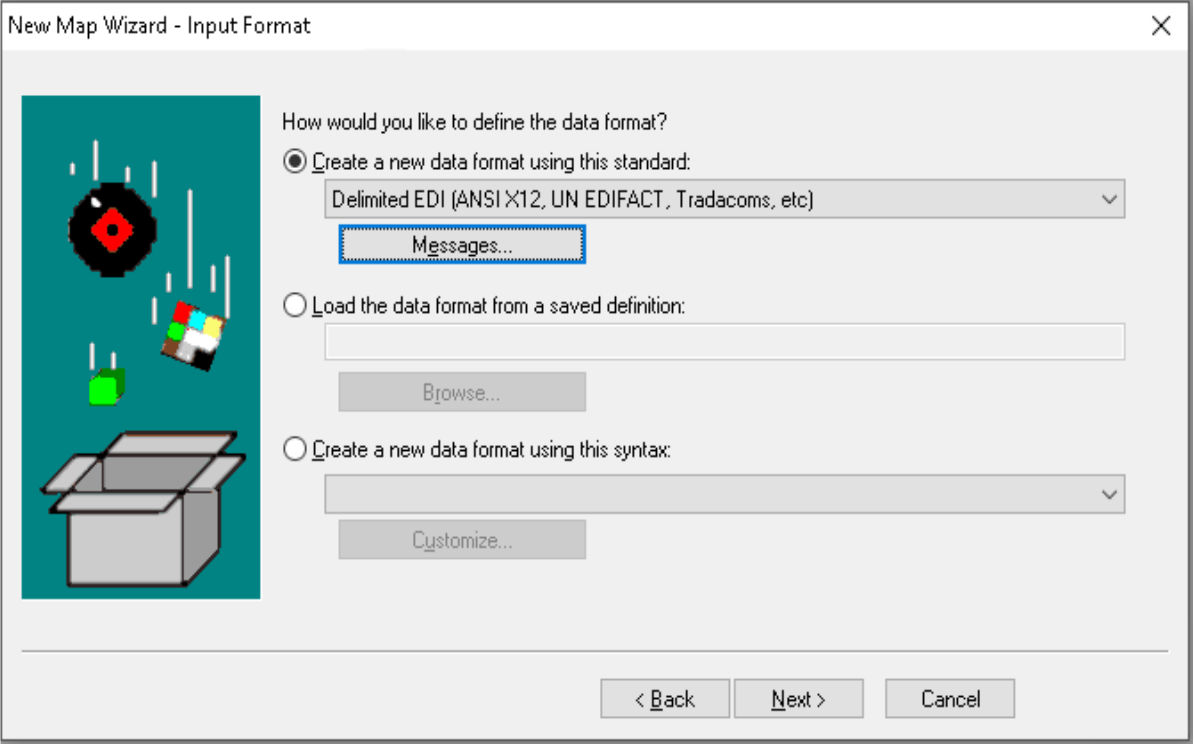
- Click Next to see an empty drop down list.

Cause
While installing the standards library, sometimes the ODBC source is not created properly, which results in the error.
Resolution
To resolve the issue, uninstall and reinstall Sterling Standards library. If the problem still
persists, refer to the following steps to manually create the ODBC data source:
- Click Start.
- Go to Control panel.
- From the Administrative Tools dialog box, double-click ODBC Data Sources (32-bit).
- Click User DSN.
- Click Add.
- From the list of drivers, select Microsoft Access Driver (*.mdb).
- Input EDI in the Data Sources Name field.
- In Database, click Select, and browse for the
Standards.mdb file.Note: The default location for the file in the installation directory is:
C:\Program Files (x86)\Sterling Commerce\Sterling Integrator Standards - To relaunch the map editor, click OK.

The newly added ODBC datasource is now visible, while creating EDI maps.