Known issues and limitations
WebSphere Automation has the following known issues and limitations.
- Security bulletins that were released prior to 2018 are not evaluated
- Multiple instances cannot be in one namespace
- Node agent CVEs are not in the CVE report
- API shows version 9.0.5 for WebSphere Application Server traditional versions 9.0.5.0 to 9.0.5.3
- WebSphere Application Server base servers might be incorrectly indicated as vulnerable
- WebSphere Application Server for z/OS specific vulnerabilities
- Registered Windows 2022 servers appear as an older Windows version
- Fixes cannot be installed for certain operating systems
- Fixes cannot be installed on certain installations
- Fix management records might fail because status did not change during timeout periods
- Support for registering deployment managers requires WebSphere Application Server 9.0.5.14 or 8.5.5.23
- No iFix option for fixing vulnerabilities in a Java SDK runtime
- Security Bulletins Affected Product size limits
- Installation fails in the airgap environment when using case version 1.9.0 or 1.10.0
- Installation fails with long namespace names
- Additional Instruction for CVE-2026-3621
- Kafka Pod Resource Defaults Change After Setting spec.events
- Anomalies due to bulletins wrongly published to DHE
- Fixes database refresh takes up to 2 minutes to reflect changes
Security bulletins that were released before 2018 are not evaluated
- WebSphere Application Server (all editions) 8.5.5.15 and later
- WebSphere Application Server (all editions) 9.0.0.9 and later
- WebSphere Application Server Liberty (all editions) 18.0.0.3 and later
Multiple instances cannot be in one namespace
Multiple instances of WebSphere Automation cannot be deployed in the same namespace. Multiple instances can be deployed in separate namespaces in the cluster.
Node agent CVEs are not in the CVE report
WebSphere Automation uses the usage metering feature within WebSphere Application Server to collect data about your servers so that their vulnerability status can be assessed. Usage metering does not run in node agents. For more information about usage metering, see the Overview page.
Unresolved security vulnerabilities and exposures might affect your node agents. Manually evaluate new security bulletins to see whether they apply to your node agents.
API shows version 9.0.5 for WebSphere Application Server traditional versions 9.0.5.0 to 9.0.5.3
After a WebSphere Application Server traditional
server is registered with the usage metering service, you can view the server asset in the
Swagger UI. For versions 9.0.5.0 through 9.0.5.3, the API has
9.0.5 for the version value. The version fix pack number
(0, 1, 2, or 3) is missing.
"version": "9.0.5",For versions after 9.0.5.3, the version value correctly shows the version fix
pack number. For example, version 9.0.5.6 has the full version number with 6 for
the fix pack number.
"version": "9.0.5.6",WebSphere Application Server traditional uses the IBM Version, Release, Modification, Fix Pack (V.R.M.F) format for numbering versions.
WebSphere Application Server base servers might be incorrectly indicated as vulnerable
WebSphere Automation might incorrectly indicate that WebSphere Application Server base servers are vulnerable. Security bulletins that apply only to WebSphere Application Server ND servers are incorrectly determined to apply to WebSphere Application Server base servers. In these instances, the attempt to apply the interim fix (iFix) from the security bulletin to a base server fails. WebSphere Automation continues to show the security vulnerability as unresolved for that server.
It is possible to manually resolve the security vulnerability by using the REST API. The REST APIs are a technology preview in this release and are therefore unsupported. For more information, see Viewing the REST API.
WebSphere Application Server for z/OS specific vulnerabilities
Vulnerabilities that are exclusive to WebSphere Application Server for z/OS and IBM Java™ Development Kit for z/OS are not included in the set of vulnerabilities that are known to, or tracked by, WebSphere Automation. Vulnerabilities that are reported on the ibm.com/support pages which impact multiple editions, including WebSphere Application Server for z/OS, are tracked. Those vulnerabilities that are reported only through the IBM Z Security Portal are not included and users of that portal must continue to use it for those issues reported only through the portal.
Registered Windows 2022 servers appear as an older Windows version
When you register a Windows 2022 server with WebSphere Application Server 9.0.5.x, the getAssets JSON file returns
an older Windows server version for the operatingSystem parameter. This error
does not negatively impact WebSphere Automation operation. The issue is
resolved in Java 8.0.7.5 (SR7 FP5), but the default Java version for WebSphere Application Server
9.0.5.x is 8.0.7.0.
The following example getAssets JSON file shows the operatingSystem:
Windows Server version 2009 error:
{
  "id": "c7eea541-b685-3d9a-88d3-ea62f01e601f",
  "name": "server1@hostname.example.com",
  "type": "traditional",
  "edition": "nd",
  "productName": "WebSphere Application Server Network Deployment",
  "version": "9.0.5.10",
  "apars": [
    "PH37034",
    "PH42728",
    "PH42762"
  ],
  "hostName": "hostname.example.com",
  "cellName": "NonAdminCell01",
  "nodeName": "DefaultNode01",
  "serverName": "server1",
  "installDirectory": "/C:/wsauser/IBM/WAS",
  "profileDirectory": "/C:/wsauser/IBM/WAS/profiles/AppSrv01",
  "operatingSystem": "Windows Server version 2009",
  "operatingSystemVersion": "10.0",
  "jdkId": "3003f49f-d42a-3f7d-9bd1-a7edb1ac96a7",
Fixes cannot be installed for certain operating systems
WebSphere Automation cannot install fixes on WebSphere Application Server or WebSphere Application Server Liberty that are installed on z/OS or iSeries platforms.
Fixes cannot be installed on certain installations
It is not possible to install fixes on the following types of application server instances:
- Instances of WebSphere Application Server Liberty that are installed from archive. Fixes can only be applied to Liberty instances that are installed by using Installation Manager.
- Instances of WebSphere Application Server or WebSphere Application Server Liberty that are configured to use swinging profiles.
Fix management records might fail because status did not change during timeout periods
When an active fix management record (also know as an installation record) on a host exists, you cannot create another fix management record until the first one is completed or failed. If fix management records stay in the same status for a long time, a timeout monitor updates their status to failed.
The timeout monitor runs once an hour in each pod. The preset timeout periods are as follows.
| Status | Period duration |
|---|---|
| Initializing | 30 minutes |
| Installing fix | 24 hours |
| Ready to install | 7 days |
If you have a fix management record that stays in the same status for a long time, create a new one after the timeout period ends.
Support for registering deployment managers requires WebSphere Application Server 9.0.5.14 or 8.5.5.23
If you are registering a WebSphere Application Server deployment manager, it must be version 9.0.5.14 or 8.5.5.23. This requirement ensures that the usage metering feature properly reports the server type to WebSphere Automation.
To enable registration for a deployment manager that you cannot upgrade to WebSphere Application Server 9.0.5.14 or 8.5.5.23, contact IBM Support.
No iFix option for fixing vulnerabilities in a Java SDK runtime
In the Prepare fix dialog, no interim fixes (iFixes) are shown as options to fix vulnerabilities in a Java SDK runtime. You must select Fix Pack as the Fix type on the Choose global options page, and then choose a fix pack to install on the Choose fixes page.
Security Bulletins Affected Product size limits
Security Bulletins with more than 8 Affected Products size is not supported till 1.9.0 WSA release. Security Bulletins with up to 32 Affected Products size is supported from 1.10.0 WSA release onwards.
Installation fails in the airgap environment when using case version 1.9.0 or 1.10.0
WebSphere Automation installation fails in the airgap environment when using case version 1.9.0 or 1.10.0.
To resolve this issue, run the following command to install the operator.
Example for v1.9.0
oc ibm-pak launch \
   $CASE_NAME \
   --version $CASE_VERSION \
   --inventory $CASE_INVENTORY_SETUP \
   --action install-operator \
   --namespace $WSA_OPERATOR_NAMESPACE \
   --args "--channelName v1.9"
Installation fails with long namespace names
WebSphere Automation installation might fail if the namespace name
is too long. Kubernetes has a 63-character limit for annotation keys. When the namespace name
exceeds 34 characters, the oauth-redirecturi annotation key for zenclient cannot be added to the
ibm-iam-operand-restricted ServiceAccount, which breaks the integration between
Cloud Pak for Data and Common Services Identity Management.
After you log in as the default user cpadmin, if you click the Identity Provider
Configuration link on the Access Control page, you might see the following error:
Unable to validate zen namespace from zen header
Diagnosis
To verify if this is the issue, run the following commands to test the annotation:
oc project <your-namespace>
oc annotate serviceaccount ibm-iam-operand-restricted \
  serviceaccounts.openshift.io/oauth-redirecturi.zenclient-<your-namespace>0=test
If the namespace name is too long, you will see an error similar to:
The ServiceAccount "ibm-iam-operand-restricted" is invalid: metadata.annotations:
Invalid value: "serviceaccounts.openshift.io/oauth-redirecturi.zenclient-<your-namespace>0":
name part must be no more than 63 characters
Resolution
To resolve this issue, reinstall WebSphere Automation using a namespace name that is 34 characters or less.
For example, if your namespace is test-private-dev-websphere-automation (37
characters), consider the following options:
test-pri-dev-websphere-automation(31 characters)test-private-dev-ws-automation(29 characters)- Any other name with 34 characters or less.
Additional Instruction for CVE-2026-3621
The CVE-2026-3621 security bulletin includes additional installation instructions. This
vulnerability only affects Liberty servers when the appSecurity feature
(appSecurity-1.0, appSecurity-2.0, appSecurity-3.0, appSecurity-4.0, or appSecurity-5.0) is not
enabled. For more information, refer to the IBM Support
page.
Kafka Pod Resource Defaults Change After Setting spec.events
When configuring WSA (WebSphere Automation), Kafka pod resource allocations change depending on
whether the spec.events section is configured:
- Initial State (no spec.events configured)
- Kafka pods use default resources: 2 cores CPU, 4 GiB memory (both requests and limits)
- After Setting spec.events
-
- Even without explicitly configuring
spec.events.kafka, Kafka pod defaults change to: 1 core CPU, 2 GiB memory - This reduced default persists even if you remove the entire
spec.eventssection from the WSA custom resource
- Even without explicitly configuring
To restore the original resource allocations, explicitly configure Kafka resources in your WSA custom resource:
spec:
  events:
    kafka:
      resources:
        limits:
          cpu: 2
          memory: 4Gi
        requests:
          cpu: 2
          memory: 4Gi
This configuration ensures Kafka pods maintain the original 2 core, 4 GiB resource allocation
regardless of other spec.events settings.
This issue is resolved in WebSphere Automation version 1.13.0 and later. If you are running an earlier version, use the workaround above.
Anomalies due to bulletins wrongly published to DHE
Three security bulletins were initially published to DHE with incorrect bulletin IDs and were later republished with the correct IDs. After the incorrect bulletins were removed from DHE, user databases that were updated during the interim period may contain two bulletin records for the same CVE. This condition causes display anomalies in the WebSphere Automation (WSA) UI. No functional issues are associated with these anomalies.
Affected CVEs and security bulletins
The following CVEs and their associated security bulletins are affected:
- CVE-2026-9319 — IBM Support: node/7274738
- CVE-2026-8644 — IBM Support: node/7274740
- CVE-2026-9311 and CVE-2026-9330 — IBM Support: node/7274733
Server Management and Security page — duplicate CVE entries
The CVE list side panel on the Server Management and Security page may display two entries for the same CVE. Resolving either entry removes both CVEs from the unresolved vulnerabilities list.
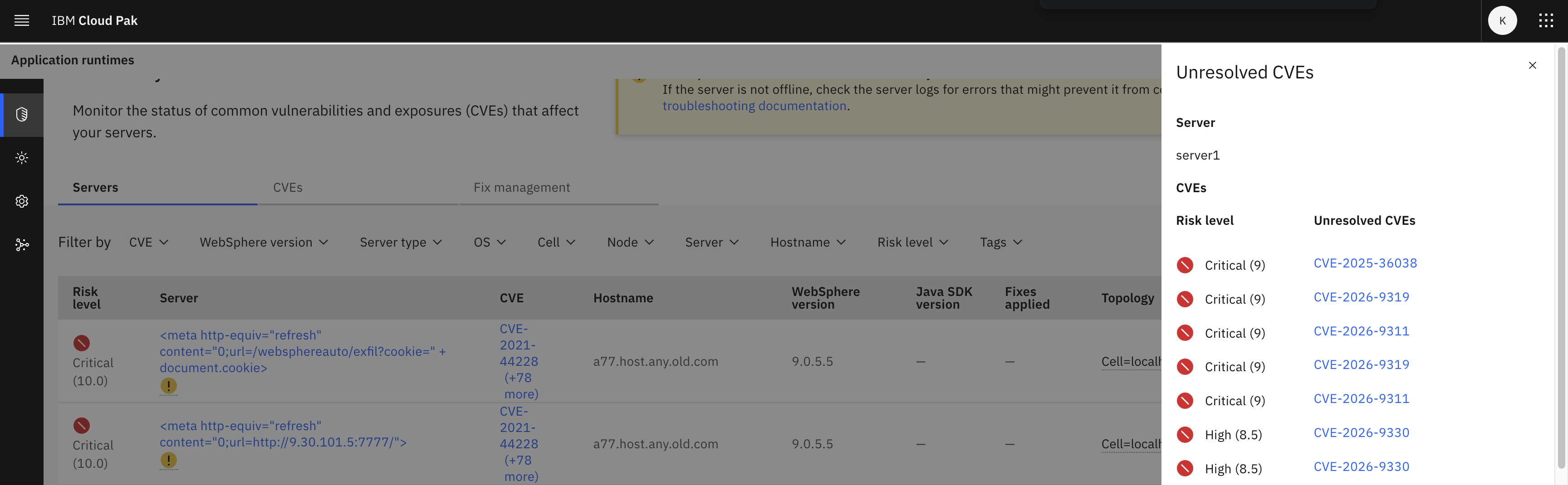
CVE link points to an iFix page instead of the security bulletin
For the affected CVEs, the CVE link may point to an iFix page rather than to the security bulletin page. Clicking View the Security Bulletin redirects you to the correct security bulletin page.
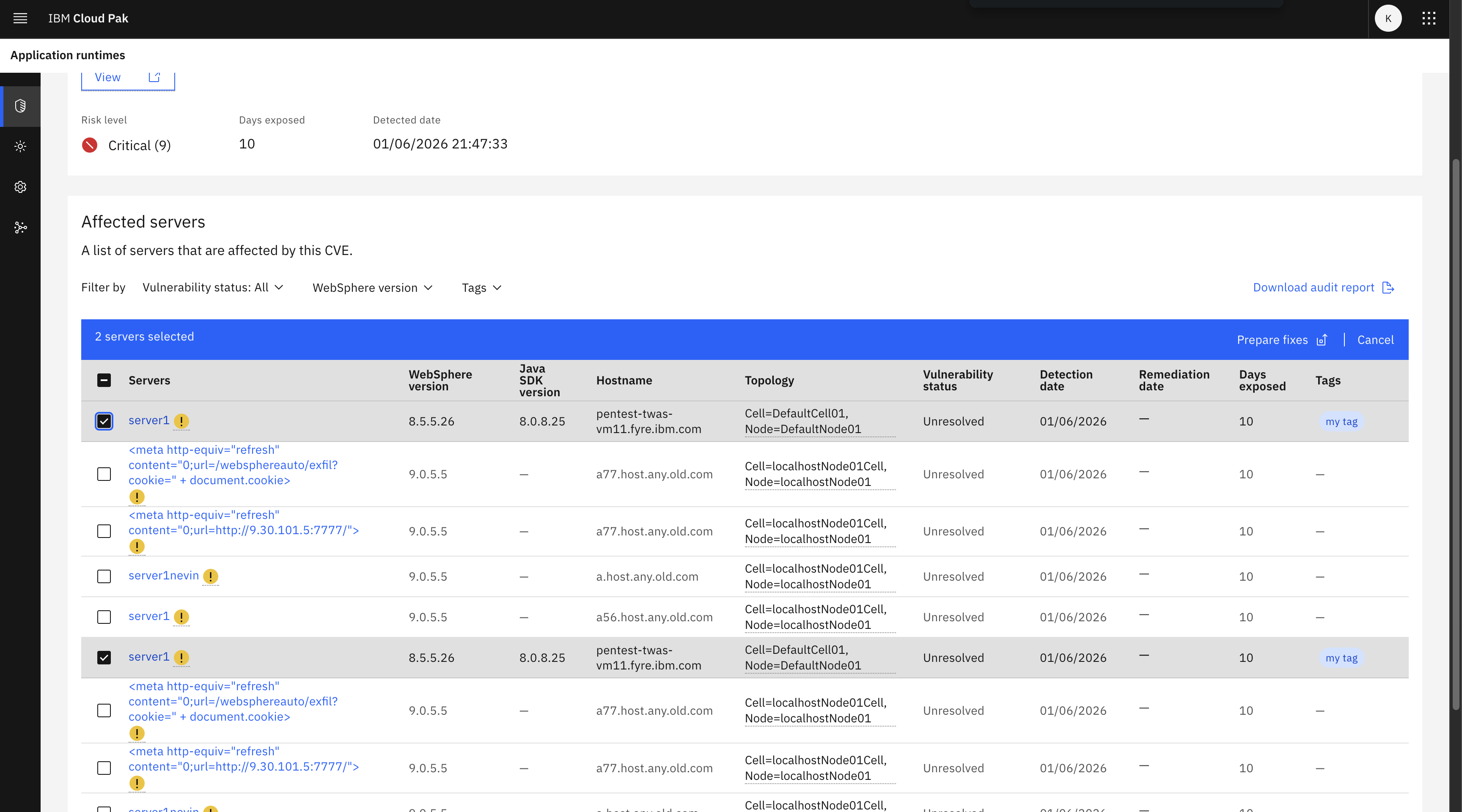
Security page, CVE tab — duplicate server entries
On the Security page, CVE tab, a single server may appear as two entries for the same CVE because two bulletin records exist for that CVE. When the CVE is resolved for one entry, both entries are marked as Resolved.
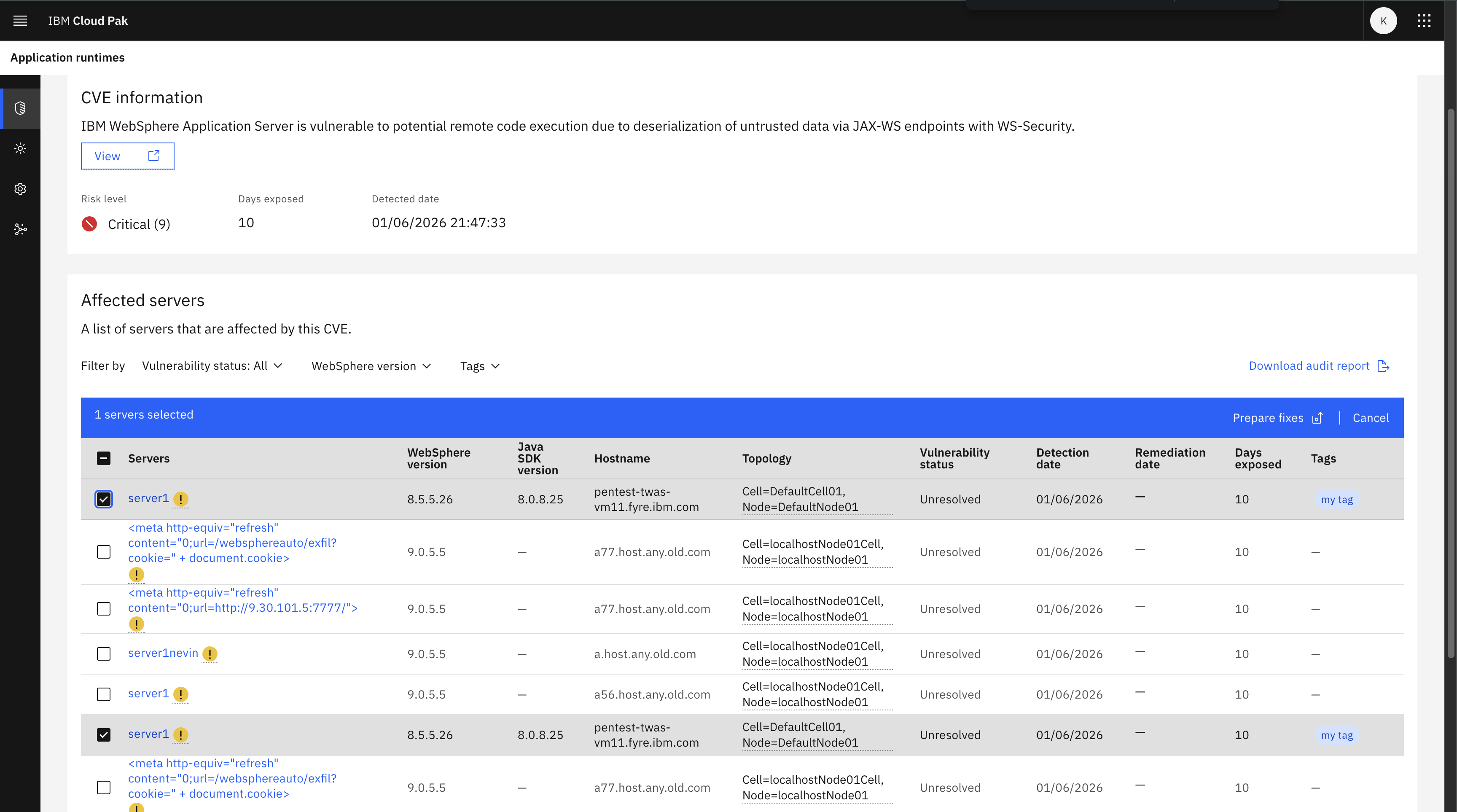
CVE Information / Affected Servers page — duplicate server entries
On the CVE Information / Affected Servers page, the same server may appear twice. Selecting one entry automatically selects both entries, and you can proceed with the fix installation process normally.
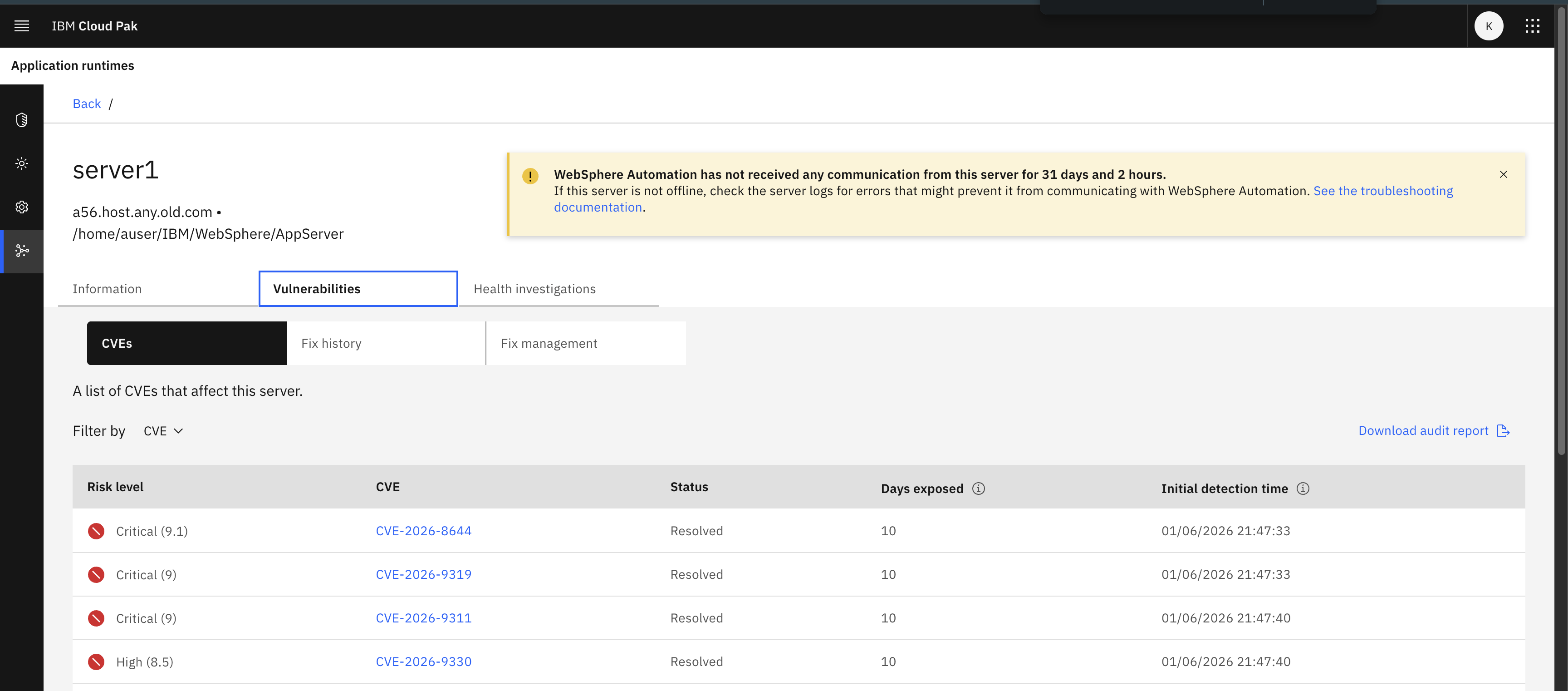
Vulnerabilities page, CVE tab — CVEs incorrectly shown as Resolved
On the CVE tab of the Vulnerabilities page, the affected CVEs may appear as Resolved. This issue is resolved in WSA version 1.13.0 and later. Selecting an affected CVE allows you to proceed with the fix installation process.
Fixes database refresh takes up to 2 minutes to reflect changes
When you click Refresh on the Diagnostics tab in Settings, the fixes database refresh is initiated immediately. However, it takes approximately 2 minutes for the refreshed data to be reflected in the product. During this time, a fix that was not previously available might not yet appear.
No action is required. Wait approximately 2 minutes after clicking Refresh before verifying whether the expected fix is now available.