Creating process diagrams
After creating a discovery map, you might be ready to add more complexity to the flow of your process. In a process diagram, you can use different types of activities, events, gateways, and other elements to create a full, comprehensive blueprint of alternate paths of your process.
Before you begin
To create a process diagram, you must first create a discovery map. This is because the first time your process is viewed as a process diagram, it is created based on the contents of your discovery map, including flow lines, swimlanes, and start and end events. For more information, see Creating discovery maps.
Converting a discovery map into a process diagram
-
In the classic UI, select Process diagram from the drop-down menu on the toolbar.
or
In the new UI, click the Process diagram icon on the menu on the left.
- Click Create Diagram.
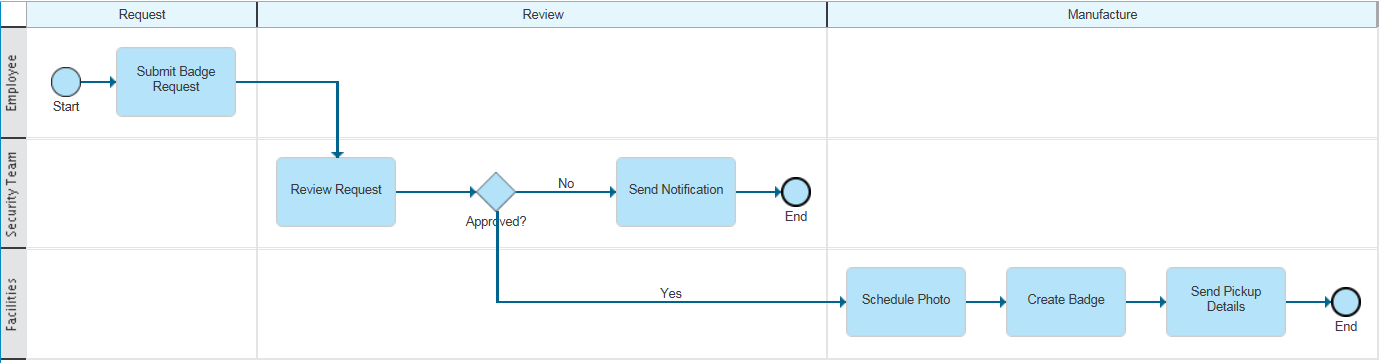
Adding swimlanes and milestones
Swimlanes are rows that represent different participants (people or groups who perform the activities). To add new swimlanes, use the Add Swimlane button on the toolbar.
Milestones are columns that represent different stages of the process. To add new milestones, use the Add Milestone button on the toolbar.
For more information about these elements, see Swim lanes and milestones.
Adding diagram elements
- Hover over a flow line.
- Click Insert
 .
. - Select an element that you want to insert.
In the new UI, you can also select elements from the menu on the left, and drag and drop them to the desired location.
For more information about these elements, see Activities, Events, and Gateways.
Moving elements
To move an element between swimlanes or milestones, drag and drop the element to its new location. The connection lines are automatically redrawn to respond to the new placement of elements.
- Use Ctrl+click or Cmd+click to select the elements you want and then drag and drop them to their new location.
- In the classic UI, select the first element or several elements and then use Shift+click to select the last element and all other elements in the shortest path.
- Click the Marquee Select button (Selection tool
button in the new UI)
 and draw a rectangle around the elements you want.
Converting elements
- Right-click that element.
- Click Type (Change type in the new UI).
- Select the new type.
Editing flow lines
- Click Flow Lines (Draw Line Tool in the new
UI)
 .
. - Click on a flow line.
- To rearrange how a flow line connects to an activity box, drag and drop its end to a different docking point.
- To create a new flow line, draw it from one element to another.
Next step
When you finish creating a process diagram, you can go on and add details to your process. For more information, see Adding process details.