Events
Events represent significant occurrences or triggers that affect the flow of the process. Events can mark the start or end of a process, or they can occur at intermediate points to indicate a change in the process flow, like a detection of an error. Events do not perform any work themselves, like activities, but rather signal a transition or a point of interest within the process.
Start and end events
A start event indicates where a process starts. The start event starts the flow of the process and does not have any incoming flows. It can have a trigger.
An end event ends a process flow and therefore does not have outgoing flow paths.
When you first create a process diagram in Blueworks Live, your process contains a start event and an end event.
- Right-click the event.
- Go to Change type.
- Select the event type.
| Event type | Icon | Description |
|---|---|---|
| Normal start event |  |
The default, most basic type of a start event that does not have a defined trigger. Blueworks Live processes can only have one normal start event. |
| Message start event |  |
A start event that is triggered when a specific message is received. |
| Timer start event |  |
A start event that is triggered when a time condition is satisfied. |
| Normal end event |  |
The default, most basic type of an end event which represents the end of the process flow, but does not produce any message or error. |
| Error end event |  |
An end event that also produces an error. |
| Message end event |  |
An end event that also sends a message. |
Intermediate and boundary events
An intermediate event occurs after a process starts, affecting the flow of the process by showing where messages and delays are expected. This event shows exceptional paths that diverge from the normal flow of a process.

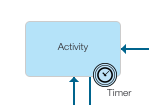
A boundary event is an intermediate event that is attached to the boundary of an
activity. A boundary event can be triggered only while the activity is running, either leaving the
activity running or interrupting the activity. An activity can have up to three boundary events.
To insert an intermediate event, hover over a flow line until the Insert
button  appears, then click and select the event type.
To insert a boundary event, right-click the activity that you want to attach the event , select Attach boundary event and select the event type.
By default, boundary events are interrupting events, represented with a solid line outline. To make a boundary event a non-interrupting event, right-click the event and select .
| Event type | Icon | Description |
|---|---|---|
| Message intermediate or boundary event |
 |
An event that sends or receives a message. |
| Timer intermediate or boundary event |
 |
An event that is triggered at a specified time or after a specified amount of time has passed. Timer events are often used to model delays or timeouts in a process. |
| Error boundary event |
 |
An event that is triggered by an exceptional condition, such as a system that is unavailable. An error boundary event always interrupts an activity, so it cannot be set to Non Interrupting. |
| Escalation boundary event |
 |
An event that passes the flow to another role or swimlane in the process, for example, to a manager, when certain conditions are met. |

Sending and receiving messages
A message event can be a send or receive message event.
Start message events can only be receiving events and end message events can only be sending message events.
Boundary message events can only be receiving events.
Intermediate message events can either send or receive messages during the flow of a process.
- Right-click the event and select Link to sender. The Receive a Message window opens.
- To receive a message from an external participant, select External Participant and enter the name of the external participant.
- To receive a message from another process, select Process and select the process and then sending message event inside that process.
- Click Save.