General Page
How to Accept an IBM Cloud Invite
When your TechZone environment is being provisioned, you will see it listed under “My Reservations.” However, this does not mean you have access yet. To access your environment, you must accept the IBM Cloud account invitation sent to your email. If you do not accept the invitation, you will not be able to access the environment.
⚠️ Before You Begin
- You must have an IBMid to accept the invite
- If you do not already have an IBM Cloud account:
- Create an IBMid first
- Share that IBMid with the team so the invite can be sent
- This ensures access is set up correctly without requiring credit card information
- Reference Creating an IBMid for guidance on this step.
How to Accept the Invite (Email)
Step 1: Check Your Email
Look for emails related to your reservation:
- Scheduled: {reservation name} on IBM Technology Zone — This email is sent from the IBM Technology Zone platform to provide status updates on your reservation throughout the provisioning process.
- Provisioning: {reservation name} on IBM Technology Zone — This email is sent from the IBM Technology Zone platform to provide status updates on your reservation throughout the provisioning process.
- Ready: {reservation name} on IBM Technology Zone — This email is sent from the IBM Technology Zone platform to provide status updates on your reservation throughout the provisioning process.
- Account: Action required: You are invited to join an account in IBM Cloud — ✅ (this is the key email)
This email is sent from IBM Cloud and is the key message to look for, as it contains the official invitation to the account associated with your TechZone reservation.
Example of an IBM Cloud invite email with the subject line: “Account: Action required: You are invited to join an account in IBM Cloud.”

Step 2: Open the Invitation Email
Open the email titled:
“Account: Action required: You are invited to join an account in IBM Cloud”
Click “Join now.”
Note: Content in this email screenshot has been redacted for security purposes.

Step 3: Accept the Invite and Complete IBMid Login
You’ll be directed to the IBM Cloud login page. Depending on your current session, you may see one of two experiences:
If you are already logged into IBM Cloud:
You will see a “Log in” confirmation screen—simply click the “Log in” button to continue.
If you are not logged in (or this is your first time):
You will see the "Join IBM Cloud" page.

Select the “I accept” checkbox, then click the “Join Account” button to proceed.
(In some cases, if you are a new user altogether, you may see a “Log in to IBM Cloud” page following the Join IBM Cloud account page)
Your email will typically be prefilled in the IBMid field—click “Continue” and enter your IBMid password to sign in.

Once logged in, you will be redirected to your IBM Cloud account.
Important: If you already have an IBMid, you can proceed directly without being prompted for credit card information. If you do not have an IBMid, you may be prompted to enter credit card details. To avoid this, go back and create an IBMid first (see Before You Begin section). Once your IBMid is created, have the reservation owner re-send the invite or share access with your new IBMid, then follow this process again. Reference Creating an IBMid for guidance on this step.
Additional note: The email invitation is required to accept and join the IBM Cloud account—especially for new IBMid or IBM Cloud users.
If you did not receive the invite, you can:
- Use AskTZ (self-service option on the TechZone site) to resend the invite, or
- Contact TechZone Support to request a new invitation. Guidance on how to open a case, along with the web form link, can be found on the TechZone Support page.
Step 4: Access the Environment
After accepting the formal IBM Cloud account invite and log in.
Ensure you are in the correct IBM Cloud account for this IBM Technology Zone reservation. Refer to your IBM Cloud invitation email for the account name to confirm.

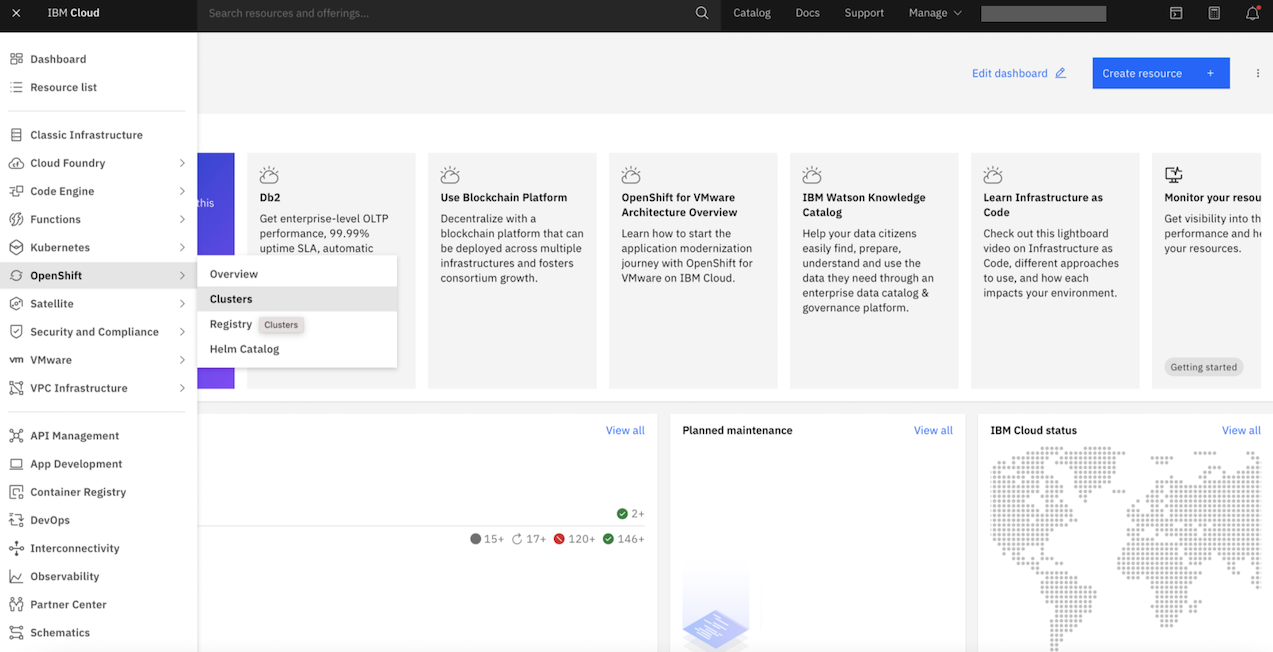
Click the three stacked line icon on the left of the top header > Click "OpenShift" > Click "Clusters".
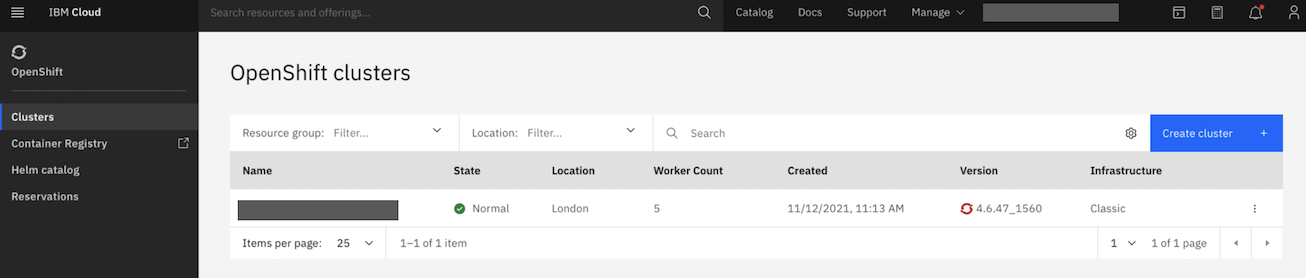
You now have access to your reserved cluster.
✅ Important Notes
Access is not granted automatically—you must accept the invite
Invitations are tied to the specific IBMid used
If you don’t see the email:
Check spam/junk folders
Confirm the correct email/IBMid was used
How to Accept an IBM Cloud Invite through your IBM Cloud account
Note: If you are a new IBMid user, have not yet created an account, or have never logged into IBM Cloud before, please refer back to the Getting Started section of this document. Once completed, proceed with the “How to Accept an IBM Cloud Invite through your Email” steps.
Step 0: Navigate to IBM Cloud and login with your IBMid.
Step 1: Click the notification icon.
Step 2: You will see a notification stating “You are invited to join an account in IBM Cloud.”
Step 3: Click the blue “Join now” link on the right side of the screen.

Step 4: You will be redirected to the “Join IBM Cloud” page, where you will need to provide the required IBMid information to complete accepting the account invite.
Select the “I accept” checkbox, then click the “Join Account” button to proceed.
Then continue with the steps above under Step 4: Access the Environment.
What Happens If I Do Not Accept the IBM Cloud Invitation?
If you do not accept the IBM Cloud invitation, you will not be able to access your TechZone environment. The environment may appear in your reservations, but access is not granted until the invitation is accepted. You may also encounter error pages when attempting to access IBM Cloud or your environment until this step is completed.

Why can’t I access IBM Cloud?
If you have not accepted the IBM Cloud account invitation associated with your reservation, you will not be able to access your IBM Technology Zone environment and may encounter an error when trying to launch the environment link. Be sure to accept the invitation as outlined in the instructions above before attempting to log in. This guidance is also provided in IBM Technology Zone email notifications and on the reservation details page for your reference.

Was this topic helpful?
Document Information
Modified date:
04 June 2026
UID
ibm17159452