Troubleshooting
Problem
This document describes the process for collecting data for problems with the IBM Maximo Asset Management Authentication process.
There are two main authentication methods for Maximo.
Native Authentication: The Maximo database holds the password for the user.
Application Server Security: Application Server Security is enabled and relies on the application server to authenticate the user and pass a token to Maximo (Application Server Security enabled is commonly referred to as LDAP enabled).
Collecting this MustGather information helps understand the problem and save time analyzing the data.
Expand a selection below if Application Security is on or not. To determine if Application Server Security is on, one or more of the following will be true:
- Check the maximo.properties or the maxpropvalue table for the property mxe.useAppServerSecurity=1
- Log in to the WebSphere Application Server console, and under Global Security, see if the flag for Enable Application Security is checked active.
- Check the web.xmls for uncommented security constraints.
- If unsure, please contact your system administrator.
- Application Server Security On
The key information when determining the problem with Authentication when using Application Server Security is to determine if an LtpaToken2 cookie has been issued to the client. This is a very important detail because it tells you if the problem is coming from Maximo (LtpaToken2 issued) or from the Application Server (no LtpaToken2 issued). If no LtpaToken2 is issued, then you will want to consider consulting the Application Server's MustGather (See here: MustGather: Core Security problems for WebSphere traditional and Liberty)
- The LOGINID(s) of affected user(s).
- Set the maximo.SQL logger to INFO.
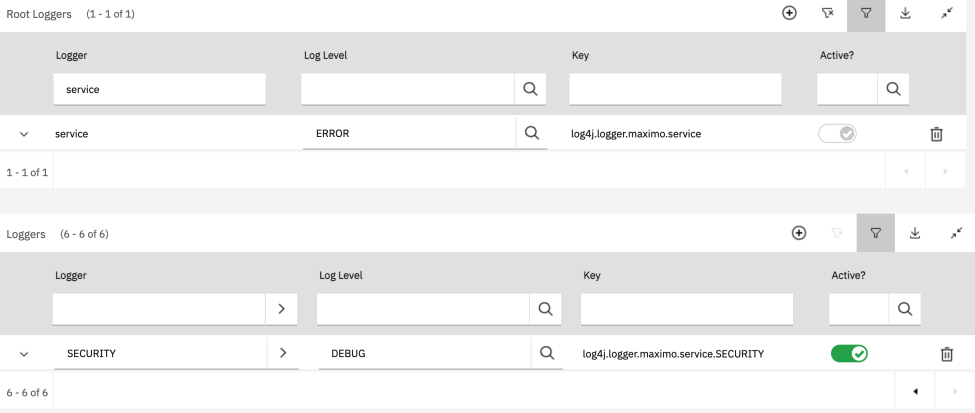
- Set the maximo.SERVICE.SECURITY logger to DEBUG. (Note this is not the maximo.security logger).
- After loggers are turned on and issue reproduced, please collect the logs and note the userid, timestamp, and result.
- Collect the web.xmls from the SMP folder.
- Collect maximo.properties file.
- Collect a HAR (Http Archive) of the login process.
- The results of sql statement: select LOGINID,USERID,STATUS,FAILEDLOGINS from MAXUSER where LOGINID='LOGINID'; (Note that the LOGINID is case sensitive, and that login value returned must match the database case)
- The results of the SQL statement: select PROPNAME,PROPVALUE from MAXPROPVALUE where PROPNAME in ('mxe.useAppServerSecurity','mxe.useSAML','maximo_allowed_hosts');
- The results of the SQL statement: select * from LOGINBLOCK;
- Collect the security.xmls from the WebSphere Cell.
- The Federated repository properties for login from the WebSphere Application Server console under Global Security -> select the name of the repository identifier
- If using Liberty, collect the server.xml.
- If using WebLogic, the security realm definition.
- No Application Server Security
- Set the maximo.SQL logger to INFO.
- Set the maximo.SERVICE.SECURITY logger to DEBUG. (Note this is NOT the maximo.security logger).
- Collect maximo.properties file.
- The results of sql statement: select LOGINID,USERID,STATUS,FAILEDLOGINS,FORCEEXPIRATION from MAXUSER where LOGINID='LOGINID'; (Note that the LOGINID is case sensitive, and that login value returned must match the database case)
- Collect a HAR (Http Archive) of the login process.
- The results of the SQL statement: select PROPNAME,PROPVALUE from MAXPROPVALUE where PROPNAME in ('maximo_allowed_hosts');
How to collect referenced information.
- SQL Logger
From the logging application in Maximo, set the sql logger to INFO.
-

- SERVICE.SECURITY Logger
From the logging application in Maximo, set the SERVICE.SECURITY logger to DEBUG.
-
- web.xmls
There are four main web.xmls. They are located:
- IBM\SMP\maximo\applications\maximo\maximouiweb\webmodule\WEB-INF\web.xml
- IBM\SMP\maximo\applications\maximo\maxrestweb\webmodule\WEB-INF\web.xml
- IBM\SMP\maximo\applications\maximo\mboweb\webmodule\WEB-INF\web.xml
- IBM\SMP\maximo\applications\maximo\meaweb\webmodule\WEB-INF\web.xml
- maximo.properties file
Located in the Maximo folder structure. If multiple maximo.properties files, please include the one from the UI cluster.
- IBM\SMP\maximo\applications\maximo\properties
- HAR file (Http Archive)
- security.xmls from WebSphere ND
You can find these xmls here (replace the names ctgAppSrv01 and ctgCell01 with your node and cell name, respectively):
- WebSphere\AppServer\profiles\ctgAppSrv01\config\cells\ctgCell01\server.xml
- WebSphere\AppServer\profiles\ctgAppSrv01\config\cells\ctgCell01\wim\config\wimconfig.xml
- server.xml from Liberty
You can find the server.xml under the server root folder in your Liberty install location. Example:
- WebSphere\Liberty\usr\servers\maximo-ui-server\server.xml
Here is a recommended document on the full setup of Maximo with Application Server Security: Maximo and LDAP - Configuration from Start to Finish
This document will help setup the Application Server to use an LDAP server and enable the Maximo EAR file to be application security enabled.
While the main goal of this document is focus on the Maximo/Manage authentication, it is closely tied to and dependent on Application Security from the middleware.
While Application Security is on, this process handles the authentication of the user, however Maximo always manages its own authorization of the user, which is why even if you are able to successfully authenticate with LDAP or SAML, you can still fail to log in to the application.
Maximo/Manage use the token from the authentication in order to find the principal user id. This is then compared in the database to the MAXUSER table against the LOGINID attribute, and makes sure that the user record is ACTIVE. If the string does not match any LOGINID, the login will be rejected (if you are not using Application security, this is also where it would compare the password submitted in the login form to the password stored in the database). There are then more checks to places like LOGINBLOCK or if the user's password is expired, and many more other reasons. After the user is validated, it will collect what groups that user is part of, and check to see if that user has permission to access the data or application that has been requested.
This document will help setup the Application Server to use an LDAP server and enable the Maximo EAR file to be application security enabled.
While the main goal of this document is focus on the Maximo/Manage authentication, it is closely tied to and dependent on Application Security from the middleware.
While Application Security is on, this process handles the authentication of the user, however Maximo always manages its own authorization of the user, which is why even if you are able to successfully authenticate with LDAP or SAML, you can still fail to log in to the application.
Maximo/Manage use the token from the authentication in order to find the principal user id. This is then compared in the database to the MAXUSER table against the LOGINID attribute, and makes sure that the user record is ACTIVE. If the string does not match any LOGINID, the login will be rejected (if you are not using Application security, this is also where it would compare the password submitted in the login form to the password stored in the database). There are then more checks to places like LOGINBLOCK or if the user's password is expired, and many more other reasons. After the user is validated, it will collect what groups that user is part of, and check to see if that user has permission to access the data or application that has been requested.
- Some common questions to ask when troubleshooting authentication problems
- Details of environment on which this issue is occurring.
- Steps to reproduce the problem, including screenshots or videos.
- Expected results.
- Workarounds available, if any.
- Exact date, time and time zone of when issue occurred.
- How long has the problem been occurring?
- Did the problem begin after an upgrade to a new version?
- Does this problem happen consistently, or only sporadically?
- Does the problem occur for all users?
- Can you reproduce the problem at will?
- What internet browser are you using?
- Does the issue occur on a different browser?
- Did the user clear the browser cache and try again?
- What is the Business Impact of this problem?
- Are there any architecture or network connectivity considerations?
- Is the issue a security concern?
- Is this a known issue?
- Troubleshooting steps
- The first troubleshooting steps to take when diagnosing an authentication problem is to use the developer tools in a browser, going to the network tab, and ensuring "Preserve log" is checked.
- Then after the login form has loaded (whether the Maximo form the the Single Sign-on page, clear the network tab history and proceed to enter your username and password.
- If using an IdP, you will need to look for the request that has the negotiation with the acs URL.
- If using LDAP, you will need to check the request for j_security_check.
- Look at this request and search for the Response Headers. In the response headers section, find all instances of set-cookie (if there is no set-cookie then the authentication to the application server security failed). There may be more than one set-cookie response, look for the one called LtpaToken2. If there is a set-cookie for this name, then authentication succeeded.
- At this point you will want to enable the loggers as suggested in the Collect Data section, and verify the other data points mentioned are checked.
- With the loggers in place, testing a failed login attempt will print the database SQL statements, as well as a stack trace for why that user failed with the error message.
| Title | Description |
|---|---|
| Search all authentication documents on IBM Support Portal | Shows a list of all documents tagged with this topic. |
Document Location
Worldwide
[{"Type":"MASTER","Line of Business":{"code":"LOB77","label":"Automation Platform"},"Business Unit":{"code":"BU048","label":"IBM Software"},"Product":{"code":"SSLKT6","label":"IBM Maximo Asset Management"},"ARM Category":[],"ARM Case Number":"","Platform":[{"code":"PF025","label":"Platform Independent"}],"Version":"All Versions"},{"Product":{"code":"SSRHPA","label":"IBM Maximo Application Suite"},"Business Unit":{"code":"BU048","label":"IBM Software"},"Component":" ","Platform":[{"code":"","label":""}],"Version":"","Edition":"","Line of Business":{"code":"LOB77","label":"Automation Platform"}},{"Product":{"code":"SSWT9A","label":"IBM Control Desk"},"Business Unit":{"code":"BU048","label":"IBM Software"},"Component":" ","Platform":[{"code":"","label":""}],"Version":"","Edition":"","Line of Business":{"code":"LOB77","label":"Automation Platform"}}]
Log InLog in to view more of this document
This document has the abstract of a technical article that is available to authorized users once you have logged on. Please use Log in button above to access the full document. After log in, if you do not have the right authorization for this document, there will be instructions on what to do next.
Was this topic helpful?
Document Information
Modified date:
18 September 2025
UID
ibm17112456