Troubleshooting
Problem
Resolving The Problem
- Only initiate FSP dump under the direction of IBM Support.
- FSP dumps are concurrent meaning that they can be done with the server and partitions running.
- On servers with dual FSPs (primary and secondary), perform the dump on both FSPs (unless directed otherwise by IBM support).
To initiate an FSP, do the following:
Step 1: Log on the HMC.
Log on the HMC with a user profile that has the proper task role (hmcsuperadmin, hmcservicerep, or hmcoperator) and resource role (the user must have access to the target system).
Step 2: Open the Manage Dumps window for the target system.
a) In the Navigation frame, click System resources -> Systems -> and then click on the server on which the dump is to be initiated.
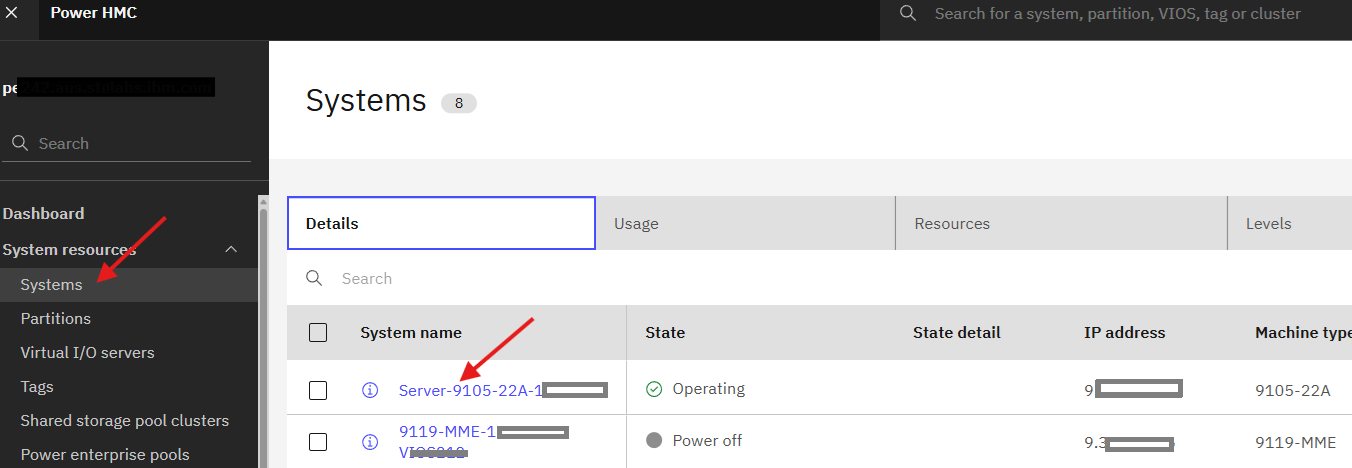
b) On the server properties, click Dumps from the grey menu and then select Initiate dump.

Step 3: Initiate the Service Processor Dump
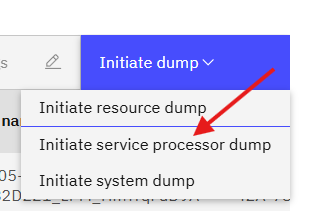
Initiate the service processor dump by clicking Initiate Dump and then selecting Initiate Service Processor Dump:
Step 4: Confirm the settings, then click Initiate.

a) Verify the correct server and FSP is selected.
Some server models support dual FSPs. Under Managed target systems, one FSP is "primary" and the other (if installed) is "secondary". Select the primary for the first dump (Step 6 repeats the procedure for secondary). Verify the correct server and FSP are selected.

b) Verify the type of dump
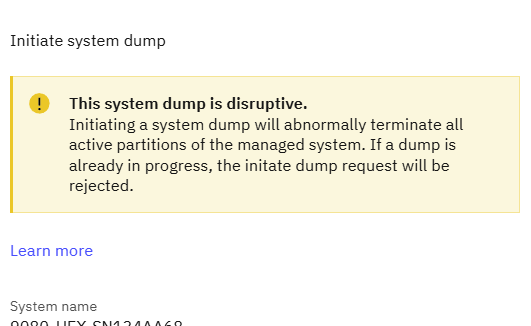
Verify that the correct dump type is selected. For example, if you select "Initiate system dump", a warning will appear that the dump is disruptive. Do not continue. Ensure that the correct "Initiate Service Processor Dump" operation is selected (as shown in Step 4 above) which is concurrent, not disruptive.
Step 5: Wait for the dump to complete.
The dump typically completes within a few minutes. The Manage Dumps panel shows a list of available dumps (dumps offloaded to this HMC). Use the Refresh button to check for available dumps.

To view the status of the current dump being offloaded, from the Manage Dumps panel, select the dump, and click Action -> View Details. For a dump being offloaded, the dump offload progress shows the total size of the dump (source_size) and the amount copied to the HMC (size). The file name ends with IN_PROGRESS while the dump is offloaded:

Tip: You can also monitor the offload progress with a periodic refresh from command line. Example: while true; do ls -ltr /dump/FSPDUMP*; sleep 10; done
Step 6: Dump the secondary FSP (if applicable)
If the server has dual FSPs, repeat steps 3-5 selecting the "secondary" FSP. Not all servers have dual FSPs. If only a "primary" is listed, skip this step.
Step 7: Send the dumps to IBM Support.
If the HMC is configured for remote support, each dump can be sent directly to IBM Support by clicking the Selected button and choosing Call home dump. Dumps can also be copied from the HMC and uploaded to IBM support at http://www.ecurep.ibm.com/app/upload. For further information on how to retrieve and send the dump to IBM Support, see Retrieving an FSP or System Dump Using the HMC.
- Only initiate FSP dump under the direction of IBM Support.
- FSP dumps are concurrent meaning that they can be done with the server and partitions running.
- On servers with dual FSPs (primary and secondary), perform the dump on both FSPs (unless directed otherwise by IBM support).
To initiate an FSP, do the following:
Step 1: Log on the HMC.
Log on the HMC with a user profile that has the proper task role (hmcsuperadmin, hmcservicerep, or hmcoperator) and resource role (the user must have access to the target system).
Step 2: Open the Manage Dumps window for the target system.
a) In the Navigation frame, click System resources -> Systems.

b) Select the server then from the dynamical blue menu click Service -> Manage dumps.

Step 3: Initiate the Service Processor Dump
Initiate the service processor dump by clicking Initiate Dump and then selecting Initiate System Controller Dump:

Step 4: Confirm the settings, then initiate the dump.
a) Verify the correct server and FSP is selected.
Some server models support dual FSPs. Under Managed target systems, one FSP is "primary" and the other (if installed) is "secondary". Select the primary for the first dump (Step 6 repeats the procedure for secondary). Verify the correct server and FSP are selected.
b) Verify the type of dump
Verify that the correct dump type is selected. For example, an FSP dump shows "Initiate System Controller Dump". Read the warning carefully to ensure that the operation is concurrent, not disruptive.
c) Click OK to initiate the dump.


Step 5: Wait for the dump to complete.
The dump typically completes within a few minutes. The Manage Dumps panel shows a list of available dumps (dumps offloaded to this HMC). Use the Refresh button to check for available dumps.
To view the status of the current dump being offloaded, from the Manage Dumps panel, select the dump, and click Action -> View Details. For a dump being offloaded, the dump offload progress shows the total size of the dump (source_size) and the amount copied to the HMC (size). The file name ends with IN_PROGRESS while the dump is offloaded:
Tip: You can also monitor the offload progress with a periodic refresh from command line. Example: while true; do ls -ltr /dump/FSPDUMP*; sleep 10; done
Step 6: Dump the secondary FSP (if applicable)
If the server has dual FSPs, repeat steps 3-5 selecting the "secondary" FSP. Not all servers have dual FSPs. If only a "primary" is listed, skip this step.
Step 7: Send the dumps to IBM Support.
If the HMC is configured for remote support, each dump can be sent directly to IBM Support by clicking the Selected button and choosing Call home dump. Dumps can also be copied from the HMC and uploaded to IBM support at http://www.ecurep.ibm.com/app/upload. For further information on how to retrieve and send the dump to IBM Support, see Retrieving an FSP or System Dump Using the HMC.
Note:
- Only initiate FSP and Power dumps under the direction of IBM Support.
- Ensure the HMC "dump fix" is applied before you perform the dump.
If the HMC is a model 7042-CR9 running V8R8.4 or V8R8.5, ensure the following PTF (or supersede) is applied:
HMC V8R8.4.0 Service Pack 2 with iFix MH01665 or later
HMC V8R8.5.0 Service Pack 1 with iFix MH01663 or later.
- FSP and Power dumps are concurrent meaning that they can be done with the server and partitions running.
- On servers with dual FSPs (primary and secondary), perform the dump on both FSPs (unless directed otherwise by IBM support).
To initiate an FSP or Power dump, do the following:
Step 1: Log on the HMC.
Log on the HMC with a user profile that has the proper task role (hmcsuperadmin, hmcservicerep, or hmcoperator) and resource role (the user must have access to the target system).
Step 2: Open the Manage Dumps window for the target system.
a) In the Navigation frame, click the Resources icon, the All Systems.
b) Select the server then View System Properties
Click on the server's name or alternately select the server, then click Actions > View System Properties
c) In the navigation area, click Serviceability > Serviceability.
d) In the Serviceability window, under View and Collect, click Manage Dumps.
Step 3: Initiate the Service Processor dump
Initiate the type of service processor dump as directed by an IBM service representative by clicking Action and then selecting the dump type.
Service processor dump types include the following subtypes.
Service Processor > System Controller Dump:
- Standard "FSP dump", applies to all HMC-managed server models. FSP dumps are the most common type of dump requested.
Service Processor > Node Controller Dump:
- Special dump for node controllers on models that support it such as POWER6 FHA and POWER7 FHB.
Power Subsystem:
- Bulk Power Controller (BPC) dump for the models that support it such as the POWER6 FHA, POWER7 FHB.
Initiate the type of dump requested by an IBM service representative by clicking the Action button:
Step 4: Confirm the settings, then initiate the dump.
a) Verify that the correct server and FSP is selected.
Some server models support dual FSPs. Under Managed target systems, one FSP will be "Primary" and the other (if installed) will be "Secondary". Select the Primary for the first dump (Step 6 repeats the procedure for secondary). Verify that the correct server and FSP are selected.
b) Verify the type of dump
Verify that the correct dump type is selected. For example, an FSP dump will show "Initiate Service Processor Dump". Read the warning carefully to ensure that the operation is concurrent, not disruptive.
c) Click OK to initiate the dump.
Click OK on the confirmation panel.
Step 5: Wait for the dump to complete.
The dump typically completes within a few minutes. The Manage Dumps panel shows a list of available dumps (dumps offloaded to this HMC). Use the Refresh button to check for available dumps.
To view the status of the current dump being offloaded, from the Manage Dumps panel, click Status > Dump Offload Progress. For a dump being offloaded, the dump offload progress shows the total size of the dump (source_size) and the amount copied to the HMC (size):
Tip: You can also monitor the offload progress with a periodic refresh from command line. Example: while true; do ls -ltr /dump/SYSDUMP*; sleep 10; done
Step 6: Dump the secondary FSP (if applicable)
If the server has dual FSPs, repeat steps 3-5 selecting the "secondary" FSP. Not all servers have dual FSPs. If only a "primary" is listed, skip this step.
Step 7: Send the dumps to IBM Support.
If the HMC is configured for remote support, each dump can be sent directly to IBM Support by clicking the Selected button and choosing Call home dump. Dumps can also be copied from the HMC and uploaded to IBM support at http://www.ecurep.ibm.com/app/upload. For more information on how to retrieve and send the dump to IBM Support, see Retrieving an FSP or System Dump Using the HMC.
Note:
- Ensure the HMC "dump fix" is applied prior to performing the dump.
If the HMC is a model 7042-CR9 running V8R8.4 or V8R8.5, ensure the following PTF (or supersede) is applied:
HMC V8R8.4.0 Service Pack 2 with iFix MH01665 or later
HMC V8R8.5.0 Service Pack 1 with iFix MH01663 or later.
To initiate an FSP or Power dump, do the following:
Step 1: Log on the HMC.
Log on the HMC with a user profile that has the proper task role (hmcsuperadmin, hmcservicerep, or hmcoperator) and resource role (the user must have access to the target system).
Step 2: Open the Manage Dumps Panel for the target system.
In the Navigation frame, expand Systems Management, and then click on Servers. In the Work Area (the "Contents of" frame), select the box next to the target system. On the toolbar, click Tasks > Serviceability > Manage Dumps.
Note: The Service Management, Manage Dumps task cannot be used to dump or set system dump parameters. To start a dump, you must access the Manage Dumps task from the System Management, Servers panel.

Step 3: Initiate the desired dump
Initiate the desired type of dump as directed by an IBM Service representative by clicking Action and then the desired dump type.
Dump types include the following:
Service Processor: System Controller Dump: Standard FSP dump, applies to all POWER5 and POWER6 servers
Service Processor: Node Controller Dump: Special dump for node controllers on POWER6 FHA models
Power Subsystem: Power (BPC) dump for POWER5 model 59x and POWER6 FHA models only
Note: If a "FSP dump" is desired, select "Initiate Service Processor Dump", then "Initiate System Controller Dump"

Step 4: Select the target
On models with redundant service processors, select the service processor to dump in the "manage system target" list and click OK on the confirmation panel to initiate the dump.

Step 5: Send the dump to IBM Support.
If the HMC is configured for remote support, the dump can be sent directly to IBM Support using the Selected button, Call home dump... function. It can also be copied from the HMC and sent to IBM support at ftp://testcase.software.ibm.com/toibm/os400. For further information on how to retrieve and send the dump to IBM Support, refer to IBM Support document N1014349, Retrieving an FSP or System Dump Using the HMC (Version 7 and Later) at http://www-01.ibm.com/support/docview.wss?uid=nas8N1014349
Note: On POWER5 systems (and POWER6 systems at early firmware levels) managed by two HMCs, the dump can be retrieved by either, or both, HMCs. Both HMCs attempt to retrieve the dump. The first HMC to finish reading the dump will delete the dump file from the server. If the dump does not appear on the HMC that initiated the dump, look for another HMC attached to the system. To search for another HMC, expand Systems Management, then Servers. In the work area, select the target system, click the Actions button, Connections, then Disconnect Another HMC. This will show if another HMC is attached. If an HMC does show in the list of HMCs, locate the HMC and look for the dump on that HMC.
Was this topic helpful?
Document Information
Modified date:
10 April 2026
UID
nas8N1021916