News
Abstract
Steps to generate browser console log file to provide to service if you are experiencing an issue with Navigator.
Content
You are in: IBM i Technology Updates > IBM Navigator for i > Generate a console.log file
Console and network logs provide visibility into the actions and events on your computer when working with IBM Navigator for i.
Chrome
- In your Chrome browser, click
 and then More tools > Developer tools
 - Click the settings icon

- Under the Console tab, click the following check boxes:
- Log XMLHttpRequests
- Preserve log
- To the right of the "Filter" field, select "Default levels" drop-down menu. Select any filter level that is not already selected. When all are selected, the label will change to "All levels":
- Clear the console by clicking

- Leave the console open and reproduce the steps for the issue under investigation.
- After you reproduce the issue, return to the console.
- Right-click and save the log file on your computer.

Firefox
- In your browser, click
 and then More tools > Web Developer tools
 - Under console tab, open settings
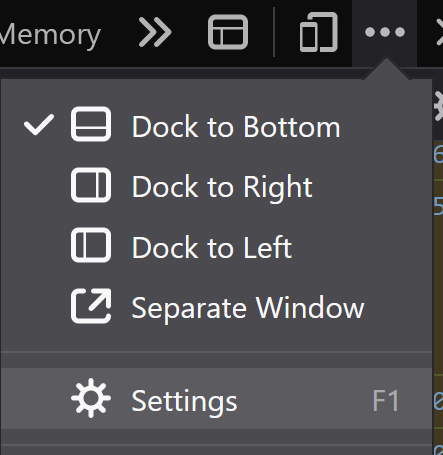
- Click on all the option buttons - Errors, Warnings, Logs, Info, Debug, CSS, XHR, and Requests:

- Click the trashcan to clear the web console output:

- Leave the console open and reproduce the steps for the issue under investigation.
- After you reproduce the issue, return to the console.
- Right-click on the console output and select "Save all messages to file".

[{"Type":"MASTER","Line of Business":{"code":"LOB68","label":"Power HW"},"Business Unit":{"code":"BU070","label":"IBM Infrastructure"},"Product":{"code":"SWG60","label":"IBM i"},"ARM Category":[{"code":"a8m0z0000000C4BAAU","label":"IBM i"}],"Platform":[{"code":"PF012","label":"IBM i"}],"Version":"All Versions"}]
Was this topic helpful?
Document Information
Modified date:
30 March 2026
UID
ibm16614971