News
Abstract
IBM Navigator supports full end-to-end encryption with TLS
Content
You are in: IBM i Technology Updates > Navigator for i > TLS
- Unsecure Connection Notifications
- Encrypting Each Endpoint for IBM Navigator
- Users Browser Connection to the Navigator GUI Application
- Connection from the Navigator to the IBM i endpoint node
- Serviceability
- link to Function Usage IDs
Unsecure Connection Notifications
Navigator is intended to be used via a TLS Connection. There are two TLS related notifications that users can encounter in Navigator informing the user of an unsecure connection.

The first TLS notification can appear on the System Dashboard. This notification appears when the current user is logged into Navigator on an unsecure port of ADMIN1. The way to rectify this is to configure TLS for ADMIN1, instructions can be found in the following section of this guide: Users Browser Connection to the Navigator GUI Application

The second TLS notification can appear once the user manages a node. It will appear on the node homepage. This notification appears when a user is connected to a node that isn't setup to use secure connections between nodes. Instructions to resolve this can be found in the following section of this guide: Connection from the Navigator to the IBM i endpoint node
Encrypting Each Endpoint for IBM Navigator
IBM Navigator for i consists of the GUI managing node and a number of different endpoints. TLS encryption provides options to secure each of these endpoints.

In this diagram, the IBM Navigator GUI interface is running on the IBM i node shown in the middle of the diagram. Users have the ability to configure TLS Encryption on the connections for both sides.
Users Browser Connection to the Navigator GUI Application
The Navigator application runs on an IBM i node in the ADMIN1 *IAS job. The ADMIN1 job is an IBM Liberty web application instance that ships with the IBM i operating system. ADMIN1 uses non TLS port 2002 with URL http://hostname:2002/Navigator by default. It is recommended that you configure encryption for this ADMIN1 job. Configuring an *IAS server is easily accomplished by leveraging the TLS Security wizard that is included in Navigator for i. Details on how to access and use this wizard can be found at: Enabling SSL/TLS for IBM Navigator for i. The new Navigator interface runs on the ADMIN1 server. Be sure to select ADMIN1 where instructed to select a server. Once TLS has been configured for ADMIN1, the default TLS port will be 2003 with URL https://hostname:2003/Navigator.
Connection from the Navigator to the IBM i endpoint node
IBM Navigator is designed to provide a single pane where you can monitor and manage many IBM i endpoint nodes. The IBM Navigator leverages the Java toolbox to establish the connection between the Navigator application and each endpoint. Each request is handled on the endpoint IBM i by the IBM i Host servers. The Host servers on each endpoint you want to enable with encryption must be configured with a Digital certificate, in order for an encrypted connection to be made between the Navigator application and the IBM i endpoint. Details on how to configure a Digital certificate for the Host servers can found at: Enable Encryption for IBM i Host Server.
Once the host servers are configured with a digital certificate, the connection between the Navigator application and the endpoint can be established. See Configure Host Servers with TLS using Navigator
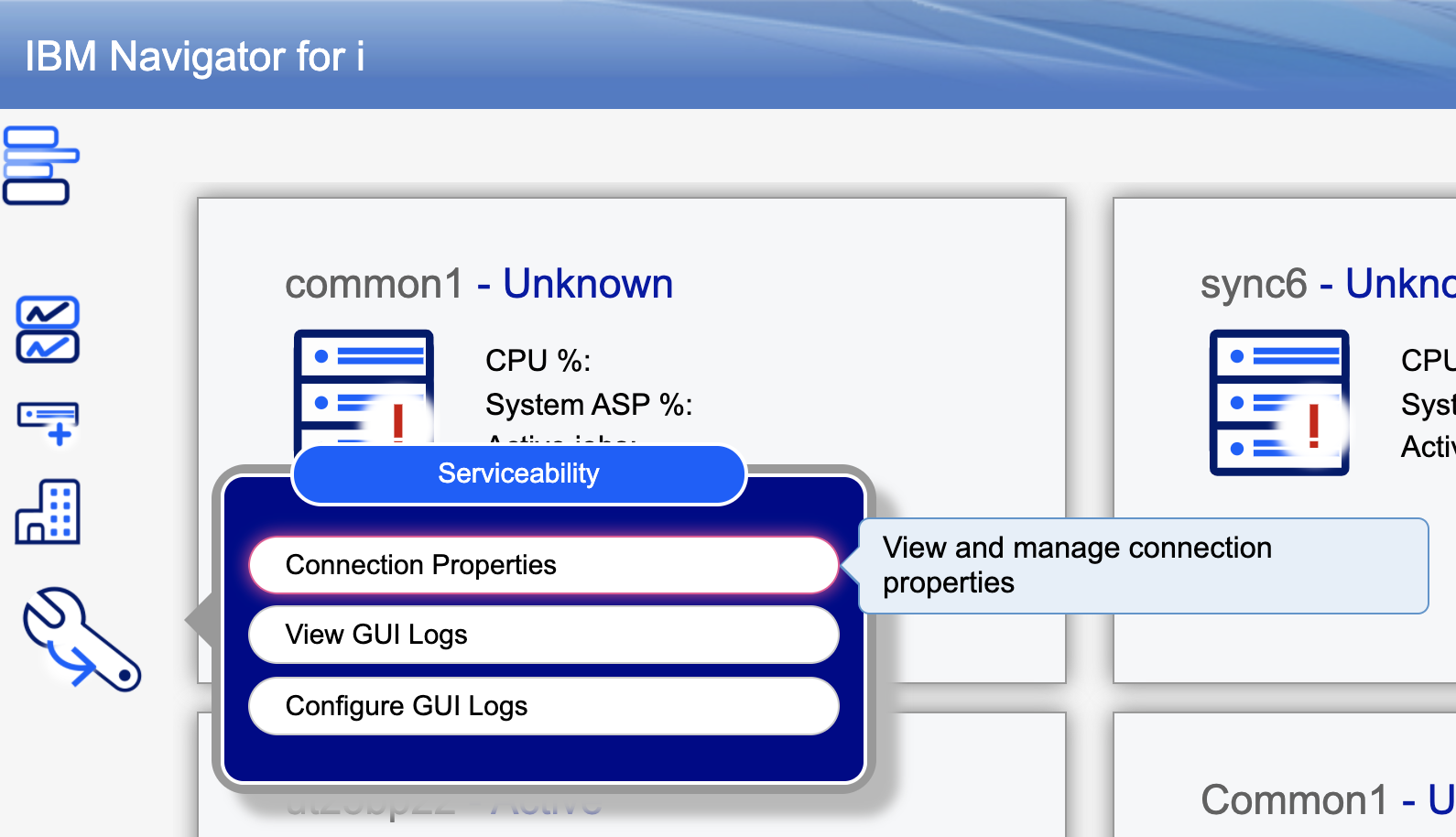
To Establish an encrypted connection, under the Serviceability menu click Connection Properties.
Click the TLS Connection tab.
The TLS Connection table shows the list of IBM i endpoint nodes that were previously established and their current encryption connection method. To enable encryption to an endpoint node, toggle the TLS Enablement switch to On. The Navigator application then attempts to establish an encrypted connection. If the host servers are properly configured with a Digital Certificate, this certificate is passed back to the Navigator application. The user needs to accept this certificate and the Navigator Application saves this certificate into the Web Application Certificate store.
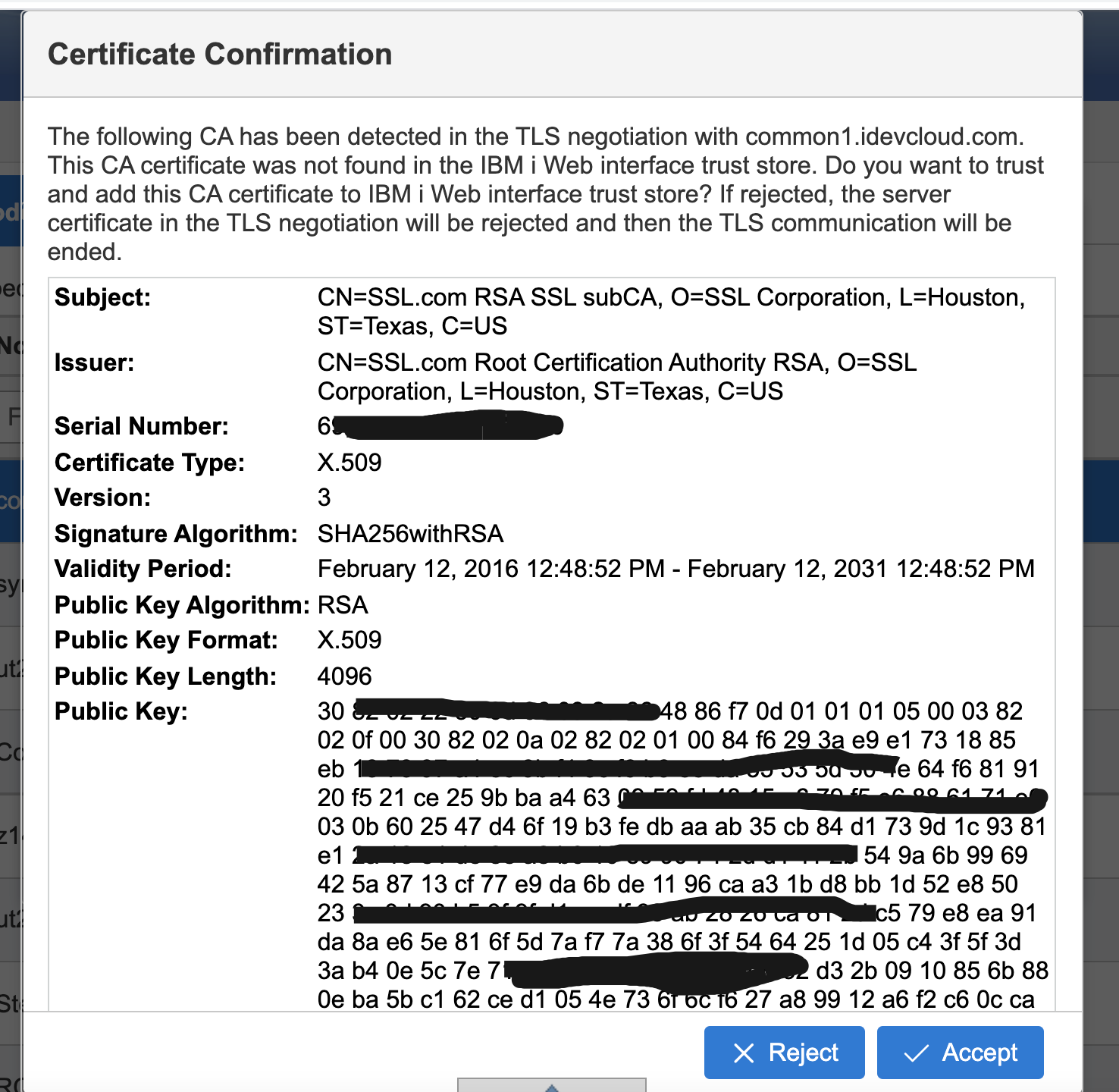
Click the Accept button. To save and enable this secure connection, click the Save button at the end of the table on the Web Interface TrustStore page.

Once the certificate is accepted and stored in the Web TrustStore, this and all future connections to this endpoint node are made by using an encrypted connection.

From the list view of the dashboard, you can see that the secure connection is used.
To manage the certificates in the Web TrustStore, click the IBM i Web Interface TrustStore tab before the list of IBM i endpoint nodes.
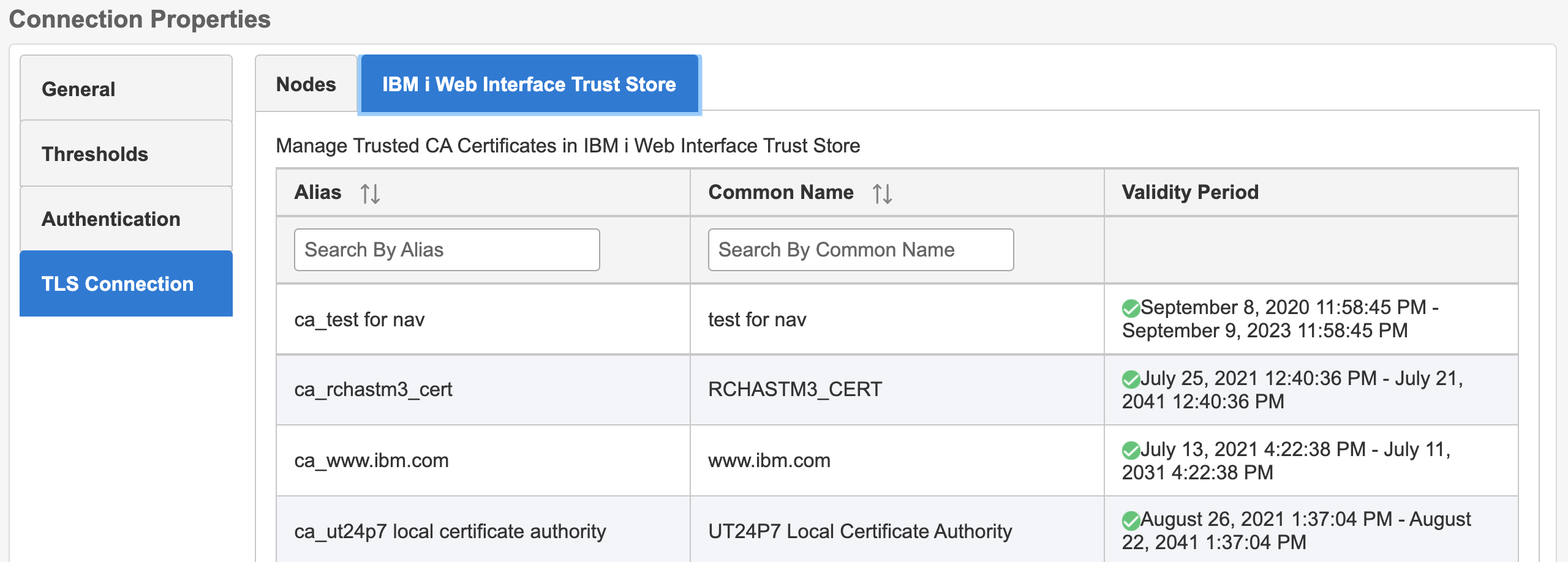
Manage the certificates with this interface. You can also renew the certificates once they are expired.
Serviceability
The Serviceability section is denied for default access. Only user profiles with *ALLOBJ special authority are able to see this section by default. Normal user profiles need to be added to the QIBM_NAV_SERVICEABILITY function ID.
See Function Usage IDs.
[{"Type":"MASTER","Line of Business":{"code":"LOB68","label":"Power HW"},"Business Unit":{"code":"BU070","label":"IBM Infrastructure"},"Product":{"code":"SWG60","label":"IBM i"},"ARM Category":[{"code":"a8m0z0000000CH1AAM","label":"IBM Navigator for i"}],"Platform":[{"code":"PF012","label":"IBM i"}],"Version":"7.3.0;7.4.0;and future releases"}]
Was this topic helpful?
Document Information
Modified date:
28 January 2026
UID
ibm16483573