Fix Readme
Abstract
This document contains guidance for installation of the IBM InfoSphere Information Server 11.7.1.1 Service Pack 2 upgrade package available on IBM Fix Central.
Content
Table of Contents
1) Introduction
2) 11.7.1.1 Service Pack 2 installation by using a password and/or passwordless SSH
3) Downloads and pre-Upgrade steps
4) Installation of 11.7.1.1 Service Pack 2
4.1. Instructions for upgrading Information Server in GUI mode of the Update Installer
4.2. Instructions for upgrading Information Server in Console mode of the Update Installer
5) Post upgrade actions
1) Introduction
The IBM InfoSphere Information Server 11.7.1.1 Service Pack 2 ispkg image is available for upgrading of Information Server version 11.7.1.1 installations. The steps for installing Information Server 11.7.1.1 Service Pack 2 depend on whether the Microservices tier is installed.
Requirements for installing 11.7.1.1 Service Pack 2:
- You must install Information Server version 11.7.1.1.
- If you have a Microservices tier, it must be at version 11.7.1.1 and all pods must be up and running.
New features in 11.7.1.1 Service Pack 2:
SQL Server 2019 is supported. Note, if you intend to use SQL Server 2019, you must upgrade to SQL Server 2019 before installation of 11.7.1.1 Service Pack 2.
2) 11.7.1 Service Pack installation by using a password and/or passwordless SSH
During the installation of Information Server 11.7.1.1 Service Pack 2, you can continue to use your current setup; no changes are needed to facilitate the installation.
However, you might want to take advantage of newly added features in the installer:
See the next section for details.
2.2) Installation modes available while upgrading the Microservices tier
In this case, you do not have to set up passwordless SSH from the Information Server host to the master node.
However, for a multiple nodes environment, you must set up passwordless SSH for the root user from the master node to the worker nodes.
The specified non-root user must have sudo privilege with NOPASSWD enabled.
In this case, you do not have to set up passwordless SSH from the user running the installation on the Information Server host to the master node.
For a multiple nodes environment:
ii. You must set up passwordless SSH for the specified non-root user from the master node to the worker nodes.
You must set up passwordless SSH from the user running the installation on the Information Server host to the master node.
For a multiple nodes environment, passwordless SSH must also be set up for the root user from the master node to the worker nodes.
The specified non-root user must have sudo privilege with NOPASSWD enabled.
You must set up passwordless SSH from the user running the installation on the Information Server host to the master node.
For a multiple nodes environment:
i. The specified non-root user must be set up in the same manner on all nodes.
ii. Passwordless SSH must also be set up for the specified non-root user from the master node to the worker nodes.
a. If the file /root/.ssh/id_rsa.pub does not exist, create the SSH Keys with the following command:
> ssh-keygen -f /root/.ssh/id_rsa -q -N ""
b. Copy the SSH public key to the Microservices Tier node with the following command:
> ssh-copy-id -i /root/.ssh/id_rsa.pub root@<enterprise search="" node="">
c. Validate the root passwordless SSH connection to the Microservices Tier node with the following command:
> ssh root@<enterprise search="" node=""> hostname
A non-root user with sudo privileges can be set up for passwordless SSH in the same manner.
3) Downloads and pre-upgrade steps
Update the Update Installer to the latest (11.7.1.085 or later):
3.1.1) On the Information Server host, download the Update Installer from
http://www.ibm.com/support/docview.wss?uid=swg24038034
3.1.2) In the document, Updating IBM InfoSphere Information Server, Version 11.7, and installing additional products, under Version 11.7, click the link installing_fixes_fixpacks_updates117.html.
3.1.3) See section “Installing a new version of the Update Installer before installing an update, fix, or patch” for the steps to extract the new Update Installer and run updateImage.sh.
If you used the default directory for Information Server, the Update Installer is installed in /opt/IBM/InformationServer/Updates/bin.
3.2) Download the 11.7.1.1 Service Pack 2 images
You must download the following images from IBM Fix Central depending on your installation choices.
For details on locating the images, see the Download document
3.2.1) On the Information Server host, download, and extract the Information Server 11.7.1.1 Service Pack 2 ispkg image from IBM Fix Central.
For example, servicepack_11.7.1.1_SP2_linux64_11711.tar.gz
Note:
1. Set your umask to 022 before the image is extracted.
2. Unpack the file to get the ispkg and readme files.
3.2.2) On the Microservices tier, download the ISES Image for Information Server 11.7.1.1 Service Pack 2 from IBM Fix Central. Do not extract the file.
For Service Pack 2, servicepack_11.7.1.1_SP2_microservices_11711.tar.gz
3.3.2) Ensure that your system meets all system requirements for Service Pack 2 installations. For example, the requirements for slirp4netns and fuse-overlayfs are different after 11.7.1.1.
3.3.3) Using SQL Server 2019 as the database repository
If you currently use SQL Server as the database repository, then with 11.7.1.1 Service Pack 2, you can choose to use SQL Server 2019.
To do so, use SQL Server documentation to upgrade your database to SQL Server 2019, before installation of 11.7.1.1 Service Pack 2.
More steps are required after 11.7.1.1 Service Pack 2 is installed; the steps are listed in section 5.5.
4) Installation of 11.7.1.1 Service Pack 2
4.1) Instructions for upgrading Information Server in GUI mode of the Update Installer
4.1.1) Login to the Information Server host. Change directory to <IS_HOME>/Updates/bin
For example, cd /opt/IBM/InformationServer/Updates/bin
4.1.2) Verify that the Update Installer version is 11.7.1.085 or later:
./installUpdates -version
4.1.3) Initiate the Service Pack install with the following command:
./installUpdates
This command launches the Update Installer in GUI mode.
4.1.4) Provide information as required in each panel to complete the installation.
Click Login.
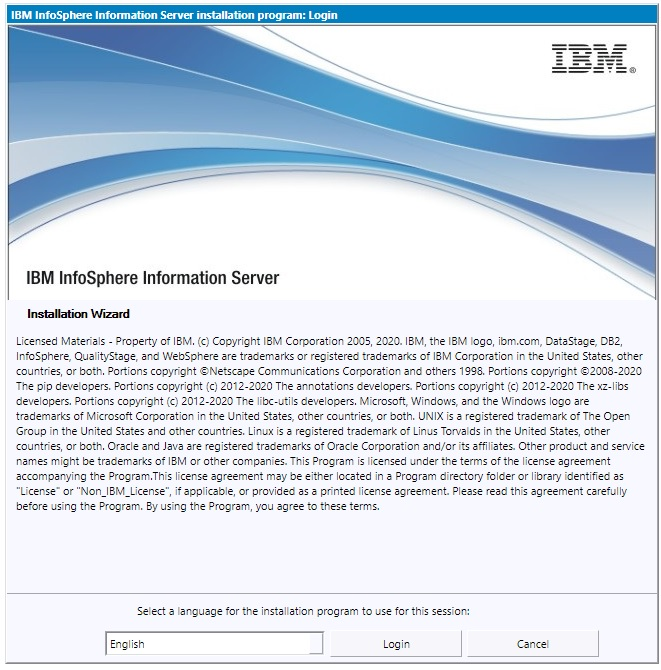
4.1.5) Review the System requirements, Release Notes, and Planning information.
Click Next.

4.1.6) The Update Installer displays the Information Server installation directory.
Click Next.

4.1.7) If you do not have a Microservices tier, skip forward to step 4.1.8.
Note: Information on adding a Microservices tier to 11.7.1.1 Service Pack 2 can be found in technote 6241456.
4.1.7.1) You can choose whether to upgrade the Microservices tier during the installation of 11.7.1.1 Service Pack 2.
Be aware that in order to upgrade:
1. The Microservices tier must be at version 11.7.1.1.
2. All pods must be up and running.
You can check the status of the pods by running the following command:
kubectl get pods --all-namespaces
4.1.7.2) If you do not want to upgrade the Microservices tier now, check the "Skip patching of Information Server microservices tier" checkbox.
Click Next and skip forward to step 4.1.8.
Information on upgrading your Microservices tier to 11.7.1.1 Service Pack 2 at a later time can be found in technote 6241456.

4.1.7.3) To upgrade the Microservices tier
a. Deselect the "Skip patching of Information Server microservices tier" checkbox.
b. Specify a fully qualified domain name for the Master Node Host.
c. Specify the same User as was used during the initial installation of the Microservices tier.
d. See section 2.2 for information on "Authenticate with a password".
e. If you specify a non-root user, in /etc/security/limits.conf, the hard and soft setting of nofile and nproc for the specified user must be 10240.
Also, umask must be set to 022 in ~/.bashrc.
Click Next.

4.1.8) In the list of "Packages to be installed", select the 11.7.1.1 Service Pack 2 ispkg file you downloaded from IBM Fix Central.
Click Next.

4.1.9) Provide your existing credentials for Kafka and Solr (for example, solruser, solrpwd etc). These credentials are what you previously specified when version 11.7.1.1 was installed on the Microservices tier.
Click Next.

4.1.10) Provide the location of Information Server, the Administrator user name, and password. Accept the certificate and click Next.

4.1.11) On the System Requirements Check page, confirm that all system requirements passed, and then click Next.

4.1.12) If you have a Microservices tier, examine the results from system requirement checks of the Microservices tier. If all is good, click Next.

4.1.13) Review the Preinstallation Summary and click the Install button to start the installation.

4.1.14) Click the Finish button after the installation completes.

4.1.15) Click “Advanced” followed by "Accept the Risk and Continue".
4.1.16) The Launchpad is displayed.


4.1.16.1) If you do not have a Microservices tier, the Information Server Launchpad is displayed.

4.1.16.2) If you have a Microservices tier, the Information Server (Microservices) Launchpad is displayed.

4.2) Instructions for upgrading Information Server in Console mode of the Update Installer
1. The Microservices tier must be at version 11.7.1.1 before installation of Service Pack 2.
2. The validation checks performed by the Update Installer in Console mode are not as extensive as the checks performed when the Update Installer is in GUI mode.
4.2.1) Login to the Information Server host. Change directory to <IS_HOME>/Updates/bin
For example, cd /opt/IBM/InformationServer/Updates/bin
4.2.2) Verify that the Update Installer version is 11.7.1.085 or later:
./installUpdates -version
If you need to update the Update Installer, see step 3.1.
4.2.3) Run the Update Installer to upgrade Information Server.
For example, installUpdates -i /opt/IBM/InformationServer/ -p /opt/Builds/ISPKG/<ispkg_file_name>.ispkg -verbose -console -properties <property_file_name>
where
<ispkg_file_name> is the ispkg file you downloaded from IBM Fix Central
For example, servicepack_11.7.1.1_SP2_linux64_11711.tar.gz
<property_file_name> is the name of the property file wherein you specify values for the various properties that control the upgrade of the Microservices tier.
Sample property file
The Update Installer prompts you for the Information Server administrator user ID and password, and the WebSphere Administrator user ID and password.
5) Post upgrade actions
Due to how Docker and Kubernetes services interact with each other, the Docker upgrade is not done automatically when the Microservices tier is upgraded from 11.7.1.1 to 11.7.1.1 Service Pack 2.
You can upgrade Docker by following the instructions in technote 6217329. Note if you already did this upgrade when 11.7.1.1 Service Pack 1 was applied, you do not have to repeat the steps.
While applying the service pack in an installation with WebSphere Application Server Network Deployment version 9.0.0.7 or lower, opening of the Information Server Microservices tier launchpad or Administration console might intermittently fail with the following exception in the browser:
Error 404:com.ibm.ws.webcontainer.servlet.exception.NoTargetForURIException:
No target servlet configured for uri:/ibm/iis/launchpad
Error 404:com.ibm.ws.webcontainer.servlet.exception.NoTargetForURIException:
No target servlet configured for uri:/ibm/iis/console
Such errors can be resolved by appending the following jars in the Ignore-Scanning-Archives section of WAS_INSTALL_LOCATION/AppServer/properties/amm.filter.properties.
Append a comma, space and backward slash (similar to as shown in the following lines) to the existing list and also add the following lines:
jackson-annotations-2.12.1.jar, \
jackson-core-2.12.1.jar, \
jackson-databind-2.12.1.jar, \
log4j-api-2.11.2.jar
Save the file.
Restart WebSphere Application Server.
This issue is not applicable to WebSphere Application Server Liberty installations.
a. kubectl edit Ingress iis-server
ingress.kubernetes.io/configuration-snippet: |
proxy_redirect "https://$host:<IIS services tier port>/" "https://$host/";
proxy_redirect "https://<Microservices tier short host name>:<IIS services tier port>" "https://<Microservices tier short host name>/";
proxy_redirect "https://<Microservices tier host name alias>:<IIS services tier port>" "https://<Microservices tier host name alias>/";
proxy_redirect "https://<Microservices tier IP address>:<IIS services tier port>" "https://<Microservices tier IP address>/";
a. kubectl edit Ingress iis-redirect
ingress.kubernetes.io/configuration-snippet: |
proxy_redirect "https://$host:<IIS services tier port>/" "https://<IIS services tier short host name>:<IIS services tier port>/";
proxy_redirect "https://<Microservices tier short host name>:<IIS services tier port>" "https://<IIS services tier short host name>:<IIS services tier port>/";
proxy_redirect "https://<Microservices tier host name alias>:<IIS services tier port>" "https://<IIS services tier host name alias>:<IIS services tier port>/";
proxy_redirect "https://<Microservices tier IP address>:<IIS services tier port>" "https://<IIS services tier IP address>:<IIS services tier port>/";
Ensure that the newly added proxy_redirect lines are properly aligned with the prior proxy_redirect line as consumption of the file contents is very sensitive to the formatting.
kubectl delete pods -l app=ingress-nginx -n kube-system
kubectl get pods -l app=ingress-nginx -n kube-system
On the Information Server host:
1. Add a host alias property:
$ ./iisAdmin.sh -set -key com.ibm.iis.ug.host.aliases -value
<Microservices tier long host name>,<Microservices tier short host name>,<Microservices tier alias name>,<Microservices tier IP address>
$ ./iisAdmin.sh -d -key com.ibm.iis.ug.host.aliases
On the Browser host:
Add an entry in the hosts file
UNIX: /etc/hosts
Windows: <Drive>:\Windows\System32\drivers\etc\host on Windows)
with IP address, long host name, short host name, and alias name as follows:
<Microservices tier IP address> <Microservices tier long host name> <Microservices tier short host name> <Microservices tier alias name>
The Connector Migration tool must be run against all such jobs. See technote for details.
5.5) Using SQL Server 2019 as the database repository
In section 3.3.3, if you changed your database repository to SQL Server 2019, the following steps are required:
NOTE: Save backups of each file before it is changed.
The locations of the database.properties files depend on your usage of WebSphere.
WebSphere Liberty:
<ISHOME>/ASBServer/apps/lib/iis/15properties
<ISHOME>/ASBServer/conf
<ISHOME>/wlp/usr/servers/iis/lib/iis/15properties
WebSphere Network Deployment stand-alone:
<ISHOME>/ASBServer/apps/lib/iis/classes
<ISHOME>/ASBServer/conf
<WEBSPHERE_HOME>/AppServer/profiles/InfoSphere/classes
WebSphere Network Deployment cluster:
<ISHOME>/ASBServer/apps/lib/iis/classes
<ISHOME>/ASBServer/conf
Also, on each node:
<WEBSPHERE_HOME>/AppServer/profiles/<node>/classes
The imam_staging_repository.properties file is located in <ISHOME>/ASBServer/conf.
In each applicable file, change type=sqlserver2017 to type=sqlserver2019.
c. As the Administrator/root user, update the property com.ibm.iis.xmeta.repo.conn.POJO_STAGING by running the following commands> cd <ISHOME>/ASBServer/bin
> ./xmetaAdmin.sh setProperty -file ../conf/imam_staging_repository.properties -dbfile ../conf/database.properties com.ibm.iis.xmeta.repo.conn.POJO_STAGING
d. Restart WebSphere for the changes to take effect.
The Db2 JDBC 3.0 driver was upgraded to a Db2 JDBC 4.0 driver during the upgrade to 11.7.1.1 Service Pack 2. In Windows installations, the prior version of the driver jar, db2jcc.jar is not removed from the system in some situations. In order to prevent its usage in subsequent activity, remove it as follows:
> chdir <ISHOME>\ASBNode\lib\java
> del db2jcc.jar
5.7) Enabling Information Analyzer column analysis jobs in WebSphere Liberty installations
Installations that use WebSphere Liberty with a Db2 repository must follow the steps in technote to enable column analysis jobs.
Change History:
07 July 2021: Initial publication
Was this topic helpful?
Document Information
Modified date:
07 October 2021
UID
ibm16463605