White Papers
Abstract
This white paper describes how to copy Links between Identical Modules with 'Link by Attribute' in IBM Rational Dynamic Object Oriented Requirements Suite (DOORS).
Content
Table of Contents:
The ‘Link by Attribute’ functionality in Rational DOORS
Different ways of copying modules in Rational DOORS
Approach to copy link information
Capturing Link Information in a column or attribute in the original module
Exporting link information from the original module
Importing Link Information to the copied module
Creating links using Link By Attribute Functionality
DXL Scripts for capturing outlink and inlink information
Introduction
While managing requirements, there’s often a need to spin off a feature starting from an already existing set of requirements. IBM Rational Dynamic Object Oriented Requirements Suite (DOORS) allows users to do this via different methods that suit different specific needs, like Copy/Paste (or Paste Special), Archive/Restore, Copy of Baseline etc.
One of the limiting factors when you use Archive/Restore or Copy of Baseline options is that the link information is not retained in the new copy of the module.
This article discusses approaches of copying link information between two identical modules, specifically involving use cases of Archive/Restore and Baseline copies, using some simple steps and DXL scripts. The approach can be extended to any other use case too, where similar conditions exist between two modules.
The ‘Link by Attribute’ functionality in Rational DOORS
At the core of the solution to copying links is the ‘Link by Attribute’ functionality of Rational DOORS.
Rational DOORS allows users to create new links using a text attribute in the module. We can create either in-links or out-links to a specific module when we have absolute numbers of source/target objects, stored in the text attribute.
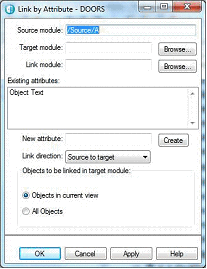
You can open ‘Link By Attribute’ window by selecting Link>Advanced>Link By Attribute from within a module window, which will bring up the dialog box shown in the above figure.
The source module field will be pre-populated with the full path to the current module by default. Users will have to specify target and link module by entering the path or by selecting the Browse button.
The window will also display a list of text attributes in the Existing attributes field. We will have to choose the attribute which has absolute numbers of the target module from this list to create the links. This window also allows us to choose the link direction and gives you an option to create links to all objects or objects in the display set.
Note that the text attribute used to create the links can only have Absolute numbers. Using Object Identifiers might work only when the ‘Prefix’ module attribute is not set.
So our challenge is to create a text attribute in the copied module, containing absolute number of source/target objects, to be able to re-create the links as they were in the original module.
The Link by Attribute function can be used to re-create the links.
We will discuss in detail on how to get this (link related) information into copied module, from the original module in the following sections. Let us start by looking at out-of-box approach to copying modules, their limitations and then discuss on how to copy the links.
Different ways of copying modules in Rational DOORS
The four basic ways to create a copy of a module/version of module is as follows:
- Copy/Paste
- Archive/Restore
- Copy from Baseline
- Paste Special
Each of these mechanism are distinct in terms of what information is copied over from the original module. Chart below shows what kind of information is copied over, using these different mechanisms:
| Copied information | Copy/Paste | Archive/Restore | Copy from Baseline | Paste Special |
| Baselines | No | Yes, upon being selected while archiving the source module | No | No |
| Attribute types | Yes | Yes | Yes | Optional |
| Attribute definitions | Yes | Yes | Yes | Optional |
| Objects | Yes | Yes | Yes | Optional |
| Object Identifiers | Yes | Yes | No | Optional |
| Attribute values | Yes | Yes | Yes | No |
| Views | Yes | Yes | Yes | Optional |
| In-Links | Only copied if source module is copied | No* | No | Yes, if objects are chosen to be re-created and link module is selected during Paste Special Operation. |
| Out-Links | Yes | No* | No | Yes, if objects are chosen to be re-created and link module is selected during Paste Special Operation. |
| Access Rights | Yes | No | Yes | No |
* Links would be copied if the source and target objects are on the same module and the link module is also copied during the operation
Approach to copy link information
There are no direct methods to copy the link information from original module to copied module along with the absolute numbers. Hence we will have to create a view with the link information in the original module and export it to a csv file.
Later, we will have to import this csv file to the copied module and then create links by using ‘Link by Attribute’ functionality in the copied module. Below are the steps that are involved to achieve this. Each step is explained in detail in the further sections.
- Capturing link information in a column or attribute in the original module
- Exporting link information from original module
- Importing link information into copied module
- Creating links using Link by Attribute functionality
Capturing Link Information in a column or attribute in the original module
‘Link by Attribute’ functionality needs Absolute Numbers of Linked Objects to re-create the links.
So the task here is to capture the absolute number of linked objects in a column or an attribute in the original module. An easy approach to achieve this would be to use Analysis > Wizard from the module menu.
Note 1 - We will need to have separate columns or Attributes for each linked Module.
For example, let us consider you are trying to copy outlinks from Module A, which has outlinks to two target modules – Module B and Module C.
You will need to create two columns in Module A, one of absolute numbers of linked objects in Module B, and another column for absolute numbers of linked objects in Module C. So, in other words, user will need to run ‘Analysis Wizard’ twice, choosing “Specific Module” option and choosing Module B and then Module C in the two runs.
The above steps though can be easily applied to a module with links only to a few modules. However this becomes time consuming and complicated when the original module has links to/from large number of Modules.
We provide you with a DXL script to Create Layout DXL columns with Linked Absolute Numbers for each linked Module. Scripts can be found in the section ‘DXL Scripts for capturing outlink and inlink information’
Steps to execute the script:
- Open the original module from which link information is to be copied.
- Save the DXL scripts that are attached on the client machine.
- Click on Tools>Edit DXL.
- Click on Load
- Browse to the location where ‘Capture_Outlink_details.dxl’ script is saved.
- Select the script ‘Capture_Outlink_details.dxl’ to create columns having Out-link information.
- Click on Run to create Layout DXL columns which contains Out-link information.
- Follow step 1 to 8 to create Layout DXL columns which contains In-link information by running the script ‘Capture_Inlink_details.dxl’
- Save this as a new view in the original module. This view will have the Layout DXL columns with link information which can exported to a CSV file.
Additional Steps to be performed if the Absolute Numbers in original and copied modules does not match
A key factor to update the correct object in copied module with link information obtained from original module is, both modules should have same absolute numbers. In such a case, CSV Import option of Rational DOORS can be used to update existing objects.
If Absolute Number is not the same in original module and copied module, then we need to take some additional steps to create another attribute/column in original module, which will act as a key to represent the same object in copied module. Such a situation will arise, while using ‘Copy of baseline’ option, or Paste Special option – which will create a new set of objects, thus having differing Absolute Numbers as compared to the original module.
To create a key in such scenarios, we rely on the assumption that ALL objects were copied from the original module to the copied module. This would in turn mean that the hierarchy of objects in both modules are the same. Based on this assumption, we create a column in the original module, which will be a simple 1-n numbering for each object in the module.
Note 2 – While creating a copy of baseline, or while using Paste Special option, user can choose a starting number of Absolute Numbers in the module. If you have chosen a value there, then that needs to be taken into consideration while numbering the objects in the original module.
To create the key, we can use a simple DXL, to be used in a Layout DXL Column. To do this, follow the steps below:
- Click on “Insert > Column”
- In the displayed dialog box, specify the Title to be “Object Identifier”
- Select Layout DXL radio button for “Contents”
- Click on the Browse button next to Layout DXL
- Click on New button, in the “Browse DXL” dialog box
- Paste the code snippet below:
int i=0
Object o
for o in current Module do {
i++
if(o==obj) break
}
display i""
____________________________
Note 3 – You will need to change the value of ‘i’ in the first line, if you chose a different starting point of Absolute Number when the copy of module was created (refer to Note 2).
After creating this column, remove the ‘ID’ column from the view and save the view.
Exporting link information from the original module
In the previous steps, we had created Layout DXL columns with the linked Absolute numbers in the original module (, and a key column to represent same objects, in case of absolute numbers are differing in original and copied module).
We can now export this link information to the copied module where the links have to be re-created, using different ways depending on the use case.
Scenario 1: Copy a module by Archive/Restore or Copy/Paste process of current version of the module
If you choose to use Archive/Restore or Copy/Paste process to create a copy of the module, then you may follow the above steps on original module before creating the copy itself. This will allow you to skip the necessity to export/import link related information again.
Since the link information is captured in a Layout DXL Column, we will need the same information in a Text Attribute, to be able to use Link by Attribute functionality. We can easily convert Layout DXL columns created from the previous steps to Attribute DXLs using ‘Tools>Support Tools>Convert Layout DXL To Attribute DXL’.
Next, we need to convert the Attribute DXL to be a text attribute by unchecking the option ‘Attribute DXL’ in the attributes properties window. Note that failing to do this, will not retain the value of the attribute DXL after restoration of the module, since attribute DXL values rely on DXL code associated with the attribute.
Once you perform these steps, you may go ahead and archive the original module, and then restore it in a desired location. You may then follow the steps outlined in Section ‘Creating links using Link by Attribute functionality’, to re-create the links in the restored (copied) module.
Scenario 2: Copy a module from a baseline or while using Paste Special option
Having followed the steps outlined in previous section, you’re now ready to export the view to CSV file.
Steps to export the link information to a CSV file are :
- In the previous step we had created a new view with Layout DXL columns in the original module.
- Check if the view created contains main column. If yes, remove the main column in the original module.
- Rename the ID column as ‘Object Identifier’
- If the view does not contain ID column, insert it and then rename it to ‘Object Identifier’
- Save the view.
- Export the contents of this view to a CSV file by using ‘File>Export>Microsoft Office>Excel’
Importing Link Information to the copied module
Steps to import link information from the CSV file to the copied module:
- Open the copied module in exclusive edit mode.
- Rename the ID column as ‘Object Identifier’
- Click on File>Import>Spreadsheet
- Browse to the location where CSV file exported in previous step is saved.
- Click on ‘Advanced’ and select the Encoding as ‘UTF-8’
- Click on Import.
- DOORS application would prompt to create new Attributes for each of the Layout DXL columns.
- Ensure that new Attributes that are being created are of type ‘Text’ and Save the module.
Creating links using Link By Attribute Functionality
- Open the copied module in exclusive edit mode.
- Navigate to Link>Advanced>Link by Attribute.
- Ensure all the new text Attributes created are present in the Existing Attributes section.
- Select the appropriate target and link module.
- Ensure to select correct link direction and Attribute to create links appropriately.
- Save all the modules after creation of links.
DXL Scripts for capturing outlink and inlink information
Use the attached scripts ‘Capture_Outlink_details.dxl’ and ‘Capture_Inlink_details.dxl’ for capturing outgoing and in-coming links respectively depending upon the requirement.
Conclusion
It is important for the DOORS administrator to have a clear understanding on different ways of copying a module while retaining link Information.
With this white paper we have tried to document real world scenarios of copying modules between Folders, Projects or databases along with its links.
References:
- How to keep links when restoring a DOORS module archive
- Rational DOORS DXL Reference Manual
- Installing Rational DOORS
| THE INFORMATION CONTAINED IN THIS DOCUMENT IS PROVIDED FOR INFORMATIONAL PURPOSES ONLY. WHILE EFFORTS WERE MADE TO VERIFY THE COMPLETENESS AND ACCURACY OF THE INFORMATION CONTAINED IN THIS DOCUMENT, IT IS PROVIDED "AS IS" WITHOUT WARRANTY OF ANY KIND, EXPRESS OR IMPLIED. IN ADDITION, THIS INFORMATION IS BASED ON IBM’S CURRENT PRODUCT PLANS AND STRATEGY, WHICH ARE SUBJECT TO CHANGE BY IBM WITHOUT NOTICE. IBM SHALL NOT BE RESPONSIBLE FOR ANY DAMAGES ARISING OUT OF THE USE OF, OR OTHERWISE RELATED TO, THIS DOCUMENT OR ANY OTHER DOCUMENTATION. NOTHING CONTAINED IN THIS DOCUMENT IS INTENDED TO, NOR SHALL HAVE THE EFFECT OF, CREATING ANY WARRANTIES OR REDOCUMENTS FROM IBM (OR ITS SUPPLIERS OR LICENSORS), OR ALTERING THE TERMS AND CONDITIONS OF ANY AGREEMENT OR LICENSE GOVERNING THE USE OF IBM PRODUCTS OR SOFTWARE. |
|---|


Was this topic helpful?
Document Information
Modified date:
04 May 2020
UID
swg27043969