 Monitoring 行動式應用程式
Instana 支援行動式應用程式監視,方法是分析實際 URL 要求時間,以提供對使用者應用程式體驗的詳細見解,以及對應用程式呼叫路徑的深度可見性。 Instana 應用程式監視解決方案的運作方式是使用 iOS/Android 代理程式,該代理程式已安裝為對行動式應用程式的相依關係。
「一般使用者監視 (EUM)」或「實際使用者監視 (RUM)」是瞭解行動應用程式的數位使用者體驗的重要工具。
安裝
iOS
若要安裝 iOS 代理程式,請使用 Swift Package Manager (透過 Xcode) 或 CocoaPods。
需求
- iOS 11 或更新版本
- swift 5.1 或更新版本
Swift 套件管理程式
- 開啟 Xcode。
- 選取檔案-> Swift 套件-> 新增套件相依關係-> 您的 Xcode 專案。
- 輸入 https://github.com/instana/iOSAgent 儲存庫。
CocoaPods
在
Podfile規格內,新增下列指令:pod 'InstanaAgent'若要下載相依關係,請執行
pod install。
設定
如需設定程序的相關資訊,請參閱 iOS 代理程式 API。
Android
Android 代理程式是由 Gradle 外掛程式及 SDK 程式庫所組成。 將外掛程式套用至應用程式模組,並將 SDK 新增為相依關係。
需求
- Android 4.1+ (API 層次 16 +)
- Java 8 +
- Gradle 7.3.3+
- AndroidX
- targetSdk 33 +
附註: 若要在專案中使用低於 7.3.3 的 Gradle 版本,請使用低於 6.0.0的 android-agent 版本。
Instana Android 外掛程式
在專案層次 build.gradle 檔案中,新增下列程式碼:
buildscript {
   repositories {
        google()
        mavenCentral()
    }
   dependencies {
      classpath "com.instana:android-agent-plugin:6.0.0"
    }
}
在您套用 com.android.application 外掛程式之後的模組 (app-level) Gradle 檔案 (通常是 app/build.gradle) 中,新增下列程式碼:
apply plugin: 'com.android.application'
apply plugin: 'com.instana.android-agent-plugin'
Instana Android SDK
在專案層次 build.gradle 檔案中,新增下列程式碼:
allprojects {
    repositories {
        google()
        mavenCentral()
    }
}
在模組 (app-level) Gradle 檔案 (通常是 app/build.gradle) 中,新增下列程式碼:
dependencies {
    implementation 'com.instana:android-agent-runtime:6.0.0'
}
Java 1.8 相容性
附註: 如果 minSdkVersion 低於 24 ,請完成此步驟。
在模組 (app-level) Gradle 檔案 (通常是 app/build.gradle) 中,新增下列程式碼:
android {
    compileOptions {
        sourceCompatibility JavaVersion.VERSION_1_8
        targetCompatibility JavaVersion.VERSION_1_8
    }
}
要求 READ_PHONE_STATE 許可權 (選用)
當使用者透過行動網路存取網際網路時, Instana 代理程式可以報告行動網路的特定類型。
若要啟用行動網路類型的報告,您的應用程式需要要求 READ_PHONE_STATE 許可權。 如需要求許可權的相關資訊,請參閱官方 Android 文件中的 Request App Permissions 小節。
如果您的應用程式未要求許可權,或使用者拒絕許可權, Instana 代理程式不會報告行動網路類型。
基本起始設定
在延伸 Application的類別中,將 YOUR_REPORTING_URL 和 YOUR_APP_KEY 取代為您在「Instana 儀表板」中找到的配置值:
class MyApplication : Application() {
    override fun onCreate() {
        super.onCreate()
        Instana.setup(
            this,
            InstanaConfig(
                key = "YOUR_APP_KEY",
                reportingURL = "YOUR_REPORTING_URL"
            )
        )
    }
}
進階用法
如需起始設定選項、視圖追蹤及其他選項的完整清單,請參閱 Android 代理程式 API。
React Native
React Native 代理程式同時支援 Android 及 iOS 平台。
需求
新增相依關係
在專案根目錄中執行下列指令:
npm install @instana/react-native-agent --save
基本起始設定
在類別 App.js 檔中,將 YOUR_INSTANA_APP_KEY 和 YOUR_INSTANA_REPORTING_URL 取代為您在「Instana 儀表板」中找到的配置值:
export default class App extends Component {
  componentDidMount() {
    Instana.setup(YOUR_INSTANA_APP_KEY, YOUR_INSTANA_REPORTING_URL, null);
  }
}
建議
若要防止 Instana 代理程式與 Metro bundler 進行追蹤通訊,請將 http://localhost:8081 新增至忽略的 URL 清單:
Instana.setIgnoreURLsByRegex(['http://localhost:8081.*']);
iOS
您的專案應該至少包含一個 Swift 檔案 (它可以是空的)。
如果您沒有任何 Swift 檔案,請在 <YourReactNativeProject>/ios 中開啟 Xcode 專案,然後新增空的 Swift 檔案。 讓 Xcode 為您建立「橋接標頭」。
Android
使用適用於 React Native 版本的 Instana Android 外掛程式版本:
- React Native 0.63.3 或更舊版本: 使用 Instana Android 外掛程式 1.5.3
- React Native 0.63.4 或更新版本: 使用 Instana Android 外掛程式 5.2.2
請遵循下列步驟來啟用自動 HTTP 監視:
在
/android/build.gradle檔案中,新增下列程式碼:buildscript { dependencies { classpath "com.instana:android-agent-plugin:$INSTANA_ANDROID_PLUGIN_VERSION" } }在
/android/app/build.gradle檔案中,新增下列程式碼:apply plugin: 'com.android.application' apply plugin: 'com.instana.android-agent-plugin'
已知問題
提取 (url)
如果您的應用程式使用 fetch 來完成網路要求,則每當使用 fetch 時,您可能會在執行時期發現應用程式損毀: No virtual method toString(Z)Ljava/lang/String;
這個問題應該由 React Native 問題來修正 (27250 和 28425)。 如果遇到此問題,您可以套用下列暫行解決方法。
在 Android 模組層次 Gradle 檔案 (通常是 app/gradle.build) 中,新增下列程式碼:
dependencies {
    implementation "com.squareup.okhttp3:okhttp:4.3.1"
    implementation "com.squareup.okhttp3:okhttp-urlconnection:4.3.1"
}
Execution failed for task ':app:transformClassesWithDexBuilderForDevDebug'
如果您已從舊版升級至 React Native 0.63.4 ,請檢查您使用的是
- Instana Android 外掛程式 4.5.3
android/gradle/wrapper/gradle-wrapper.properties中的 Gradle 6.5:distributionUrl=https\://services.gradle.org/distributions/gradle-6.5-bin.zipandroid/build.gradle中的 Android Gradle 外掛程式 5.2.2:classpath("com.android.tools.build:gradle:4.1.0")
進階用法
如需起始設定選項、視圖追蹤及其他選項的完整清單,請參閱 React Native 代理程式 API。
Flutter
Flutter 代理程式同時支援 Android 及 iOS 平台。
附註: Flutter 代理程式不提供自動 HTTP 追蹤。 HTTP 追蹤必須由開發人員手動設定 (本文件提供範例)。
需求
- Flutter 1.20.0 版或更新版本
- 2.12.0 與 3.0.0 之間的 Dart 版本
將套件新增至應用程式
您可以從 pub.dev取得 Instana 代理程式 Flutter 套件。
若要將套件新增至應用程式,請完成下列步驟:
開啟位於應用程式資料夾內的
pubspec.yaml檔案,然後在dependencies下新增instana_agent:。使用下列其中一種方法來安裝套件:
- 從主控台: 執行
flutter pub get - 從 Android Studio 或 IntelliJ: 在
pubspec.yaml的動作功能區中按一下 套件取得 - 從 VS 程式碼: 在
pubspec.yaml的動作功能區中按一下 取得套件
- 從主控台: 執行
起始設定
在 dart 檔案中匯入套件:
import 'package:instana_agent/instana_agent.dart';
必要的話,請停止並重新啟動應用程式。
儘快設定 Instana。 例如,在 initState()中,新增下列程式碼:
@override
  void initState() {
    super.initState();
    InstanaAgent.setup(key: 'YOUR-INSTANA-KEY', reportingUrl: 'YOUR-REPORTING_URL');
  }
如果您想要針對 iOS進行建置,請在 ${appFolder}/ios/Podspec 中設定最低平台版本,其最小值為 11.0。
追蹤視圖變更
在起始設定 Instana 代理程式之後,隨時新增 InstanaAgent.setView('Home');:
import 'package:instana_agent/instana_agent.dart';

[...]

InstanaAgent.setView('Home');
追蹤 HTTP 要求
在起始設定 Instana 代理程式之後,隨時可以開始擷取 HTTP 要求:
import 'package:instana_agent/instana_agent.dart';

[...]

InstanaAgent.startCapture(url: 'https://example.com/success', method: 'GET').then((marker) => marker
    ..responseStatusCode = 200
    ..responseSizeBody = 1000
    ..responseSizeBodyDecoded = 2400
    ..finish());
建立您自己的 InstrumentedHttpClient 延伸 http.BaseClient ,如下列範例所示:
class _InstrumentedHttpClient extends BaseClient {
   _InstrumentedHttpClient(this._inner);

   final Client _inner;

   @override
   Future<StreamedResponse> send(BaseRequest request) async {
      final Marker marker = await InstanaAgent.startCapture(url: request.url.toString(), method: request.method);

      StreamedResponse response;
      try {
         response = await _inner.send(request);
         marker
            ..responseStatusCode = response.statusCode
            ..responseSizeBody = response.contentLength
            ..backendTracingID = BackendTracingIDParser.fromHeadersMap(response.headers);
      } finally {
         await marker.finish();
      }

      return response;
   }
}

class _MyAppState extends State<MyApp> {

   [...]

   Future<void> httpRequest() async {
      final _InstrumentedHttpClient httpClient = _InstrumentedHttpClient(Client());
      final Request request = Request("GET", Uri.parse("https://www.ibm.com/products/instana"));
      httpClient.send(request);
   }

   [...]
}
儀表板
摘要
主要儀表板彙總所有重要資料。

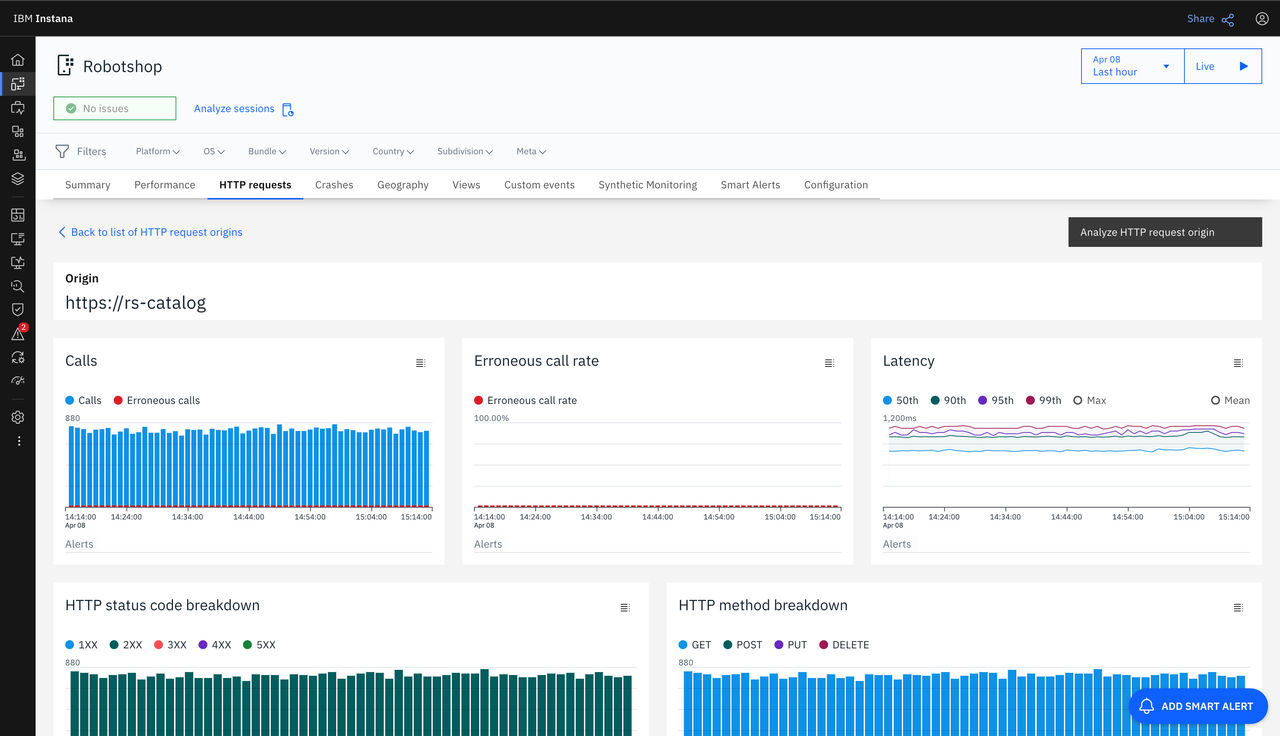
HTTP 要求
瞭解哪些 HTTP 要求慢速或有問題。 選取特定原點可讓您深入瞭解傳輸量和延遲,以及錯誤率和延遲明細。
視圖
通常必須隔離特定視圖並分析其效能,這也是尋找具有最多資料流量的視圖的好方法。 選取特定視圖,以顯示視圖的所有度量值。

智慧型警示
檢視所有已配置「智慧型警示」的清單。 按一下警示以檢視其配置、修改它或檢視其修訂歷程。 必要的話,您也可以停用或移除警示。
如需如何新增警示的相關資訊,請參閱 智慧型警示。
分析
與追蹤及呼叫的分析功能類似,行動式應用程式監視資料的分析視圖可用來回答任何預先配置儀表板未涵蓋的特定問題。 應用程式監視資料的單一部分稱為 引標。 存在一些引標類型,即階段作業啟動及 HTTP 要求。 為了方便起見,每一個引標類型在分析視圖內都有其主要導覽項目。
引標資料可用來過濾及分組。 預設分組視選取的信標類型而定。 可以移除分組,以檢查符合過濾器的個別信標。

地理資料
Instana 會根據 MaxMind所提供的 GeoLite2 資料庫,將使用者 IP 位址對映至地理詳細資料。 使用反向 Proxy 伺服器來收集 IP 位址。 若為自行管理安裝,請將使用者 監視端點 的 URL 配置為代理程式的報告 URL。 否則,不會收集 IP 位址,且無法使用相關的地理詳細資料資訊。