The Management GUI
With the Management graphical user interface (GUI), you can monitor, configure, and operate most library functions from a web browser.
When possible, use the Management GUI as the primary library interface. The web interface provides access to more features, includes online help, and is intuitive to use.
Before the Management GUI can be used, you need to log in and configure the library network settings with the Operator Panel. This action can be done during Initial Setup. See The Initial setup process.
The Library main screen on the Management GUI
The library main screen is organized into the following regions:
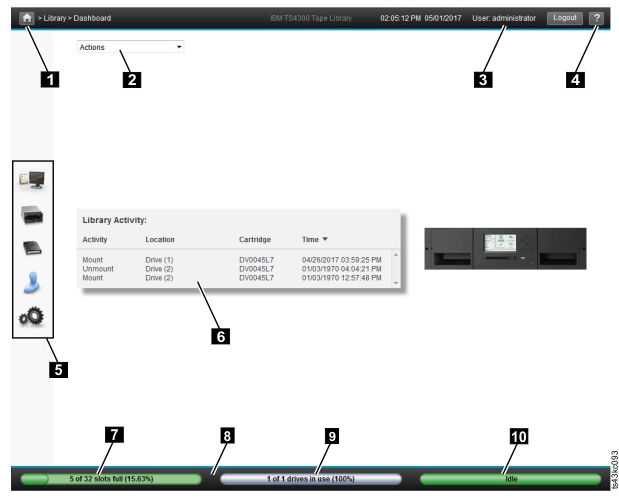
| Element | |
|---|---|
| 1 | Home icon > Current Navigation |
| 2 | Actions > dependent on current navigation |
| 3 | User logged in |
| 4 | Help |
| 5 | Navigation Dock |
| 6 | Overview - dependent on current navigation |
| 7 | Cartridge Capacity - Shows how many cartridge slots are available and how many of those have cartridges in them |
| 8 | Status Bar |
| 9 | Drive Activity - Shows how many drives are present in the library and how many of those are in use (have cartridges loaded) |
| 10 | Library Status |
Tips:
- For specific management function navigation, see Locating Management functions.
- For additional information, see online help pages in the Management GUI. The help pages are updated with firmware updates and often contain up-to-date technical details that might not be contained in this document. To access Management GUI help, click ? on the right side of the Management GUI top banner.
- For information about user role permissions, see Management GUI functions and roles.
Navigation Dock
| Navigation Dock Icons | Element | Extra menus |
|---|---|---|

|
Library |
|

|
Drive | Drives and Ports |

|
Cartridges | Cartridges and Slots |

|
Access |
|

|
Settings |
|
Status icons
Status icons indicate the following conditions.
| Icon | Description |
|---|---|
 |
The green OK icon indicates that the library is fully operational and that no user interaction is needed. |
 |
The yellow exclamation point Warning icon indicates that user attention is necessary, but that the device can still finish most operations. |
 |
The red X Error icon indicates that user intervention is needed and that the device can’t finish some operations. |