Request deletion (Offboarding) of your IBMid account
Note: As part of our ongoing efforts to enhance the quality and efficiency of IBMid support services, we are updating the way you contact our support team. Further details here.
Important: By requesting deletion, your IBMid account and associated Profile will be
deleted and your access to entitled applications may be lost. Your marketing communication
preferences will not be changed. To submit a data rights request or update your marketing
communication preferences, you may access the IBM Privacy
Portal.
After you delete your IBMid account, your IBMid account will be deactivated immediately and your account data will be removed in 30 days. You will not be able to login, access any applications, and will not be able create another IBMid account with the same email address within the 30 day period.
If you need this IBMid Account immediately removed, you will need to submit a case to ibmidsupport@ibm.com.
Follow these steps to delete your IBMid account:
- Please select the following link to delete your account IBMid Delete.
- After logging into your profile, scroll down to find “Offboarding” (Red Square).
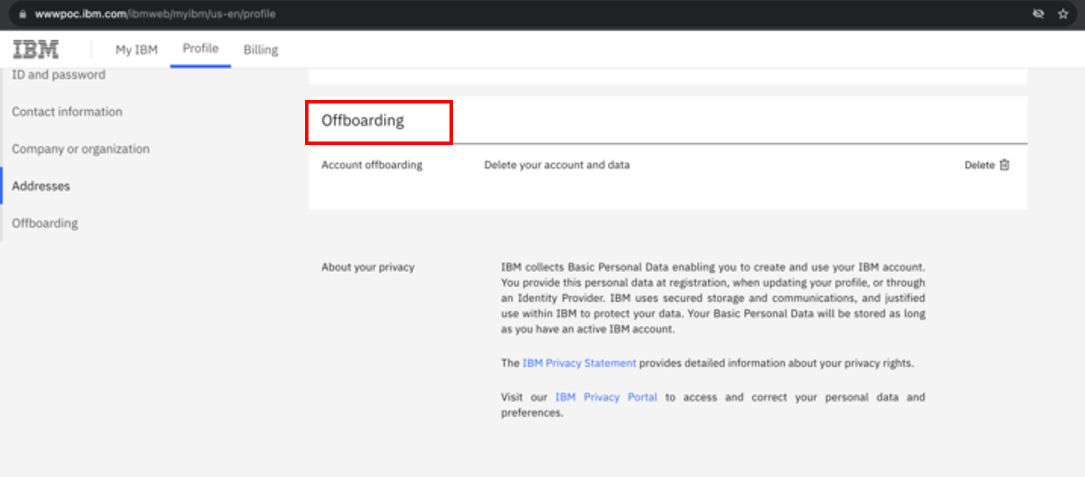
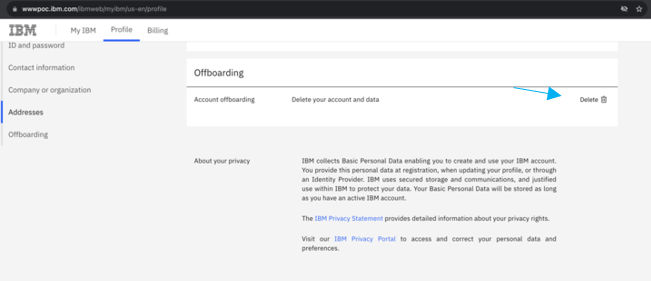
- Click on “Delete” (Blue Arrow).
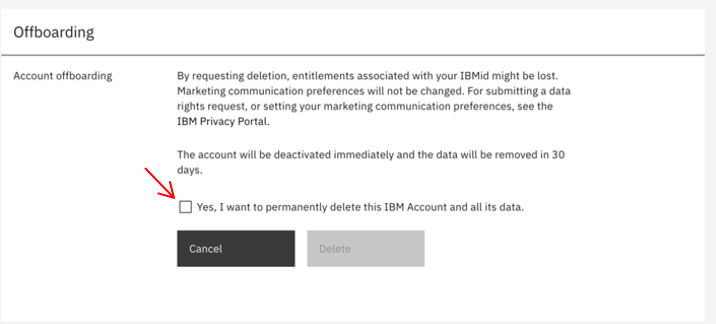
- Check “Yes, I want to permanently delete this IBM Account and all its data” to proceed
with the deletion (Red Arrow).
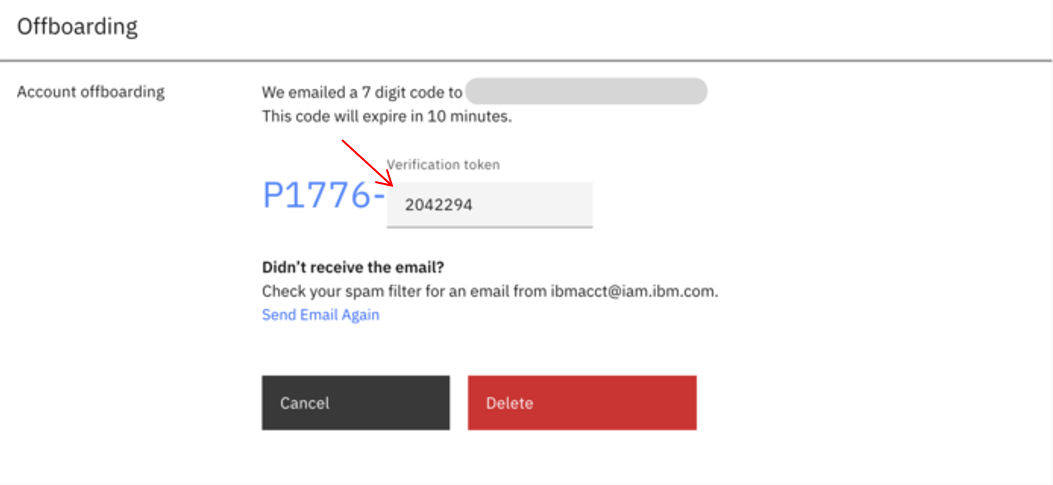
- After accepting to delete your account you will receive the following screen asking to enter a
One Time Password.
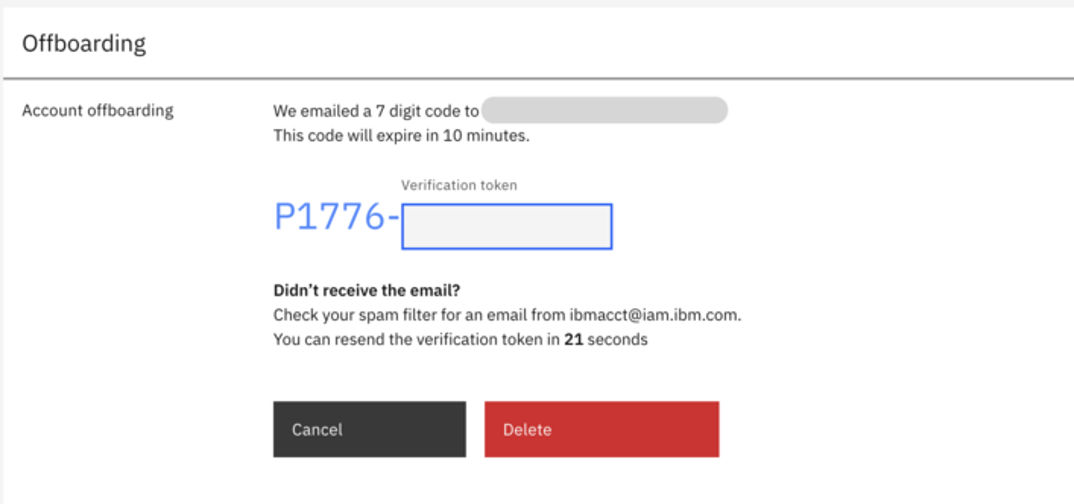
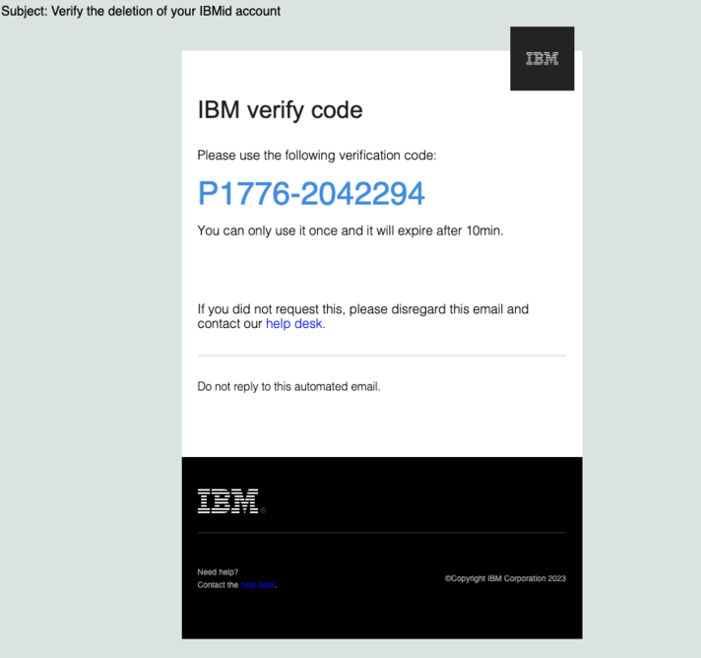
- The OTP will arrive to your email and will look something similar to this.
- Enter the 7-digit code into the text field (Red Arrow).
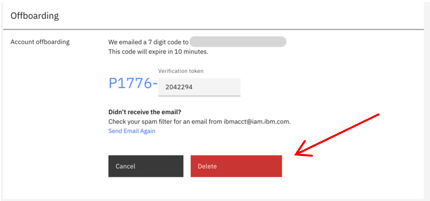
- Click on “Delete” (Red Arrow). As stated previously, your IBMid account will be
deactivated immediately and your account data will be removed in 30 days. You will not be able to
login, access any applications, and will not be able create another IBMid account with the same
email address within the 30 day period.
What if I’m not receiving the email with the 14-digit code?
- Oftentimes the email gets mistakenly identified as spam. Checking the spam folder of your inbox is advised. The sender of the email is ibmacct@iam.ibm.com with subject “Reset your IBMid password”.
- If after a while the email hasn’t arrived, please retry the password reset operation.
- In case the email hasn’t arrived, check with your company's IT department to validate they are not blocking the emails from sender ibmacct@iam.ibm.com.
- In case the email is neither identified as spam, nor in the block-list of your company’s IT department, it is probable the IBMid does not exist.
- If you are confident you have an exsisting IBMid and it was not identified as spam, nor in the block-list of your company’s IT department, send an email describing your issue to ibmidsupport@ibm.com.