Getting started with Code Explanation
Use the Code Explanation service to understand your code, whether it is COBOL, JCL, PL/I, REXX, or Assembler. This service enables you to perform tasks such as learning, troubleshooting, documentation, testing, maintenance, and modernization.
For example, in modernization case, generated Explanations contain the business purpose and code logic, which can help developers to understand and check whether the translated code, COBOL to Java™, is functionally equivalent.
Code Explanation is available in two types: chat experience and code selection. By using the chat
experience
feature, seamlessly engage in a conversation with AI, getting quick and accurate answers to questions about
code.
- Simple
- A simple summary explanation provides the business purpose and a high-level summary of the code function.
- Detailed
- A detailed explanation provides the business purpose, the inputs, outputs, and key data records, as well as a detailed functional summary of code function.
- Guided
- A guided explanation provides the business purpose and a step-by-step description of the code function.
2.5.0+ When you click Explain Code Lens that immediately precedes a code block or a snippet, a simple explanation appears in the right page or in the Chat Experience window based on the selections made in the settings for the extension.
2.6.10+ Click Document Code Lens that immediately precedes a code block or a snippet to generate and insert code comments. These code comments appear in the right pane or in the Chat Experience window based on the selections made in the settings for the extension. This feature is supported for COBOL, PL/I, REXX, and JCL.
Installing the Code Explanation extension and configuring access
For VS Code
With the prerequisites in place, you can install the VS Code extension. After you downloaded and extracted the IBM® watsonx Code Assistant™ for Z packages from IBM's IBM Passport Advantage® site you can follow the instructions in the readme file for verifying the code signatures.
See Install Zowe Explorer, Z Open Editor, and watsonx Code Assistant for Z VS Code extensions and Connecting to services for details about installing the Code Explanation extension and configuring access with an API key.
Configuration in Eclipse
For the Eclipse development environment, IBM watsonx Code Assistant for Z Code Explanation is available as an Eclipse plug-in. This feature supports integration with IBM Developer for z/OS® (IDz), an Eclipse based IDE, as well as IBM Explorer for z/OS.
After installing watsonx Code Assistant for Z, you must set the API key on the Preferences page.

2.4.10+
You can set the font for the text in the Code Explanation view. Access the feature using the Preference under to modify the font size.
Enabling the chat interface
2.4.0+
For VS Code
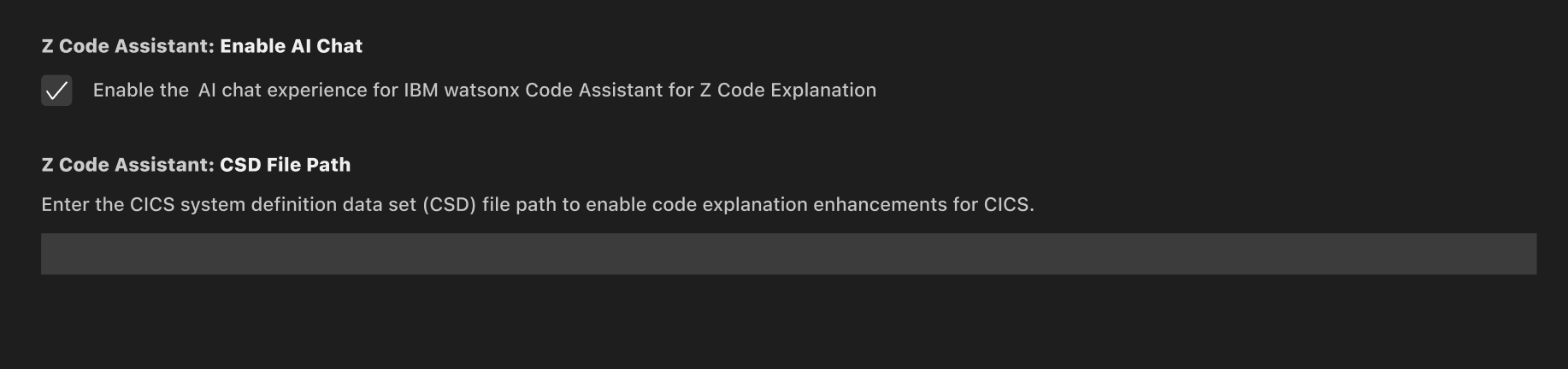
Install the WCA extension in VS Code to use the Chat experience for Code Explanation. To enable the chat experience, you need to opt in using the Z Code Assistant: Enable AI Chat setting in the IBM watsonx Code Assistant for Z VS Code extension.
The chat experience uses an agentic framework on the back end to interpret natural language requests and formulates a plan to answer them. For more information about the collection of API agents used in the code explanation, see Overview.
Enabling code explanation enhancements for ADDI
- A cloud administrator needs to create and configure a Db2 instance from IBM Cloud®, and prepare the database by running a SQL script from ADDI.
- An ADDI administrator needs to install a Db2 driver on the Windows VM where ADDI is provisioned. ADDI then needs to be connected to the Db2 cloud instance.
- A cloud administrator then creates an ADDI project for the application, that a developer can work with, and associate the project with the Db2 Cloud database. This allows the Db2 Cloud database to populate with metadata about an application.
- The Db2 Cloud instance then needs to be associated with a deployment space within your provisioned instance of IBM watsonx Code Assistant for Z.
Using the Code Explanation service
The next step is to get started with the code explanation of a specific language. For details, see COBOL Code Explanation, JCL Code Explanation, PL/I Code Explanation, or REXX Code Explanation, or Assembler Code Explanation. For examples, see COBOL, JCL, PL/I, REXX, and Assembler.
2.4.0+ When using the chat experience for code explanation, you can ask questions about the code. The response that you see is formed of the responses from each agent (explain, Application insights, and CICS® insights). As the AI agents decide whether they can help answer the question, you might not see a response from an AI agent in the chat interface. For more information about AI agents, see How does chat experience for Code Explanation work? topic.
2.4.0+ You can use the chat experience to get enhanced answers about your code when requesting a code explanation. Responses from the chat experience can provide information on the configuration of any related CICS resources, and information from ADDI about the code and the relationship it has with other programs. You can have different chat sessions that you can save and download.
2.4.0+ You have the option to ask follow-on questions. When you ask a follow-on question, the AI agents decide whether they can help answer the question and respond if they can. The CICS insights agent can answer questions about programs and transactions. The Application insights agent can answer questions about the relationship the code has with other programs.
Does Code Explanation work on different versions and variations of COBOL?
Although IBM tested code explanation against Enterprise COBOL for z/OS V6, the model is trained on documentation from all versions of the Enterprise COBOL language. The language has evolved mainly through adding new commands, keywords and syntax options, so you can explain code on previous versions of Enterprise COBOL. You can even try other variants such as MicroFocus COBOL or GnuCOBOL. COBOL is a standard; and therefore, the explanation is likely to be fairly accurate for other variants even where there are differences in the syntax.
What gets sent to the Large Language Model (LLM)?
Only code that is selected for explanation is sent to the LLM. 2.7.0+ Copy and Include statements get expanded in place. Also, all comments, new lines, and sequence numbers are removed to prevent outdated or irrelevant information from skewing explanation results.
2.5.0+ Include Comments - Keeps any comments within your source code when requesting an explanation from our generative AI solution.
How do I enable the natural language setting?
2.5.0+- In the VS Code, navigate to the watsonx Code Assistant for Z extension settings.
- Select the Z Code Assistant: Translate Explanations option.Note: This option is unavailable when chat experience is enabled.
The next step is to change the VS Code locale to a supported language.
- Open the command palette.
- Type Display Language and select Configure Display Language from the options.
- When prompted, choose to Restart
VS Code.
Explanations are automatically translated to the selected language.