Create the coach view for position data
In this lesson, you create the coach view that displays position data, such as the position type and title.
Before you begin
About this task
The Hiring tutorial: Plan the user interface lesson identified that the My Hiring Sample process
can use a set of coach views. The following table lists these coach views and their implementation names:
This lesson teaches you how to create the position data coach view, which is called the
Position CV. If you want more information, see the equivalent steps in Hiring tutorial: create the coach view for job requisition data.
| Label | Name |
|---|---|
| Position data | Position CV |
| Job requisition data | Requisition CV |
| Person data | Person CV |
The Position CV coach view consists of a horizontal section that provides the title for the form. Inside the horizontal section, you use a vertical section to create a column. The title of the vertical section is the title for the column. The column contains two stock controls, which are also coach views.
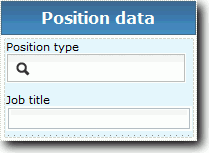
The
following table lists the contents of the Position CV coach
view, along with their bindings or configuration options. You can
use this information to create the coach view or use the steps in
the procedure.
| Name | Type of control | Binding | Configuration options |
|---|---|---|---|
| Position data | Vertical section | Position | None |
| Position type | Select | None | Selected Item: Position.positionType Tip: You assign the selection service in a later lesson. Use
the default service for now.
|
| Job title | Text | Position.jobTitle | None |
Procedure
Create the Position CV coach view:
Lesson checkpoint
You created the Position CV coach view.
In this lesson, you learned
- How to create the UI for the form as a coach view
- How to configure other controls with data
In the next lesson, you create the coach view for person data.