Refreshing the queue manager TLS security
If you make a change to the queue manager key store or trust store, or change channel certificate configuration, a TLS security refresh is required for the new configuration to take effect.
A TLS security refresh updates the in-memory copy of the key store and trust store. All channels that are enabled for TLS are stopped and use the refreshed configuration to recreate a secure connection. A client's secure connection is only re-established if the client application has retry logic to re-initiate a broken connection.
When to refresh TLS security
- If you add a client or queue manager certificate to the trust store, they are not trusted to make a secure connection until a TLS security refresh has been performed
- If you add a certificate to the key store and configure it for use with TLS or AMS, the affected channels will not use the certificate to create a secure connection until a TLS security refresh has been performed
- If you change the certificate configured on a TLS enabled channel, the certificate is not used to create a secure connection until a TLS security refresh has been performed
How to refresh TLS security
Using the web console
- Launch the queue manager web console using steps described in Administering a queue manager using IBM MQ Console.
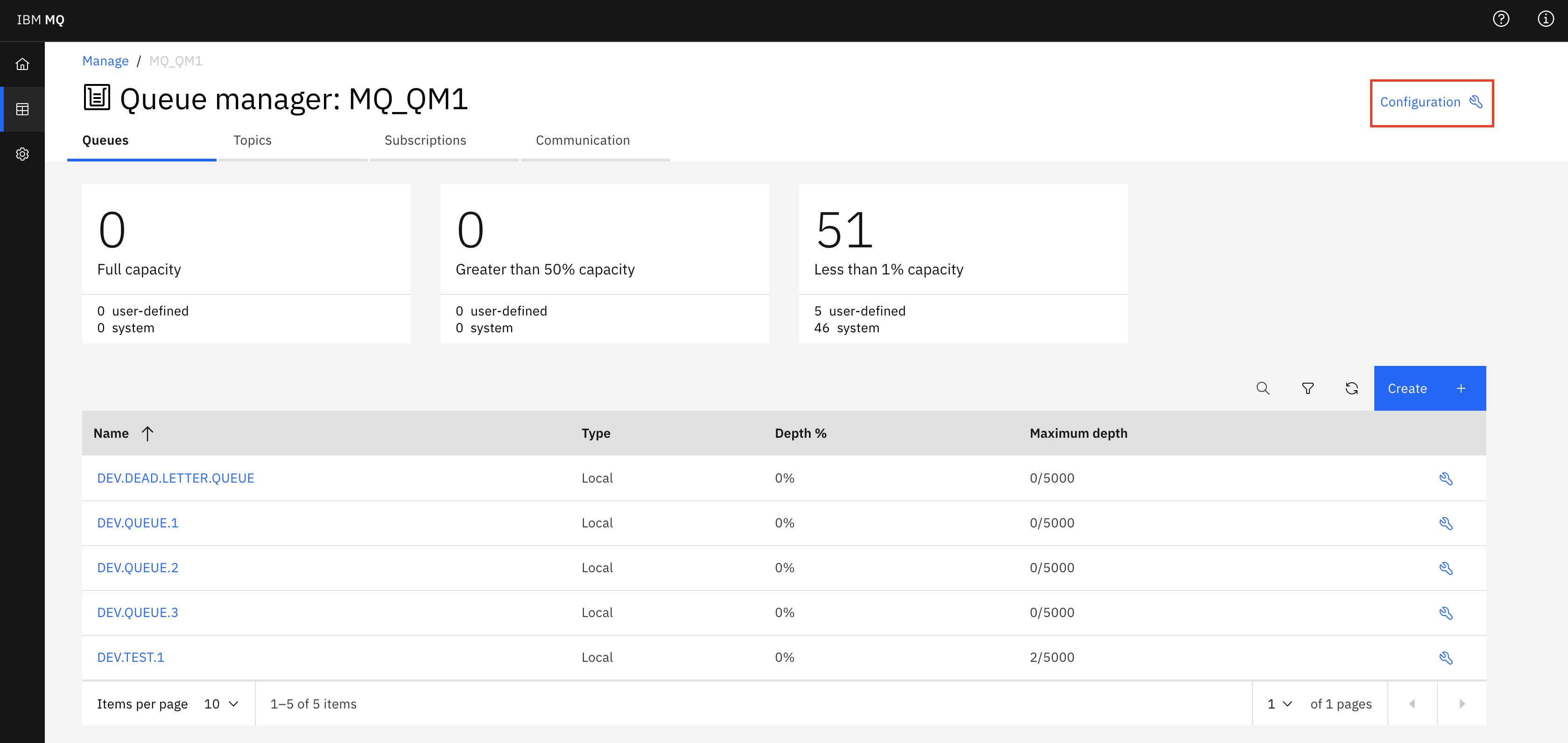
- On the queue manager page, select Configuration.
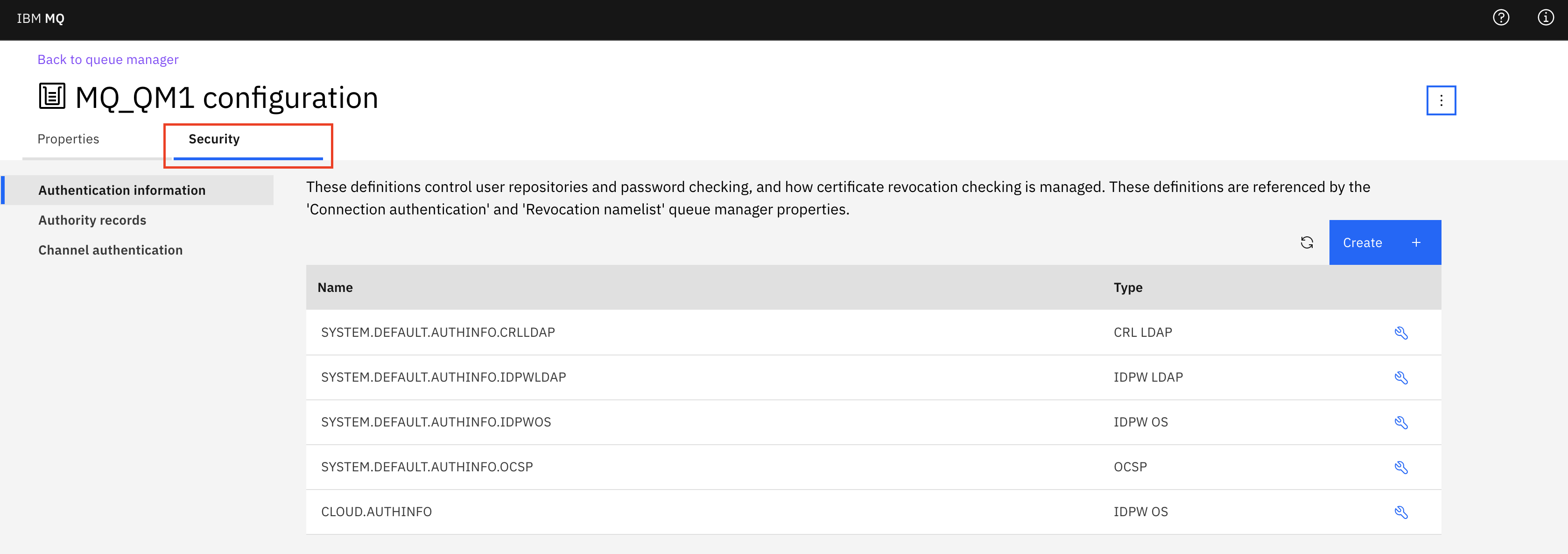
- Select the Security tab.
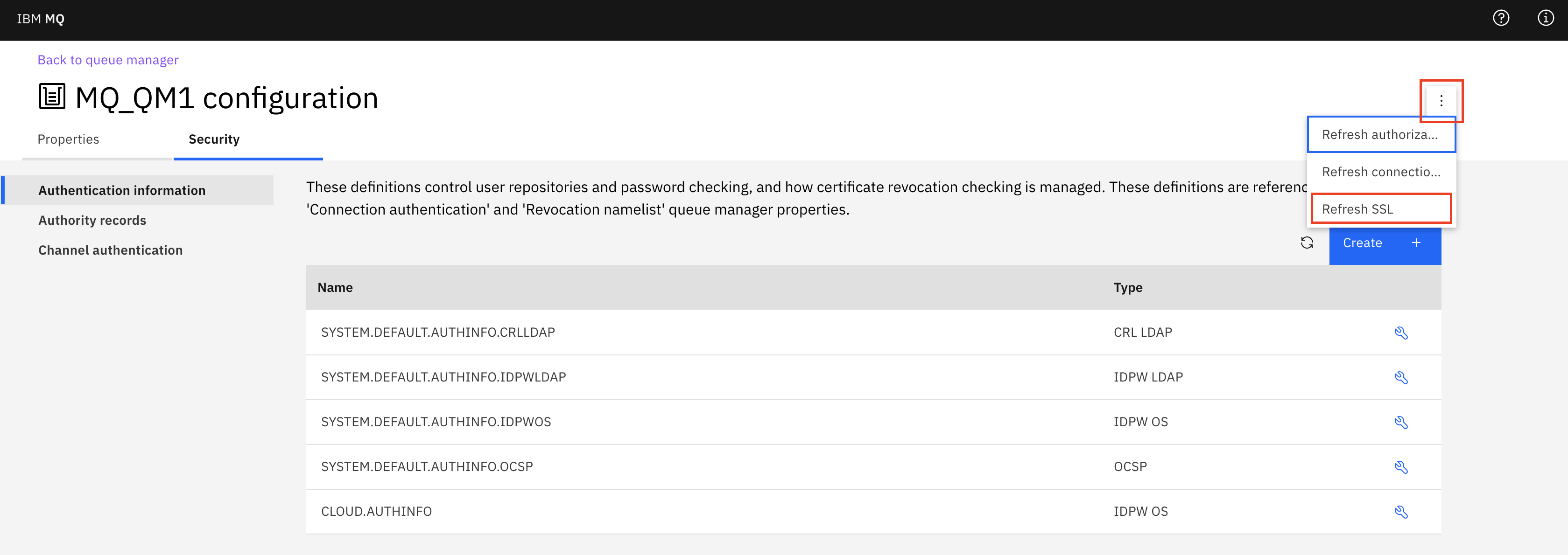
- Select the three dots, then Refresh SSL.
- Confirm by clicking Refresh.
Using runmqsc
- Connect to the queue manager using steps described in Administering a queue manager using IBM MQ Explorer and the runmqsc command line.
- Run
REFRESH SECURITY TYPE(SSL). - Run
end.
Using IBM MQ Explorer
- Connect to the queue manager using steps described Administering a queue manager using IBM MQ Explorer and the runmqsc command line.
- In the Navigator view, right-click the queue manager for which you want to refresh the cached copy of the key repository, then click .
- When prompted, click Yes.