Administering connected queue managers using the REST API gateway
IBM® MQ enables you to administer IBM MQ objects, such as queue managers and queues using the administrative REST API. Information is sent to, and received from, the administrative REST API in JSON format. These RESTful APIs can help you to embed IBM MQ administration into popular DevOps and automation tooling.
This tutorial covers the following exercises:
- You create two IBM MQ as a Service queue managers, the first queue manager acts as a gateway queue manager and the second queue manager acts as a remote queue manager.
- You configure the IBM MQ as a Service gateway queue manager(s) to administer remote queue managers. You configure transmission queues, listeners, and sender and receiver channels between the gateway queue manager and remote queue manager.
- You send a REST request to the remote queue manager by specifying the queue manager name in the resource URL, the gateway queue manager is specified in a header that is sent with the request.
The request is sent through the gateway queue manager to the remote queue manager. On successful submission of request, a response is returned with a header that indicates the queue manager that was used as the gateway queue manager.
Prerequisites
To use the administrative REST API gateway to administer remote queue managers, you prepare the
queue managers for remote administration. The gateway queue manager is then specified by setting the
ibm-mq-rest-gateway-qmgr attribute in a header that is sent with the request. The
request is sent through the gateway queue manager to the remote queue manager. The response is
returned with a header that indicates the queue manager that was used as the gateway queue
manager.
To proceed with this tutorial, you must complete the following tasks:
- Create two IBM MQ as a Service queue managersIf you do not already have an IBM MQ as a Service queue manager, you can create one by following the steps in Getting started with IBM MQ as a Service. You should have:
- An IBM MQ as a Service queue manager
- Connection details downloaded in a connection_info.txt file. See Retrieving connection_info.txt if you do not have this file.
- An admin username and apikey downloaded in a platformApiKey.json file. See Accessing platformApiKey.json if you do not have this file.
Configuration details
You should have two IBM MQ as a Service queue managers . You name the first queue manager QM1 and the second queue manager QM2.
Where:
- QM1: acts as the gateway queue manager
- QM2: acts as the remote queue manager
- Configure communications between the gateway queue manager and the remote queue manager that you
want to administer. You create a sender-receiver channel, a transmission queue, and use the listener
port provided in queue manager connection properties for each queue manager:
- On queue manager QM1, you create following IBM MQ objects:
- Sender channel QM1.to.QM2
- Receiver channel QM2.to.QM1
- Transmission queue QM2
- listener port which is provided in the IBM MQ as a Service Queue Manager (QM1) connection information file.
- On queue manager QM2, you create following IBM MQ objects:
- Sender channel QM2.to.QM1
- Receiver channel QM1.to.QM2
- Transmission queue QM1
- listener port which is provided in the IBM MQ as a Service Queue Manager (QM2) connection information file.
- On queue manager QM1, you create following IBM MQ objects:
- After the previous steps are performed, you can observe the channels and queues created in step
1 in your IBM MQ as a Service Queue Manger Web Console. For each
queue manager:
- queues - Select Manage then ensure Queues is selected.
- channels - Select Manage, then Communication, then click on Queue manager channels and App channels.
- Now, you can make administrative REST API call on the remote queue manager (that is, QM2) via
the gateway queue manager (that is, QM1) by setting an gateway queue manager header property on
queue manager Admin REST endpoint. You have to specify the gateway queue manager in the HTTP header
like
ibm-mq-rest-gateway-qmgr:<GATEWAY_QM_NAME>. For example,ibm-mq-rest-gateway-qmgr:QM1where QM1 is the gateway queue manager name.
GET https://<Admin_REST_endpoint>:<Listener_Port>/ibmmq/rest/v1/admin/qmgr/<Remote_Queue_Manager_Name>/queueGET https://web-qm1-b779.qm2.us-preprod.mq.test.appdomain.cloud/ibmmq/rest/v1/admin/qmgr/QM2/queueFor the examples, the curl command is used, but you can use any other tool or application for making HTTP requests.
curl -u <ADMIN_MQ_USER>:<ADMIN_API_KEY> -H "Accept: application/json" -H "Content-Type: application/json" -H "ibm-mq-rest-gateway-qmgr: <GATEWAY_QUEUE_MANAGER>" <ADMIN_REST_ENDPOINT>/<REMOTE_QUEUE_MANAGER_NAME>/queue -kWhere:
<ADMIN_MQ_USER>- this is 'mqUsername' in the file platformApiKey.json of your gateway queue manager (that is, QM1 in this case) .<QUEUE_MANAGER_NAME>- this is 'queueManagerName' in the file connection_info.json of your gateway queue manager (that is, QM1 in this case).<ADMIN_API_KEY>- this is 'apiKey' in the file platformApiKey.json of your gateway queue manager (that is, QM1 in this case).<ADMIN_REST_ENDPOINT>- this is 'adminREST' in the file connection_info.json of your gateway queue manager (that is, QM1 in this case).Note: In this case theadminRESTproperty point will be pointing to the gateway queue manager name, replace the gateway queue manager with the remote queue manager name. e.g. -https://web-qm1-b779.qm2.us-preprod.mq.test.appdomain.cloud/ibmmq/rest/v1/admin/qmgr/QM1replace QM1 with QM2 likehttps://web-qm1-b779.qm2.us-preprod.mq.test.appdomain.cloud/ibmmq/rest/v1/admin/qmgr/QM2<Remote_Queue_Manager_Name>- this is 'queueManagerName' in the file connection_info.json of your remote queue manager (that is, QM2 in this case).
curl -u mamgainp:xxxxxxxxxxxxxxxxxxxxxxxxxxxxxxxxxxx -H "Accept: application/json" -H "Content-Type: application/json" -H "ibm-mq-rest-gateway-qmgr: QM1" https://web-qm1-b779.qm2.us-preprod.mq.test.appdomain.cloud/ibmmq/rest/v1/admin/qmgr/QM2/queue -kResult
An ibm-mq-rest-gateway-qmgr header is returned with the REST response. This
header specifies which queue manager was used as the gateway queue manager.
Following is a snippet of the response header containing
ibm-mq-rest-gateway-qmgr as one of the attribute.
Date: Mon, 04 Mar 2019 05:29:49 GMT
Content-Type: application/json
Content-Length: 4653
Connection: keep-alive
X-Powered-By: Servlet/3.1
Cache-Control: no-cache, no-store, must-revalidate
Content-Language: en-US
ibm-mq-rest-gateway-qmgr: QM1
Strict-Transport-Security: max-age=31536000; includeSubDomainsRetrieving connection_info.txt
To retrieve the connection_info.txt file containing queue manager connection details, complete the following steps:
- Navigate to your IBM MQ as a Service UI by following the instructions in Getting started with IBM MQ as a Service.
- From the list of your queue managers, click on the queue manager you want to administer.
- Click Connection information.

- Download the file in 'JSON text format'
Accessing platformApiKey.json
- Navigate to your IBM MQ as a Service UI by following the instructions in Getting started with IBM MQ as a Service.
- From the list of your queue managers, click on the queue manager you want to administer.
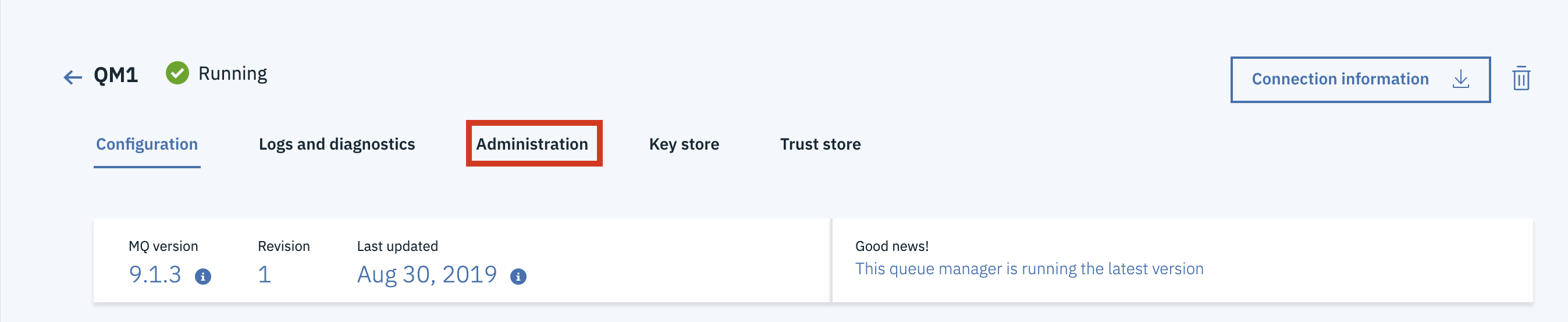
- Next, select the Administration tab:
- Now click Reset API Key/ Create API KeyNote: The previous admin API key for this MQ Username will no longer be validIf the button says Create API Key, then you have not created an api key in this way before. Click the Create API Key button.
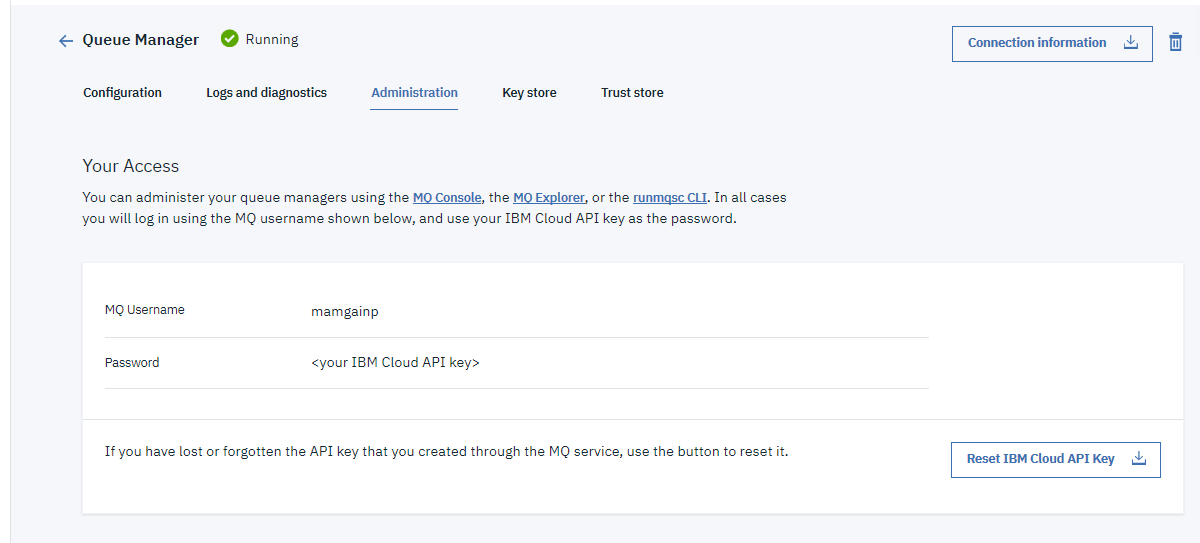
- Click Download to download platformApiKey.json file
containing an admin username and apikey.

<ADMIN_MQ_USER>- this is 'mqUsername' in the file platformApiKey.json of your queue manager.<QUEUE_MANAGER_NAME>- this is 'queueManagerName' in the file connection_info.json of your queue manager.<ADMIN_API_KEY>- 'apiKey' in the file platformApiKey.json of your queue manager.