Authenticating your users with single sign-on
You can use single sign-on (SSO) authentication to access third‑party apps like Workday or Salesforce directly from watsonx Orchestrate without repeatedly logging in each time.
SSO is one of the several authentication mechanisms available in watsonx Orchestrate, alongside API Key, Basic Auth, Bearer Token, Key-Value Pair, and OAuth 2.0 authentication types.
Key Terminology
|
Term |
Definition |
Examples |
|---|---|---|
|
Application |
Downstream applications where you run tasks |
Workday, ServiceNow, Salesforce |
|
IdP (Identity Provider) |
Systems that manage user identities and authentication |
IBM Security Verify (ISV), Okta, Microsoft Entra (Azure ID) |
Builders or admins can configure SSO when setting up a connection for the application.For OAuth 2.0 On-Behalf-Of (OBO) and OAuth2.0 Token Exchange authentication types, this process assumes that the third-party application is already integrated with and federated to an Identity Provider (IdP), and the SSO configuration involves a combination of application and Identity Provider configurations. For OAuth2 Direct Access Token, the SSO token is used for embedded chat, while the watsonx Orchestrate token is used for in‑portal chat when making tool calls.
Public preview: OAuth2 Direct Access Token is currently available only in preview.
Identity Providers and applications that are supported by watsonx Orchestrate SSO
Currently, watsonx Orchestrate SSO supports the following Identity Providers and applications.
|
Authentication type |
Identity Provider (IdP) |
Application |
Deployment |
Supported |
|---|---|---|---|---|
|
OAuth2.0 On Behalf Of Flow |
Microsoft Entra (Azure ID) |
Workday |
Embedded chat |
Yes |
|
OAuth2.0 On Behalf Of Flow |
Microsoft Entra (Azure ID) |
Salesforce |
Embedded chat |
Yes |
|
OAuth 2.0 Token Exchange |
Okta |
Workday |
Embedded chat |
Yes |
|
OAuth 2.0 Token Exchange |
Okta |
ServiceNow |
Embedded chat |
Yes |
|
OAuth2.0 On Behalf Of Flow |
IBM Security Verify (ISV) |
IBM Applications |
Embedded chat |
Yes |
|
OAuth 2.0 Token Exchange |
IBM Security Verify (ISV) |
Salesforce |
Embedded chat |
Yes |
|
OAuth2.0 On Behalf Of Flow |
Microsoft Entra (Azure ID) |
Microsoft Teams |
Embedded chat |
Yes |
|
OAuth 2.0 Token Exchange |
Microsoft Entra (Azure ID) |
Microsoft Teams |
Embedded chat |
Yes |
|
OAuth2.0 On Behalf Of Flow |
Microsoft Entra (Azure ID) |
Microsoft Graph |
Embedded chat |
Yes |
|
OAuth 2.0 Token Exchange |
Microsoft Entra (Azure ID) |
Microsoft Graph |
Embedded chat |
Yes |
-
OAuth 2.0 token exchange works for in‑portal chat when the required prerequisites are met. The key prerequisite is that the application endpoint must trust the watsonx Orchestrate token exchange. This capability has been tested and validated with Salesforce.
-
Single sign-on (SSO) is supported only in embedded chat experiences. SSO is not supported across external channels such as Slack or Microsoft Teams.
Authentication types
watsonx Orchestrate offers three distinct SSO implementations. Select the SSO implementation that best fits the token exchange and security needs of your applications.
The following table explains the the authentication types and the key differences between them.
|
Authentication type |
How it works |
Flow |
|---|---|---|
|
OAuth 2 On-Behalf-Of (OBO) |
This is the default SSO implementation that facilitates authentication between the Identity Provider and the downstream application. It is a two-step token exchange process. In this process, the application does not fully recognize the incoming user token, and requires an additional step. In this intermediate step, the SSO user token is exchanged with an access token that is recognizable by the downstream application. |
|
|
OAuth2 Token Exchange (Beta feature) |
This SSO implementation communicates directly with the application for authentication. It is a single-step token exchange process. In this process, the application server recognizes the incoming user token. |
|
|
OAuth2 Direct Access Token |
Optionally provide a server URL for the application. Supports both embedded chat and in‑portal chat deployments. The SSO token is used for embedded chat, and the watsonx Orchestrate token is used for in‑portal chat for tool calls. Token management is handled automatically by the system. |
The default credential type for SSO authentication is member credential.
For more information about member credentials, see Credential types.
Token refresh flow
When using SSO authentication, tokens have a limited lifespan and must be validated and refreshed to maintain secure access to downstream applications. The token refresh behavior varies based on the authentication type and deployment context.
OAuth2 On-Behalf-Of Flow and OAuth2 Token Exchange
For OAuth2 On-Behalf-Of Flow and OAuth2 Token Exchange the token management works as follows:
-
Token validation in embedded chat : In embedded chat deployments, the proxy layer validates the SSO token on every incoming request. If the SSO token is expired or invalid, the request is rejected.
-
Connection creation: When a connection is created, the response includes an access token and its expiry time. No refresh tokens are provided.
-
Token refresh during tool execution: During tool execution, the system checks the token expiry. If the token has expired, the system automatically regenerates it using the stored credentials.
-
In-portal chat: In in-portal chat, the incoming JWT is treated as the SSO token. The token generation and refresh process follows the same steps as in embedded chat.
OAuth2 Direct Access Token
For OAuth2 Direct Access token the token management works as follows:
-
Token validation in embedded chat: In embedded chat, the proxy layer validates the SSO token on every incoming request. If the SSO token is expired or invalid, the request is rejected.
-
Token validity assumption: The system assumes that connections always receive a valid and unexpired SSO token. The system does not validate or refresh the token, assuming that the token received is valid, and propagates it as received. This behavior applies to both embedded chat and in‑portal chat scenarios.
Benefits of using SSO
-
Seamless access: Users can interact with applications through Orchestrate without repeated logins
-
Improved security: Credentials are managed centrally by the IdP
-
Faster workflows: Agents and tools that are linked to the applications can be triggered instantly
-
Simplified authorization: No need to implement role-based access in the third-party applications
Choosing the right authentication flow
Use the following guidance to decide which authentication flow best fits your use case:
Use OAuth 2.0 On-Behalf-Of (OBO) flow when:
-
A backend service needs to call another service on behalf of an authenticated user.
-
You require multi-hop delegation and preservation of user context.
-
You are integrating with Identity Providers such as Microsoft Entra ID, where OBO is commonly used.
-
Fine-grained access control across services is required.
Use OAuth 2.0 Token Exchange when:
-
You need a simple, single-step token exchange.
-
You are integrating with Identity Providers such as IBM Verify, where a one-step token exchange is sufficient.
-
You do not require multi-tier user delegation.
-
You want lower latency and reduced complexity.
Use OAuth2 Direct Access Token (Passthrough feature) when:
-
An external Identity Provider (IdP) already issues a trusted token that the downstream endpoint already trusts and can validate.
-
You do not need any additional server infrastructure, and customers can manage the authentication flow directly without maintaining a separate mock server.
-
Customers are responsible for configuring and managing trust between their IdP and backend services.
Comparison of OAuth2 Authorization Code and SSO OAuth 2.0 On-Behalf-Of (OBO) authentication types
The following table provides a comparison of the OAuth2 Authorization Code and SSO On‑Behalf‑Of (OBO) authentication types, highlighting how each method manages credentials, access, and prerequisites.
|
Aspect |
OAuth2 Authorization Code |
SSO OAuth 2.0 On-Behalf-Of (OBO) |
|---|---|---|
|
Credential type |
Team credentials and member credentials |
Member credentials only |
|
Where it can be used |
Team credentials: Any scenario Member credentials: In‑portal chat only |
Can be used in embedded chat scenarios |
|
How credentials are collected |
Team credentials: Collected during connection set up. Member credentials: Collected through preview chat (Draft), Orchestrate chat (Live), or manage credentials tab under profile settings page. |
No credential collection step. Uses the user’s existing SSO user token from the IdP sign‑in |
|
Chat UI behavior |
A Connect button appears in the chat UI |
No Connect button in the chat UI |
|
Sign‑in or authorization flow |
User is redirected to the application to sign in, enter credentials, and authorize the connection |
User’s SSO user token from the initial IdP sign‑in is passed downstream to the applications |
|
Prerequisites |
None |
The downstream applications and watsonx Orchestrate are federated with the same IdP. The member credentials are not stored in watsonx Orchestrate. Downstream applications must recognize the initial SSO user token from the IdP. |
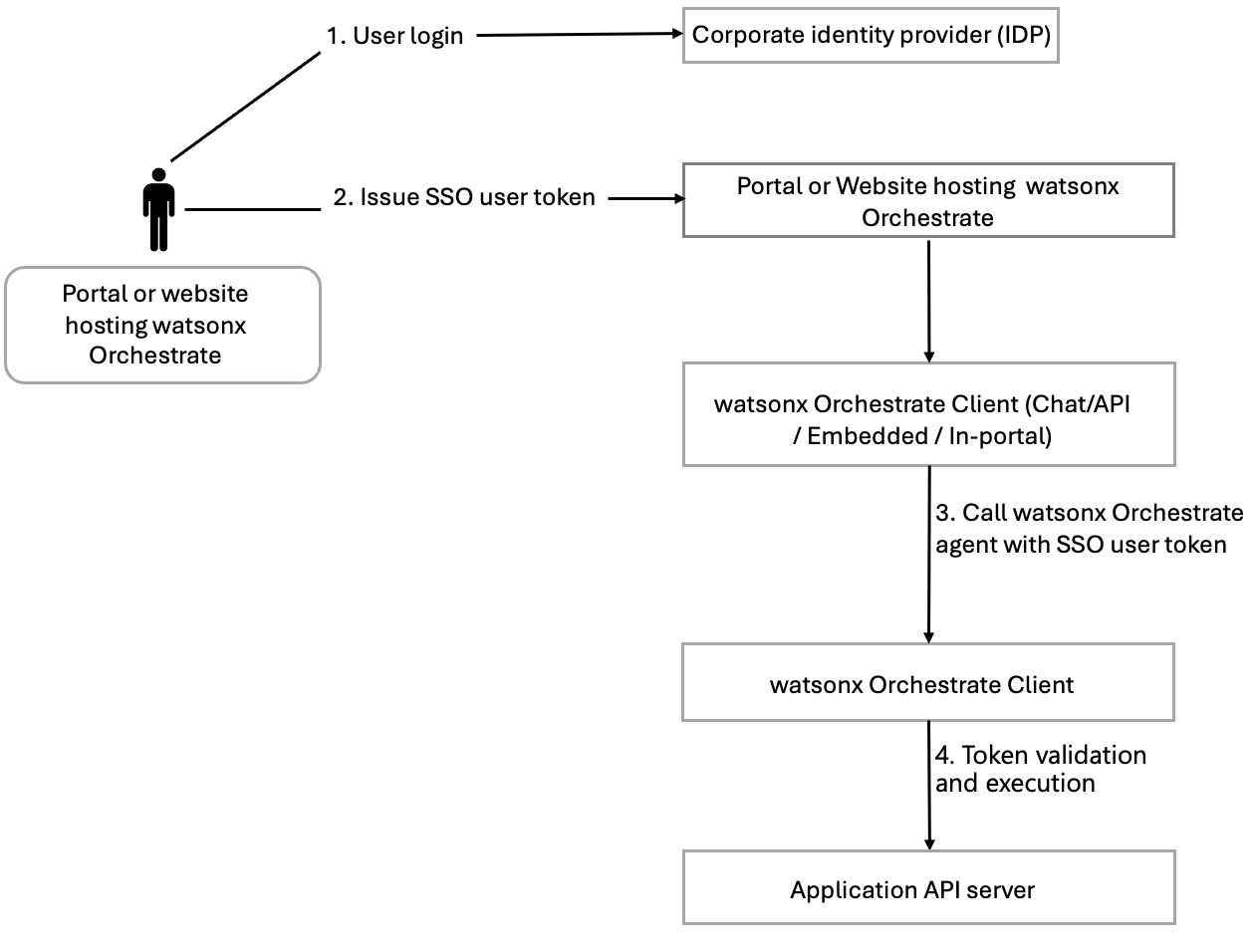
OAuth2 On Behalf Of Flow (OBO) connection flow
Following is the step-by-step flow for OAuth2 On Behalf Of Flow (OBO) (two-step token exchange) connection:
-
User is authenticated with the Identity Provider (IdP). After authentication, the IdP issues a valid SSO user token. This token represents the user’s verified identity.
-
User initiates a request in the chat interface (in‑portal chat or embedded chat) inside watsonx Orchestrate.
-
The chat context is identified by watsonx Orchestrate. It detects the chat type (in‑portal or embedded) and the SSO user token that is included in the incoming request.
-
First token exchange: SSO user token -> SAML assertion (by using IdP). watsonx Orchestrate sends the SSO user token to the IdP. The IdP validates the SSO token. The IdP then issues a SAML assertion token. This exchange is the first step in the two‑step exchange.
-
Second token exchange: SAML assertion -> application access token (by using OAuth server). watsonx Orchestrate sends the SAML assertion token to the downstream application’s OAuth authorization server. The OAuth server validates the SAML assertion. This exchange is the second step in the two-step exchange.
-
The application access token is returned to watsonx Orchestrate by the OAuth server. This token grants watsonx Orchestrate permission to act on behalf of the user within the downstream application.
-
Using the newly obtained application-specific access token, watsonx Orchestrate calls the downstream application API server such as Salesforce, Workday, or ServiceNow. All application actions now occur securely on behalf of the authenticated user.

OAuth2 Token Exchange connection flow
Following is the step-by-step flow for OAuth2 Token Exchange (one-step token exchange) connection:
-
User is authenticated with the Identity Provider (IdP). After authentication, the IdP issues a valid SSO user token. This token represents the user’s verified identity.
-
User initiates a request in the chat interface (in‑portal chat or embedded chat) inside watsonx Orchestrate.
-
The chat context is identified by watsonx Orchestrate. It detects the chat type (in‑portal or embedded) and the SSO user token that is included in the incoming request.
-
Direct token exchange with OAuth server. Instead of requiring a second login or redirect flow, watsonx Orchestrate performs a one‑step token exchange. It sends the SSO user token to the application’s OAuth authorization server. The OAuth server acts as the bridge between the Identity Provider and application access.
-
OAuth server validates the SSO token. After validation, the server issues an application‑specific access token (for example, Salesforce access token).
-
The application access token is returned to watsonx Orchestrate. The OAuth server returns the new application access token. This token grants watsonx Orchestrate permission to act on behalf of the user within the downstream application.
-
Using the newly obtained access token, watsonx Orchestrate calls the downstream application API server such as Salesforce, Workday, or ServiceNow. All application actions now occur securely on behalf of the authenticated user.

OAuth2 Direct Access Token connection flow
Following is the step-by-step flow for OAuth2 Direct Access Token (passthrough) connection:
-
User is authenticated with the Identity Provider (IdP). After authentication, the IdP issues a valid SSO user token. This token represents the user's verified identity.
-
User initiates a request in the chat interface (in‑portal chat or embedded chat) inside watsonx Orchestrate.
-
The SSO token provided to embedded chat is used directly as the access token for API endpoints. For in-portal chat, the watsonx Orchestrate token is used for tool calls.
-
Using the SSO token directly, watsonx Orchestrate calls the downstream application API server. All application actions now occur securely on behalf of the authenticated user.
Familiarizing the SSO Connection UI
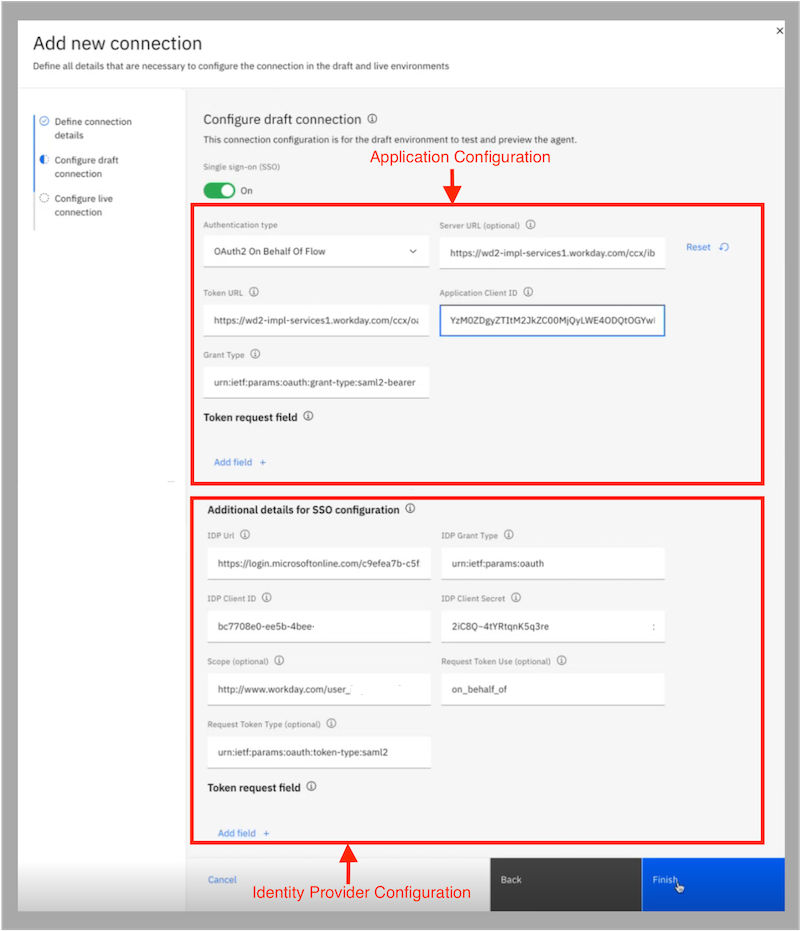
The OAuth 2.0 On-Behalf-Of (OBO) SSO type requires configuring two components in the UI:
-
Application configuration - Settings for the downstream application
-
Identity Provider configuration - Settings for the IdP
Both components must be properly configured for SSO to function correctly.
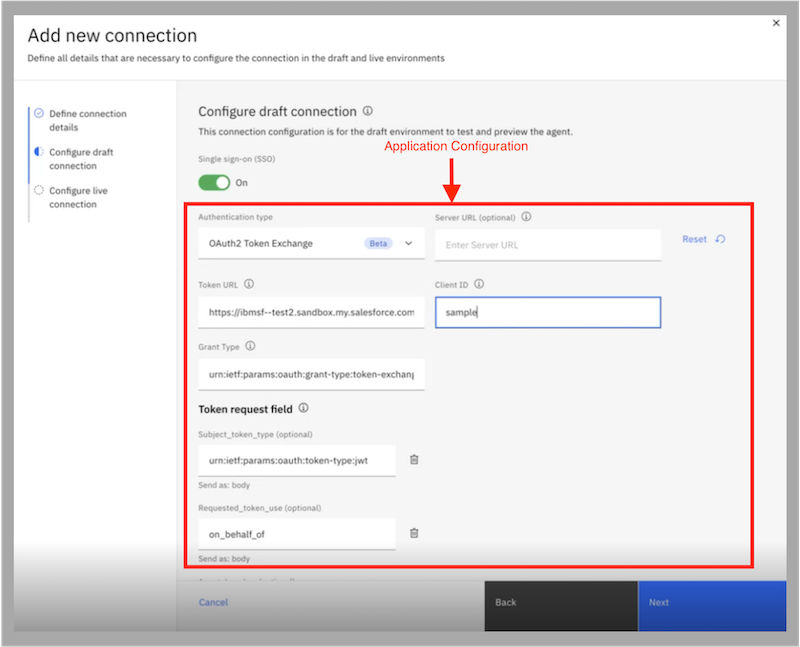
The OAuth2.0 Token Exchange SSO type requires only the application configuration in the UI:
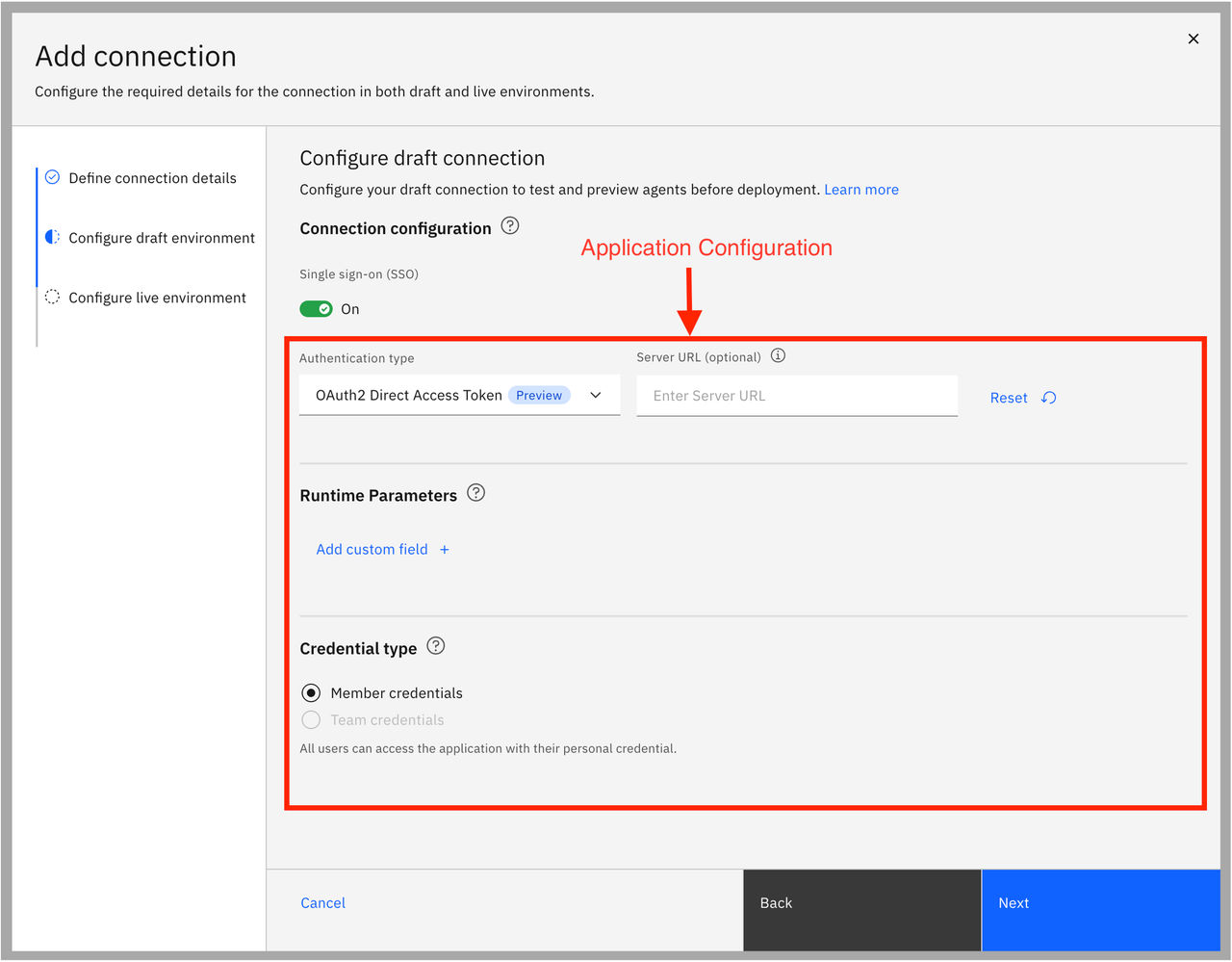
The OAuth2 Direct Access Token SSO type has a simplified configuration with optional server URL in the UI.
Before you begin
Before you configure SSO in watsonx Orchestrate, ensure the following prerequisites:
-
Your third-party application is integrated with your Identity Provider (IdP). For example, if you're configuring SSO for the Workday application, first integrate Workday with your IdP (for example, Microsoft Entra ID). For guidance, see Microsoft Entra single sign-on (SSO) integration with Workday.
-
It is recommended to test your connection outside of watsonx Orchestrate. Verify that the Identity Provider (IdP) and your application integration works as expected. You can use your API client or another testing tool to run the required cURL commands to get the tokens.
-
For OAuth 2.0 On-Behalf-Of (OBO), verify that you can obtain these connection tokens: a user SSO token, a SAML token for the user with the application assertion, and an application access token.
-
For OAuth2.0 Token Exchange, verify that you can obtain these connection tokens: a user SSO token and an application access token.
-
-
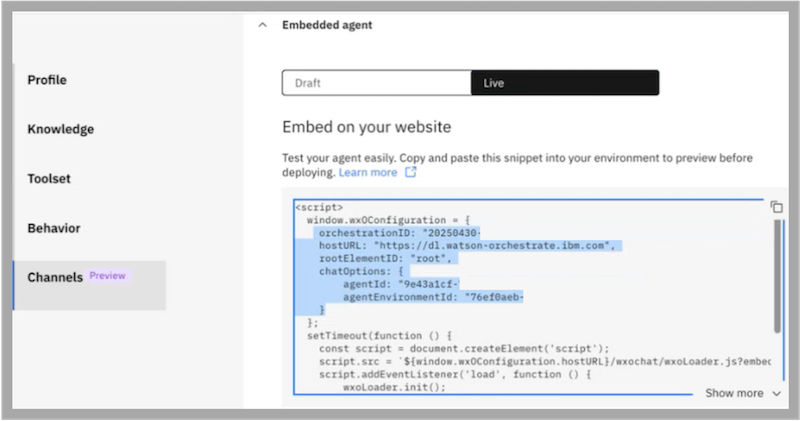
Enable secure chat as a prerequisite for integrating with the embedded chat. For more information, see Securing the embedded chat. Get the
Agent IDandTennant IDin the Live environment to bind the agent and tools to the connection. You can get theAgent IDandTennant IDfrom the Channels -> Live tab as shown in the following image.
Enabling and configuring SSO
To enable and configure single sign-on:
-
From the main menu, go to Manage > Security > Connections in AWS and IBM Cloud.
In other environments, use the Manage > Connections navigation path.
-
On the Connections page, click Add connection.
-
Enter a Connection ID and Display name and click next.
-
Toggle Single Sign-On (SSO) to On.
-
Select an authentication type, choose from:
-
The Credential type is automatically set for SSO and supports only member credentials. Click Next to continue.
-
Configure the live connection. You can either Paste draft configuration or define a new setup.
-
Click Finish to save the connection.
Editing an existing connection
To update an existing connection with SSO settings:
-
Navigate to Manage > Security > Connections in AWS and IBM Cloud.
In other environments, use the Manage > Connections navigation path.
-
Locate the connection that you want to update.
- Click the Overflow menu icon
 , and select Edit connection. To edit the connection details such as display name and description, select Edit details.
 -
Save your changes to apply the new settings.