Manage and annotate PDF files on iOS devices
The PDF viewer on iOS devices offers a seamless experience for reading, annotating, and managing PDF documents. Users can preview pages in various view modes, add highlights and comments, bookmarks, and present the document.
- When advanced PDF features are disabled, PDF content loads in read-only mode, Annotation tools, and interactive actions are not available.
- When advanced PDF features are enabled, PDF content opens in read mode. Users can annotate by using the PDF annotations toolbar, accessible through the Annotate PDF menu options.
The enhanced PDF workflow provides a faster and more flexible way to work with documents on iOS devices. The enhanced PDF has expanded set of annotation tools that help teams review, mark up, and collaborate with greater precision. It supports form-based PDFs where you can complete interactive fields, capture information, and share documents. This enhanced workflow delivers a streamlined, and more intuitive PDF experience across devices.
Key benefits of using enhanced PDF workflow
- Expanded annotation toolbar
- The new workflow provides various annotation tools in a horizontal toolbar.
- Structured tab-based interface
- The workflow organizes all PDF actions into dedicated tabs such as Home,
Annotation, Presentation. Note:
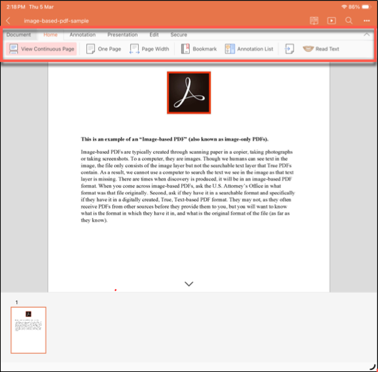
- On the iPad, all tabs are visible simultaneously in the toolbar.
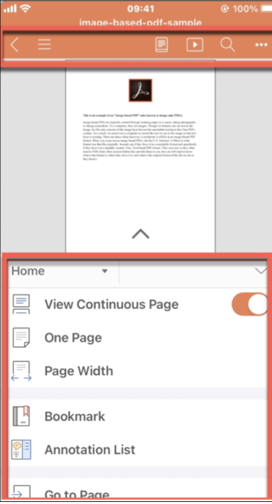
- On the iPhone, tabs are accessible through a collapsible arrow, keeping the interface uncluttered on smaller screens.
- Preview mode
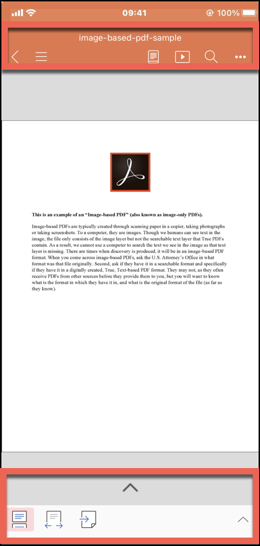
- The workflow opens PDFs in a clean Preview (read-only) mode before entering the annotation
editor. Using preview mode prevents accidental edits, allows users to review the document before
update to annotation, and provides a clear separation between reading and editing states. The orange
header bar with the document title and collapse arrow provides consistent orientation.
Important: PDF documents opened from IBM MaaS360 email remain within the IBM MaaS360 container.
- Explicit save and discard control
- The new workflow presents an explicit Save or Exit without Saving prompt when you exit the annotation editor. The prompt eliminates the risk of unintentional saves and gives users clear control over version management.
- Enhanced presentation mode
- The workflow provides a dedicated Presentation tab with options such as From Beginning and From Current Page. Full screen presentation mode displays the document with a black surround and a main menu icon for navigation. The presentation mode is more structured in the toolbar.
- Annotation visibility control
- The workflow provides a Show Annotation toggle in the Tools page (accessible from the More options (three dots icon). This option allows users to hide all annotations without deleting them, enabling clean review of the original content.
- Richer Docs menu
- When opening a PDF from IBM MaaS360 Docs in the new workflow, the menu provides various options such as Annotate PDF, Copy, Move, Delete, Email, Print, and Link. The menu options give you direct access to document management actions without navigating to more menus.
- Improved navigation options
- The Home tab in the new workflow provides View Continuous Page, One Page, Page Width, Bookmark, Annotation List, Go to Page, and Read Text options. The Read Text feature reads PDF content aloud using text-to-speech.
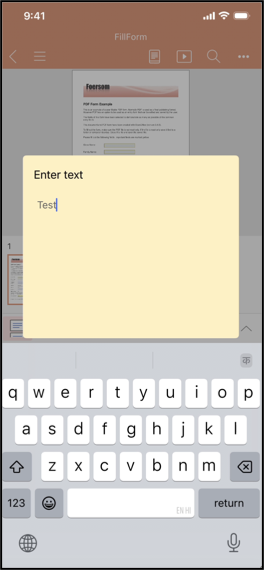
- Popup editing interface for PDF forms
Forms support logical tab order between fields, allowing users to navigate efficiently that uses keyboard controls. For forms requiring multiple edits, the popup approach guides users through a systematic process, preventing cognitive overload from viewing numerous editable fields simultaneously. Optional fields can be clearly marked, and conditional fields can appear or hide based on user selections.
When editing fields in PDF forms, a popup (modal dialog) interface provides users with a focused editing experience. The popup isolates the editing task by dimming background content, helping users concentrate on the specific field without distraction. This approach improves readability for complex entries, provides clear validation feedback, and reduces editing errors by minimizing accidental data modifications.
Feature availability
The following table shows which features are available in the workflow.
| Feature | Description |
|---|---|
| Full-screen annotation editor for iPhone |
Dynamic preview and full-screen annotation editor. Note: The PDF opens in Preview (read-only) mode first. The orange header bar displays the document
title and a collapse arrow to minimize the preview when you select the Annotate
PDF option after opening PDF.
Tap arrow to view Annotations and the menu options are such as Home, Annotation, Presentation.
For more information, see Editing PDFs |
| PDF form edit | User can edit fields (text) in PDF forms. When editing text fields in PDF form, a popup
(modal dialog) interface appears.
|
| Full-screen annotation editor for iPad |
Dynamic Preview and full-screen editor. Note: The annotation editor displays the toolbar with all major tool sets
(Home, Annotation,
Presentation) visible simultaneously. Editing tools and comments are more
prominently displayed due to the larger screen.
For more information, see Editing PDFs |
| Edit experience | Annotate only in the full-screen editor. A Save or Exit without Saving prompt appears on the exit. |
| Email attachments | An alert prompt you to continue editing or start fresh. |
| Navigation and lists |
Preview are presented more clearly. PDF Preview shows
For more information, see Using annotation tools |
| Tab-based interface | Collapsible For more information, see Using annotation tools |
| Menu options | Various options For more information, see Using annotation tools |
| Annotation tools | Various options Note: The Annotation tab provides a full set of
annotation tools in a horizontal toolbar such as Hand or Select, Move, Comment, Emphasis, Underline,
Text, Speech bubble, Pencil, Rectangle, Oval, Arrow or Line, Line, Text, Eraser, and Show Annotation
toggle.
For more information, see Using annotation tools |
| Freehand drawing | Draws freehand lines on the PDF page. Three pencil variants. |
| Text highlighting | Highlights selected text with a color overlay to draw attention to important content. |
| Text emphasis | Highlights selected text with a color overlay to draw attention to important content. |
| Text underline | Draws a line beneath the selected text to indicate its significance. |
| Lines and arrows | Draws a straight line and arrows on the page. |
| Text boxes | Inserts a text box on the page where you can type notes. |
| Read Text | Reads the PDF content aloud by using text-to-speech. |
| Comments | Dedicated tool to add comments. Note: The Annotation tab provides a
full set of annotation tools in a horizontal toolbar such as Hand or Select, Move, Comment,
Emphasis, Underline, Text, Speech bubble, Pencil, Rectangle, Oval, Arrow or Line, Line, Text,
Eraser, and Show Annotation toggle. For more information, Add and manage comments.
|
| Bookmarks | You can tap to add bookmarks. Note: Bookmarks by tapping and holding on the page. And bookmark
list is available on the Home menu option. For more information, Add and manage bookmarks.
|
| Search | Finds specific words or phrases in the PDF. |
| Presentation mode | Displays the PDF in full screen. |
| Show or hide annotations toggle | You can tangle on and off to show or hide annotations. |
| Explicit save prompt | Yes Note: When you exit the annotation editor, a prompt asks you to save or discard your
changes.
|
| Apple Pencil support | Yes |
User journey on PDF workflow
- Open PDF from Email attachment or Docs. The PDF
opens in Preview mode.
- For Email attachment, see Open PDF attachments from email.
- From Docs, see Open PDF from Docs.
- To enter the full-screen editor, tap Annotate PDF. You can access this
option in one of the following ways:
- From the menu, tap More options (three dots icon), then tap Annotate PDF.
- Touch and hold on the PDF content, then tap Annotate PDF from the options
menu.Important: This option is available only for iOS 16 and later.
- Use the Annotation tab for all markup tools. Use the
Home tab for navigation, bookmarks, and the annotation list. Use the
Presentation tab to present the document. Note:
- On the iPhone, tap the collapsible arrow to reveal the annotations and menu options.
- On the iPad, all tabs are visible on the toolbar.
- The menu options such as Home, Annotation, and Presentation are available for new PDF workflow.
The following are Annotate PDF editor options. You can add, view, edit and delete the annotations, bookmarks, comments, and change the properties of annotations. For more information, see Editing PDFs.- Annotations
- Bookmarks
- Comments
- View modes
- Presentation
- Tex to speech
- Use the Show Annotation toggle in the three horizontal dots icon to temporarily hide annotations when reviewing the original content.
- Use Save or Exit without Saving prompt when
exiting the annotation editor to help ensure your changes are preserved or intentionally
discarded.Important: Use View Edited and View Original to compare the annotated and original versions of a PDF after saving when PDF is opened from email attachment.