Editing PDFs
IBM MaaS360 provides annotation tools that helps you to add marks, highlights, comments, and drawings to PDF documents without modifying the original content.
PDF preview and options
The new PDF workflow incorporates an intuitive user interface, whereby all PDF actions are accessible within the PDF view. On the iPad, all functions are available in the horizontal toolbar. On the iPhone, they are located in the vertical toolbar.
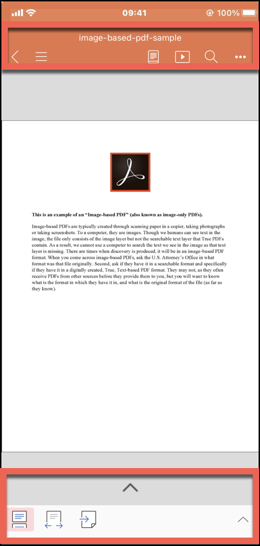
On iPhone and iPad, when you open a PDF and tap Annotate PDF, the document displays in the default view with annotation toolbar options.
- iPhone
The annotation editor uses a collapsible arrow to reveal the menu options (Home, Annotation, Presentation). Some tools are nested under menus due to the smaller screen.
- iPad
The annotation editor displays the toolbar with all major tools (Home, Annotation, Presentation) visible simultaneously. Editing tools and screen. Comments are more prominently displayed due to the larger.
Navigation on the full-screen annotation editor
-
iPhone
The orange header toolbar displays the document title and a collapse arrow to minimize the preview. For more information on toolbar options, see Toolbar options.
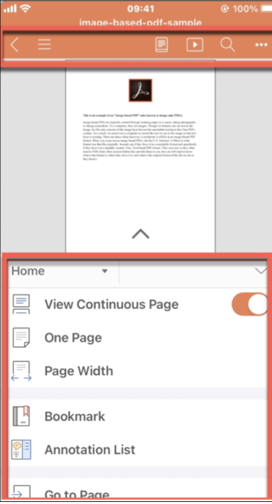
Tap arrow to view Annotations and the menu options are such as Home, Annotation, Presentation. For more information on menu options, see Home menu options.
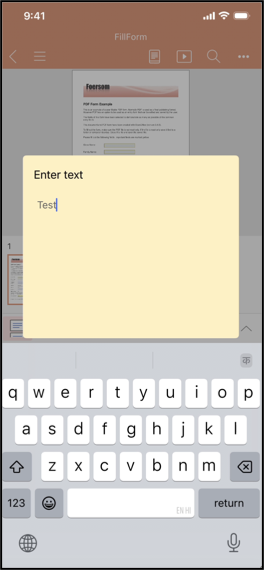
PDF form
- iPad
The annotation editor displays the toolbar with all major tool sets (Home, Annotation, Presentation) visible simultaneously. Editing tools and comments are more prominently displayed due to the larger screen.
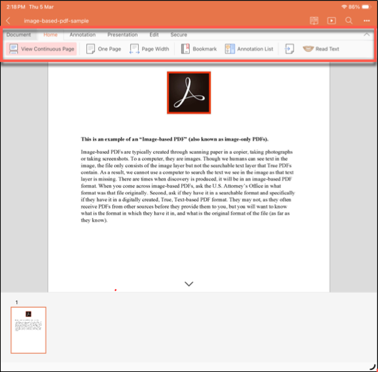
For more information options available in Annotation editor, see Using annotation tools.
Open full-screen annotation editor
- From the menu, tap More options (three dots icon), then tap Annotate PDF.
- Touch and hold on the PDF content, then tap Annotate PDF from the options
menu.Important: This option is available only for iOS 16 and later.
Add and manage annotations
- To view the annotation tool set, access it in one of the following ways on the iPhone.
- From the toolbar, tap More option (three dots icon). On Tools, tap Annotation.
- From the menu, tap Annotation menu option.
- Select an annotation tool as required and tap the PDF to apply the annotation.
- From the menu options, tap Home.
- Tap Annotation List. The annotation list is displayed.
- To hide and show annotations. You can access this option in one of the following ways on iPhone.
- From the toolbar, tap More option (three dots icon).
- From the Annotation menu option.
- On Tools, tap toggle Show Annotation on or off to show or hide annotations.
- From the menu options, tap Annotation.
- Delete annotations in one of the following ways on the iPhone:
- Tap Eraser to delete specific annotation or tap Erase all to delete all annotation on the PDF.
- From the Annotation List, swipe the annotation toward left, the delete option is displayed. Tap the Delete option.
Add and manage comments
- Access the comment option in one of the following ways on the iPhone.
- From the menu, tap Annotation menu option.
- Tap the PDF and then from the menu that appears.
- Tap Comment icon.
- From the menu options, tap Home.
- From the list, tap Annotation List. The annotation and comments are displayed.
- Tap the comment box that appears on the PDF.
- On the comment box, edit the content and tap Done.
- Tap the comment and then from the menu that appears.
- Tap Delete, or delete icon in the comment box.
Add and manage bookmarks
Bookmarks help you quickly return to important sections within a PDF. The MaaS360 PDF Viewer provides bookmark access through the Home menu.
- Tap the PDF and then from the menu that appears.
- Tap Bookmark to add a bookmark to the current page.
- From the menu options, tap Home.
- From the list, tap Bookmark. The bookmark list is displayed.
- From the menu options, tap Home.
- Select Bookmark.
- Tap Edit on the upper-right of the menu.
- Drag and rearrange the list of bookmarks and tap Done.
- From the menu options, tap Home.
- Tap Bookmark. The bookmarks list opens.
- Swipe the bookmark to the left to display the edit option.
- Tap the edit icon. The Rename screen opens.
- Enter the new bookmark name and tap Done.
- From the menu options, tap Home.
- Tap Bookmark. The bookmarks list opens.
- Swipe the bookmark to the left to display the delete option.
- Tap the delete icon.
Use Search option
- From the toolbar, tap Search icon (magnifying glass), type the search term and then select
search from the keypad.
The following search options refine your search results:
- Match case
- When enabled, the search distinguishes between uppercase and lowercase letters. For example, searching for "PDF" returns only "PDF" and not "pdf" or "Pdf".
- Whole words only
- When enabled, the search returns only complete word matches. For example, searching for "page" returns only "page" and not "pages" or "pageview".
- The search text is highlighted and displayed on the screen. You can use the < and > arrows in the upper-right menu bar to see all occurrences of the search term.
- The viewer highlights matching text and displays navigation arrows.
Use Presentation mode
-
To present the PDF in full‑screen view, use any one of the following ways:
- From menu option, tap Presentation.
- From the toolbar, tap Presentation icon.
- The PDF opens in full‑screen presentation mode, starting from the selected page or the first page.
- From Beginning
- From Current Page
For more information annotation options within presentation mode, see Presentation mode.