How can I change the layout of my diagram?
IBM Blueworks Live automates much of the flow line routing and layouts for your process so you can focus more on your process design. If the default positioning isn't giving you the results that you want, try the following suggestion.
Important: If you have a complicated process, always take a snapshot before you
manually change the layout. If the layout doesn't do what you want, it's easy to revert to the
original snapshot. Although Undo works within the same session, it's safer to
take a snapshot.
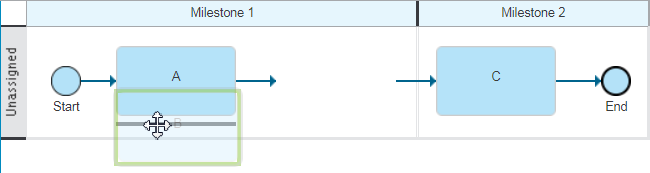
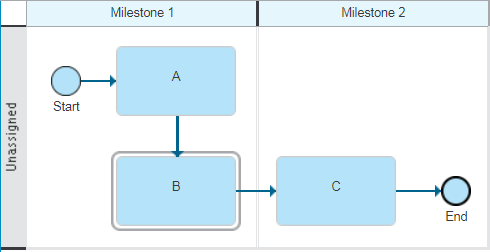
You can move an activity around another activity if the two activities are
directly connected by flow lines. For example, look at the following process diagram. 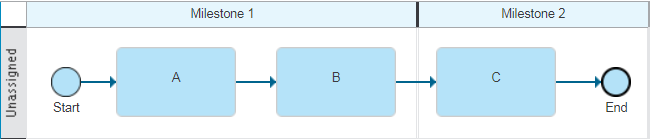
- You can position Activity B above or below Activity A because a line directly connects A to B.
- You can position Activity C above or below Activity B because a line directly connects B to C.
- You cannot position Activity C above or below Activity A because no line directly connects A to C.
For more layout tips, including how to move labels, use docking points to connect elements exactly where you want to, and pin sections of diagrams to prevent them being reset, see Improving process layout.
For more videos, visit Big Blue Helps
 and go to the
playlist "How to use IBM Blueworks Live."
and go to the
playlist "How to use IBM Blueworks Live."