Find information about removing a disk drive or
solid-state drive (SSD) from a system with the Linux
operating system or Linux logical partition that controls
the drive location powered on.
To remove a disk drive or solid-state drive from a system, complete the
following steps:
- Ensure
that you have the electrostatic discharge (ESD) wrist strap on and
that the ESD clip is connected to an unpainted metal surface. If not,
do so now.
- Choose from the following options:
- If you are removing a disk drive in a system, continue with step 3.
- If you are removing a solid-state drive in an expanded function system,
continue with step 8.
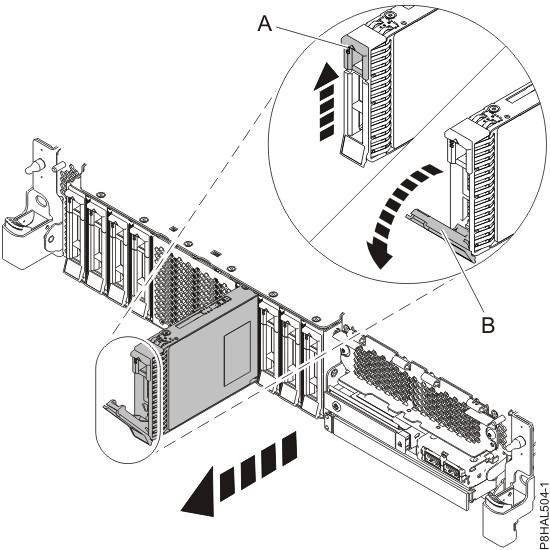
- When the identify LED flashes, unlock the drive handle
(B) by pressing the handle latch (A) and pulling it
out toward you, as shown in Figure 1 and Figure 2. If the handle is not all the way out, the solid-state drive cannot
slide out of the system.
Figure 1. Removing a disk drive from a base function
system
Figure 2. Removing a disk drive from an expanded function
system
- Support the bottom of the drive as you slide it out of the system. Hold the drive by its sides.
- If you are removing more than one drive, repeat the steps in this procedure until all drives
are removed.
- If you are not installing a replacement drive,
install a filler in the empty slot to ensure proper air flow for cooling. For instructions, seeInstalling a disk drive filler in the 5148-21L, 5148-22L, 8247-21L, 8247-22L, 8284-21A, or 8284-22A.
- If you are installing a replacement drive as a
replacement for the failed disk drive or solid-state drive, go to Replacing a disk drive or solid-state drive in the 5148-21L, 5148-22L, 8247-21L, 8247-22L, 8284-21A, or 8284-22A system with the power turned on in Linux.
- To remove an SSD in an expanded function system,
continue with the next step.
- Remove the front cover to access the SSD. For instructions to remove the front cover from an expanded function system, see Removing the front cover from an 5148-21L, 5148-22L,
8247-21L, 8247-22L, 8284-21A, or 8284-22A system.
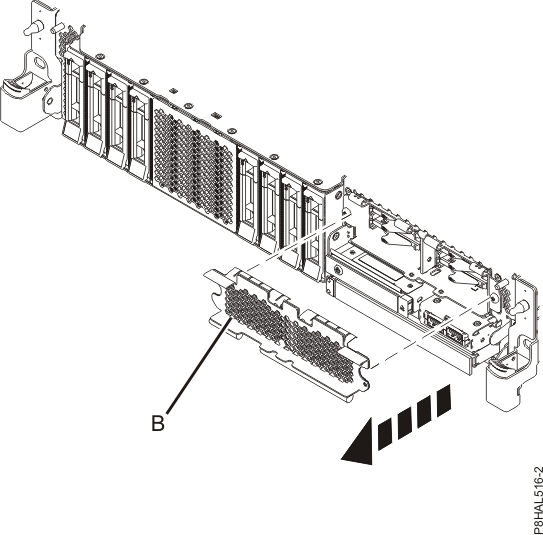
- To access the SSD slots, remove the perforated plate (B) covering the
SSD cage as shown in Figure 3.
Figure 3. Removing the SSD cage cover to access the SSD slots in an expanded function system
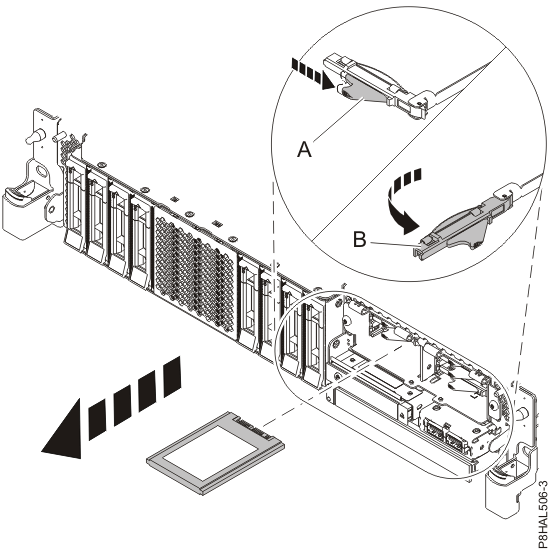
- When the identify LED flashes, unlock the drive handle
(B) by pushing the handle latch (A) in the direction
that is shown and pulling the drive handle (B) out toward you, as shown
in Figure 4. If the handle is not all the way out, the solid-state drive cannot
slide out of the system.
Figure 4. Removing an SSD from an expanded function
system
- Support the bottom of the drive as you slide it out of the system. Hold the drive by its sides.
- If you are not installing a replacement drive immediately, lock the drive bay handle
(B) by rotating it inwards toward the system.
- If you are removing more than one drive, repeat the steps in this procedure until all drives
are removed.
 Figure 2. Removing a disk drive from an expanded function system