subscribe iconSubscribe to this information
POWER7 information

Removing the 8233-E8B or 8236-E8C disk drive backplane

Learn about removing the disk drive backplane from the server.

If your system is managed by the IBM® Systems Director Management Console (SDMC), use the SDMC to complete the steps for removing the disk drive backplane from the server. For instructions, see Removing a part using the Systems Director Management Console.

If your system is managed by the Hardware Management Console (HMC), use the HMC to complete the steps for removing the disk drive backplane from the server. For information about using the HMC to remove the disk drive backplane, see Removing a part using the Hardware Management Console.

If you do not have an HMC or SDMC, complete the following steps to remove the disk drive backplane:

  1. Identify the system that you will be working on by using the identify the system process to turn on the system locate (blue) indicator. For more information, see Enabling enclosure indicators and Control panel LEDs.
  2. Perform the prerequisite tasks described in Before you begin.
  3. Do one of the following steps, as applicable:
    1. If you are removing the disk drive backplane for a system upgrade or as part of another procedure, continue to the next step.
    2. If you are removing the disk drive backplane because of a system failure, use the service action log to help identify the failing part. See Identifying a failing part .
  4. Stop the system or logical partition. For instructions, see Stopping a system or logical partition.
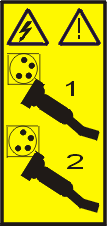
  5. Disconnect the power source from the system by unplugging the system.
    Note: This system has a second power supply. Before continuing with this procedure, ensure that the power source to the system has been completely disconnected.

    (L003)

    Hazardous voltage or energy levels are present inside any component that has this label attached. Do not open any cover or barrier that contains this label.
    or
    Hazardous voltage or energy levels are present inside any component that has this label attached. Do not open any cover or barrier that contains this label.

  6. Remove the front cover. For instructions, see Removing the front cover from a rack-mounted model 8233-E8B or 8236-E8C.
  7. Place the system into the service position. For instructions, see Placing a rack-mounted model 8233-E8B or 8236-E8C in the service position.
  8. Remove the service access cover. For instructions, see Removing the service access cover from a rack-mounted model 8233-E8B or 8236-E8C.
  9. Attach the wrist strap.
    Attention:
    • Attach a wrist strap to an unpainted metal surface of your hardware to prevent electrostatic discharge (ESD) from damaging your hardware.
    • When using a wrist strap, follow all electrical safety procedures. A wrist strap is for static control. It does not increase or decrease your risk of receiving electric shock when using or working on electrical equipment.
    • If you do not have a wrist strap, just prior to removing the product from ESD packaging and installing or replacing hardware, touch an unpainted metal surface of the system for a minimum of 5 seconds.
  10. To remove the fans and the fan cage, complete the following steps:
    1. To remove the fans, squeeze the tab (A) and lift the fan out of the fan cage as shown in Figure 1.
      Note: If the thumbscrews are too tight, you might need a flat-head screwdriver to complete this step. To pull the fan cage out of the system, you might need to unplug the control panel cable to allow more space.
      Figure 1. Removing the fan from the fan cage
      Picture of removing the fans from the fan cage
    2. To remove the air baffles, grasp and pull the air baffle out of the fan cage, as shown in Figure 2.
      Figure 2. Removing the air baffles from the fan cage
      Picture of removing the air baffles from the fan cage
    3. To remove the fan cage, loosen the two thumbscrews (A) and lift the fan cage (B) out of the system as shown in Figure 3.
      Figure 3. Removing the fan cage from the system
      Picture of removing the fan cage
  11. Disconnect the cables from the back of the disk drive backplane, as shown in Figure 4. If you have connected an external SAS cable, ensure that you disconnect the SAS cable from the disk drive backplane. For more information about external SAS port, refer to Installing the external SAS port in the 8233-E8B or 8236-E8C.
    Figure 4. Disconnecting the media device cables from the disk drive backplane
    Picture of disconnecting the cables from the disk drive backplane
  12. If you need to replace the backplane because of an upgrade or system failure, complete the following steps to remove the disk drives, depending on your backplane:
    Note: If you remove a backplane that is populated with disk drives, the backplane will be heavy. Ensure that you can safely complete the procedure.
    1. To remove the disk drive from the backplane, perform the following steps:
      Note: Record the location of each disk drive you remove so the disk drive can be replaced into the same location again.
      1. Unlock the disk drive handle (A) and pull it toward you to unseat the disk drive.
      2. Place one hand under the disk drive and carefully pull the drive out of the system as shown in Figure 5.
      Figure 5. Removing the disk drive from the backplane
      Picture of removing the disk drive backplane
  13. Remove the media device by pressing in on the latch (A) and sliding the media device out of the system, as shown in the following figure.
    Figure 6. Removing the media device from the disk drive backplane
    Picture of removing the media device
  14. Unlock the disk drive backplane by pulling the handles open from the center of the backplane as shown in Figure 7 and Figure 8.
    Figure 7. Removing the populated disk drive backplane
    Picture of removing the populated disk drive backplane
    Figure 8. Removing the unpopulated disk drive backplane
    Picture of removing an unpopulated disk drive backplane
  15. Pull the backplane out of the server.
  16. Remove the control panel and signal cable from the backplane to use in the replacement backplane. For instructions, see Control panel and signal cables.
  17. If you removed the backplane as a part of another procedure, continue with that procedure. To replace the backplane or install a new backplane, see Replacing the 8233-E8B or 8236-E8C disk drive backplane.


Send feedback Rate this page

Last updated: Tue, March 03, 2015