subscribe iconSubscribe to this information
POWER7 information

Replacing a disk drive with the system or logical partition power turned off

Learn to install a failed Small Computer System Interface (SCSI) or serial-attached SCSI (SAS) disk drive in a system or logical partition that controls the disk drive location with the power turned off.

If you are installing a new or upgraded disk drive, see Installing a disk drive or solid-state drive with the system or logical partition power turned off. If you are removing a disk drive as part of a service procedure, continue to use the following procedure.

Preparing the system

  1. Complete the prerequisite tasks. For instructions, see Before you begin.
  2. If you cannot start the system or logical partition that controls the disk drive location, or if the system or logical partition are not powered on, go to step 6.
  3. Identify the disk drive to be replaced and record the location information. For information, see Identifying a part.
  4. Prepare to remove the disk drive from the system or expansion unit as follows:
  5. Stop the system or logical partition. For instructions, see Stopping the system or logical partition.
  6. If you stopped the logical partition, do not disconnect the power source. If you stopped the system, disconnect the power source from the system by unplugging the system.
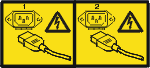
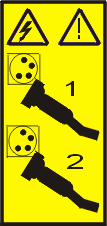
    Note: This system might be equipped with a second power supply. Before continuing with this procedure, ensure that all power sources to the system have been completely disconnected.

    (L003)

    Hazardous voltage or energy levels are present inside any component that has this label attached. Do not open any cover or barrier that contains this label.
    or
    Hazardous voltage or energy levels are present inside any component that has this label attached. Do not open any cover or barrier that contains this label.

  7. Remove the system unit door or expansion unit door or open the rack front door.
  8. Remove the front cover.

Replacing the disk drive

  1. Find the package that contains the new disk drive.
    Attention: Disk drives are fragile. Handle with care.
  2. Remove the disk drive from its protective package.
  3. Unlock the disk drive handle by squeezing and pulling it out toward you before you install the disk drive. If the handle is not all the way out, the disk drive does not slide into the system or the expansion unit.
  4. If your replacement disk drive does not have a bezel preinstalled, then follow the steps in Installing a disk drive bezel in a disk drive or fillerto install the disk drive bezel. Then, return here and continue with this procedure.
  5. Support the bottom of the disk drive as you align it with the guide rails in the system or expansion unit. Do not hold the disk drive by the handle.
  6. Slide the disk drive into the system or expansion unit until it stops.
    Note: It is important to ensure that when installing a disk drive, that the drive is fully seated and all the way into the system.
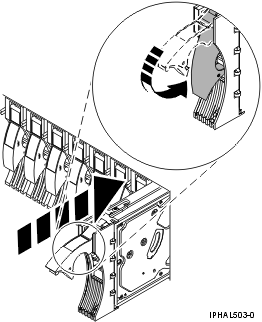
  7. Push the disk drive handle in until it locks, as shown in Figure 1.
    Figure 1. Installing a disk drive in a model
    Graphic of installing a disk drive in the system unit.
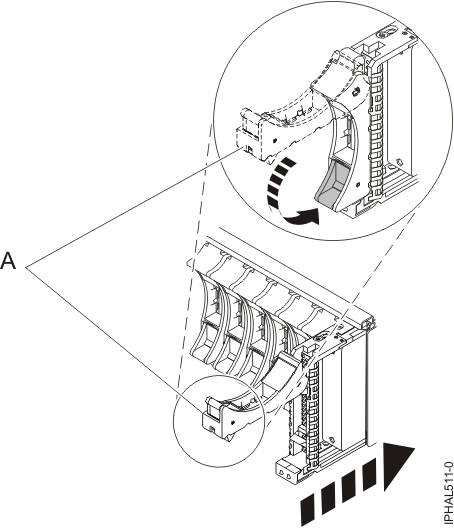
    Figure 2. Installing a small-form factor disk drive in the 5803 expansion unit
    Installing a small-form factor disk drive in the 5803 expansion unit

Completing the procedure

  1. Replace the front cover.
  2. Install or close the system, expansion unit, or rack front door.
  3. Reconnect all system power cables.
  4. Reconnect the system to the power supply by plugging it in.
  5. Start the system or logical partition. For instructions, see Starting the system or logical partition.
  6. To configure the newly installed disk drive or solid-state drive, see the following procedures for the applicable operating system that controls the disk drive or solid-state drive:
    Note: There is no equivalent procedure for a system or logical partition that is running the Linux operating system.
  7. To rebuild the data on the replacement disk drive or solid-state drive, see the following procedures for the applicable operating system that controls the disk drive or solid-state drive:


Send feedback Rate this page

Last updated: Thu, November 20, 2014