subscribe iconSubscribe to this information
POWER7 information

Removing the disk drive by using Linux kernel 2.6

Learn how to replace a disk drive in a location that is controlled by a system or logical partition that is running Linux kernel 2.6.

Preparing to remove the disk drive

  1. Log in as root user.
  2. Type iprconfig on the command line of the Linux session and press Enter.

    The IBM® Power® RAID Configuration Utility display is shown.

  3. Select Analyze log. Press Enter. The Kernel Messages Log display is shown.
    Figure 1. Kernel Messages Log
                                          Kernel Messages Log


    Select one of the following:


        1. View most recent ipr error messages
    
        2. View ipr error messages
    
        3. View all kernel error messages
    
        4. View iprconfig error messages
    
        5. Set root kernel message log directory
    
        6. Set default editor
    
        7. Restore defaults
    
        8. View ipr boot time messages


    Selection:


    e=Exit
  4. Select View most recent ipr error messages from the Kernel Messages Log display. Press Enter.
  5. Find the entry in the log for the disk drive you want to replace.
  6. Record the location information for the disk drive.
    Note: The location information has the form of 2:0:8:0. In this example, 2 is the SCSI host number, 0 is the SCSI bus, 8 is the SCSI target ID, and 0 is the LUN (logical unit).
  7. Return to the command line.
  8. Type the following command:

    ls -ld /sys/class/scsi_host/host#/device

    Where # is the SCSI host number. Press Enter.

  9. Record the PCI location information.
    Note: The PCI location information has the form of 61:01:0:2.
  10. Type iprconfig on the command line and press Enter.

    The IBM Power RAID Configuration Utility display is shown.

  11. Select Display hardware status from the IBM Power RAID Configuration Utility display. Press Enter.

    The Display Hardware Status display is shown.

    Figure 2. Example Display Hardware Status
                                 Display Hardware Status


    Type option, press Enter.
    
      1=Display hardware resource information details


    OPT Name   PCI/SCSI Location          Description               Status
    
    --- ------ -------------------------- ------------------------- ----------------
    
               0000:01:01.0.0/            PCI-X SCSI Adapter        Operational
    
               0000:41:01.0.1/            PCI-X SCSI Adapter        Operational
    
        sda    0000:41:01.0.1/0:3:0       Physical Disk             Active
    
        sdb    0000:41:01.0.1/0:4:0       Physical Disk             Active
    
        sdc    0000:41:01.0.1/0:8:0       Physical Disk             Active
    
        sdd    0000:41:01.0.1/1:3:0       Physical Disk             Active
    
        sde    0000:41:01.0.1/1:4:0       Physical Disk             Active
    
        sdf    0000:41:01.0.1/1:5:0       Physical Disk             Active
    
               0001:61:01.0.2/            PCI-X SCSI RAID Adapter   Operational
    
        sdg    0001:61:01.0.2/0:3:0       Physical Disk             Active
    
               0001:61:01.0.2/0:6:0       Advanced Function Disk    Active
    
        sdi    0001:61:01.0.2/0:9:0       Physical Disk             Active
    
        sdh    0001:61:01.0.2/255:0:0     RAID 10 Disk Array        Failed
    
               0001:61:01.0.2/0:4:0       RAID 10 Array Member      Failed
    
               0001:61:01.0.2/0:5:0       RAID 10 Array Member      Failed


    e=Exit   q=Cancel   r=Refresh   t=Toggle
    
  12. Look for the disk drive at the PCI location you recorded. The disk drive might have a Failed status.
  13. If the disk drive you want to replace is unprotected or in use, move the data from the disk drive before continuing with this procedure.

    For information, see the PCI-X SCSI RAID Controller Reference Guide for Linux.

    This guide is available from the SCSI PCI Adapters web page.

  14. Type option 1 (Display hardware resource information details) next to the disk drive you want to replace. Press Enter.

    The Disk Hardware Resource Information Details is displayed like the shown in the following sample.

    Figure 3. Example Disk Hardware Resource Information Details display
                     Disk Unit Hardware Resource Information Details


    Manufacturer . . . . . . . . . . . . . . : IBM
    
    Product ID . . . . . . . . . . . . . . . : ST336607LC
    
    Firmware Version . . . . . . . . . . . . : 43353048 (C50H)
    
    Serial Number. . . . . . . . . . . . . . : 00006719
    
    Capacity . . . . . . . . . . . . . . . . : 36.40 GB
    
    Resource Name. . . . . . . . . . . . . . : /dev/sdd


    Physical location
    
    PCI Address. . . . . . . . . . . . . . . : 0001:50:01.0
    
    SCSI Host Number . . . . . . . . . . . . : 2
    
    SCSI Channel . . . . . . . . . . . . . . : 0
    
    SCSI Id. . . . . . . . . . . . . . . . . : 4
    
    SCSI Lun . . . . . . . . . . . . . . . . : 0


    Extended Details
    
    FRU Number . . . . . . . . . . . . . . . : 00P2676
    
                                                                            More...
    
    Press Enter to Continue


    e=Exit   q=Cancel   f=PageDn   b=PageUp
    
  15. Record the physical location information.
  16. Return to the IBM Power RAID Configuration Utility display.

Removing the disk drive

  1. If you are removing a solid state device located on a PCIe RAID and SSD SAS adapter, go to Removing and replacing the PCIe RAID and SSD SAS adapter and complete that procedure, then return here and perform the following steps.
  2. From the IBM Power RAID Configuration Utility display, select Work with disk unit recovery. Press Enter.
  3. From the Work with Disk Unit Recovery display, select Concurrent remove device. Press Enter. A Concurrent Device Remove display is shown, like the following sample.
    Figure 4. Example Concurrent Device Remove display
                                      Concurrent Device Remove


    Choose a single location for remove operations
    
      1=Select


    OPT Name   PCI/SCSI Location          Description               Status
    
    --- ------ -------------------------- ------------------------- -----------------
    
        sdc    0000:41:01.0.1/0:8:0       Physical Disk             Active
    
               0000:41:01.0.1/0:5:                                  Empty
    
        sdb    0000:41:01.0.1/0:4:0       Physical Disk             Active
    
        sda    0000:41:01.0.1/0:3:0       Physical Disk             Active
    
               0000:41:01.0.1/1:8:                                  Empty
    
        sdf    0000:41:01.0.1/1:5:0       Physical Disk             Active
    
        sde    0000:41:01.0.1/1:4:0       Physical Disk             Active
    
        sdd    0000:41:01.0.1/1:3:0       Physical Disk             Active
    
               0001:61:01.0.2/0:8:                                  Empty
    
        sdh    0001:61:01.0.2/0:9:0       Physical Disk             Active
    
        sdg    0001:61:01.0.2/0:3:0       Physical Disk             Active
  4. Type option 1 (Select) next to the location for the disk drive you want to replace. Press Enter.
  5. The Verify Device Concurrent Remove display is shown. The concurrent maintenance light turns on for that disk drive slot. To view the locations of the concurrent maintenance lights, select the appropriate model from the following list:
  6. On the Verify Device Concurrent Remove display, verify that the selected disk drive is the disk drive you want to replace, then press Enter. The identify light turns on for the disk drive.
    Note: Ensure that the disk drive is not in use to prevent loss of data.
  7. The Device Concurrent Remove display is shown.
    Attention:
    • Attach a wrist strap to an unpainted metal surface of your hardware to prevent electrostatic discharge (ESD) from damaging your hardware.
    • When using a wrist strap, follow all electrical safety procedures. A wrist strap is for static control. It does not increase or decrease your risk of receiving electric shock when using or working on electrical equipment.
    • If you do not have a wrist strap, just prior to removing the product from ESD packaging and installing or replacing hardware, touch an unpainted metal surface of the system for a minimum of 5 seconds.
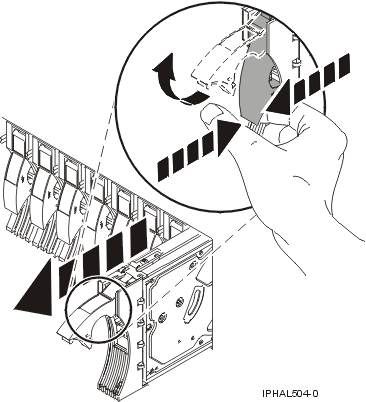
  8. Squeeze and pull the handle of the disk drive out toward you before you remove the disk drive as shown in Figure 5. If the handle is not all the way out, the disk drive does not slide out of the system or expansion unit.
    Figure 5. Removing a disk drive from a model or 7311-D20
    Graphic of removing a disk drive form the system unit.
  9. Support the bottom of the disk drive as you slide it out of the system or expansion unit. Do not hold the disk drive by the handle.
  10. Press Enter on the IBM Power RAID Configuration Utility to indicate that you have removed the disk drive.


Send feedback Rate this page

Last updated: Thu, November 20, 2014