subscribe iconSubscribe to this information
POWER7 information

Removing and replacing a PCI adapter contained in a cassette in an AIX partition that is powered on

Use this procedure to remove and replace a PCI adapter contained in a cassette with the power on.

Procedures performed on a PCI adapter in an AIX® partition that is powered on, also known as hot-plug procedures, require the system administrator to take the PCI adapter offline prior to performing the operation. Before taking an adapter offline, the devices attached to the adapter must be taken offline as well. This action prevents a service representative or user from causing an unexpected outage for system users.

To remove and replace an adapter, do the following steps:

  1. Determine the location of the PCI adapter in the system.
  2. Record the slot number and location of each adapter being removed. Adapter slots are numbered on the rear of the system unit.
  3. Ensure that any processes or applications that might use the adapter are stopped.
  4. Enter the system diagnostics by logging in as root user or as the CE login user, then type diag at AIX command line.
  5. When the DIAGNOSTIC OPERATING INSTRUCTIONS menu is displayed, press Enter.
  6. At the FUNCTION SELECTION menu, select Task Selection, and then press enter.
  7. At the Task Selection list, select Hot Plug Manager, and then select PCI Hot Plug Manager.
  8. Select Unconfigure a Device, and then press Enter.
  9. Press F4 (or Esc+4) to display the Device Names menu.
  10. Select the adapter you are removing in the Device Names menu.
  11. Use the Tab key to answer YES to Keep Definition. Use the Tab key again to answer YES to Unconfigure Child Devices, then press Enter.
  12. The ARE YOU SURE screen is displayed. Press Enter to verify the information. Successful unconfiguration is indicated by the OK message displayed next to the Command field at the top of the screen.
  13. Press F3 (or Esc +3) twice to return to the Hot Plug Manager menu.
  14. Select replace/remove PCI Hot Plug adapter.
  15. Select the slot that has the device to be removed from the system.
  16. Select Replace. Or, if you need to remove an adapter without replacing it, select Remove. A fast-blinking amber LED located at the back of the machine near the adapter indicates that the slot has been identified.
  17. Press Enter. This places the adapter in the action state, meaning it is ready to be removed from the system.
  18. Label, and then disconnect all cables attached to the adapter you plan to remove.
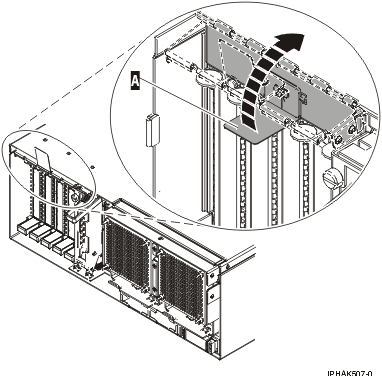
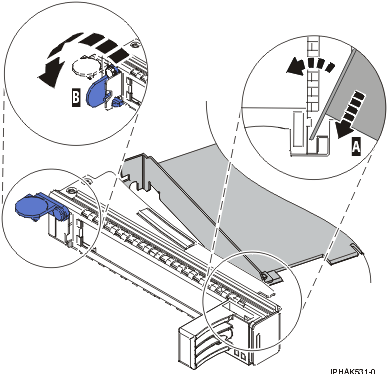
  19. Lift up on the PCI adapter EMC shield (A) as shown in Figure 1 and then rotate it up and away from the cassette as shown in Figure 2.

    If the PCI adapter does not have an EMC shield, go to step 20.
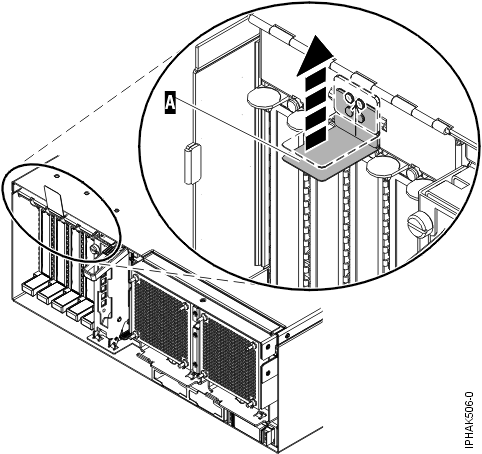
    Figure 1. Lift up on the EMC shield
    Lift up on the EMC shield.
    Figure 2. Rotate the EMC shield into the open position
    Rotate the EMC shield into the open position
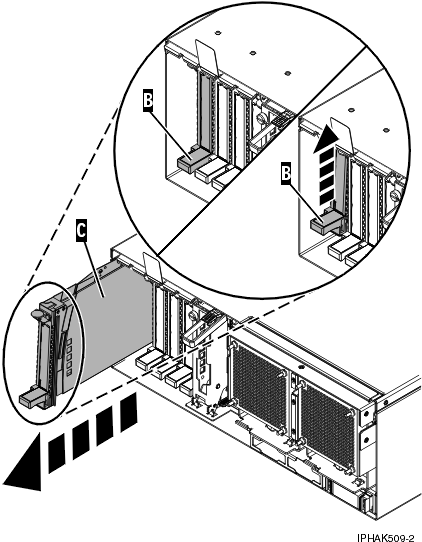
  20. Remove the cassette. Lift up the lower cassette handle (B) as shown in the following figure. Pull the PCI cassette (C) out of the system.
    Attention: A cassette containing either a PCI adapter or filler panel must be placed in the PCI adapter slot of the system unit for proper air flow and cooling.
    Figure 3. PCI adapter cassette removed from the system unit
    PCI adapter removed from the system unit.
  21. Place the cassette with the cover facing up on an approved ESD surface. The cover will have a label on it.
  22. Install the replacement adapter into the PCI adapter cassette by completing the following steps. If the cassette is not going to contain a replacement adapter, use this same procedure to place an adapter filler panel in the cassette.
    1. Remove the cassette cover by doing the following steps:
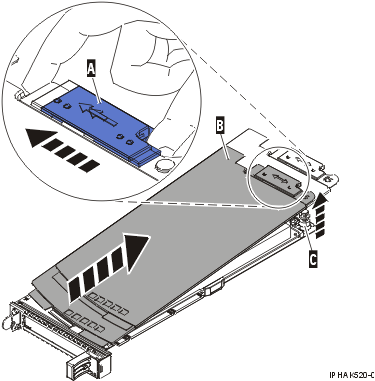
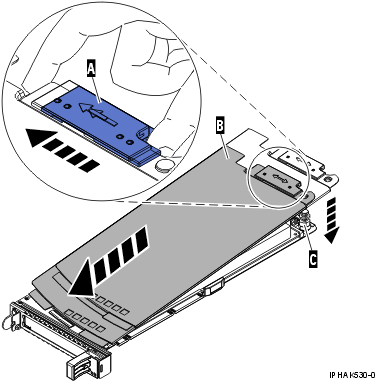
      1. Slide the cover latch (A) to disengage it from the pivot pin (C) as shown in the following figure.
      2. Lift the cover (B) off of the pivot pin.
      3. Slide the cover off of the cassette.
        Figure 4. PCI adapter cassette cover removed
        PCI adapter single-width cassette cover removed.
    2. Remove the adapter from the cassette by doing the following steps:
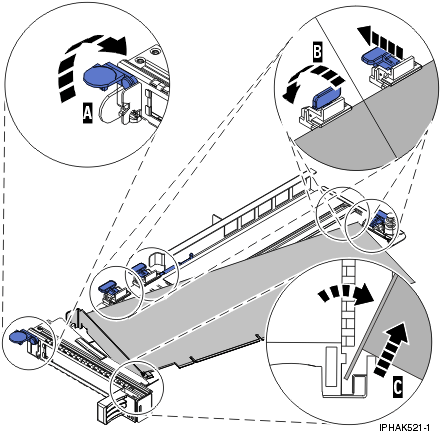
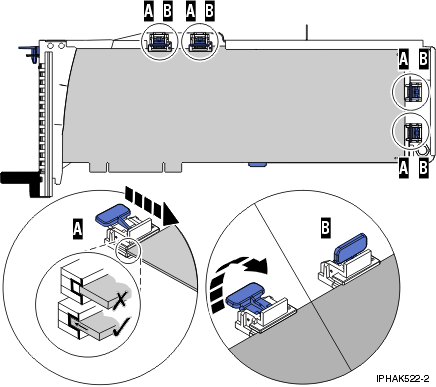
      1. Unlock the adapter retainers by rotating the retainer clip (A) into the horizontal position. See Figure 5.
        Notes:
        • The edge of the adapter located at the end of the cassette that contains the cassette handles is called the adapter tailstock.
        • Two retainers are located at the top of the cassette, along the top edge of the adapter. Two more retainers are located at the edge of the cassette opposite of the adapter tailstock.
        • When the retainer clip is in the horizontal position, the adapter retainers are unlocked and can slide away from the card.
        • If the corner support retainer is used, unlock it, and then slide the corner support retainer away from the card.
      2. Push the adapter retainers (B) away from the adapter.
      3. Unlock the adapter tailstock clamp (C).
      4. Rotate the adapter out of the cassette by grasping the edge of the adapter opposite the tailstock, and then firmly rotate the adapter toward the bottom of the cassette.
      5. Lift the adapter out of the tailstock retaining channel.
        Figure 5. Adapter removed from the PCI adapter cassette
        Adapter removed from the PCI adapter single-width cassette.
    3. Place the new adapter in the cassette.
      Attention: A cassette containing either a PCI adapter or filler panel must be placed in the PCI adapter slot of the system unit for proper air flow and cooling. If the cassette is not going to contain a PCI adapter, use this same procedure to place an adapter filler panel in the cassette.
      1. Remove any shipping handles or brackets attached to the adapter.
      2. With the tailstock clamp in the open position, insert the adapter firmly into the tailstock retaining channel (A). See Figure 6.
      3. Rotate the adapter toward the top of the cassette and into place.
      4. Close the tailstock clamp.
        Figure 6. Adapter removed from the PCI adapter single-width cassette
        Adapter removed from the PCI adapter single-width cassette.
      5. Position the adapter retainers to support the adapter, and then rotate the retainer clip (B) into the closed position. See Figure 6.
        Note: Two retainers are located at the top of the cassette, along the top edge of the adapter. Two more retainers are located at the edge of the cassette opposite of the adapter tailstock. When the adapter retainer clip is in the horizontal position, the adapter retainers are unlocked and can slide toward the adapter. Place the retainers on the adapter according to the length of the adapter being used. Select the appropriate instructions:
        Adapter-cassette retainer placement for long adapters
        • Place and lock the retainers (B). See Figure 7.
          Attention: Use of the lower corner support retainer might interfere with the docking of the PCI card when positioned within the system. Ensure the retainer does not interfere with the adapter connectors on the system backplane.
        • Ensure the adapter edge is seated in each retainer groove (A). If the shape of the adapter or the presence of a connector will not allow the adapter edge to be seated into the retainer groove, ensure the retainer is still locked firmly against that edge or connector.
          Figure 7. Long adapter in the PCI adapter cassette with the supports and stabilizer in place
          View of a long adapter in the PCI adapter single-width cassette with the retainers and stabilizer in place.
        Adapter-cassette retainer placement for medium-length adapters
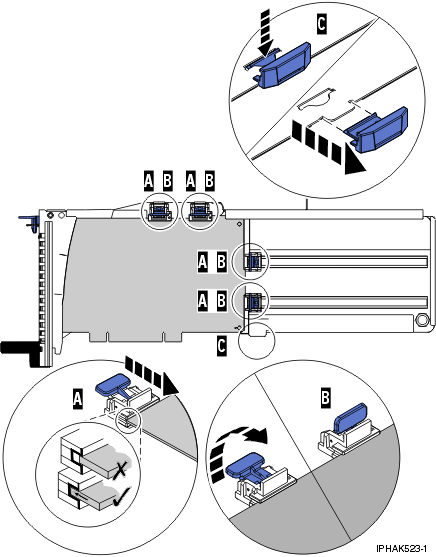
        • Remove the adapter stabilizer (C). See Figure 8.
        • Place and lock the retainers (B).
        • Ensure the adapter edge is seated in each retainer groove (A). If the shape of the adapter or the presence of a connector will not allow the adapter edge to be seated into the retainer groove, ensure the retainer is still locked firmly against that edge or connector.
          Figure 8. Medium-length adapter in the PCI adapter cassette with the supports in place
          View of a medium-length adapter in the PCI adapter single-width cassette with the retainers in place.
        Adapter-cassette retainer placement for short adapters
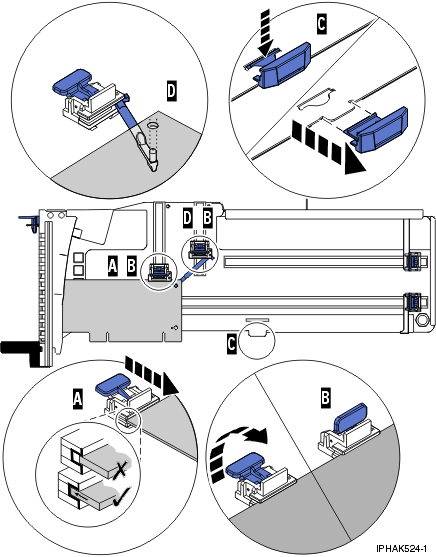
        • Remove the adapter stabilizer (C). See Figure 9.
        • Place the hookarm (D) into the hole in the corner of the adapter. This supports the card when it is undocked from the connector on the system backplane.
        • Place and lock the retainers (B).
        • Ensure the adapter edge is seated in each retainer groove (A). If the shape of the adapter or the presence of a connector will not allow the adapter edge to be seated into the retainer groove, ensure the retainer is still locked firmly against that edge or connector.
          Figure 9. Short adapter in the PCI adapter cassette with the supports and the hookarm in place
          View of a short adapter in the PCI adapter single-width cassette with the retainers and the hookarm in place.
    4. Replace the cassette cover by doing the following steps:
      1. Slide the cover (B) into position on the cassette.
      2. While holding the cover latch (A) in the open position, place the cover over the pivot pin (C).
      3. Release the cover latch to lock the cover into place.
        Figure 10. PCI adapter cassette cover replaced
        PCI adapter single-width cassette cover replaced.
  23. At the back of the system, lift the cassette cover flap and identify the cassette slot you want to use.
  24. Ensure the lower cassette handle is pressed up toward the retainer clip. This places the adapter in the correct position to be docked in the system.
  25. Lift and hold the PCI adapter EMC shield in the open position. See Figure 1 and Figure 2.
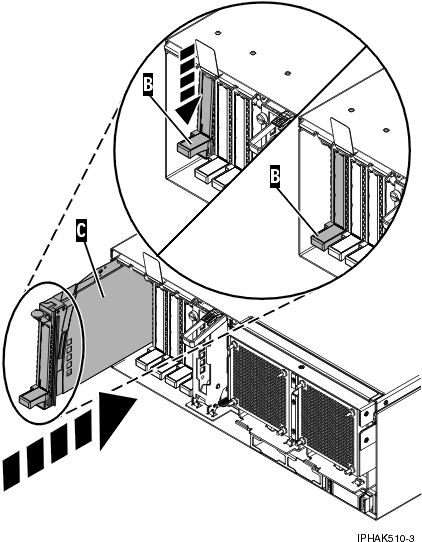
  26. Slide the cassette (C) into the cassette slot as shown in the following figure.
  27. When the cassette is fully inserted into the system, firmly press downward on the lower cassette handle (B) to lock the adapter in its connector.
    Figure 11. PCI adapter cassette removed from the system unit
    PCI adapter placed into the system unit.
  28. Connect the adapter cables.
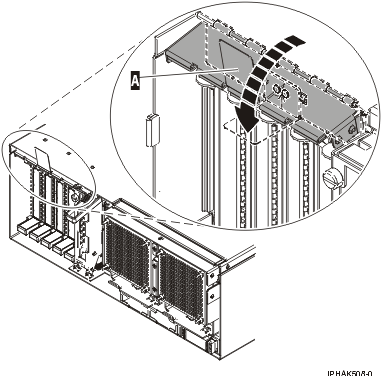
  29. Lower the PCI adapter EMC shield (A) into the closed position, close the shield latch, and then close the rear rack door.
    Figure 12. PCI adapter EMC shield in the closed position
    PCI adapter EMC shield in the closed position.
  30. Return to the AIX screen. Choose one of the following options:.
    • If you are replacing an adapter, go to step 31.
    • If you removing an adapter without replacing it, follow these steps:
      1. Press enter and continue to follow the screen instructions until you receive a message that the removal is successful. Successful removal is indicated by the OK message displayed next to the Command field at the top of the screen.
      2. Press F10 to exit the Hot-Plug Manager.
      3. Run the diag -a command. If the system responds with a menu or prompt, follow the instructions to complete the configuration.
      4. Continue at step 41.
  31. Press enter and continue to follow the screen instructions until you receive a message that the replacement is successful. Successful replacement is indicated by the OK message displayed next to the Command field at the top of the screen.
  32. Press the F3 or Esc+3 key to return to the PCI Hot-Plug Manager menu.
  33. Press the F3 or Esc+3 key to return to the Hot-Plug Manager menu.
  34. Press the F3 or Esc+3 key to return to the TASK selection list.
  35. Select Log Repair Action.
  36. Select the resource just replaced, press Enter, press Commit (F7 or ESC 7), and then press Enter.
  37. Press F3 or Esc+3 to return to TASK Selection List.
  38. Select Hot Plug Task, and then press enter.
  39. Select PCI Hot Plug Manager, then select Configure a defined device, and then press Enter.
  40. Select the device just replaced from the list, and then press Enter. The device is now configured.
  41. Press the F10 key to exit the diagnostic program.


Send feedback Rate this page

Last updated: Fri, March 20, 2015