Installing the Host Drive Manager
You must install the Host Drive Manager on your TSLM client. Choose the instructions for your TSLM client platform.

Installing the Host Drive Manager on AIX systems

- For the Input device field, select the
aix64directory on the installation media or the installation file system. - For the Software to Install field, select the following
package:
where v.r.m indicates the version, release, and modification level.TSLM 64-bit Host Drive Manager v.r.m - Change the setting for ACCEPT new license agreements? to YES.
To verify the installation, use the following command:
lslpp -l |grep tslmtslm-hdm-v.r.m-nnManually installing the Host Drive Manager on AIX systems
On AIX systems, to install the TSLM Host Drive Manager, change to
the aix directory on the installation media or the installation file system, and
use the following command:
# installp -acgNQqXYd tslm64-hdm-v.r.m.nn.bff allThe version, release, and modification levels are indicated by
and
v.r.m
indicates the software distribution level.nn
To verify the installation, use the following command:
# lslpp -la | grep tslmThe output shows the TSLM components installed. Verify that the following components are shown:
  tslm.elm                  v.r.m.nn  COMMITTED  tslm 64-Bit TSM External
  tslm.hdm                  v.r.m.nn  COMMITTED  tslm 64-Bit Host Drive Manager
  tslm.elm                  v.r.m.nn  COMMITTED  tslm 64-Bit TSM External
  tslm.hdm                  v.r.m.nn  COMMITTED  tslm 64-Bit Host Drive Manager

Installing the Host Drive Manager on Linux systems
On Linux systems, to install the TSLM Host Drive Manager, change to the directory linux_ibm_64 on the installation media or the installation file system, and
use the following command:
rpm -iv tslm-hdm-v.r.m-nn.x86_64.rpmv.r.mnnTo verify the previous installation, use the following command:
rpm -qa |grep tslmThe output shows the TSLM components installed. Verify that the following component is shown:
tslm-hdm-v.r.m-nn
Installing the Host Drive Manager on Solaris systems
On Solaris systems, TSLM Host Drive Manager, change to the
solaris directory on the installation media or the installation file system, and
use the following command:
# pkgadd -d tslm-hdm-v.r.m.nn.pkgv.r.mnnTo verify the installation, use the following command:
# pkginfo |grep tslmThe output shows the TSLM components installed. Verify that the following components are shown:
IBMtslmhdm	IBM Tape System Library Manager,
TSLM 32-bit Host Drive Manager v.r.m.nn
Installing the Host Drive Manager on Windows systems
On Windows systems, follow these steps to install the TSLM Host Drive Manager:
- Start the TSLM Host Drive Manager installation
wizard:
Change to the
windirectory on the installation media or the installation director, and double-click or run the following file:tslm-hdm-v.r.m.nn.msi
The version, release, and modification levels are indicated by
andv.r.m
indicates the software distribution level.nnThe installation wizard launches, and the Welcome window opens.
- In the Welcome window, click Next:
Figure 2. Installing HDM on Windows (1) 
Enter the location of the installation destination folder:
Figure 3. Installing HDM on Windows (2) 
Enter the location of the Perl executable folder:
Figure 4. Installing HDM on Windows (3) 
- Follow the instructions on the Ready to Install window:
Figure 5. Installing HDM on Windows (4) 
The
Completed
window opens. In theCompleted
window, click Finish:Figure 6. Installing HDM on Windows (5) 
After successful installation, you must restart your system. On the restart window, click Yes.
Figure 7. Installing HDM on Windows (6) 
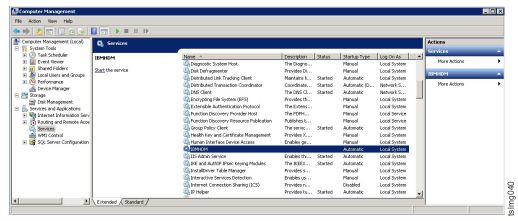
- Verify the installation. Check under "Computer Management / Services"
that service "IBMHDM" is started.
Figure 8. Installing HDM on Windows (7)