Selecting multiple queues
Instead of issuing an action to a single queue, you can issue an action to multiple queues at once. To do this, select multiple queues in the queue list and then right-click the selection to open the pop-up menu. Figure 1 shows three selected queues and their corresponding pop-up menu.
To select multiple queues:
- Select the first queue.
- Hold down the Shift- or Ctrl-key and select further queues.
Alternatively, you can select all queues using the key combination Ctrl-A while the focus is within the queue list.
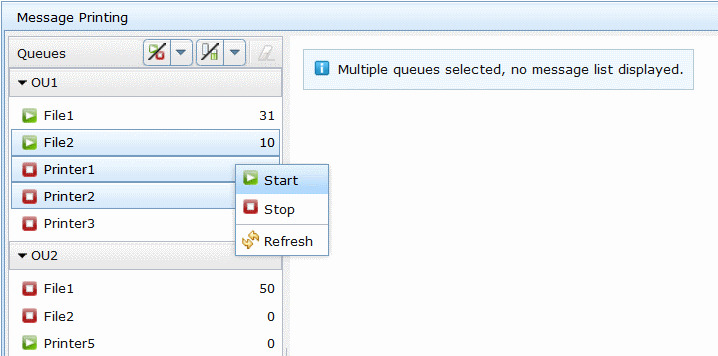
The pop-up menu contains all actions which can be executed on at least one of the selected queues. When you select an action, it is carried out on all selected queues for which you have the appropriate permissions. For example, in Figure 1, the 'Stop' action will be applied to all selected queues including the already stopped queues 'Printer1' and 'Printer2'. If you do not have the permission to perform the action on some of the selected queues, the confirmation dialog (see Confirmation of actions) will show you for which queues the command will not be submitted.
When multiple queues are selected, the message list will not be displayed until you select a single queue.