Administering a queue manager using IBM MQ Console
The IBM® MQ Web Console is an administration tool for IBM MQ that you access using a web browser running on your own machine. With the IBM MQ Web Console, you can create a new queue, put a message onto the queue, browse the queue to view the message, and delete the queue.
Before you begin
- You need an existing queue manager (for instructions, follow the Creating a queue manager guide).
- Ensure you have permission to access queue managers within your IBM MQ service instance (for instructions, follow the Configuring administrator access for a queue manager guide).
Log in to the IBM MQ Web Console for your queue manager
- Navigate to your IBM MQ as a Service UI by following the instructions in Getting started with IBM MQ as a Service.
- From the list of your queue managers, click on the queue manager you want to administer.
- Click the Administration tab.
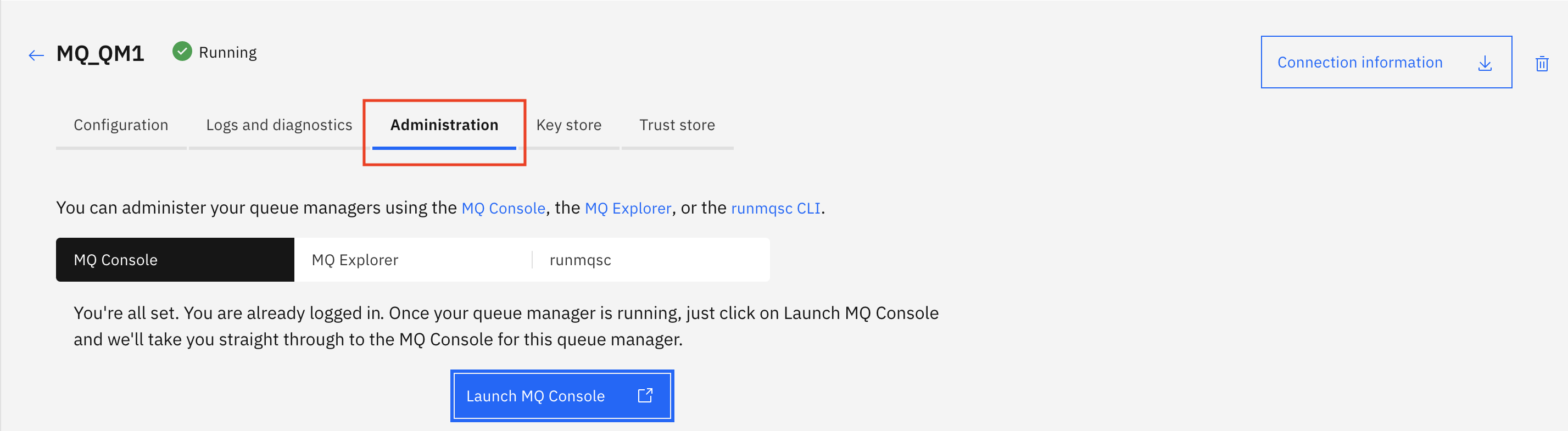
- Click Launch MQ Console, this opens the IBM MQ Web Console in a new browser tab.
Create a new test queue
- Ensure the Queues tab is selected.
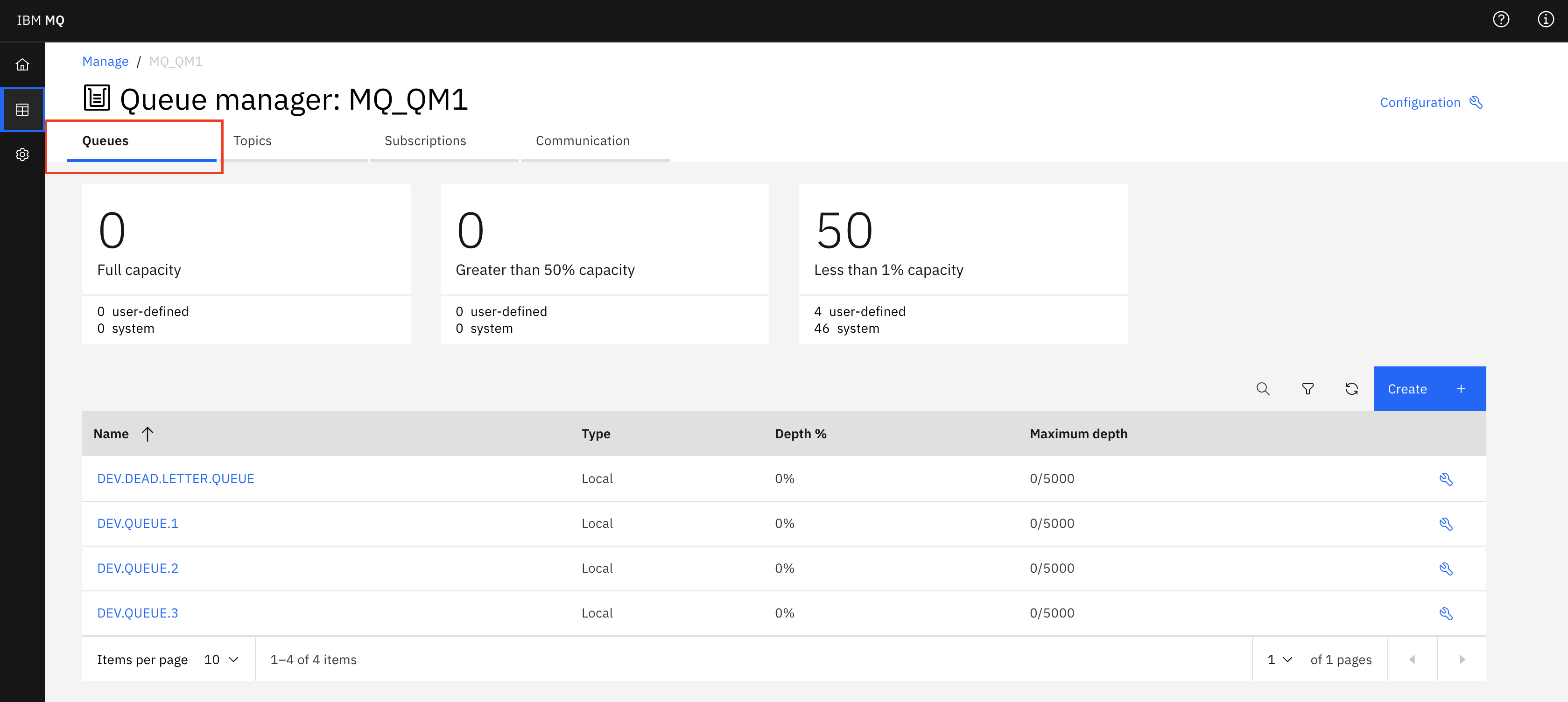
- Click the Create + button.
- Select a queue type of Local.
- Type in 'DEV.TEST.1'.Important: The name can contain up to 48 characters. Valid characters are letters, numbers, and the period, forward slash, underscore and percent symbols. The queue name needs to be unique within the queue manager.
- Click Create.
You will see a success message, and your new queue now appears in the list.
Put a message onto the test queue
-
Click queue 'DEV.TEST.1'.
-
Click the Create + button.
-
Under Application data enter a message
Click Create.
You can see the message is now on the queue.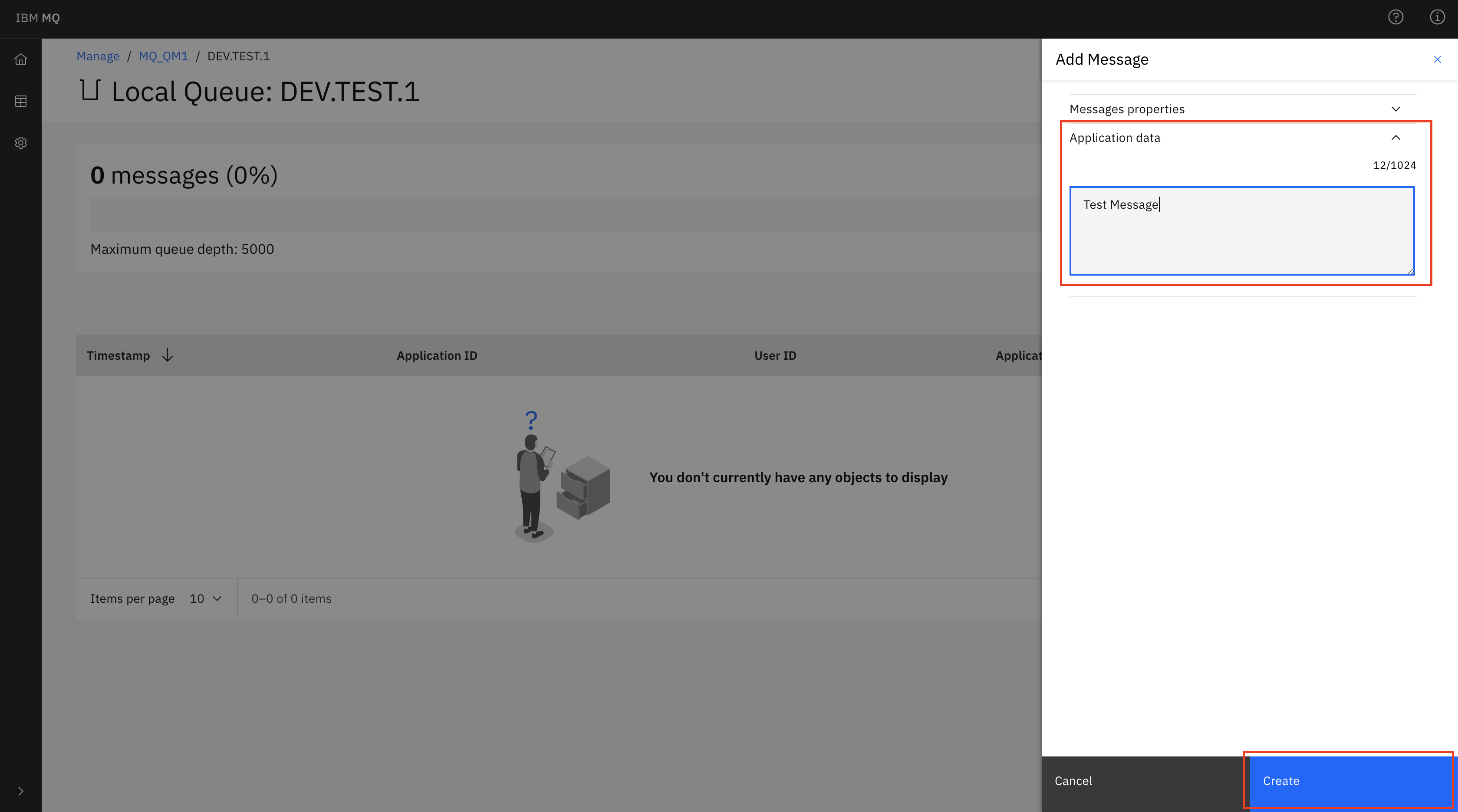
Browse a message on the test queue
- Click on the message in the table. You can see the details of the message.
- Expand Application data to view the message text.
Delete the test queue
- Ensure the Queues tab is selected.
- Click on queue 'DEV.TEST.1'.
- Click on the 3 dots button, then on Clear messages.
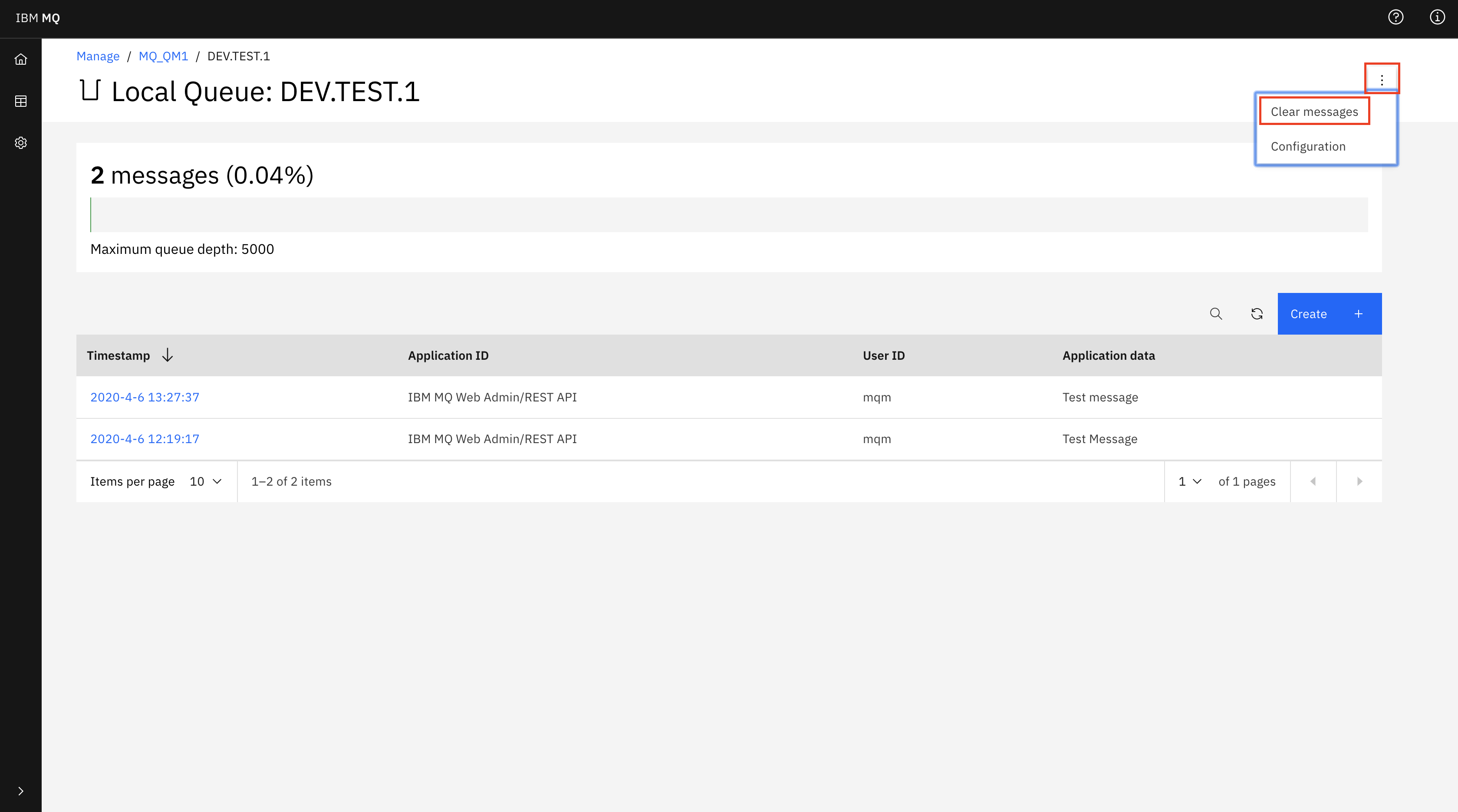
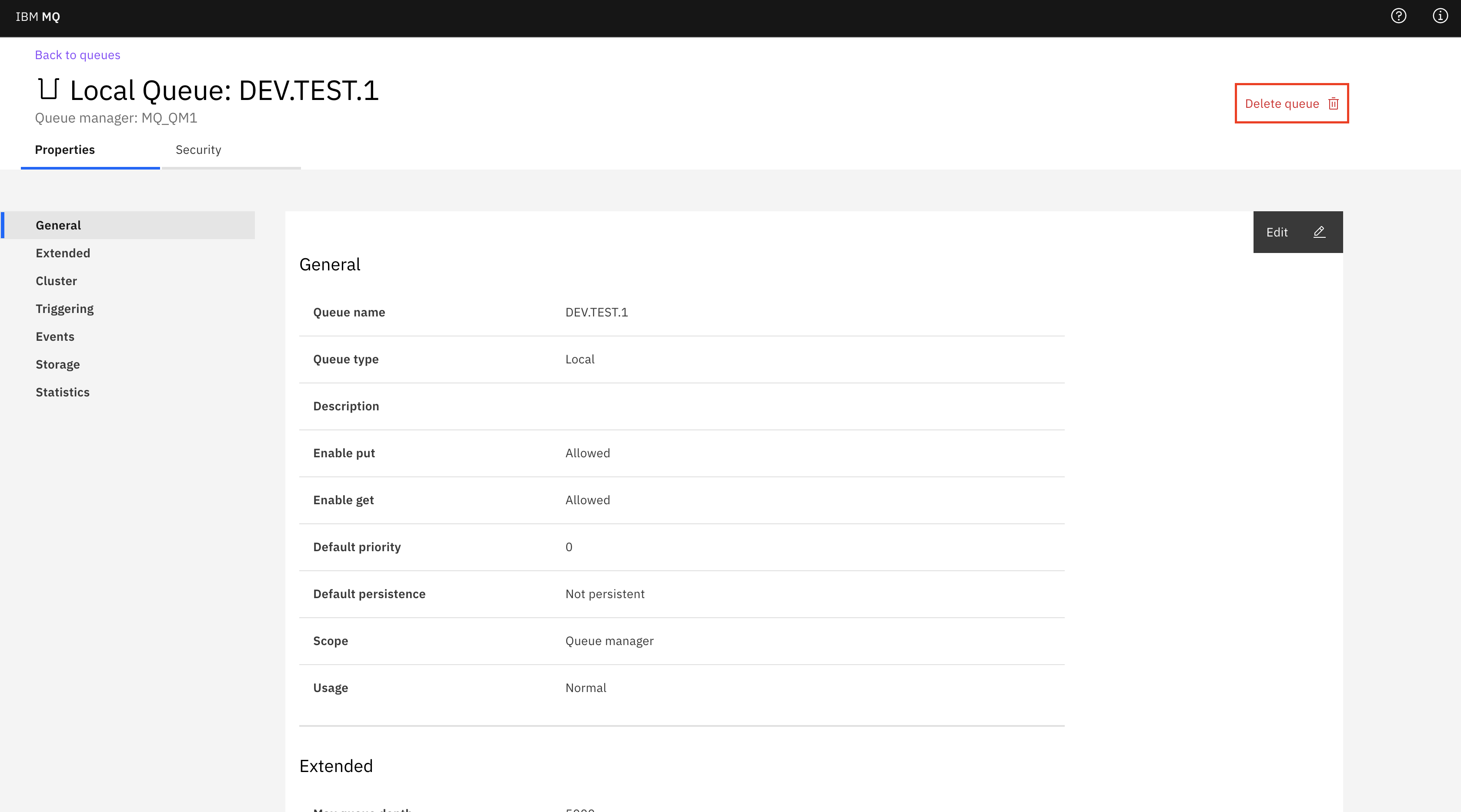
- Click on the 3 dots button, then on Configuration.
- Click Delete Queue.You are returned to the Queues tab. You can see that the test queue has been removed from the list of queues.
Conclusion
You have successfully:
- Connected to a queue manager using the IBM MQ Web Console and created a new test queue.
- Put a test message onto the test queue and browsed the test message.
- Cleared and deleted the test queue to clean up.
Next steps
See Administration using the IBM MQ Console in the main IBM MQ documentation for more information on what you can do with the IBM MQ Web Console.