Projects
Projects overview
A project is a collaborative workspace for managing Control Hub objects, including environments, deployments, engines, connections, pipelines, and jobs. Each project is an isolated workspace that allows teams to work independently while your organization maintains centralized control.
Use projects to organize work by team or by environment, such as development, test, and production.
When projects are enabled for your organization, a user with the Organization Administrator role can administer projects, including creating projects, adding users and groups as project members, and assigning project-level roles. Project-level roles are independent of organization-level roles.
After you are added as a project member, you can work with the objects in that project. You can access only the objects that belong to the project you are working in.
Prerequisites
Before you use projects, ensure that the following prerequisites are met based on your IBM StreamSets offering:
- IBM StreamSets as a Service
- Your organization must have an account agreement that includes project usage. For details about your agreement, contact your IBM StreamSets account team.
- IBM StreamSets as client-managed software
- A system administrator must enable projects for your organization. For instructions, see Enabling projects for an organization.
Restrictions
Most Control Hub objects can be managed within projects. However, the following objects can only be managed at the organization level:
- Alerts
- Topologies
- Sequences
- Operations dashboard
- Topologies dashboard
- Reports
Administering projects
As a user with the Organization Administrator role, you can administer projects for the entire organization.
Administering projects includes the following tasks:
Creating projects
An organization administrator can create a project and add the appropriate members to that project.
- Click the Add Project icon
 .
.
Assigning project-level roles
Before members can work within a project, an organization administrator must assign project-level roles to the users or groups. By default, users and groups are not assigned any project-level roles.
You can assign roles at the following levels:
- Organization-level roles determine the tasks that users can complete for the organization.
- Project-level roles determine the tasks that users can complete across all projects that a user is a member of.
You can use the different role levels and groups to manage user access in multiple ways. For example, you can accomplish any of the following based on how you configure roles and groups:
- Allow users to work within the organization and within projects
- Assign both organization-level roles and project-level roles so that users can manage objects at the organization level and also at the project level. You might consider assigning different roles at each level, such that users can complete more tasks at the project level rather than at the organization level.
- Allow users to work within projects only
- Remove organization-level roles and assign only project-level roles.
- Assign users different roles for different projects
- Create groups of users, assign each group a different set of project-level roles, and then add each group as a member of a different project.
- Click , or click in the Control Hub navigation panel.
- Click the row listing the user or group to display its details.
- Click Project Level Roles.
- Select the roles to assign, and then click Save.
Deleting a project
An organization administrator can delete a project. However, use caution when deleting a project. Deleting a project also deletes all objects within the project. To retain fragments, pipelines, and jobs, export and import the objects into another project or into the organization.
- Click in the Control Hub navigation panel.
-
Select projects in the list, and then click the Delete icon
 .
.
- In the confirmation dialog box, click Delete to confirm that you want to delete the projects and all objects within the projects.
Working with projects
After you are added as a member to a project, you can work within that project. Depending on your roles, you might also be able to manage objects at the organization level.
Working with projects includes the following tasks:
- Switching between projects
- When you have access to multiple projects, you can switch between the projects.
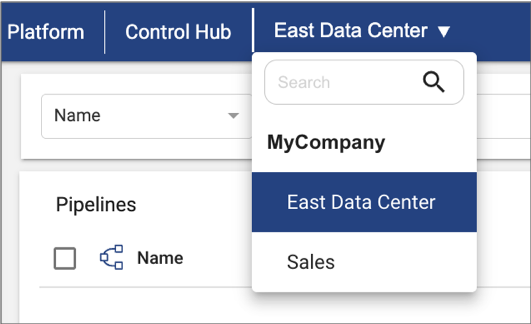
- Managing objects within a project
- You manage objects within a project just as you manage objects within the organization. However, some objects can only be managed at the organization level. For more information, see Restrictions.
- Sharing objects in a project
- You share objects within a project in the same way that you share objects at the organization level. For more information, see Sharing objects.
Troubleshooting projects
Use the following tips for help with project management:
- The organization menu in the toolbar does not list one of my projects.
- You must be added as a member of a project before you can work within that project. Verify that your organization administrator has added you as a member of the project.
- The navigation panel does not display the pages I need to complete my project tasks.
- Before you can work within a project, you must be assigned project-level roles. Verify that your organization administrator has assigned the appropriate project-level roles to your user account or group.
- I cannot manage topologies when working in my project.
- Most Control Hub objects can be managed within projects. However, some objects such as topologies can only be managed at the organization level. For more information, see Restrictions.