Learn how to add a custom search field by using the customization by
configuration technique. In this lesson, you modify a
search_fields.json file that defines the fields to display in search
pages.
For this scenario, you want to add a search field in the
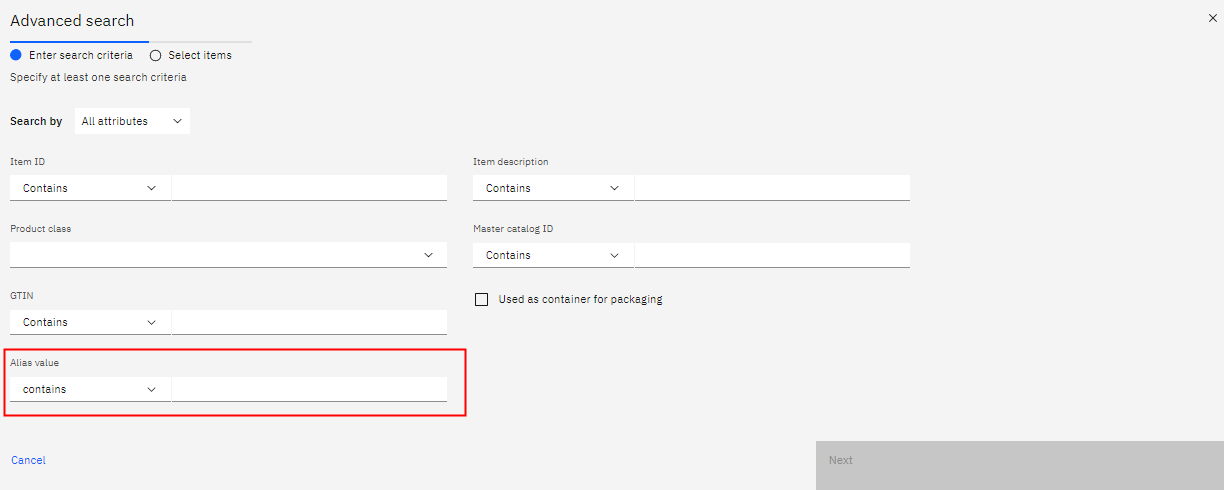
"Advanced search"
modal. The "Advanced search" modal is on the
Add lines step of creating an
order to search for an Item. The OMS API,
getCompleteItemList, is called to
search for Items. We want to add a search criteria for
AliasValue (
<ItemAliasList><ItemAlias AliasValue=""/></ItemAliasList>)
Procedure
-
First, you need to find the JSON key that is associated with the modal where you want to add
the custom search field.
-
Since the page needs to be customized is part of the buc-app-order module,
open the
buc-app-order/packages/create-order/src-custom/assets/buc-app-order/search_fields.json
file.
-
Find a label in the JSON that matches the label in the modal.
For example, the modal has a label "Master catalog ID". Search for the term
master. The file contains two occurrences. When you look at all the other
fields in the same parent object, you can find that the key for the "Advanced search" modal is the
add-order key.
-
Create a search_fields.json file inside the
packages/create-order/src-custom/assets/custom folder.
-
By using the add-order key, paste the following code to add a custom
ItemAlias field to represent the item's UPC code, EAN, or manufacturer code.
For more information about how to define search fields in the JSON, see Adding search fields to existing search pages.
{
"add-order": {
    "fields": [
        {
        "label": "Alias value",
        "type": "dropdownQuery",
        "target": "add-order",
        "request": "ItemAliasList.ItemAlias.AliasValue",
        "operator": "LIKE",
        "fetch": {
          "api": "getQueryTypeList",
          "type": "oms",
          "parameters": {},
          "response": {
            "listAttribute": "StringQueryTypes.QueryType",
            "map": {
              "id": "QueryType",
              "label": "QueryTypeDesc"
            }
          }
        }
    }
    ]
}
}
-
You successfully added a search field to the Advanced search modal. Now test the changes.
-
If you are still logged in to Order Hub, reload the frame. Otherwise, log in to
Order Hub.
-
Click .
-
Click Create order.
-
Complete details and click Next to get to the Add lines page.
-
From the Add lines page, click Advanced
search.
You can now see the field
Alias value.
-
Open the Console network tab in your browser to verify that the API request payload includes
the new Alias input.
-
Add a value in the Alias value field and run a search.
Ensure that you see
ItemAlias in the payload.