Setting up AIX or Linux to use a management console to connect to service and support
Learn how to create a service connection to send service and support information from AIX® or Linux® logical partitions and servers by using a management console.
About this task
Step 1. Before you begin
About this task
This procedure contains the complete list of steps that are needed to set up connectivity to service and support. Some of these steps might already have been completed during the initial server setup. If so, you can use this procedure to verify that the steps were completed correctly.
In this information, an Internet connection is defined as access to the Internet from a logical partition, server, or a management console by direct or indirect access. Indirect means that you are behind a network address translation (NAT) firewall. Direct means that you have a globally routable address without an intervening firewall, which would block the ports that are needed for communication to service and support.
Step 2. Decide on your connectivity method
About this task
You can use different types of network connections to connect your HMC to managed systems. For more information about how to configure the HMC to connect to a network, see Configuring the HMC. For more information about using the HMC on a network, see HMC network connections.
Step 3. Ensure that your physical networking is set up correctly
About this task
The underlying framework of your service environment is networking. The following networking connections are required for you to take advantage of electronic services, such as reporting hardware problems and other server information and downloading updates:
- Between the service processor and the management console
- Between the management console and the server (AIX or Linux)
- Between your site and service and support
Procedure
-
Verify the physical connection between the service processor and the management console.
The service processor is part of your platform hardware, and it monitors hardware attributes and conditions on your server. The service processor is controlled by server firmware, and it does not require an operating system to perform its tasks. The connection to the service processor is recommended for all servers, whether or not you have logical partitions. This connection is represented in the following figure.
Figure 1. The Ethernet connection between your management console and the service processor on your server 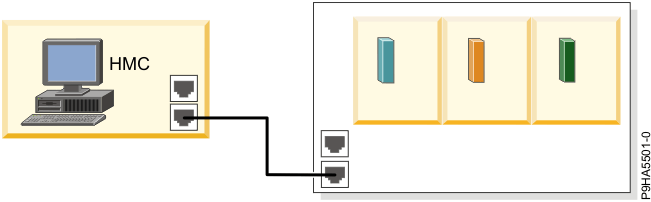
-
Verify the physical connection between the management console and
the server (AIX or Linux).
This connection allows your server to communicate with your management console.
How you set up this connection depends on your configuration:- If your server is in its manufacturing default configuration, you will make this connection when you set up your server.
- If your server has multiple logical partitions, you must ensure that your management console can communicate with each logical partition and that the logical partitions can communicate with each other. You will set up these connections as you create your logical partitions.
You can use either of the following methods:Note: Both of the following networking methods require basic TCP/IP configuration on your logical partitions. For instructions about how to configure TCP/IP, see your operating system documentation.- Have an Ethernet adapter for one logical partition, most likely your service partition, and then
use virtual Ethernet to enable the logical partitions to communicate with each other and with the
management console. This option is the preferred option because it
requires that you have only one physical adapter in the system. The following figure shows this configuration.
Figure 2. The Virtual Ethernet connection between your logical partitions and the physical Ethernet connection between your service partition and the HMC 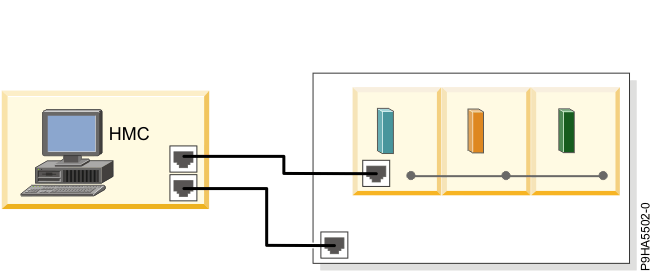
- Have a LAN adapter for each logical partition, and then have a physical connection between each
logical partition and the management console. This option requires that
you have a router and a physical LAN adapter for each logical partition. The following figure shows
this configuration.
Figure 3. The physical Ethernet connections between your logical partitions and your management console through a router 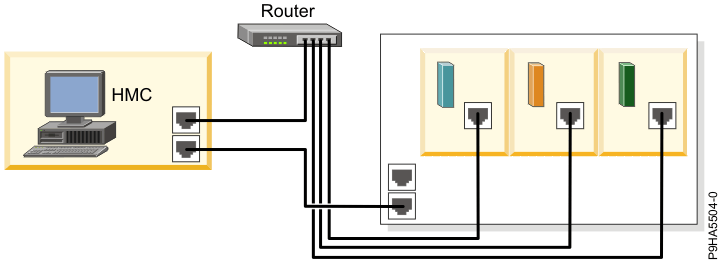
- Verify the physical connection from your
site to service and support. This connection enables you to report hardware problems and other server information to service and support. It also enables you to install updates. This connection is represented in the following illustration:
Figure 4. Connection between service and support and a company that has a server and a management console. 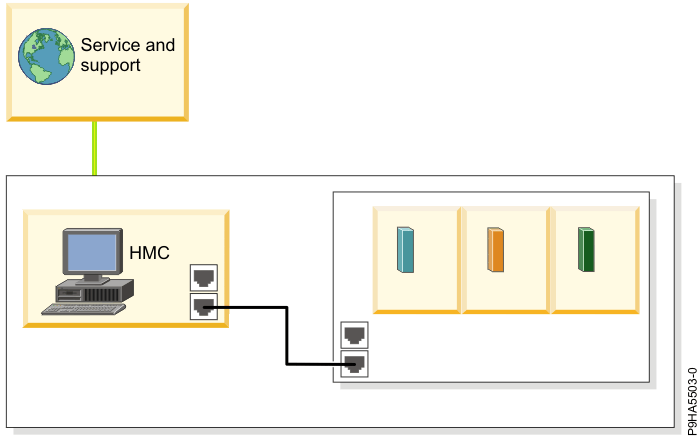
Step 4. Obtain or verify an IBM ID
About this task
You will need an IBM® ID to view information that has been reported to IBM through Electronic Service Agent.
Procedure
Step 5. Verify the HMC service settings
About this task
Procedure
-
Access the Guided Setup wizard by using the HMC
interface. Complete the following steps:
-
In the navigation area, click the HMC Management icon
 , and then click Console Settings.
- In the content pane, click Launch Guided Setup Wizard.
The Guided Setup wizard guides you through the tasks that are required to set up your HMC, including the tasks that are required to set up your service environment. -
In the navigation area, click the HMC Management icon
-
At the end of the Guided Setup wizard, launch the Electronic Service Agent Setup wizard. Ensure that the following service tasks are completed correctly:
- Specify customer contact information for service-related activities:
- Contact name
- Company name
- Administrator name
- Email address
- Telephone numbers
- Information regarding the location of the HMC
- Customer Number
- Configure connectivity for service-related activities:
- Internet: The SSL option must be configured manually:Complete the following steps:
- In the navigation area, click the Serviceability icon
 , and then click Service Management.
 - In the content pane, under Connectivity section, click Manage Outbound Connectivity.
- In the Local Console Configuration area, click Configure.
- Click the Internet tab.
- In the navigation area, click the Serviceability icon
- Internet: The SSL option must be configured manually:
- Configure the network settings.
- For direct or indirect Internet:
- HMC host name
- Domain name
- Description of HMC
- For direct or indirect Internet:
- Authorize two users for Electronic Service
Agent by entering the ID (the email address that you registered with the
My IBM Profile
website.Note: You will be able to authorize more users later.
- Add email addresses for those you want to be notified when problem events occur.
- Specify customer contact information for service-related activities:
- Test the connection. Complete the following steps:
- In the navigation area, click the Serviceability icon , and then click Service Management.
- In the content pane, under Connectivity section, click Manage Outbound Connectivity.
- In the navigation area, click the Serviceability icon
- Ensure that your country or region is
listed. Complete the following steps:
- In the navigation area, click the Serviceability icon , and then click Service Management.
- In the content pane, under Connectivity section, click Manage Customer Information.
- In the navigation area, click the Serviceability icon
Step 6. Set up and configure your logical partitions
About this task
For details, see Logical partitioning.
Step 7. Install the operating systems on your server or logical partitions
About this task
For details, see Installing operating systems for POWER9 processor- based systems.
Step 8. Configure your TCP/IP network
About this task
For instructions, see the operating system documentation.
Step 9. Activate TCP/IP on your server or logical partitions
About this task
TCP/IP starts automatically if the network adapter is recognized and can communicate with the network when the AIX or Linux operating system is started.
Step 10. Set up AIX or Linux to connect to service and support
About this task
If you have a management console, you do not need to obtain and configure Electronic Service Agent for AIX or Linux. AIX or Linux inventory and hardware-problem information (or report) are sent through the management console. However, you might want to set up Electronic Service Agent on the AIX or Linux operating system to contact the software service organization.
For information about Electronic Service Agent in the AIX environment, see IBM Electronic Service Agent.
For information about Electronic Service Agent in the Linux environment, see IBM Electronic Service Agent.
Step 11. Configure the service processor
About this task
You might use this type of service connection if your server is not available because the service processor does not require an operating system to perform its tasks.
To set up your service processor to connect to service and support, you need to attach a modem to the system port on your server. In addition, you need to use the Advanced System Management Interface (ASMI) menus to perform several configuration steps.
Procedure
Step 12. Test the connection to service and support
About this task
- In the navigation area, click the Serviceability icon , and then click Service Management.
- In the content pane, under Serviceability section, click Create Serviceable Event.
- Click Test problem reporting.
- Click Request Service. A message is displayed when the service request is sent.
Step 13. View the server information that was reported
About this task
You can use the Internet to view details of the system you have enabled, and see the data that is collected by Electronic Service Agent. To use the advanced features and receive the full benefits of Electronic Service Agent, you must enter an IBM Registration ID (IBM ID). The first IBM ID entered will have Administrator authority and is able to authorize additional users on the website. The second IBM ID is available as a backup for the Administrator.