Troubleshooting
Problem
This document describes how to use the IBM Support Assistant V4 Workbench and Portable Collector to collect data for Hang Problem
Resolving The Problem
IBM Support Assistant (ISA) data collectors gather the files that you need to provide to IBM Support. You can collect the data in one of two ways--using IBM Support Assistant V4 Workbench or using IBM Support Assistant Portable Collector. This document describes both methods.
- Collecting the data using IBM Support Assistant V4 Workbench
- Collecting the data using ISA Portable Collector
- Get/Create Portable Collector
Files and scripts collected for Hang problems
InterchangeSystem.log
InterchangeSystem.cfg
ics_manager.log
ics_manager.log.old
Archive Logs (latest 5 files) - When Circular Logging is setup.
MQ logs
Javacore(latest 5 files)
Repository File from the running instance of the server
ORB (orbserver, orbtools, orbtrc (latest 5 files) )
Collecting the data using IBM Support Assistant V4 Workbench
Prerequisites for this collection:
If you are running the data collection on a local workstation, you need IBM Support Assistant V4 Workbench only. If you are collecting data on remote systems, you must have an agent manager and agents running on those remote systems in addition to the Workbench, which is installed on the local workstation.
- Launch the Workbench.The welcome screen gives you the options of launching the following activity based flow:
- Find Information - Search for information
- Analyze Problem - Do data collection, troubleshooting etc.
- Manage Service Request - Manage the PMRs.
- Launch the Analyze Problem activity
- Select / Create case for your problem - A case depicts the case for your problem.
- Select the system on which you want to collect the data. If the Agent Manager is not configured, the system defaults to My Computer on the local workstation for collection. If the Agent Manager is configured, then you see a list of system that are running the Agents managed by the Agent Manager, as shown in the following screen capture:

To connect to any of the remote systems, you must provide the ID and password of a valid user with root acces on that workstation.

After you have connected, you will see all the installed plug-ins in the remote workstation beneath the Select a product box
- . Expand WebSphere InterChange Server 4.3 in the list of installed plug-ins on the remote system in Select a product (or System Collector) and its problem and select Hang Problem from the four problem scenarios, as shown in the following screen capture:

- Click Add on the right hand side to add the collection to the queue for collection.
- In the Collector Queue pane, click Collect All to start the collector: The entry in the Status column changes to Running.
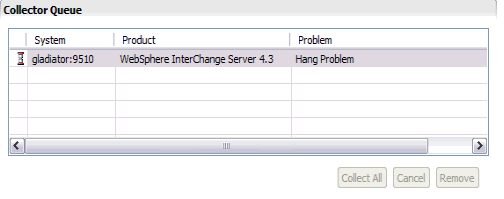
- To view the collection status, click the Current Status tab.

- You can also queue up the collections for other problem scenarios at the same time.
- When you are prompted with a link to a Hang MustGather document for the hang problem. Click OK

- The collector then prompts you to enter the location and name for the ZIP file for collected files:

- The collector checks whether the CROSSWORLDS environmental variable is set. This variable points to the WebSphere® InterChange Server installation directory (if it is set). If the variable is not set, you are prompted to enter the value. You can either enter the value manually, or you can browse through the system to collect and input the value.

- The collector checks for the presence of the InterchangeSystem.log file in
. If it does not find it, you are prompted to enter the file location. - If ORB tracings are set, the collector prompts you to enter the location for ORB trace files (orbserver, orbtools, orbtrc files).

- You are prompted to enter the value for MQ installation directory. You can either enter the value manually, or you can browse through the system to collect and input the value

- The collector prompts your with a (Yes/No) option to collect the repository. The input determines whether to collect the repository deployed in the running instance of the WebSphere Interchange Server,this tasks executes the repos_copy command in the backend.

If the option Yes is selected, You are prompted to enter the values for the WebSphere Interchange Server Name, User Name , Password and a name for the repository file
Note: If RBAC (Role Based Access Control) is turned on the Interchange Server then you can input the values (guest/guest) for username and password.

If a file with the given name exists then it will prompt you to either overwrite or use the existing file.

If the option Yes is selected then the existing file is overwritten. If the option No is selected then it prompts you for a new file name.
When the collector finishes, the ZIP file is attached to the case. The file can be accessed using the CASE MANAGER or can be accessed directly from the location you specified in step 10.
Note: All of the values you are prompted for during the collection are saved. If you follow this procedure for the same scenario again, the most recent values that you entered will appear in the prompts. However, the values are saved only if they are correct and valid. - If ORB tracings are set, the collector prompts you to enter the location for ORB trace files (orbserver, orbtools, orbtrc files).
- Transfer the ZIP file obtained by downloading the Portable Collector from Support site or create from Workbench, to the system where you want the collection to occur
- Extract the files using the command jar xvf or unzip.
- Follow the instructions in the readme/README.txt file to complete the installation of the portable collector. The instructions direct you to set the execute flag of the scripts with the command: chmod -R 755 `find . -name '*.sh'`
- Set the JAVA_HOME variable to a valid Java™ version (export JAVA_HOME=/opt/IBM/WebSphereICS/jre on UNIX-based systems.)
- Start the collector from a console as startcollector.bat (Windows®) or ./startcollector.sh (UNIX-based systems).
With IBM Support Assistant 4.0.1 release the option ./startcollector.sh -record file_name for portable collector records all the inputs provided by you and stores it in the filename provided. Next time when you do a collection for the same scenario as recorded you can just automate the collection as ./startcollector.sh <file_name optionally you can change the name of the PMR.zip file by editing the input recorded in the file_name. Examples:
bash-2.05$ ./startcollector.sh -record inputHang.txt
bash-2.05$ ./startcollector.sh <inputHang.txt
Note: The -record option stores all the input provided during collection as plain text in the file specified hence username and password entered for the InterChange Server during the collection of repository are also stored as plain text.
- will be prompted for the following information:
- InterChange Server root directory
- Directory location of log file is not present in the default location of
- Directory location of ORB trace files if not present in the default location of
/bin - Repository Collection request (yes/no). If yes, you are prompted to enter the valus of a running Interchange Server, user , password and output file
- Directory location of ORB trace files if not present in the default location of
bash-2.05$ chmod -R 755 `find . -name '*.sh'`
bash-2.05$ export JAVA_HOME=/opt/IBM/WebSphereICS/jre
bash-2.05$ ./startcollector.sh
AUTOPD_HOME = .
JAVA_HOME = /opt/IBM/WebSphereICS/jre
Enter the Output Filename/Path (must be a local path, and have a .zip file extension):
(example: <pmrNumber>.<branchNumber>.<countryCode>.<desc>.zip):
3456.345.567.hang.zip
Enter yes to create the collection zip file at /export/home/db2i81/portableCollectornew/3456.345.567.hang.zip
yes
Enter the number or title of the IBM Support Assistant Lite collection option you want or enter RECOVER to recover from a previous IBM Support Assistant Lite tool collection
or enter QUIT to end the tool
1: General Problem
2: Hang Problem
3: Out of Memory Problem
4: ORB Problemv 2
Do you want to append to the existing archive or create a new file?
1:Append
2:New File
2
**************************************************
* Enter the following details required for collection of the components
* WebSphere Interchange Server root directory:
**************************************************
OPTIONS FOR COMPLETING THE INPUT DIALOG
1: OK
2: Cancel
1
**************************************************
* Input Required
* Input the path for the orbtools/orbserver/orbtrc/
/opt/IBM/WebSphereICS/logs/
**************************************************
OPTIONS FOR COMPLETING THE INPUT DIALOG
1: OK
2: Cancel
1
**************************************************
* Input_required
* Enter the MQ_INSTALL_HOME path:
**************************************************
OPTIONS FOR COMPLETING THE INPUT DIALOG
1: OK
2: Cancel
1
**************************************************
* Input Required
* Would you like to collect the repository files? For Repository Collection a running instance of InterChange server is required:
* 1: yes
* 2: no
1
**************************************************
OPTIONS FOR COMPLETING THE INPUT DIALOG
1: OK
2: Cancel
1
**************************************************
* InputInterChange Server Information
* WebSphere Interchange Server name
* WebSphere Interchange Server username ( Enter user: guest pwd: guest if RBAC off )<guest>:
* WebSphere Interchange Server password:
* ######
* Enter the output file name for the repository collection with .jar/.zip extension
repo.jar
**************************************************
OPTIONS FOR COMPLETING THE INPUT DIALOG
1: OK
2: Cancel
1
**************************************************
* Input Required
* Repository file with the specified name exists. Would you like to overwrite the existing repository file?:
* 1: yes
* 2: no
2
**************************************************
OPTIONS FOR COMPLETING THE INPUT DIALOG
1: OK
2: Cancel
1
**************************************************
* Input Required
* Enter the output file name for the repository collection with .jar/.zip extension
repository.jar
**************************************************
OPTIONS FOR COMPLETING THE INPUT DIALOG
1: OK
2: Cancel
1
This data collection has been completed.
The log files for the collection are in the log directory where the Portable Collector was extracted.
Note: Note: All of the values you are prompted for during the collection are saved. If you follow this procedure for the same scenario again, the most recent values that you entered will appear in the prompts. However, the values are saved only if they are correct and valid. In Portable Collector, the saved values are enclosed within angle brackets ( >), for example, * WebSphere Interchange Server root directory</opt/IBM/WebSphereICS/>. If saved values are displayed, when you are prompted, click Enter to proceed with the collection.
Get/Create Portable Collector
Portable Collector provides you with a simple and compact way to collect data. You can get a Portable Collector from IBM Software Support, or you can create one using IBM Support Assistant Workbench.
To create a Portable Collector from the Workbench:
Launch the Workbench, launch the Analyze Problem activity.
Click the Create Portable Collector option:

In theCreate Portable Collector box select the product plug-in and location, and click OK.

[{"Product":{"code":"SSBTEG","label":"WebSphere InterChange Server"},"Business Unit":{"code":"BU053","label":"Cloud & Data Platform"},"Component":"Other","Platform":[{"code":"PF002","label":"AIX"},{"code":"PF016","label":"Linux"},{"code":"PF027","label":"Solaris"},{"code":"PF033","label":"Windows"}],"Version":"4.3","Edition":"All Editions","Line of Business":{"code":"LOB45","label":"Automation"}}]
Was this topic helpful?
Document Information
Modified date:
23 June 2018
UID
swg21402614