Question & Answer
Question
How do you install, configure, and use Rational Team Concert with Rational Systems Developer, version 7.0.5.2 and Rational Software Modeler, version 7.0.5.2?
Answer
Installation
Familiarity with tutorials and articles on jazz.net, especially with regard to configuring teams and team workspaces is assumed.
The following instructions explain how to install Rational Team Concert Express RC3 with Rational Systems Developer , Version 7.0.5.2, as an example. The instructions also apply to Rational Team Concert 1.0.
You install Rational Team Concert in three packages: the first package as a compressed file, and the other two by using IBM Installation Manager. To start the installation, download the compressed file for Rational Team Concert Express and extract it to a location on your hard drive. In this example, c:\jazz is the installation location for all versions of Rational Team Concert.
Explore the hierarchy in the following figure to find the eight Eclipse extension folders:

Note that, in the example in the previous figure, you can easily update Rational Team Concert by extracting the compressed update file to the same location. This figure shows the M5 and RC3 builds co-existing. The folder for RC3 was renamed from its build name to RTC_RC3_complete. The highlighted eclipse folder is the Eclipse extension site for the build component of the Rational Team Concert client.
Install Rational Systems Developer by using IBM Installation Manager, and then open Rational Systems Developer. You can now configure Rational Systems Developer to pick up the Eclipse extensions from the previously shown folders by following the procedures in TN0003. These procedures show how to add each extension location without restarting the Eclipse workbench. After you add the last extension location, you restart the Eclipse workbench and Rational Team Concert is available in Rational Systems Developer.
For convenience, when you run Rational Team Concert Express on the Jazz server, you can create shortcuts on your desktop to start and stop the Eclipse server. These shortcuts point to scripts that are located in the hierarchy that is shown above. In each shortcut properties dialog box, add one of these paths and substitute the appropriate installation location:
C:\JAZZ\RTC_RC3_complete\server\server.startup.bat
C:\JAZZ\RTC_RC3_complete\server\server.shutdown.bat
Configuring Rational Team Concert and the Jazz server
- To configure a Rational Team Concert working environment, start the Jazz server and then point a browser to the Jazz Dashboard, which is located here: https://localhost:9443/jazz/admin
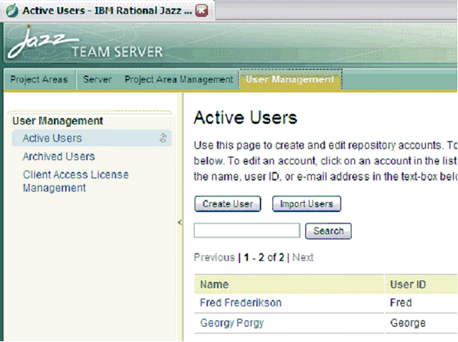
- Log in to the administrator account by using ADMIN as the password, and then add some users. The following figure shows examples of user accounts, which users log in to from one or more instances of Rational Systems Developer:
- After you add users, create a team project area on the Project Area Management tab.
- To configure the project, click the newly created project area. The following figure shows the interface where you create and configure project areas:

- You can add a process for the project, add some team members, and add administrators, as in the following figure:

Note: Several tutorials on the jazz.net Web site explain how to set up, configure, and test team development scenarios in Rational Team Concert on Rational Systems Developer. This example skips many of the collaboration features of Rational Team Concert and Jazz.
Configuring a user workspace
After you create users in the Jazz database, and a project to which they belong, you configure a workspace in Rational Systems Developer for each user. The following information explains how to configure a workspace for a user named Fred.
- Open the Jazz Administration perspective.

This perspective contains many views, one of which is the Team Artifacts view that is shown in the following figure:

This view typically displays streams, repository workspaces, and other items, but because this workspace is not yet connected to a Jazz server, it displays the options for making such a connection. The Accept Team Invitation option is the most common way to connect to a project; however, this option requires a complete administrative environment with a fully functioning e-mail setup. In this example, you connect to the project area that you created in the Jazz Dashboard.
- Click Connect to Project Area.
- Click Create a new repository connection.

- Specify the details for the repository connection and click Next. The repository connection requires information from the site administrator in a workgroup situation, but for a local installation, you can set basic values as in the following figure:

Because you specified to connect to a project area, you are prompted to select the project area to connect to.
- Select the project area that you created.

As the following figure illustrates, the Team Artifacts view now displays more items such as the default stream and baseline:

The Team Artifacts view also shows that a repository workspace does not yet exist for this user. A repository workspace is a location on the Jazz server where artifacts are stored while work is in progress. You can configure a repository workspace to flow into a stream, which makes work immediately visible by delivering change sets to the stream.
- To create a repository workspace, right-click My Repository Workspaces; then click New Repository Workspace.

- In the New Repository Workspace dialog box, click Flow with a stream and select a default stream:

- Click Finish.
Working with models in Rational Team Concert
When you open the Modeling perspective, the workspace is empty.
- To test a simple scenario in Rational Team Concert, create a simple model.

- To share the modeling project in Rational Team Concert, right-click the project; then click Team > Share Project.

- Specify to use Jazz source control and then select the default component on the default stream. The project is now in your repository workspace. The project begins as an outgoing change set called Share projects that you can deliver to make visible to other users.

If you configure another workspace for the user named Fred, he might see this incoming pending change:

Automated merging
To demonstrate automated merging, you can change an element to cause a file conflict, but not a content conflict. For example, one user might change the line color of an element and another user might change the fill color. The result of the automated merge should be a diagram element that contains both changes.
In this example, Fred changes the line color for an element to black and delivers the change.

George changes the fill color for the same element to yellow.

However, George cannot deliver the change because an incoming conflict exists, which is shown in the pending changes view:

To resolve this type of conflict, it is easiest to accept the incoming change and then resolve the conflict automatically, if possible. This operation should resolve successfully and the UML models should be safely merged. If the conflict cannot be merged automatically, an error occurs and a visual merge is required.

Rational Team Concert reminds you to check in any changes.

After you check in the changes, and the incoming changes are accepted, Rational Team Concert becomes aware of the conflict and offers to resolve it automatically. Click Auto-Resolve to resolve the conflict automatically:

The conflicts are merged automatically and the element now has black lines and a yellow fill color.

Considerations for modeling with Rational Team Concert
Suspending and resuming a visual merge session
As the tutorials on jazz.net show, you can suspend a change set when a conflict occurs so that you can accept an incoming change without a conflict. Later, when you resume the change set, the conflict occurs again and you must resolve it. If the auto-resolve feature does not work because of a real content conflict, you must resolve the conflict visually in the compare editor. In this scenario, it is important to note that your changes are no longer the local changes; they are the proposed, or incoming, changes. Your changes are displayed in the right contributor pane and the changes you previously accepted are displayed in the left pane.
Rational Team Concert 1.0 does not support the full-context merge function
When you manage fragmented models in Rational Team Concert, note that the full-context merge function is not available; therefore, you must manage each fragment as a separate file. This situation makes merges very quick, but introduces risk because you resolve conflicts that span multiple fragments in separate merge sessions. In this situation, the integrity-protection features of the compare functions are not available to protect UML models from corruption and data loss. Therefore, you must be careful to avoid generating content-level conflicts.
You can avoid such conflicts by refactoring physically when no parallel versions are checked out. This action prevents common issues that occur when you have to accept one change over another. Strong ownership makes a difference in all scenarios, but can really affect fragmentation. Team members who work within a limited scope of files can avoid interfering with other team members, which can eliminate many conflicts before they occur.
Summary
Rational Team Concert integrates well with the Rational UML modeling products, and the tutorials on jazz.net that use Java scenarios or that show Java compare sessions also apply to UML models.
Was this topic helpful?
Document Information
Modified date:
16 June 2018
UID
swg21307652