Question & Answer
Question
How do I use Client Certificates with IBM i Access Client Solutions
Cause
The KeyManager for IBM i Access Client Solutions does not provide an option to add Client Certificates to the Key store on the pc.
Answer
When you create a Client Certificate (User) in Digital Certificate Manager (DCM) and install it to the browser you will want to create a backup of that Client Certificate and put it in a folder on the PC. If you select the option to create a backup it will have a file extension of p12.

2) Go to TLS/SSL on the left hand side.
Certificate Source: KeyStore File Path
KeyStore File Path: Location of the user certificate (in this case, my desktop)
Certificate Name: Use the Drop Down to select the users certificate
How often to Prompt: Select the desired option (the first time you will need to add the password of the users Certificate set when you created the backup from browser)

3) To verify that the session is using the users Certificate...go to Communication -Security ... on Session and Select Show Client Certificate...This will show the users certificate details.


ie: C:\Users\Public\Public Documents\IBM\ACS_User_Certs
To configure the session you will need to do the following:
1) Go to Communication, Configure and select Protocol: Telnet-TLS/SSL
2) Go to TLS/SSL on the left hand side.
Certificate Source: KeyStore File Path
KeyStore File Path: Location of the user certificate (in this case, my desktop)
Certificate Name: Use the Drop Down to select the users certificate
How often to Prompt: Select the desired option (the first time you will need to add the password of the users Certificate set when you created the backup from browser)
3) To verify that the session is using the users Certificate...go to Communication -Security ... on Session and Select Show Client Certificate...This will show the users certificate details.
NOTE:
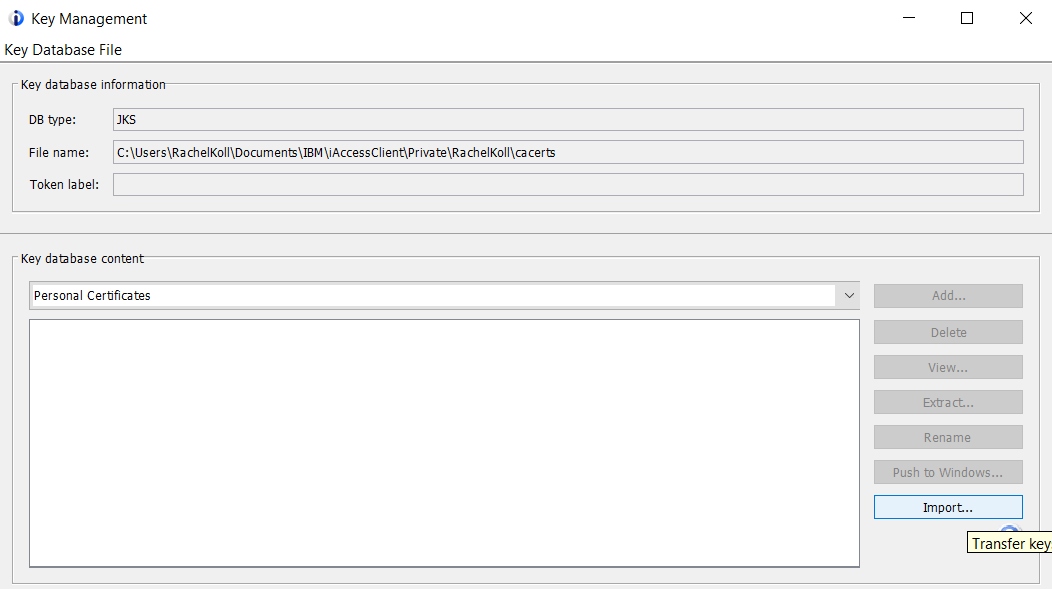
You can now import the client certificate into Access Client Solutions Key Management
1) Go to Tools from the Main User Interface of ACS and select Key Management
2) From the Key Database Content use the drop down arrow to select Personal Certificates
3) Select Import on the Lower Right corner
4) Navigate to where the client certificate is and follow the prompts to import it.
[{"Product":{"code":"SWG60","label":"IBM i"},"Business Unit":{"code":"BU070","label":"IBM Infrastructure"},"Component":"Access Client Solutions","Platform":[{"code":"PF012","label":"IBM i"}],"Version":"Version Independent","Edition":"","Line of Business":{"code":"LOB68","label":"Power HW"}}]
Was this topic helpful?
Document Information
Modified date:
09 December 2024
UID
nas8N1022570