How To
Summary
Uninstalling Windows OS Updates & Applications
Steps
Uninstalling a Windows 10 Update
Finding a Windows 10 Update
Go to Settings
Navigate to Update & Security
Look at Windows Update
Click on View Update History

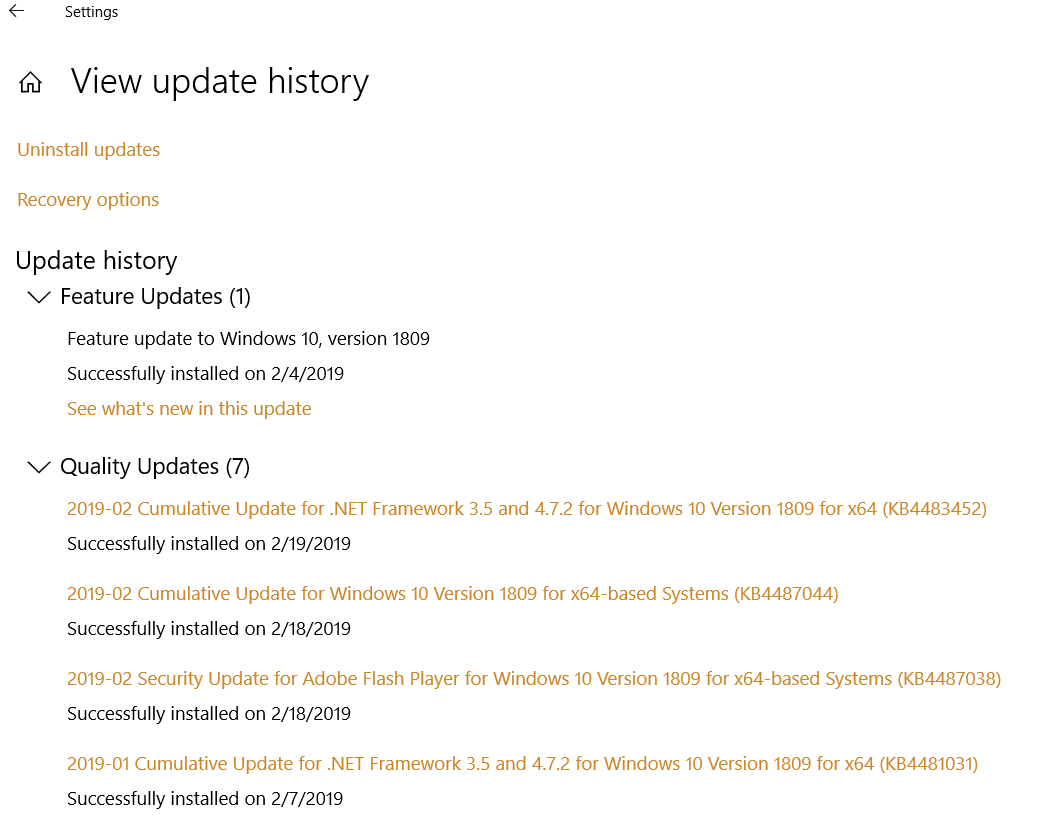
This process requires the KB number so that the software can be removed.
If you want more information, click on the hyperlinks or open a browser and search for the Microsoft Update Catalog
Microsoft Update Catalog
http://www.catalog.update.microsoft.com/home.aspx

Search for the name or KB number
Installed Windows 10 Update information from a command prompt
You can also get the Windows Update install information from a command prompt
Open a Command prompt, Run as Administrator
Type wusa
It will return the following:

Select the KB which is to be removed
Keep this information for a bat file creation
Windows Update Standalone Installer
Windows 10 updates no longer have an uninstall string in the system registry. In order to remove an update you have to use the Windows Update Standalone Installer (https://support.microsoft.com/en-us/help/934307/description-of-the-windows-update-standalone-installer-in-windows)
This application is resident on all Win10 devices
Uninstall Windows 10 Updates Using a Batch File
An example to uninstall multiple updates silently, you can create a batch script (.bat) to run the WUSA commands in the background, by adding /quiet and /norestart option. Change the KB number as needed.
@echo off
wusa /uninstall /kb:3172729 /quiet /norestart
wusa /uninstall /kb:3074686 /quiet /norestart
END
This will run the uninstall without any open windows, and will not prompt for a reboot. After all updates have been removed, you can restart the system manually, or set your computer to reboot automatically by adding the shutdown -r command to the end of the batch file.
Create the appropriate bat file
Upload to MaaS360 Application Catalog
Refer to Maas360 instructions for execution
Distribute and execute
Windows Update Standalone installer parameters

Uninstalling a Windows (win32 MSI) Application
Find the Application you want to remove and the uninstall string
Open the registry Editor from your task bar
Using the registry editor navigate to:
HKEY_LOCAL_MACHINE\SOFTWARE\WOW6432Node\Microsoft\Windows\CurrentVersion\Uninstall
Find the specific application to be removed in the registry.

Double click on the Uninstall string

Copy the Value data
Create a bat file using the Uninstall information
MsiExec.exe /X{2C183CF0-3077-43D0-B001-F93AC5E68942}
Use the msi switches you want/need
Like /qn for quiet (silent)
https://docs.microsoft.com/en-us/windows/desktop/msi/command-line-options
An example of a batch script (.bat) to run the MsiExec
@echo off
MsiExec.exe /X{2C183CF0-3077-43D0-B001-F93AC5E68942}/qn
END
This will run the uninstall without any open windows, and will not prompt for a reboot.
Create the appropriate bat file
Upload to MaaS360 Application Catalog
Refer to Maas360 instructions for execution
Distribute and execute
Uninstalling a Windows (win32 EXE) Application
Follow the MSI process above
Some Applications have both an Uninstall string and a QuietUninstallString

Best practice is to use the QuietUninstallString
Use the Value data to create a batch (.bat) script.
"C:\ProgramData\Package Cache\{a0f22a81-00d1-45d6-9cad-d93c57053e53}\Setup.exe" /uninstall /quiet
https://helpnet.flexerasoftware.com/installshield19helplib/helplibrary/IHelpSetup_EXECmdLine.htm
Document Location
Worldwide
Was this topic helpful?
Document Information
Modified date:
14 March 2019
UID
ibm10876054