Question & Answer
Question
To uninstall and reinstall ILMT with option to re-use existing TEMADB database.
Cause
Whenever there is a need to uninstall and reinstall ILMT but reconnecting back to the existing TEMADB database after the reinstallation, the following steps can be performed on a Windows platform with TEMADB database on a MS SQL Server.
Answer
1) Log in to a Windows server with admin privileges.
2) Stop the ILMT server service from Services panel.

3) Log in to MS SQL Management Studio on a MS SQL Server where TEMADB database is resided. Always perform a database backup of the TEMADB database before proceed the next steps.

Ensure it is a Full backup of the TEMADB database and ensure it is backup to somewhere location instead of the default location (just for a safe side).

4) Backup of the following files to somewhere else outside of the C:\Program Files\ibm\LMT directory. These files contain important information on how the ILMT currently connecting to the TEMADB database on the MS SQL Server and it will be useful for one of the steps below.
C:\Program Files\ibm\LMT\wlp\usr\servers\server1\server.xml
C:\Program Files\ibm\LMT\wlp\usr\servers\server1\config\database.yml
5) Uninstall the ILMT from the Uninstall Program panel.


6) Verify and ensure this directory C:\Program Files\ibm\LMT is deleted.
7) Must delete the following file inside this hidden directory.
C:\Program Files\Zero G Registry\.com.zerog.registry.xml

8) Re-install the ILMT again and run the setup bat file using "Run as administrator" option.

Follow the instructions to finish up the installation.


9) Launch the ILMT console from a browser, the application database configuration page will be presented.

Note: It is very important to re-use the previous configuration as much as possible to avoid problems accessing to the TEMADB database. Review the information inside this backup database.yml file from step 4 above and it should have information on what to enter for this page.
For example of the database.yml file
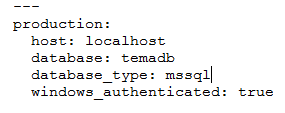
If it was using SQL Server Authentication before, then define the same as what it was defined before using the information from the backup database.yml file as example below.

10) Next, the following "Update Schema" screen will be presented when ILMT is able to access to the existing TEMADB database. Click on Update Schema button to complete the schema update process.
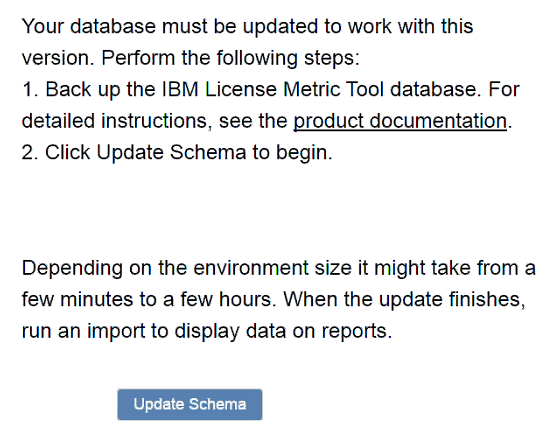
11) The ILMT Home page will be presented with all the existing data from the TEMADB database. Verify the version of ILMT to confirm the information is correct.

Important Note: If the "Missing Software Scan" issue was previously reported in the "Scan Health" (see sample screen shot above) prior performing this technote, the following steps below might be required to synchronise datasources between ILMT/BFI and BigFix Server. It is NOT recommended for large deployment environment as it might cause other issues. Before doing steps below, manually trigger the import task (Management | Data Imports | click on Import Now button) to ensure it is done successfully and then verify the "Missing Software Scan" issue can be resolved as well afterward.
1) From the web browser, enter URL below.

where LMT_BFI is your ILMT or BFI server's hostname and PORT is 9081 by default.
2) Navigate to 'resynchronize_datasources_once' option and set the value to "True" (default is False).
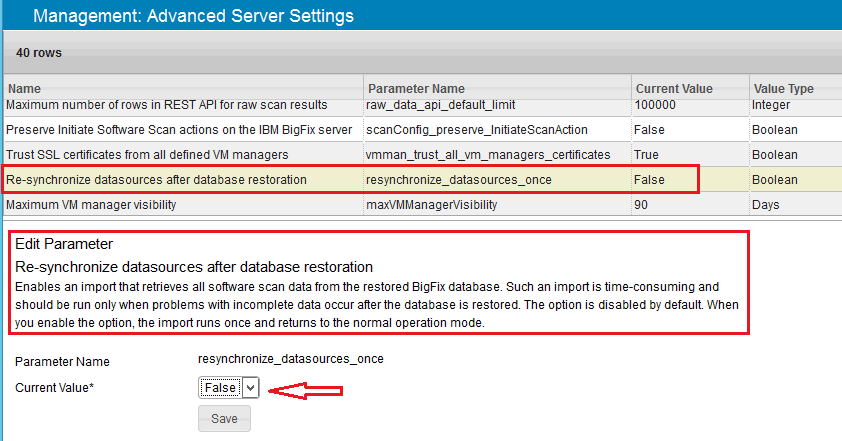
3) Wait for the next scheduled import task is completed successfully, verify the results from the Home page.
4) If the "Missing Software Scans" issue is still persisted, open a new PMR to address this issue.
[{"Product":{"code":"SS8JFY","label":"IBM License Metric Tool"},"Business Unit":{"code":"BU053","label":"Cloud & Data Platform"},"Component":"--","Platform":[{"code":"PF033","label":"Windows"}],"Version":"9.2","Edition":"","Line of Business":{"code":"LOB45","label":"Automation"}}]
Was this topic helpful?
Document Information
Modified date:
26 April 2021
UID
swg21994848