How To
Summary
This article describes how to use the date format correctly to ensure the proper date is displayed.
Steps
We can use the DateFormat function to convert a date expression into a specified format.
For example, if we try to convert the date “12/29/2025” using the formula =DateFormat(value, "MMM YYYY"), we would expect the result to be Dec 2025, matching the original date. However, the conversion behaves differently, and the resulting column instead displays Dec 2026.
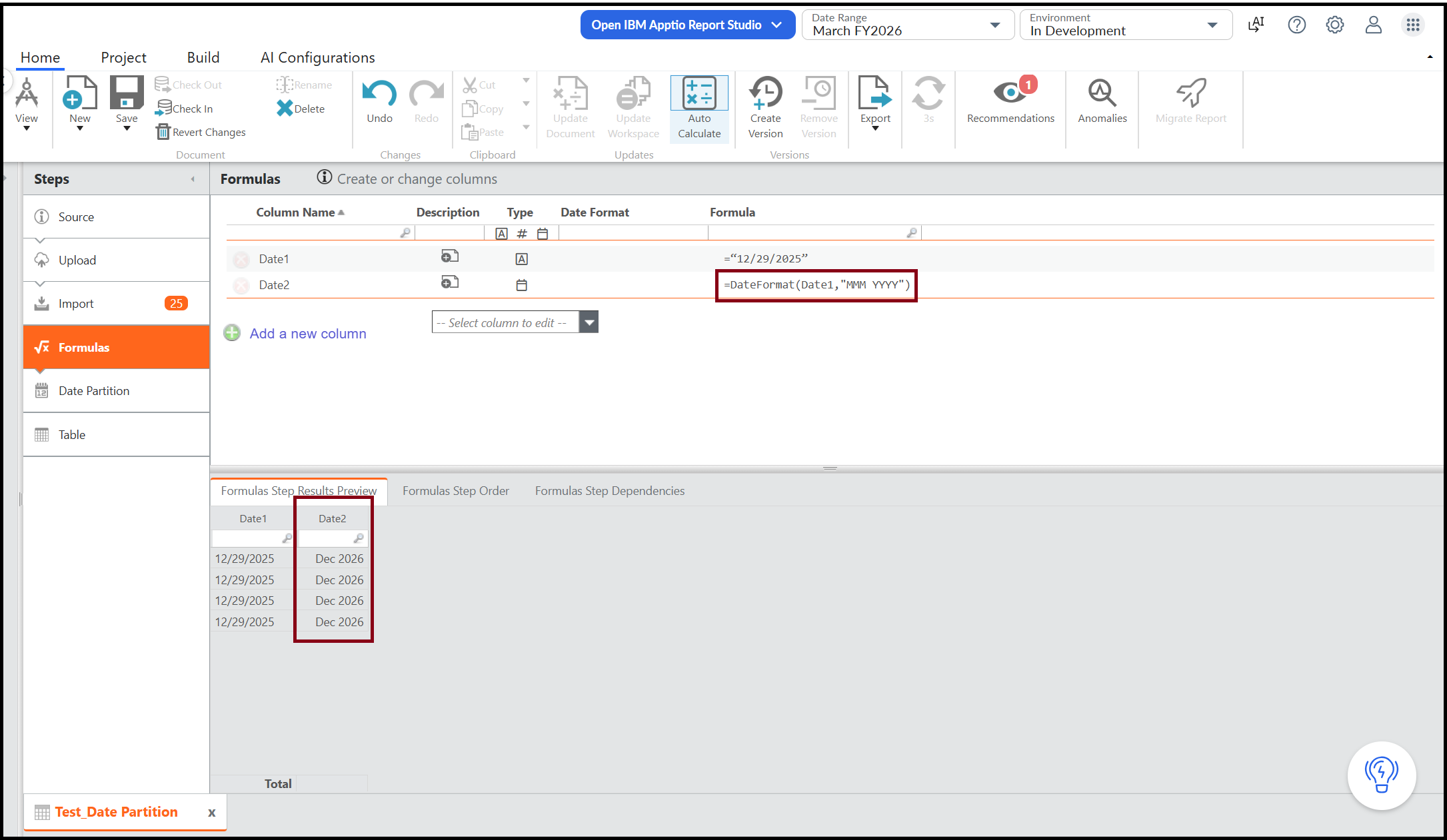
This behavior is expected due to an important distinction between YYYY and yyyy when formatting dates. According to the Java DateTimeFormatter documentation (which follows the ISO-8601 standard):
- y (lowercase) represents the calendar year
- Y (uppercase) represents the week-based year
This difference usually works as expected but can cause issues for dates near the end of a year. In most cases, we should use lowercase yyyy, as it reflects the actual calendar year of the date. In contrast, YYYY refers to the year of the week the date belongs to. For example, the date 12/29/2025 falls in a week that is considered part of 2026, which is why it is displayed as 2026 when using YYYY.
I have updated the conversion formula to =DateFormat(value, "MMM yyyy"), which now generated the expected date result.

Related Information
Document Location
Worldwide
Was this topic helpful?
Document Information
Modified date:
22 June 2026
UID
ibm17274677