Troubleshooting
Problem
Troubleshooting flat panel monitors and crt display issues
Resolving The Problem
- To begin troubleshooting, check the following top issues. If your issue is listed, select the link, otherwise proceed to step 2.
- Check our video troubleshooting document.
- If these steps have not solved your problem:
Refer to your system's Hardware Maintenance Manual, or refer to "Need more help?"

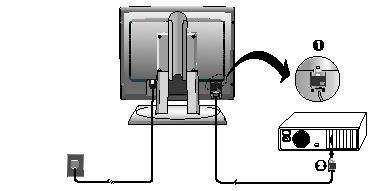
- Ensure that the electrical outlet and the monitor are both switched on.
- Check that the power cord is firmly plugged into the electrical outlet and the power supply unit.
- If the power cord has a removable fuse, replace it.
- Try another power cord.
- Try another electrical outlet.
- Check the power connection at the back of the panel.
 | Back to top |
The Brightness and Contrast may be too low. Adjust the brightness and contrast using the on-screen display controls (OSD) by selecting the button:

| OSD Icon | Description |
|---|---|
 | Adjusts Brightness. |
 | Adjusts Contrast. Note: Not available with digital input. |
| Back to top |
- Press any key on the keyboard or move the mouse to restore operation.
- Check the Power Management software on your computer.
 Press the (OK) key to switch between analog and digital mode. If the panel is the wrong mode for the signal being provided, the monitor appears to go into sleep mode.
| Back to top |
Use the following table as a guideline and reconfigure your computer to use a supported display mode. The highest resolution (for example, 1600 x 1200) produces the optimal output, but limitations of your monitor may prohibit this setting. Adjust the addressability mode until an image appears.
| Addressability | Refresh Rate |
|---|---|
| 640 x 480 | 60 Hz |
| 640 x 480 | 75 Hz |
| 640 x 480 | 85 Hz |
| 640 x 350 | 70 Hz |
| 720 x 400 | 70 Hz |
| 800 x 600 | 60 Hz |
| 800 x 600 | 75 Hz |
| 800 x 600 | 85 Hz |
| 832 x 624 | 75 Hz |
| 1024 x 768 | 60 Hz |
| 1024 x 768 | 75 Hz |
| 1024 x 768 | 85 Hz |
| 1152 x 870 | 75 Hz |
| 1152 x 900 | 66 Hz |
| 1280 x 1024 | 60 Hz |
| 1280 x 1024 | 75 Hz |
| 1600 x 1200 | 60 Hz |
| 1600 x 1200 | 75 Hz |
| Back to top |
The monitor is not receiving a video signal. Perform the following steps to fix the problem:
- Check that the signal cable is firmly connected to your computer.
- Check that no pins are bent in the signal cable connector.
| Back to top |
Note: It is not applicable to digital input.
Use the image setup fix the problem:
 Select (Image Setup) menu in the OSD.
- Select Manual to adjust CLOCK/PHASE settings.
| OSD Icon | Description |
|---|---|
| | Auto. If Auto is selected the image will automatically adjust. |
 | Manual. If manual is selected the user will go the manual adjustment screen. This will allow you to remove any horizontal noise and clear or sharpen the image of characters. |
| Back to top |
 Select (Image Properties) from the OSD menu.
 Select (Color Properties) to adjust the color mode you find most comfortable or fine tune the colors using the Custom menu.
| Custom menu settings | Description |
|---|---|
| Red | Increases or decreases redness |
| Green | Increases or decreases greeness |
| Blue | Increases or decreases blueness |
| Save | Saves settings |
| Back to top |
A small number missing, discolored, or lighted dots may be present on the screen, which is an intrinsic characteristic of the TFT LCD technology and is not an LCD defect.
| Back to top |
The settings adjustable with the user controls are viewed through the OSD. Press the (OK) button to display the main OSD menu.
OSD main menu:

Note: The LCD monitor needs time to become thermally stable the first time you turn it on each day. Thus, to achieve more accurate adjustments for parameters, allow the LCD monitor to warm up (be on) for 15 minutes before making any screen adjustments.
| Back to top |
 | Support forums |
| Submit a technical question |
| Before you call IBM Service |
Document Location
Worldwide
Was this topic helpful?
Document Information
Modified date:
29 January 2019
UID
ibm1MIGR-59143